Voice cloning for your next narration
Record or upload one clear voice, compare the preview, and save it under My Voices. Use your saved voice to read new scripts in ChatCut.
The quick brown fox jumps over the lazy dog, and then it trots home before the rain. I'm recording this so my voice sounds like me.
0:00 Your voices
 Jessica Conversational
 Alex Upbeat
 Hope Upbeat
 James Deep
 Jane Narration
The mic test stays in this browser. Nothing is uploaded.




Trusted by 400,000+ creators
How it works
How to set up voice cloning in My Voices
- 01
Start with your narration plan
Write your request on this page, open ChatCut, and sign in free. Choose + → Voices → Clone Voice, confirm the voice-rights notice, and select the recording language.
- 02
Create and review the preview
Select Start recording and read the displayed text, or choose Upload audio. Compare Cloned voice preview with Original audio; change the preview text and use Regenerate preview if needed.
- 03
Save, attach, and generate
Enter a voice name and select Save. With an active paid membership, attach it from My Voices, add the script and placement instructions, and send to generate narration.
Why ChatCut
What voice cloning saves for your next script
-
Record or upload a reference
Open Clone Voice to read the displayed text or upload a single-speaker recording. The My Voices guide gives both entry paths and the voice-rights notice.
-
Work from a short sample
Use 10 seconds to 3 minutes of reference audio, up to 25 MB. At least 30 seconds is recommended; a clean sample is more useful than one filled with music or other speakers.
-
Compare before saving
Listen to Cloned voice preview and Original audio in the same flow. Keep the window open until the preview is ready, then judge the result against the speaker you actually recorded.
-
Test a different passage
Edit the preview text and select Regenerate preview before you commit to a saved voice. Include words that resemble the narration you intend to make.
-
Name a reusable voice
Select Save to keep the result under My Voices. Check the cloning window for your account’s current saved-voice limit rather than assuming an unlimited library.
-
Use it with a new script
Attach the saved voice to an AI narration request, with language, delivery, and placement. Generating that narration requires an active paid membership and uses credits.
Tips
Prepare a usable sample for voice cloning
Prepare a clear recording of one authorized speaker, then compare the preview before saving the voice.
-
Confirm permission for the voice
Use your own voice or obtain explicit permission to clone and use it so the reference matches the authorized speaker.
-
Prepare a quiet reference
Listen to the actual recording and remove background music from the source selection so the intended speaker is easy to hear.
-
Compare the preview before saving
Alternate between original audio and the cloned preview using representative words so you can check pronunciation and delivery before saving.
Use cases
Voice cloning in a narration workflow
-
Recurring narrated updates
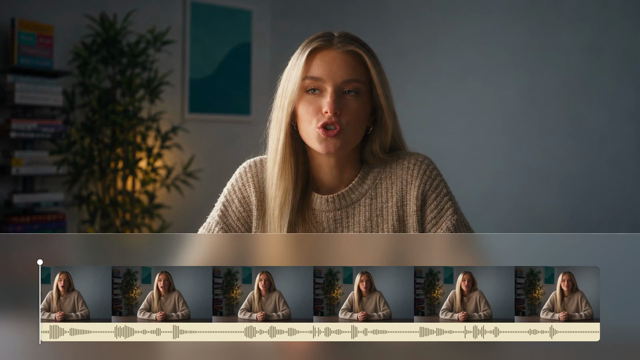
Use your saved voice to read the next update, then review it against the latest visuals. Arrange narration and footage together so the reading stays in step with the story.
-
Correct a word in a recorded explanation
Name the mistaken word and its replacement, then audition a compatible saved voice. Replace the short phrase while keeping the surrounding take and timing intact.
Keep editing
Keep the approved reading with your footage
After reviewing the voice, continue with captions, scene timing, and music on the same timeline. The AI voiceover feature describes the narration workflow, and our editing walkthrough shows voice and music as separate tracks in a finished edit.
- Conversational editing
- Text-based editing
- Auto-captions
- Motion graphics
- AI voiceover
- Generate clips
- Noise removal
- Multi-track timeline
-
You Can Now Edit Videos with Grok Bot
Edit with Grok Bot -
How to Make 3× the Content With AI (No Editing Experience)
Turn long videos into shorts -
I Turned One Product Photo Into a Full Ad With ChatGPT
Product ads skill -
How to Create Insane Motion Graphics with Astra 6
AI motion graphics
Skills
Hundreds of skills for any video
100+ Skills. No experience needed. Start in one click.

FAQ
Voice cloning FAQ
Who can set up a personal voice?
Any signed-in account can create a clone of its own voice. Generating narration with My Voices requires an active paid membership and uses credits. Built-in Agent messages also consume credits, as explained in the credits policy.
Which reference file formats are supported?
Upload AAC, FLAC, M4A, MP3, OGG, WAV, or WebM audio up to 25 MB. The reference must be between 10 seconds and 3 minutes, with at least 30 seconds recommended. Choose a clean sample containing only the target speaker.
Can I clone another person’s voice?
Only if you have explicit permission to clone and use that voice. Confirm the rights notice in the flow and use a reference containing only that person. Having access to a recording is not the same as having the speaker’s permission.
Does selecting Save generate my narration?
No, Save creates a reusable entry under My Voices. Select the voice name or Use to attach it to a draft, then provide the script and send. Narration appears as an audio asset, with timeline placement depending on the destination you specified.
How many personal voices can I keep?
Saved-voice slots depend on your plan. The cloning window and Upgrade screen show the live limit for your account. See the Free and Pro guide for the difference between creating a voice and access to custom-voice narration.
Can I use this flow in the web app?
Yes, the manual recording and upload flow is available in ChatCut Web and Desktop. Choose + → Voices → Clone Voice, or Browse all voices → My Voices → Clone Voice. This page opens your request in ChatCut, where you add the reference.
Can a saved voice help fix a short spoken mistake?
The Agent can let you audition compatible saved voices when you ask to correct a specific word or short phrase. Identify the original words and replacement, and provide clear same-speaker audio in the project. The documented correction flow preserves the surrounding take and timing.
How do I export the final reading?
Place the finished narration on the active timeline and select Export → Audio. Web exports MP3; Desktop also offers AAC, FLAC, and WAV. The audio export guide explains the options and review steps.
Related
More voice cloning and narration tools
All AI apps
Audio & voice
- AI voice generator
- Audio editor
- Voice cloning
Captions, text & translation
AI video & images
All free tools
Convert & compress
Edit video
Audio & voice