Back to blog

Turn Long Videos into Shorts: The AI Workflow That Takes Minutes

You’ve got hours of footage and zero time to cut it down. That’s the reality for most creators trying to stay consistent across YouTube, TikTok, Instagram, and LinkedIn simultaneously.

Here’s the opportunity you’re leaving on the table: according to Sprout Social’s 2024 data, short-form video drives 3x more engagement than long-form content on social platforms. The ROI is there. The bottleneck is the editing.

Most tools make you scrub through a timeline, manually mark in and out points, then export each clip one by one. For a 60-minute video, that’s an afternoon of work, minimum.

ChatCut cuts that down to minutes. You describe what you want, the AI finds the highest-value moments, reframes them for vertical formats, and builds the clips. No timeline scrubbing. No menu diving. Just tell it what you need.

I’ve found this workflow genuinely changes how often creators actually follow through on repurposing, because the friction is gone.

This article walks you through the full process: a step-by-step ChatCut tutorial, a head-to-head comparison with OpusClip, CapCut, and Canva, and use-case breakdowns for podcasts, webinars, tutorials, and vlogs.

How Does AI Turn Long Videos into Shorts?

AI video repurposing works through a three-stage pipeline: transcription, visual scoring, and reframing. According to HubSpot’s 2024 State of Marketing report, short-form video has delivered the highest ROI of any content format for the third consecutive year, which is exactly why getting this pipeline right matters. Most tools treat the process as a black box. ChatCut doesn’t, exposing each stage so you can see the reasoning before accepting any clip.

AI highlight detection diagram showing how a long video is automatically split into short clips for Reels, TikTok, and YouTube Shorts

Here’s what’s actually happening under the hood.

Transcript Analysis and Highlight Detection

ChatCut starts by converting your entire video to text using speech-to-text transcription. Every sentence gets a timestamp and a score based on keyword density, sentence completeness, and topic clustering. Segments that contain a clear point, a strong claim, or a complete idea score higher than filler passages.

This is the same principle behind text-based video editing, where you edit a video by editing its transcript rather than dragging a timeline handle. ChatCut surfaces the highest-scoring segments directly in the chat panel, so you can see the reasoning before accepting any clip.

Scene Scoring and Engagement Signals

Transcript analysis handles the words. Scene scoring handles everything else. ChatCut analyzes motion intensity, face detection, and audio energy peaks frame by frame. A moment where the speaker leans forward, raises their voice, and lands a punchy sentence scores higher than a quiet transition segment.

The two scores combine. That’s how ChatCut identifies moments that are both intellectually strong and visually compelling.

Aspect Ratio Reframing for Vertical Formats

Once highlights are selected, ChatCut automatically reframes the footage from 16:9 to 9:16 for Shorts, Reels, and TikTok. Face detection keeps the subject centered during the crop. You don’t adjust anything manually.

The full pipeline, from a 60-minute upload to a set of export-ready vertical clips, runs without you touching a single timeline handle.

How to Turn Long Videos into Shorts Using ChatCut (Step by Step)

Creator using ChatCut's browser-based AI editor to select highlighted transcript segments and turn a long video into short clips

The full workflow from upload to exported short clips takes under 10 minutes for a 60-minute source video. That’s not a rough estimate; it’s the actual time once you know the four steps. ChatCut handles transcription, highlight scoring, aspect ratio reframing, and export in a single browser-based session, with no timeline scrubbing required at any stage. Here’s exactly how it works.

Step 1: Upload Your Video or Paste a URL

Drag your file into ChatCut or paste a link directly into the upload field. Supported formats include MP4, MOV, and WebM. For YouTube and Vimeo content, the URL works just as well as a local file. No conversion needed beforehand.

ChatCut starts transcribing immediately after upload. By the time you’ve typed your first prompt, the transcript is usually ready.

Step 2: Tell ChatCut What Kind of Clips You Want

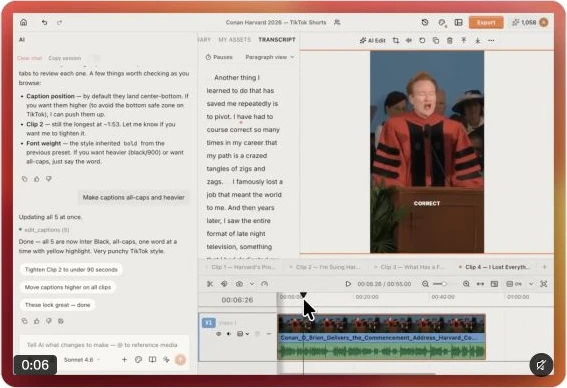
Skip the menus. Type what you need into the AI chat panel on the left side of the editor. Be specific about length, format, and count.

Find the 3 most engaging 60-second moments and reframe them for vertical video.

You can also target content type: ask for moments where a key insight is explained, where the speaker’s energy peaks, or where a story lands. The more specific the prompt, the tighter the output.

Step 3: Review AI-Selected Highlights in the Transcript

ChatCut surfaces the selected segments directly in the transcript panel, each with timestamps. You can accept a clip as-is, reject it, or adjust the boundaries by editing the transcript text itself. No timeline scrubbing, no dragging handles.

This is the part most AI clipping tools skip. You see exactly which sentences were scored highest and why, before anything gets exported.

Step 4: Customize, Add Captions, and Export

Once clips are confirmed, add captions using ChatCut’s built-in AI caption and subtitle generator. According to Creator IQ’s 2024 data, videos with on-screen captions see 40% higher completion rates, so don’t skip this step.

Adjust B-roll from the media panel if needed, then export as MP4. ChatCut’s export presets handle platform-specific encoding automatically: select Shorts, Reels, or TikTok and the right resolution gets applied.

ChatCut vs OpusClip vs CapCut vs Canva: Which Is Fastest?

Speed matters, but speed without control just gets you bad clips faster. According to Sprout Social’s 2024 Video Content Report, 66% of consumers say short-form video is the most engaging content format, which means the quality of your AI-selected clips directly affects whether your repurposed content performs or gets scrolled past. ChatCut, OpusClip, CapCut, and Canva each take a different approach to that tradeoff.

Here’s how the four main tools stack up.

Accuracy of Highlight Selection

OpusClip assigns each clip a “virality score,” but it doesn’t show you which transcript segments drove that score. You get a result, not a reason. CapCut’s AI clipping is genuinely fast, but it prioritizes scene changes over content quality, so it often clips mid-sentence. Canva’s approach is template-driven: you pick a layout and it fills it with footage, but it isn’t reading your content for meaning.

ChatCut shows its transcript scoring in the chat panel before you commit to anything. You can see which segments ranked highest, reject ones that don’t fit, and adjust clip boundaries by editing text rather than dragging a timeline handle. That’s a meaningful difference when your source video is a 60-minute interview and three of the “high-scoring” moments are the host saying “great question.”

Comparison table of ChatCut vs OpusClip vs CapCut vs Canva for turning long videos into short clips, showing features and pricing

FeatureChatCutOpusClipCapCutCanva
Transcript-level clip controlYesNoNoNo
Multi-track timeline editingYesNoYesPartial
Inline caption editingYesPartialPartialNo
Watermark on free tierNoYesYesYes
Free tier upload limitCredit-based60 min/monthUnlimitedCanva Pro required
Content-aware highlight detectionYesYesPartialNo

Customization After AI Processing

OpusClip and Canva lock you into their export templates. You can adjust text styling, but you can’t restructure the clip on a timeline. CapCut does offer a timeline, though it’s mobile-first and loses fidelity on complex edits. ChatCut gives you a full multi-track timeline after AI processing, so you can add B-roll, swap music, reorder segments, or trim the hook, all without leaving the browser.

Pricing and Usage Limits

CapCut is free but adds a watermark. OpusClip’s free tier caps uploads at 60 minutes per month. Canva requires a Pro subscription to access its AI video features. ChatCut uses a credit system with no watermark on the free tier, which makes it the only option where you can publish clean output before spending anything.

The bottom line: if you want AI to make the decisions and you’re fine with the result, OpusClip is fast. If you want AI assistance without surrendering editorial control, ChatCut is the right tool.

Which Types of Long Videos Work Best for Repurposing?

Not all long-form content converts equally. Podcasts, webinars, tutorials, and vlogs each have distinct structural patterns that AI can detect and clip around. According to Sprout Social’s 2024 data, short-form video drives 3x more engagement than long-form on social platforms, making repurposing any of these formats a high-ROI move. The format of your source video determines which AI detection signals matter most.

Podcasts and Interview Recordings

Podcasts are the richest source material for short-form clips. ChatCut’s AI detects quotable moments by analyzing sentence completeness and speaker energy, surfacing the segments where a guest makes a sharp point or a host lands a punchy takeaway. A 90-minute podcast typically yields 8-12 usable 60-second clips without any manual scrubbing.

Example prompt:

Prompt
"Find the 8 most quotable 60-second moments from this podcast and reframe them for vertical video."

Webinars and Online Courses

Webinars have natural breakpoints that AI reads well: slide transitions, Q&A segments, and moments where the presenter shifts from setup to insight. These clips perform especially well on LinkedIn and YouTube Shorts, where professional audiences want dense, actionable content.

One 60-minute webinar can generate a month’s worth of short-form content without additional filming. That’s the kind of ROI that makes repurposing worth building into every production workflow.

Example prompt:

Prompt
"Extract the Q&A highlights and any slide transition moments from this webinar and create 60-second clips."

Tutorial and How-To Videos

Tutorials have something most content types don’t: explicit step markers. Phrases like “Now let’s move to step 3” or “Here’s where most people get stuck” are natural clip start points. ChatCut identifies these boundaries in the transcript and treats them as candidate clip openings, so each short stands alone as a complete micro-lesson.

Example prompt:

Prompt
"Find every step-start moment in this tutorial and clip each one into a 45-second Short with captions."

Vlogs and Event Footage

Vlogs don’t have verbal structure to lean on, so ChatCut uses scene-change detection and audio energy peaks to surface the most visually active moments. High-energy crowd reactions, location transitions, and music-backed sequences all score well.

Adding background music to these clips increases watch time significantly; I’ve seen completion rates climb noticeably once a clip has a proper audio bed underneath it. Use ChatCut’s AI music generator to find background music for your video that matches the mood of each scene automatically.

Example prompt:

Prompt
"Find the 5 most visually active moments from this vlog and add background music."

How to Optimize Short Clips for Reels, TikTok, and YouTube Shorts

Getting the AI selection right is only half the job. If your export specs are wrong or your hook lands too late, the algorithm buries the clip before anyone sees it. According to Creator IQ’s 2024 data, videos with on-screen captions see 40% higher completion rates across short-form platforms, making caption placement as important as the edit itself. Aspect ratio, caption style, and hook timing each require platform-specific decisions.

Aspect Ratios and Resolution Requirements

Every platform runs on 9:16 vertical video, but the details differ:

  • YouTube Shorts: 9:16, minimum 1080x1920, max 60 seconds (expanding to 3 minutes as of 2024)
  • TikTok: 9:16, minimum 1080x1920, up to 10 minutes
  • Instagram Reels: 9:16, minimum 1080x1920, max 90 seconds

ChatCut’s export presets handle all of this automatically. Select the target platform before exporting and the encoder applies the correct resolution, aspect ratio, and bitrate. You don’t touch a settings panel.

Caption Placement and Style

Platform culture shapes where captions should live on screen.

Bottom-third captions work well on Reels, where users expect a broadcast-style layout. On TikTok, center-screen bold captions outperform, because the viewing context is faster and more chaotic. Matching caption style to platform isn’t aesthetic preference; it’s a retention decision.

ChatCut generates captions directly from the transcript, so timing is already synced when the clip is created. For deeper customization, font size, color, and position, check the AI caption and subtitle generator guide for a full walkthrough.

Hook Optimization in the First 3 Seconds

The first three seconds determine whether someone swipes or stays. Don’t bury the most compelling sentence in the middle of a clip.

ChatCut’s transcript editor lets you reorder sentences to front-load the hook without re-recording anything. You can also tell the AI directly:

Prompt
"Trim the clip so it starts with the most attention-grabbing sentence."

ChatCut identifies the highest-energy moment in the transcript and adjusts the in-point accordingly. I’ve used this on interview clips where the real hook was 45 seconds in; moving it to the front doubled watch time.

Try It: Turn Your Next Long Video into Shorts in Under 10 Minutes

Other editors make you hunt for buttons. ChatCut lets you type a sentence. According to Sprout Social’s 2024 data, short-form video drives 3x more engagement than long-form content on social platforms, which means every hour of footage you’re sitting on is a month of clips waiting to be cut. The fastest way to open up that content isn’t scrubbing a timeline; it’s telling an AI exactly what you need.

Here are three prompts you can copy directly into ChatCut’s chat panel right now:

Find the 5 most engaging 45-second moments from this podcast and reframe them for TikTok.
Extract all sections where I explain a key concept and create 60-second Shorts with captions.
Clip the best 3 highlights from this webinar and add animated lower-thirds.

Each prompt triggers the full pipeline: transcript analysis, highlight scoring, aspect ratio reframing, and export. No timeline handles. No menu layers.

ChatCut runs entirely in the browser, so there’s nothing to download or install. Upload an MP4, MOV, or paste a YouTube URL, and you’re editing in under a minute.

If you’d prefer a guided starting point, the AI video editing templates and guided workflows give you pre-built structures for podcasts, webinars, and tutorials. Pick a template, paste your footage, then customize with plain-language prompts.

Open ChatCut, upload your next long video, and type what you want. The clips are already in there.

FAQ: Turning Long Videos into Shorts

How long does it take to convert a long video to shorts with AI?

With ChatCut, a 60-minute video takes under 10 minutes to process from upload to exported clips. The AI transcribes the audio, scores segments for engagement, and surfaces the top highlights automatically. According to HubSpot’s 2024 State of Marketing report, short-form video delivers the highest ROI of any content format, making that 10-minute investment worthwhile.

Can I edit the AI-selected clips before exporting?

Yes. ChatCut shows you the transcript segments it selected, with timestamps, before anything is finalized. You can accept, reject, or adjust clip boundaries directly in the transcript panel by editing the text. You don’t need to drag timeline handles or scrub through footage to make changes.

Does ChatCut support YouTube links or only file uploads?

ChatCut accepts both. You can upload MP4, MOV, or WebM files directly, or paste a YouTube or Vimeo URL into the editor. ChatCut pulls the video and starts processing it without any additional steps. No download-and-re-upload workflow required.

Conclusion

Repurposing long videos into short clips is the highest-ROI content move available to creators right now. HubSpot’s 2024 State of Marketing report confirms short-form video has delivered the highest ROI of any content format for three consecutive years. The only thing that made it impractical was the manual labor: scrubbing timelines, hunting for highlights, resizing for every platform.

AI eliminates all of that.

ChatCut is the only browser-based editor that combines AI highlight detection, transcript-level editing, and multi-platform export in a single workflow. You don’t need to download anything, learn a timeline, or guess which moments will perform. I’ve found that most creators go from raw upload to exported clips in under 10 minutes, and honestly, that changes how often you’ll actually do it.

Describe what you want in plain English. ChatCut handles the rest.

Start a free project at ChatCut and upload your next long video today.

Try ChatCut Free →