Merge videos into one MP4

Join 2–10 clips in the order you choose, with their original audio. Everything runs in your browser; the first clip sets the output size.

Drop videos here

MP4, MOV, WebM · browser-supported codecs · Up to 2 GB on a computer

This browser can't run the tool

Clip order Use the arrows to move a clip. The first clip sets the output size.

    2–10 clips · up to 3 minutes total · 512 MB combined · up to 1080p. Original audio is kept; different aspect ratios get black bars.

    Combining videos…

    Runs on your device. Keep this tab open.

    Done on your device

    Download

    ChatCut opens in a new tab with your request. Add your file there.

    • No upload
    • No sign-up
    • No watermark

    Trusted by 400,000+ creators

    Why ChatCut

    Why merge videos with ChatCut

    • One continuous file

      Join 2–10 clips end to end instead of sending a folder of separate takes.

    • Set the sequence

      Move clips up or down before merging. The numbered list is the final playback order.

    • Match the first clip

      Use the first clip’s dimensions for every shot. Different aspect ratios fit inside black bars without cropping.

    • Keep the original sound

      Audio follows each clip. Clips without audio stay silent for their full length.

    • A downloadable MP4

      Save an H.264 video with AAC audio where present. Re-encoding can change the file size and visual quality.

    • Local processing

      Your clips stay in this browser tab. No account, upload, or watermark is needed for this merge.

    How it works

    How to merge videos into one file

    1. 01

      Choose your clips

      Select 2–10 videos totaling up to 3 minutes and 512 MB. Each clip must be 1080p or smaller.

    2. 02

      Arrange the order

      Use Up and Down to set the sequence. Put the clip with your preferred output dimensions first.

    3. 03

      Merge and download

      Run the merge, preview the result, and save the MP4. Add it in ChatCut for further edits.

    Learn

    Merge videos with consistent picture and sound

    Choose the first clip for its dimensions

    The first clip in the ordered list sets the width and height of the combined result. Moving a different recording into first place can therefore change the framing of every later shot. Each clip fits inside that rectangle without cropping or stretching; black bars fill any unused area when shapes differ. Put a landscape recording first for a wide output, or a portrait recording first for a tall one. Review the sequence again after changing the order, especially when it contains several aspect ratios.

    Keep audio aligned across silent sections

    Supported sound follows each clip into the final file. Audio is decoded and encoded as AAC, with a common stereo, 48 kHz output. A recording without audio still occupies its full time range, leaving a silent section before the next clip begins. If a source has an audio track the browser cannot decode, the merge stops and asks for a supported file or a muted version. This joiner does not add background music or blend the sound across the cuts.

    Prepare clips before building the sequence

    The tool places complete clips end to end with straight cuts. Remove unwanted opening pauses or endings before joining if you want each shot to start immediately. The selection accepts two to ten videos with a combined duration of up to three minutes and a combined size of 512 MB. Each input also needs to pass the resolution and codec checks. A small total file size does not override a clip that is too large in pixel dimensions or cannot be decoded.

    Expect a newly encoded MP4

    The merge creates H.264 video rather than simply placing the original compressed tracks in a new container. Frames are drawn into the shared output dimensions, and supported sound is encoded as AAC when present. This makes one downloadable MP4, but it can change quality and file size. Keep the individual sources for later revisions. Review the first shot, each transition between recordings, and the final shot so that framing changes, silent gaps, or an unintended order are caught before sharing.

    Use cases

    When to merge videos into one file

    • Tutorial steps

      Put separate screen recordings in the order viewers need to follow.

    • Event highlights

      Join short moments into one continuous recap.

    • Product angles

      Combine front, detail, and in-use shots into a single demonstration.

    Keep editing

    Build the rest of the edit in ChatCut

    Add the merged MP4 in ChatCut to trim it, add captions for spoken audio, or place your own music underneath. Manual timeline editing does not use credits; AI music generation does.

    New on YouTube Seedream 5.5 Is Now in ChatCut Seedream 5.5 in ChatCut
    More from our channel All videos

    Skills

    Hundreds of skills for any video

    100+ Skills. No experience needed. Start in one click.

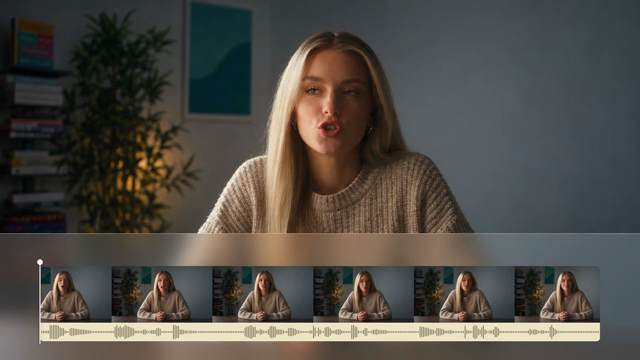
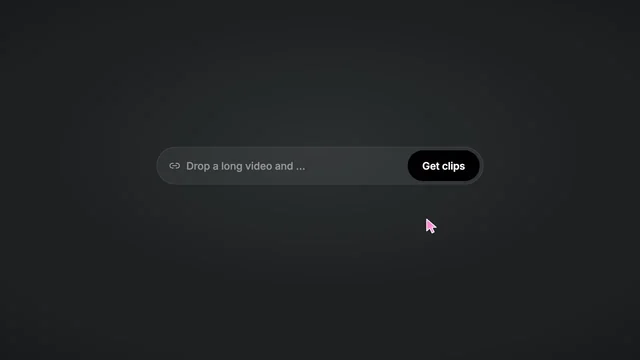
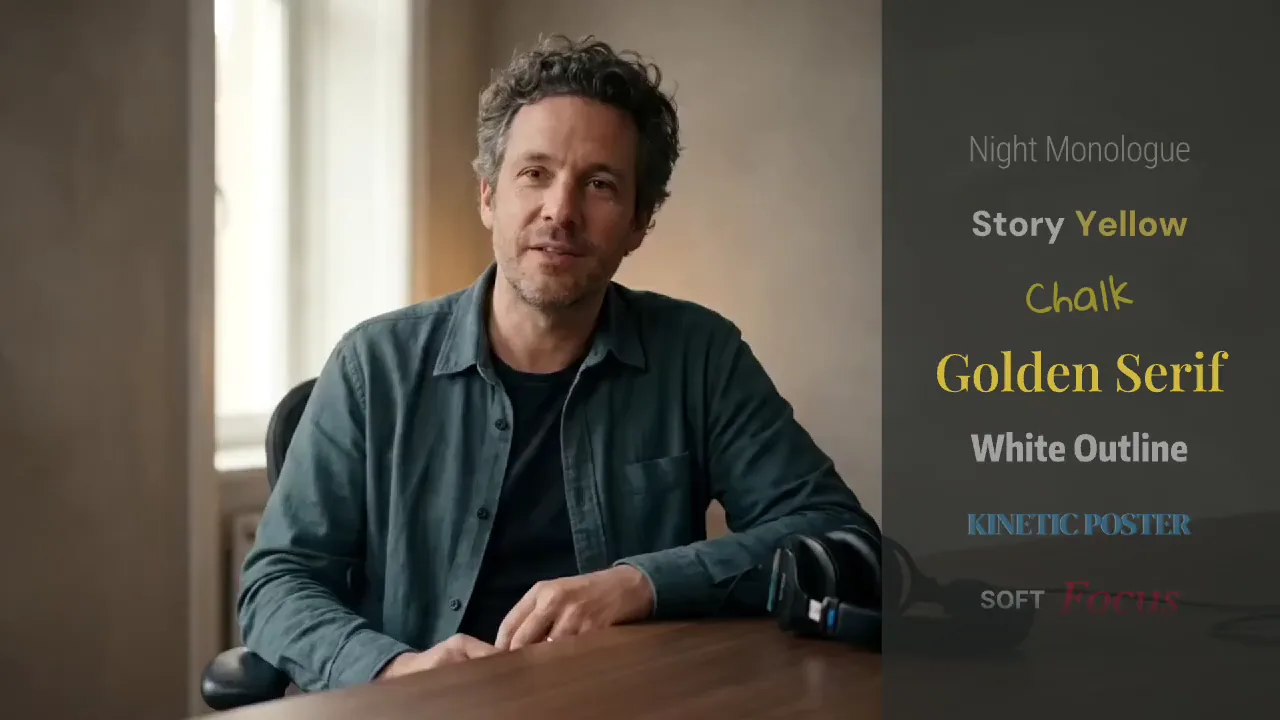
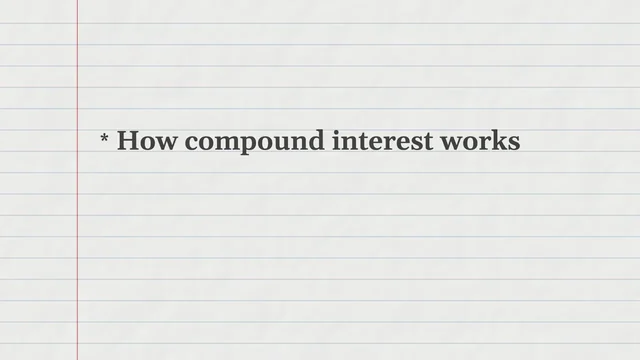
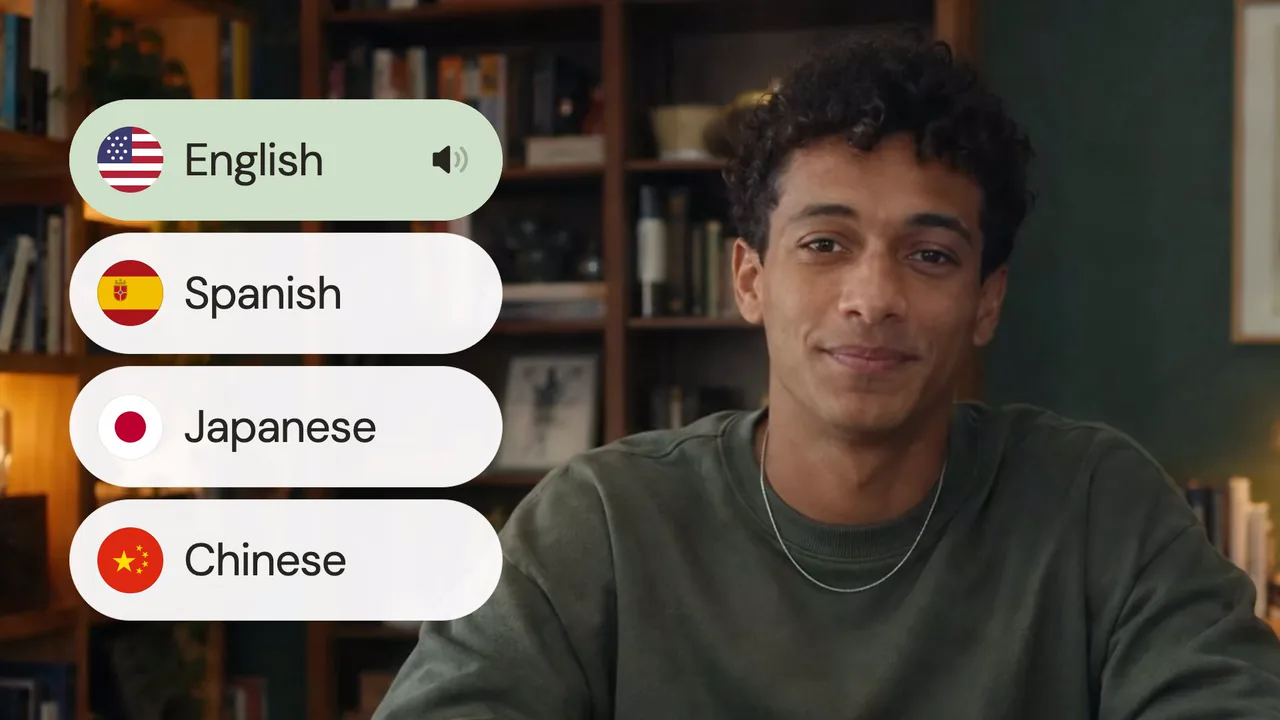
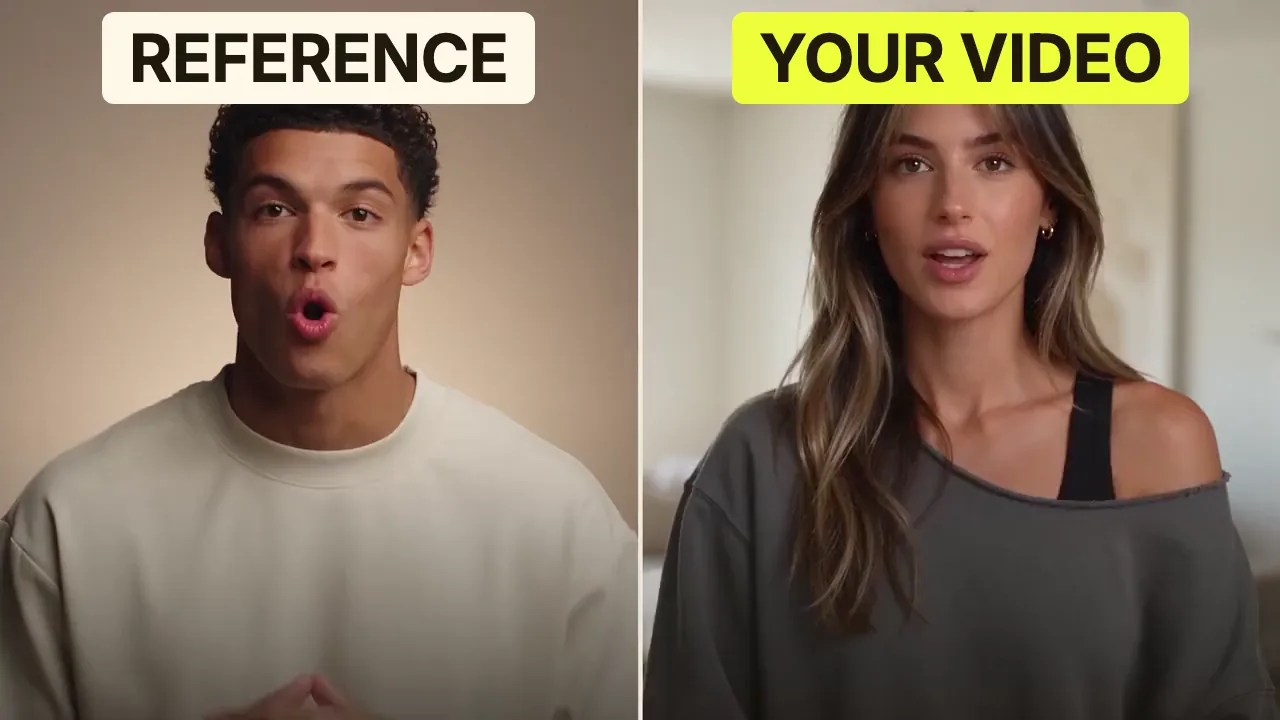
    Speech CleanupUpload your talking-head footage. ChatCut automatically cuts out verbal slips, repetition and awkward pauses, keeping your delivery natural and seamless.Long video to shortsPaste a video link or upload a file. ChatCut plans the edits and polishes each clip, turning your long video into multiple short videos ready to publish on their own.Add captionsUpload your talking-head video. ChatCut automatically recognizes the speech, generates captions and applies your selected caption style.Motion Graphics StylesUpload a talking-head video and get motion graphics in the Editorial Explainer style added automatically: notebook chapter pages, grey-paper data charts and yellow highlighter marks, alternating with your on-camera shots like a news explainer. Good for news explainers, current affairs and data stories. If the footage has obvious flubs, repeats or long pauses, it cleans them up first, then packages it. You get a packaged, editable timeline ready to tweak and export. Works best with clear audio and one presenter.Editorial ExplainerVideo TranslationUpload a video and choose a target language. ChatCut automatically translates and dubs the speech, syncs lip movements, preserves the original voice and adds captions as needed.Talking-Head Edit RecreationEdit your talking-head footage with the cuts and styling of a reference video. Share a talking-head video you like (upload it or paste a link), then add your own recording. AI breaks down the reference's pacing, captions and on-screen text, motion graphics, B-roll, framing and sound, and applies them to what you say. You get a finished video and an editable project. It uses your own footage throughout, with no face swaps or generated shots.

    FAQ

    Merge videos FAQ

    How do I join clips into one file?

    Choose at least two videos, arrange their order, and start the merge. Download the finished MP4 when the preview appears.

    Can I combine portrait and landscape videos?

    Yes. Every clip fits inside the first clip’s dimensions, with black bars when the aspect ratios differ. The tool does not crop or stretch the image.

    Will the merged video keep its sound?

    Yes, supported audio is kept and encoded as AAC. A clip with no sound leaves a silent section instead of shifting the next clip’s audio.

    Can I rearrange clips before merging?

    Yes. Use the Up and Down buttons in the clip order list. Moving a different clip to first place also changes the output dimensions.

    Is the video joiner free and private?

    This browser tool is free and needs no sign-up. It processes your files on your device and adds no watermark.

    What are the limits?

    Choose 2–10 clips totaling no more than 3 minutes or 512 MB. Each video must be no larger than 1920 × 1080 or 1080 × 1920, and its codec must be supported by your browser.

    Does merging reduce quality?

    The tool re-encodes the video to create one consistent MP4, so quality and file size can change. Keep your originals if you plan to make further edits.

    Can I add transitions or a soundtrack?

    This tool joins clips with straight cuts. Download the result and add it in ChatCut to continue editing or place a music file on the timeline.