Convert video to text, free
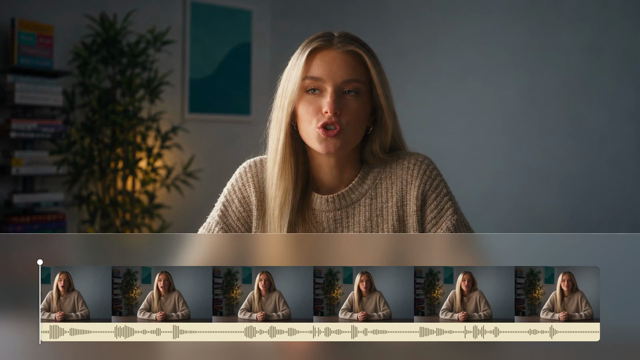
Upload a video and ChatCut turns its speech into an editable transcript, timed to every word. Transcription uses no credits.
Speaker 1 00:00 I think it's self-realization, so I'm constantly aware of my habits, I'm constantly aware
00:05 of my mental thoughts, I'm constantly aware of people that I hang out with,
00:08 and in fact you kind of develop an awareness for the world.
00:11 It's not an intuitive awareness, it's a proactive awareness.
1
00:00:00,060 --> 00:00:02,090
I think it's self-realization, so I'm

2
00:00:02,090 --> 00:00:04,480
constantly aware of my habits, I'm

3
00:00:04,480 --> 00:00:06,200
constantly aware of my mental thoughts,

4
00:00:06,200 --> 00:00:07,770
I'm constantly aware of people that

5
00:00:07,770 --> 00:00:08,870
I hang out with, and in

6
00:00:08,870 --> 00:00:10,120
fact you kind of develop an

7
00:00:10,120 --> 00:00:12,150
awareness for the world. It's not

8
00:00:12,150 --> 00:00:14,720
an intuitive awareness, it's a proactive

9
00:00:14,720 --> 00:00:15,280
awareness.
Real output for this 15-second clip. Yours is transcribed free in ChatCut.




Trusted by 400,000+ creators
How it works
How to transcribe video to text
- 01
Open ChatCut with your request
Write what you need on this page, open ChatCut, and sign in free with Google or an email code. Add the recording in the editor after signing in.
- 02
Upload and turn on Captions
Choose My Assets → Upload → Files…, select your video, and drag the processed asset onto the Timeline. Select Captions in the playback controls and wait for transcription.
- 03
Review and export the text
Open Transcript, check the words and speakers, then choose Export → Subtitles. Select plain text (.txt) or SubRip (.srt) after every clip on the active caption track finishes transcribing.
Why ChatCut
Why transcribe video to text in ChatCut
-
Words that stay tied to the recording
Click a word in the Transcript panel to move the player to its start. Text-based editing keeps the passage beside the footage you need to check.
-
Speaker labels you can correct
Double-click a speaker label to rename it, reassign selected words, or merge two speakers. Check introductions before putting a name against a quote.
-
Text for notes or timed subtitles
Choose TXT for reading and SRT for timed cues. The file follows the active caption track, including a translation if you selected one.
-
Corrections and cuts in one panel
Use Edit text for a spelling correction. Deleting a transcript passage cuts its corresponding time range from the selected track, so listen through the join afterward.
-
Captions from the same speech
Turn on captions, pick a style, and adjust individual words. The AI captions feature explains how text and the video work together.
-
No transcription credit charge
Uploads, transcription, manual editing and export do not consume credits. Asking the Agent to carry out the work uses conversation credits under the credits policy.
Tips
Transcribe video to text you can actually reuse
Choose the speech source and intended output before correcting or exporting the transcript.
-
Select the dialogue track
Choose the intended video or audio source and play a familiar passage so you review the correct recording.
-
Correct words without cutting speech
Use Edit text for transcription mistakes so a spelling correction preserves the spoken moment.
-
Match the export to its purpose
Choose TXT for notes or SRT for timed captions, then confirm the active source so the export fits its destination.
Use cases
Ways to use video to text in your next edit
-
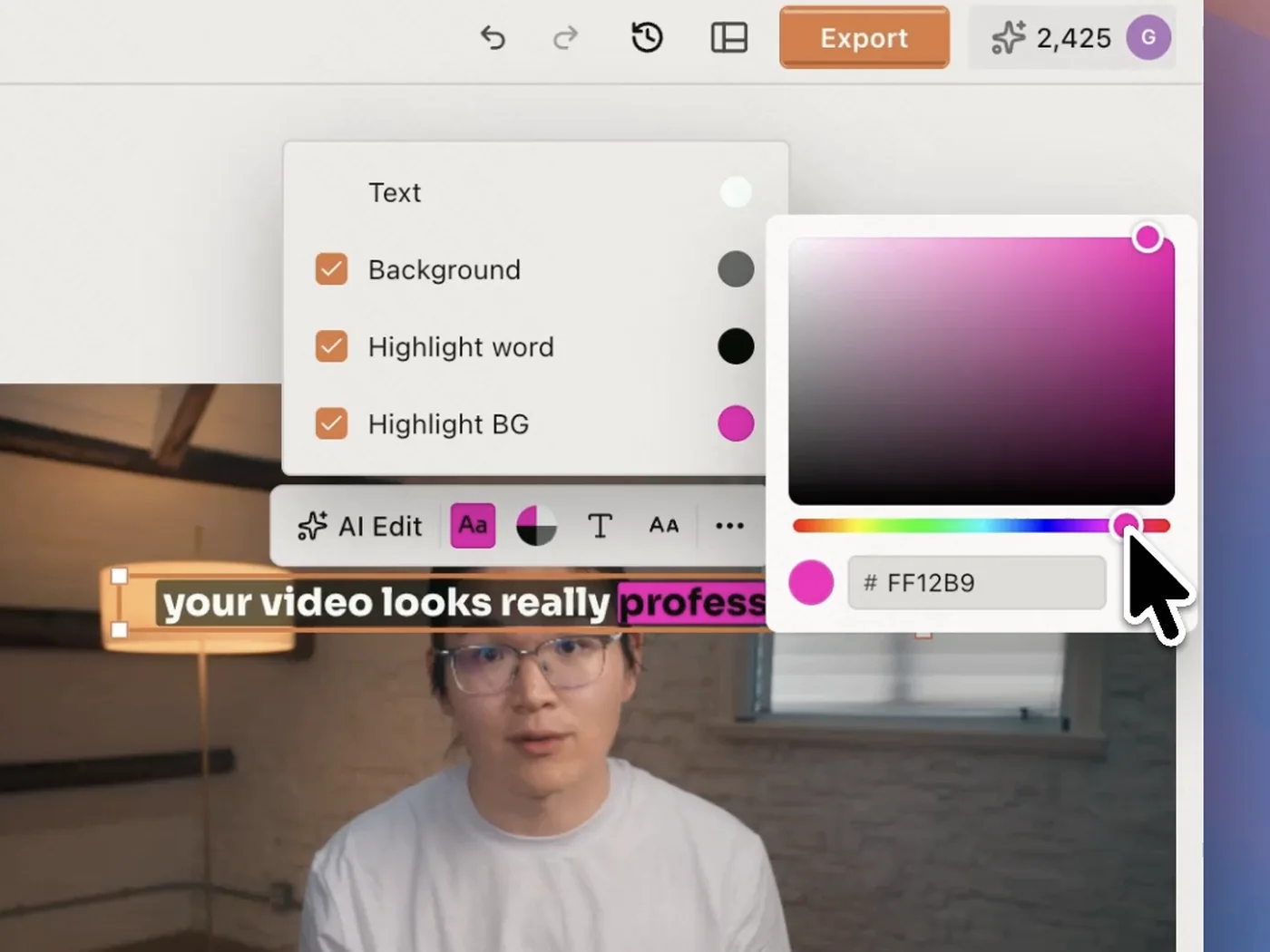
Readable captions for a recorded lesson
Reuse the transcript as captions and emphasize the words learners need to notice. Adjust individual word highlights to draw attention to a term as it is spoken.
-
A transcript for another audience
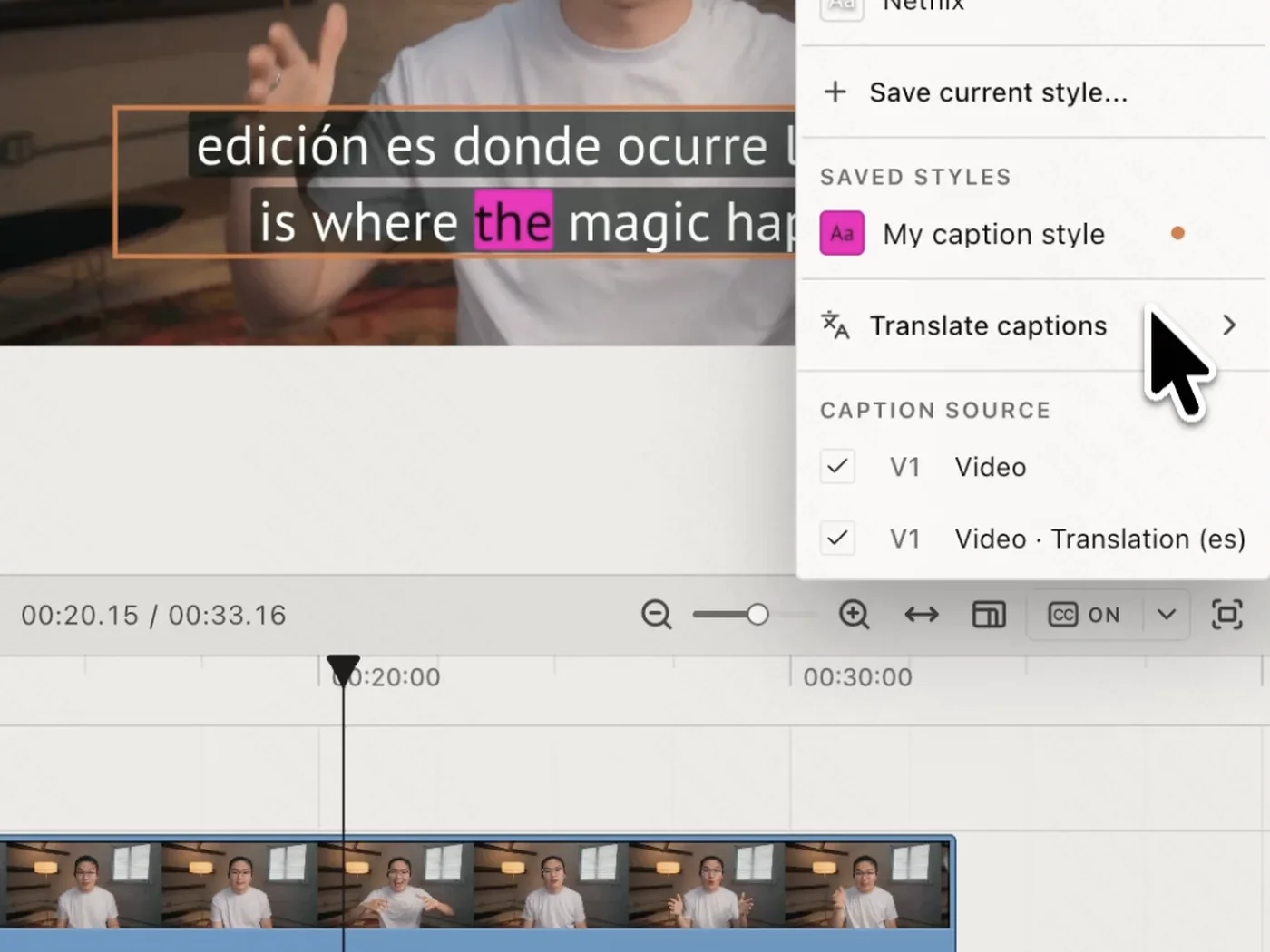
Translate the caption source after checking the original wording, then select the translation when exporting. Keep original and translated captions together when your audience needs both.
-
A consistent look across interview clips
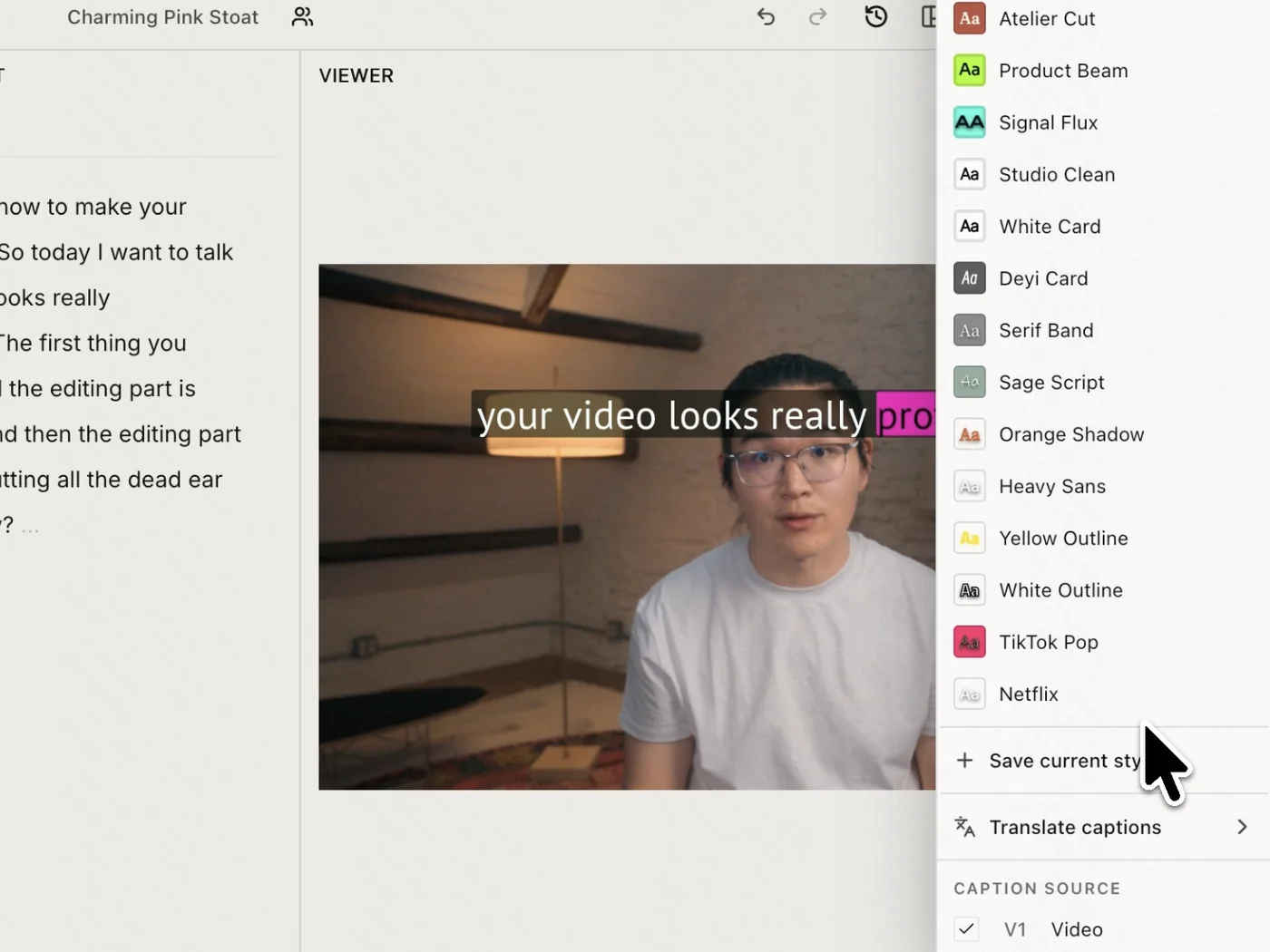
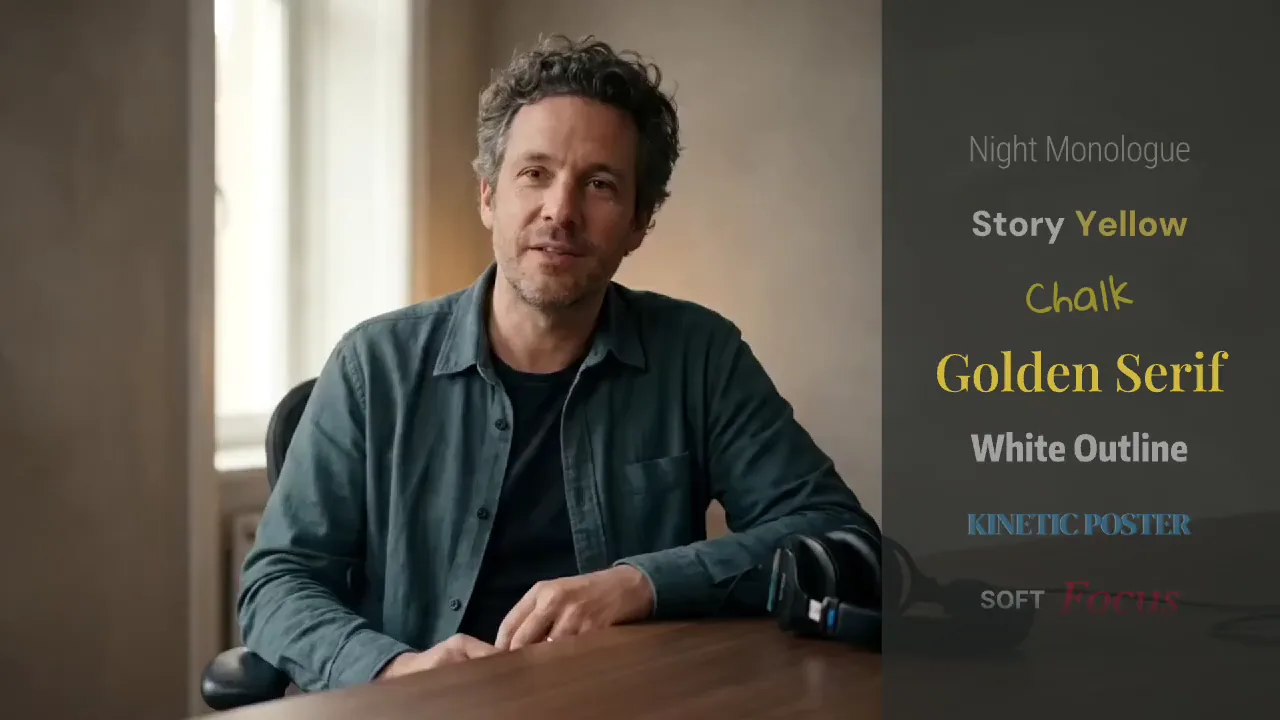
Once the words are right, choose a caption preset that remains readable over the footage. Reuse the same style across an interview series so each excerpt feels familiar.
-
Source review before writing notes
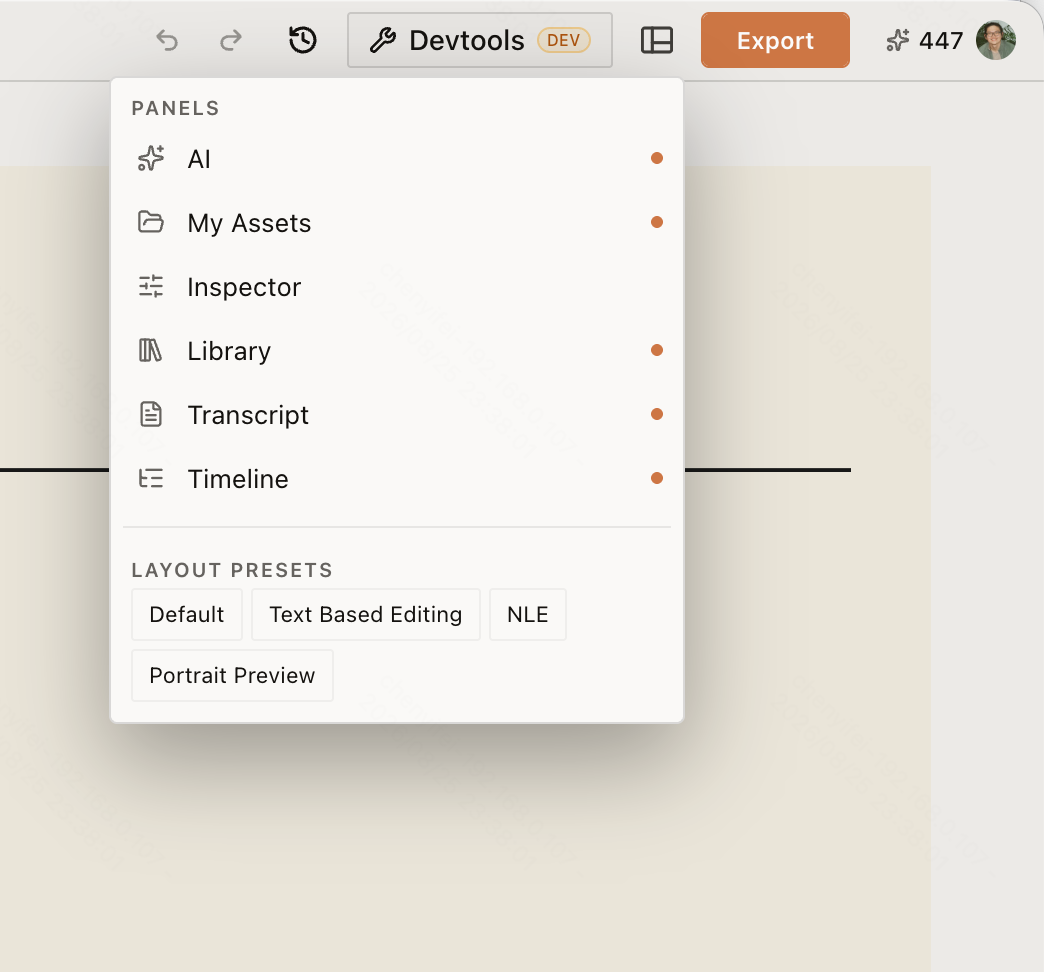
Open Transcript and Timeline from the Workspace menu to check each passage against its recording. Confirm the wording before turning a quote into summary notes.
Keep editing
Keep editing the recording in ChatCut
Use the transcript to locate a quote or prepare captions. Follow the speech editing workflow when you want to remove unwanted passages. For a standalone recording, start with audio transcription.
- Conversational editing
- Text-based editing
- Auto-captions
- Motion graphics
- AI voiceover
- Generate clips
- Noise removal
- Multi-track timeline
-
You Can Now Edit Videos with Grok Bot
Edit with Grok Bot -
How to Make 3× the Content With AI (No Editing Experience)
Turn long videos into shorts -
I Turned One Product Photo Into a Full Ad With ChatGPT
Product ads skill -
How to Create Insane Motion Graphics with Astra 6
AI motion graphics
Skills
Hundreds of skills for any video
100+ Skills. No experience needed. Start in one click.
FAQ
Video to text FAQ
Is converting video to text free in ChatCut?
Yes. Transcription, uploads, manual caption editing and exporting TXT or SRT do not use ChatCut credits; a free account includes these core tools. The request on this page opens an Agent conversation, whose messages use credits based on usage. Doing the manual steps yourself uses none.
What files can I transcribe?
Video in MP4, MOV, WebM, MKV, AVI or TS, and audio in MP3, WAV, AAC, FLAC or OGG. For broad compatibility, use H.264 video in MP4 or WAV/MP3 audio. A recognized extension does not guarantee every codec will decode; see supported formats.
How do I download the transcript?
Turn on captions and wait until every clip on the active caption track finishes transcribing. Open Export → Subtitles and choose plain text (.txt) or SubRip (.srt). Select a translation first if that is the text you want to download.
Can I edit the transcript before exporting?
Yes. Select words in Transcript and choose Edit text to correct them, or Change speaker to assign them to the right person. The caption Content panel also offers search and replace. Deleting Transcript words cuts that part of the recording.
Does it label who is speaking?
The Transcript panel shows speaker labels. Double-click a label to rename the speaker, reassign selected words, or merge two speakers into one. Review the recording before attributing an important quote.
Which languages can it transcribe?
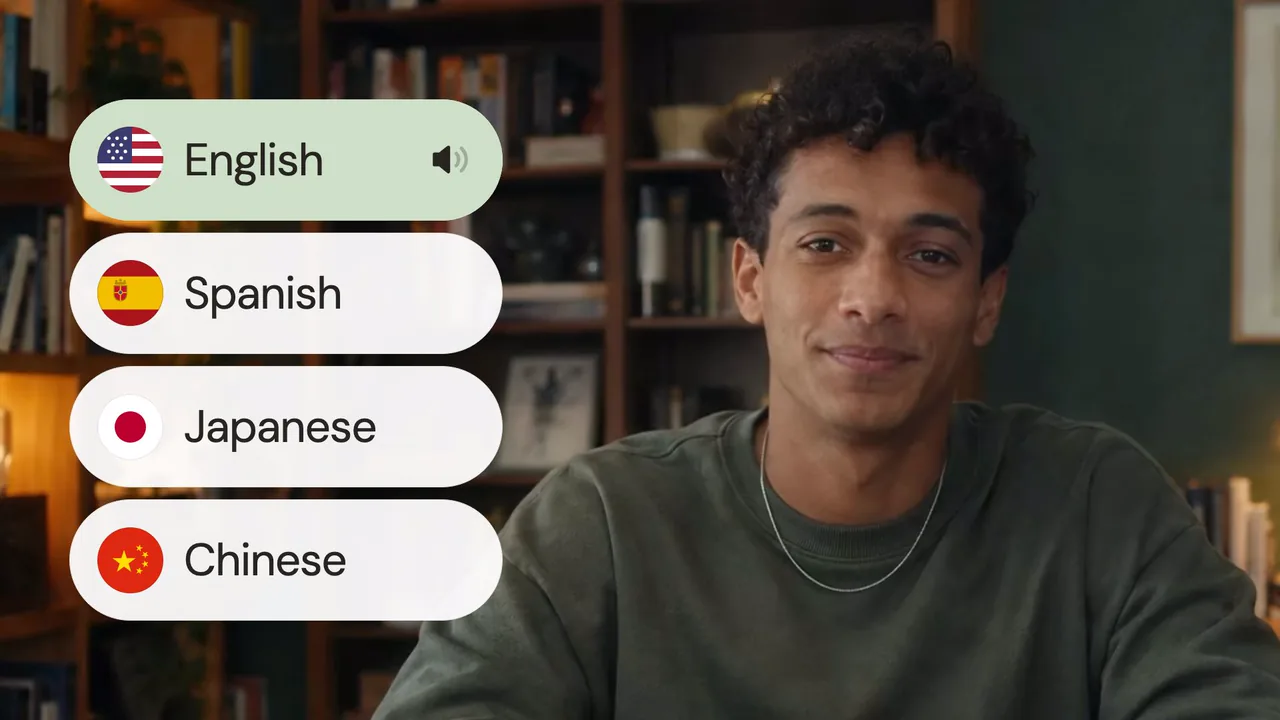
Speech stays in its spoken language, including English, Chinese, Spanish and Japanese. Other languages keep their wording as transcribed; a caption style does not translate it. To publish in another language, translate the captions and export that source separately.
What's the difference between a transcript and captions?
A transcript gives you the spoken text for reading or drafting, usually as TXT. Captions divide the words into timed cards over the video. Export SRT for those cues, or export a video with visible captions rendered into the picture.
Do I need to install anything?
No. You can use ChatCut in your browser and upload your file after signing in. Desktop is also available for macOS and Windows if you prefer working there; Free and Pro explains core access and plan differences.
Related
More transcription and caption tools
All AI apps
Audio & voice
Captions, text & translation
AI video & images
All free tools
Convert & compress
Edit video
Audio & voice