The ChatCut editor is a configurable workspace rather than a fixed set of panels. The default view puts AI and media controls beside the Viewer, with the Timeline below. Use the workspace menu to show, hide, or reset panels.
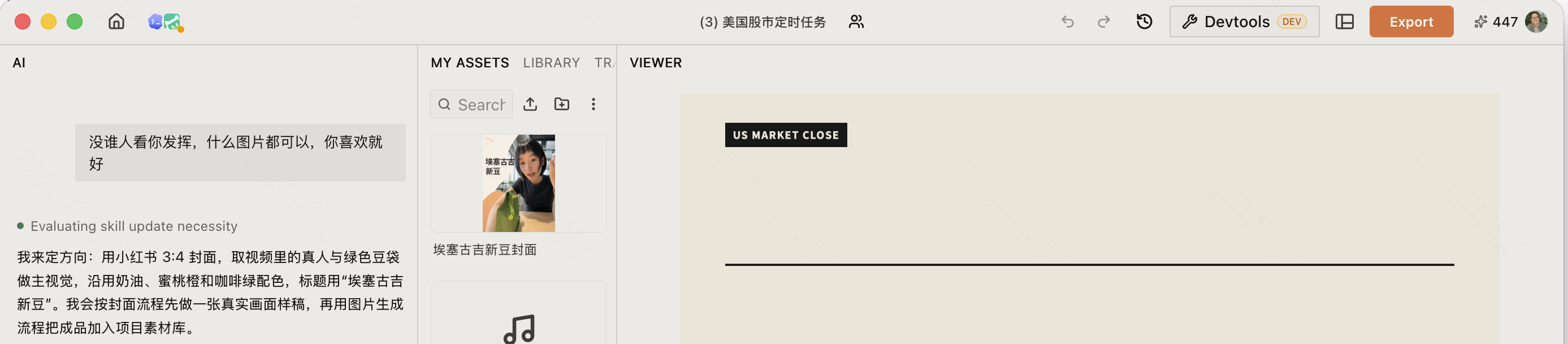
When Home and Projects appear as separate navigation choices in the sidebar, header, or mobile tabs, Projects opens the project list and Home opens the Home page.
What is in the top bar?
From left to right, the top bar gives you the main project-level actions:
- In some earlier editor layouts, Home in the project toolbar opens the project dashboard.
- Select the project name to rename it if you are the owner.
- Select the share-and-members button beside the name to invite people or manage access.
- Use Undo and Redo for recent editing changes.
- Open the Workspace menu to show or hide AI, My Assets, Library, Transcript, and Timeline, or select Reset to default.
- Open Versions to save or restore project snapshots.
- Select Export to open video, audio, graphics, subtitles, and XML export options.
- Open your avatar menu to see the active plan and credits, then access What’s new, upgrade, language, skin, feedback, shortcuts, credits history, affiliate, and sign-out actions.
Change the workspace layout
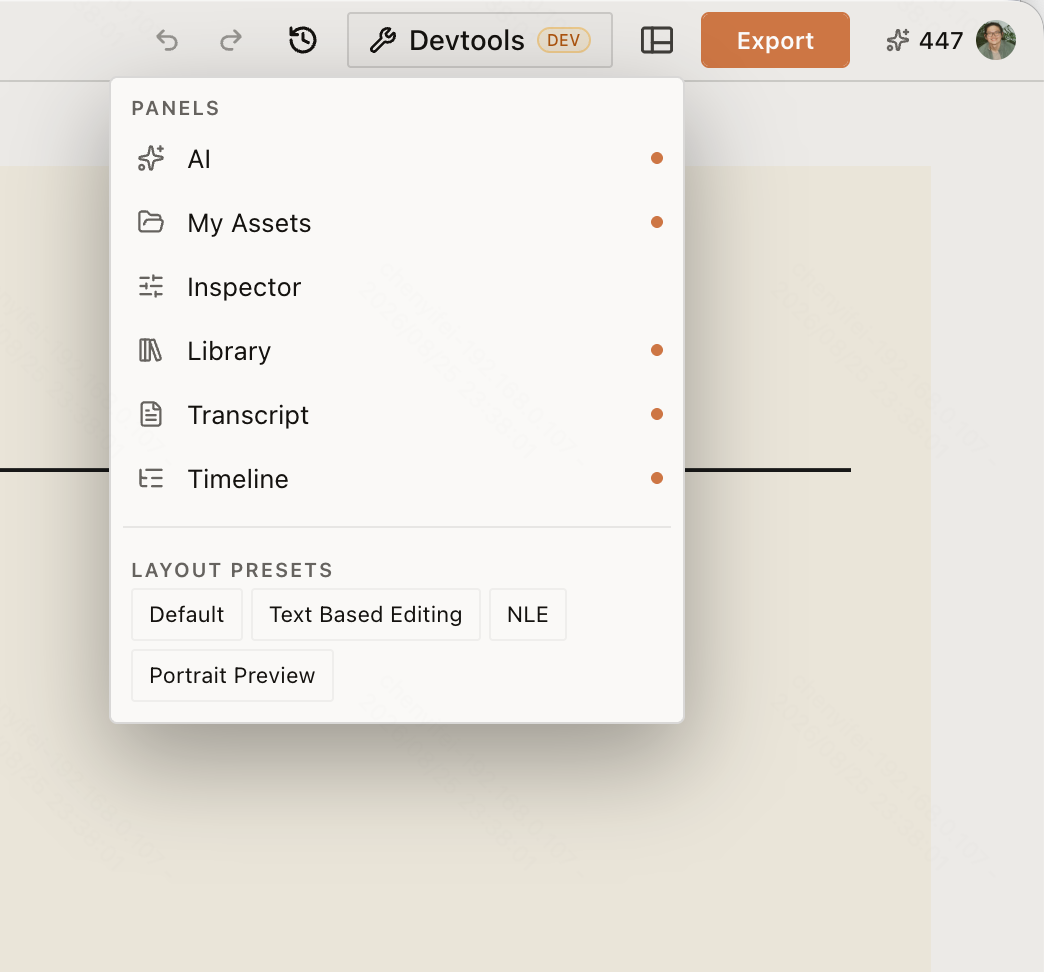
- Open Workspace, then check or uncheck AI, My Assets, Library, Transcript, or Timeline: show or hide that panel without deleting its content.
- Drag a divider between panels: resize the adjacent working areas.
- Select Reset to default: restore the default panel arrangement and sizes.
How do I use the AI panel?
Write a request in the message field and select Send. Use + to attach local reference files. Use the selection button to add an @ reference by clicking a timeline item or asset, marking a Viewer region, clicking a timeline time, or selecting Transcript text.
Below the field, switch between Agent and Video Gen, or open Skills, Design Style, Voices, the video model selector, and Agent Settings. See AI Panel Overview for the complete workflow.
Where are my media and transcript?
The media panel group contains:
- My Assets: uploaded, recorded, and generated project media. Select Upload for Files…, Folder…, or From phone…. Drag an asset to the Timeline to use it.
- Library: built-in effects, transitions, LUTs, and sound effects. The adjacent Templates tab contains prebuilt editing content; see Library for both.
- Transcript: speech as editable text. Delete or rearrange words to change the corresponding edit.
Active generation jobs also appear in My Assets with progress or a failure state.
What are the Viewer and Timeline for?
The Viewer displays the current playhead frame. Playback controls above the Timeline include split, snapping, play/pause, time, zoom, canvas aspect ratio, captions, and fullscreen.
The Timeline contains video tracks above audio tracks. Drag clips to move them, drag their edges to trim, and use the track header to control visibility and audio. A project can contain multiple timelines; see Timeline.
If a panel is missing, use the actions under “Change the workspace layout” above to restore it.
Edit from a phone
On a phone, ChatCut uses a touch workspace instead of the desktop panel layout. Five bottom tabs switch among Chat, Transcript, My Assets, Library, and Timeline; the Timeline view keeps the Viewer above the tracks.
- Drag the ruler to seek, a clip body to move it, or a clip edge to trim it.
- Pan from blank Timeline space. While scrubbing with one finger, use a second finger on Split to cut at the playhead.
- Touch a media card to select it and open its actions. Long-press a card, then drag it to the Timeline to place it.
- Use the full-screen project picker to search, sort, open, and manage projects.
The mobile workspace keeps visited panels mounted while you switch tabs, so chat drafts, filters, and playback state remain available. Desktop workspace geometry is unchanged when you return to a larger screen.