Speed up video or slow it down

Change a clip’s speed from 0.25× to 4× and download a silent MP4. This tool retimes existing frames; it removes audio and does not generate extra frames.

Drop a video here

MP4, MOV, WebM · browser-supported codecs · Up to 2 GB on a computer

This browser can't run the tool

Output has no audio. Frames are retimed, with no AI frame interpolation. Up to 1080p, 3 minutes of input, 4 minutes of output, and 512 MB.

Change speed…

Runs on your device. Keep this tab open.

Done on your device

Download

ChatCut opens in a new tab with your request. Add your file there.

  • No upload
  • No sign-up
  • No watermark

Trusted by 400,000+ creators

Why ChatCut

Why speed up video with ChatCut

  • Eight speed choices

    Pick 0.25×, 0.5×, 0.75×, 1×, 1.5×, 2×, 3×, or 4× for the entire clip.

  • A shorter or longer video

    At 2×, a 20-second clip becomes 10 seconds. At 0.5×, it becomes 40 seconds.

  • Silent output

    The audio track is removed, so you do not get sped-up speech or pitch-shifted music.

  • Retimed original frames

    Existing frames play at the new speed. Slow motion can look choppy when the source has a low frame rate.

  • Save the speed change

    The new timing is written into an MP4 file, so it stays in effect when you share or play the download.

  • No upload required

    The browser decodes and encodes the video on your device, without an account or watermark.

How it works

How to speed up video or slow it down

  1. 01

    Choose a video

    Open a supported video up to 1080p, 3 minutes, and 512 MB.

  2. 02

    Set the speed

    Choose 0.25×–4×. The result is silent and must stay within 4 minutes.

  3. 03

    Export the new timing

    Run the tool, preview the MP4, and download it. Add a soundtrack later if you need one.

Learn

Speed up video with predictable timing

Calculate the duration before exporting

Divide the original duration by the selected speed to estimate the result. A 60-second recording at 2× becomes about 30 seconds; the same source at 0.5× becomes about two minutes. The input can be up to three minutes, but the output must stay within four minutes. At 0.25×, a source longer than one minute would exceed that output limit. Choose a higher multiplier or trim the source first when your desired slowdown would create a result that is too long.

Choose one rate for the whole recording

The selector offers eight rates from 0.25× through 4×, with 1× keeping the original pace. The chosen rate applies to the complete clip. There is no control here for accelerating gradually, pausing at a particular moment, or slowing only one part. For a demonstration with an important detail, consider saving that section separately before changing its speed. Check that viewers can still follow the action and read any on-screen instructions.

Retiming does not invent intermediate motion

The tool changes the timing of existing frames and encodes them into a new H.264 MP4. It does not generate extra frames between the captured moments. At a slower rate, each available frame stays visible longer, which can make movement appear stepped. A faster rate shortens both the overall playback time and the time available to inspect details. Preview the output rather than assuming that a particular multiplier will look right for every source. Re-encoding can also change the picture quality.

Plan for a silent result at every rate

Audio is removed for every speed choice, including 1×. The tool does not stretch speech, preserve pitch, or carry the original soundtrack into the download. Use it for footage where the visual timing is the main goal, or plan to add a separate audio file in your next edit. Keep the original recording if dialogue or location sound may be needed later. Changing the downloaded clip back to its original speed will not restore an audio track that the export omitted.


Use cases

When to speed up video or review it slowly

  • Process demonstrations

    Speed up a repetitive assembly step while keeping the whole action visible.

  • Movement review

    Slow a short sports or dance clip to look at the sequence of movement.

  • Visual B-roll

    Change the pace of a silent background shot before combining it with other footage.

Keep editing

Finish the pacing in ChatCut

Add your speed-adjusted MP4 in ChatCut to combine it with other shots, trim its ending, or place your own soundtrack underneath. Download the file first, then add it in the editor.

New on YouTube Seedream 5.5 Is Now in ChatCut Seedream 5.5 in ChatCut
More from our channel All videos

Skills

Hundreds of skills for any video

100+ Skills. No experience needed. Start in one click.

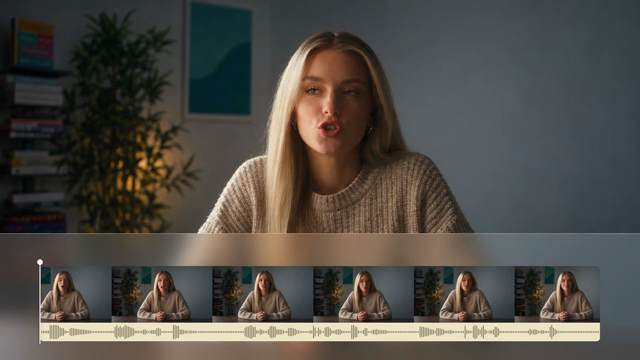
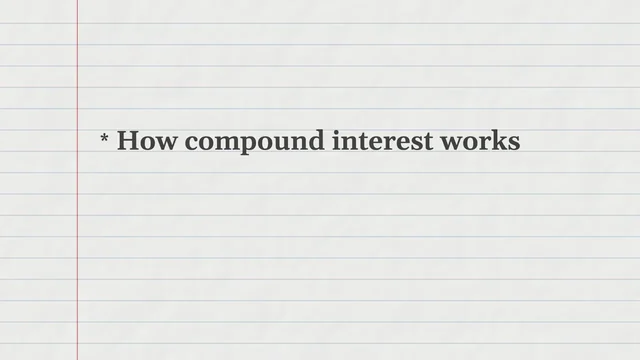
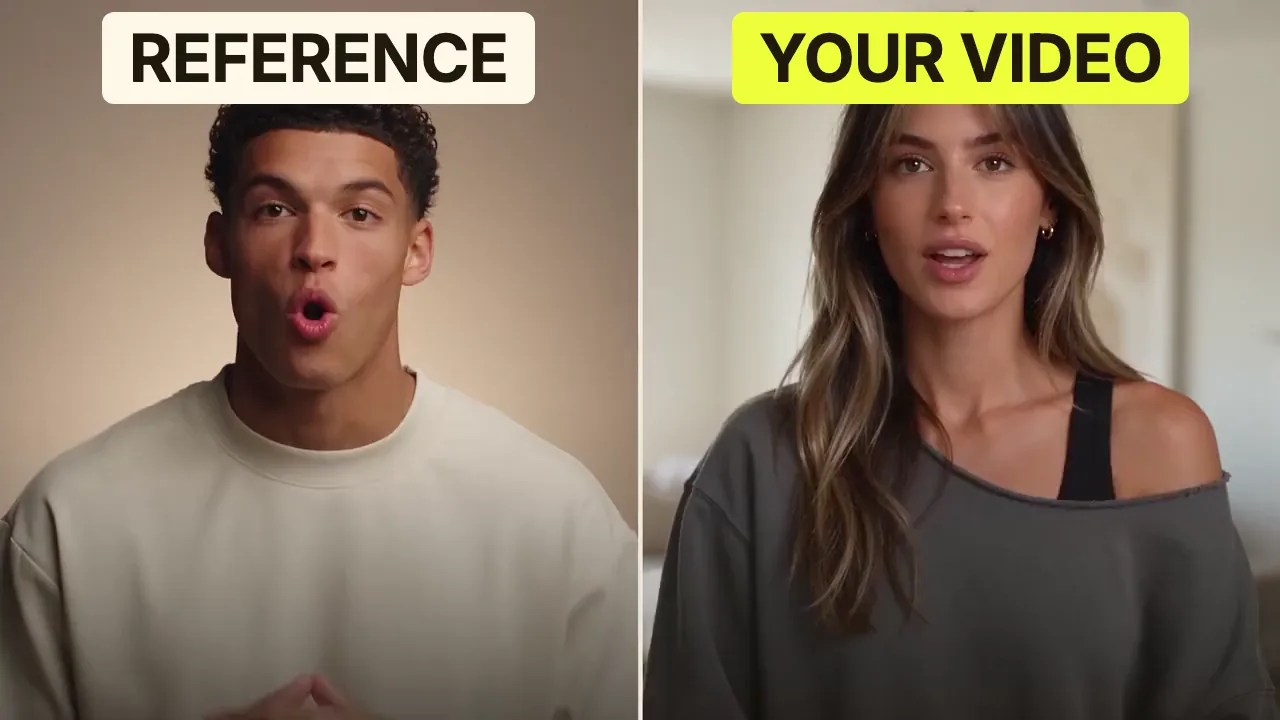
Speech CleanupUpload your talking-head footage. ChatCut automatically cuts out verbal slips, repetition and awkward pauses, keeping your delivery natural and seamless.Long video to shortsPaste a video link or upload a file. ChatCut plans the edits and polishes each clip, turning your long video into multiple short videos ready to publish on their own.Add captionsUpload your talking-head video. ChatCut automatically recognizes the speech, generates captions and applies your selected caption style.Motion Graphics StylesUpload a talking-head video and get motion graphics in the Editorial Explainer style added automatically: notebook chapter pages, grey-paper data charts and yellow highlighter marks, alternating with your on-camera shots like a news explainer. Good for news explainers, current affairs and data stories. If the footage has obvious flubs, repeats or long pauses, it cleans them up first, then packages it. You get a packaged, editable timeline ready to tweak and export. Works best with clear audio and one presenter.Editorial ExplainerVideo TranslationUpload a video and choose a target language. ChatCut automatically translates and dubs the speech, syncs lip movements, preserves the original voice and adds captions as needed.Talking-Head Edit RecreationEdit your talking-head footage with the cuts and styling of a reference video. Share a talking-head video you like (upload it or paste a link), then add your own recording. AI breaks down the reference's pacing, captions and on-screen text, motion graphics, B-roll, framing and sound, and applies them to what you say. You get a finished video and an editable project. It uses your own footage throughout, with no face swaps or generated shots.

FAQ

Speed up video FAQ

How can I speed up a video?

Choose a file and select a speed above 1×, such as 2× or 4×. Run Change speed to save an MP4 with the new timing.

How do I make a video slow motion?

Choose a speed below 1×. At 0.5× a clip takes twice as long to play; at 0.25× it takes four times as long.

Does the speed changer keep audio?

No. This local tool removes audio at every speed, including 1×. Add your own soundtrack in ChatCut after downloading the result.

Will slow motion create smoother frames?

No new frames are created here. The existing frames receive different timestamps and display durations. A source with few frames per second can look uneven when slowed, because the tool has no additional moments of motion to show.

Can I change speed for only part of the clip?

This tool applies one speed to the full clip. Use the ChatCut timeline to split the clip and adjust the speed of the section you want.

What is the difference from a playback speed control?

A player speed control changes only how you watch the original. This tool exports a new video with the timing already changed.

What are the file and duration limits?

The input can be up to 3 minutes, 512 MB, and 1080p in landscape or portrait. Output is limited to 4 minutes, so longer inputs cannot use the slowest settings.

Can I continue adjusting timing in ChatCut?

Yes. Download the file and add it to the ChatCut timeline to split, arrange, or adjust clips with the Speed control. Manual timeline editing does not use credits. Keep the source if you need its audio later.