Remove audio from video

Remove the entire audio track and save a silent MP4. H.264 video is copied without re-encoding when possible; other supported codecs are converted to H.264.

Drop a video here

MP4, MOV, WebM · browser-supported codecs · Up to 2 GB on a computer

This browser can't run the tool

Remove audio…

Runs on your device. Keep this tab open.

Done on your device

Download

ChatCut opens in a new tab with your request. Add your file there.

  • No upload
  • No sign-up
  • No watermark

Trusted by 400,000+ creators

Why ChatCut

Why remove audio from video with ChatCut

  • Remove the sound track

    Create a file without an audio track, rather than just turning down the preview player.

  • Keep H.264 frames intact

    Compatible H.264 video passes through without another video encode. The container is rewritten as MP4.

  • A separate silent copy

    The tool saves a new file and leaves the original untouched, so you can return to the original audio later.

  • Ready for a new soundtrack

    Download the silent MP4 before adding your own music or narration in another edit.

  • No volume slider needed

    There is one action: remove the full audio track. No volume or channel settings to configure.

  • Private by design

    Your recording is processed inside this tab. You can save the result without uploading it or creating an account.

How it works

How to remove audio from video

  1. 01

    Choose a video

    Open your MP4, MOV, or another browser-supported video file.

  2. 02

    Remove the audio

    Run the tool. Compatible H.264 video is copied; other supported video may be re-encoded.

  3. 03

    Save the silent MP4

    Preview and download the new file. Keep the original if you might need its sound later.

Learn

Remove audio from video: what the silent copy keeps

Removing a track differs from muting playback

A player mute button changes what you hear during playback, while the file still contains its soundtrack. This tool creates an MP4 with the audio tracks discarded. Speech, music, and background noise all disappear from that copy. Use it to remove sound from video before sharing a visual walkthrough or preparing a new soundtrack. The downloaded file cannot reveal its old audio by turning the volume back up, so keep the original recording if the sound could be useful later.

Compatible H.264 frames can pass through

When the primary video track uses H.264, the engine leaves video conversion settings unchanged so compatible frames can be copied into the new MP4 without re-encoding. Other supported video codecs are converted to H.264. That conversion can change visual quality, so do not assume every input takes the same path. In either case, the output container is MP4. The result identifies whether the video was copied or re-encoded, helping you understand what happened before saving the separate file.

A silent copy is not selective sound cleanup

The operation applies to the full clip and discards all audio, rather than separating a voice from music or reducing one background noise. There is no time range or volume slider on this page. If you need part of a conversation to stay audible, use an editor to split the clip and mute only the intended section. To put new narration or music over the result, download the silent MP4 first and add your chosen audio during the next edit.

Check the picture as well as the silence

After processing, preview the output and confirm that the picture is present and the recording is silent. Test any section where the source changes scene or contains movement, especially when video was re-encoded. The file may become smaller after its audio is removed, but this is not a target-size compressor. The size of the video track still matters. A source that is already silent can also be exported when its video is readable, without creating or restoring a soundtrack.


Use cases

When to remove audio from video

  • Quiet product footage

    Remove room chatter and handling noises before adding a separate soundtrack.

  • Screen recordings

    Share a silent visual walkthrough without incidental microphone audio.

  • Background visuals

    Use a silent clip behind a presentation or in a larger edit.

Keep editing

Replace the soundtrack in ChatCut

Download the silent MP4 and add it in ChatCut. Place your own music or narration alongside it, adjust the timing, and trim the picture; generating new AI audio uses credits.

New on YouTube Seedream 5.5 Is Now in ChatCut Seedream 5.5 in ChatCut
More from our channel All videos

Skills

Hundreds of skills for any video

100+ Skills. No experience needed. Start in one click.

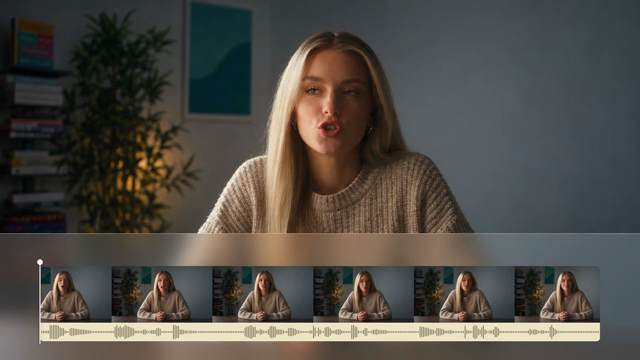
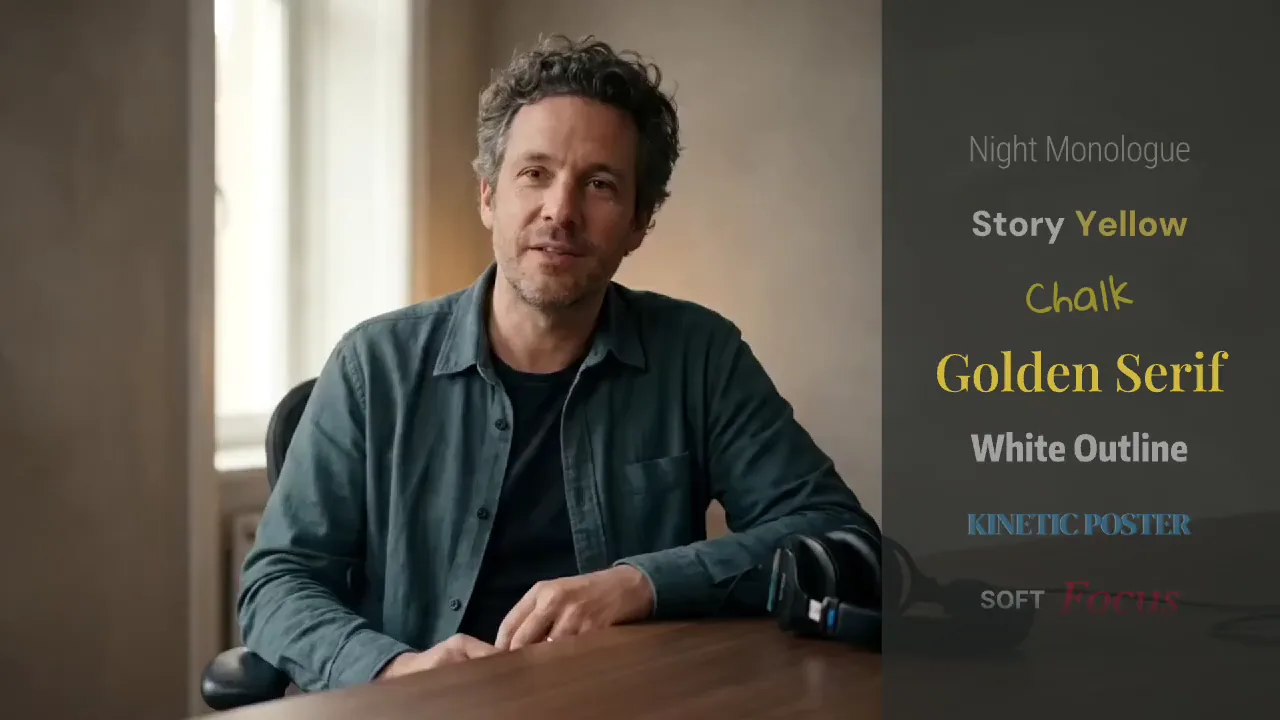
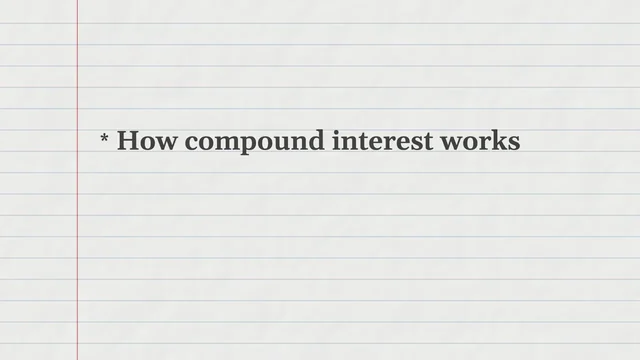
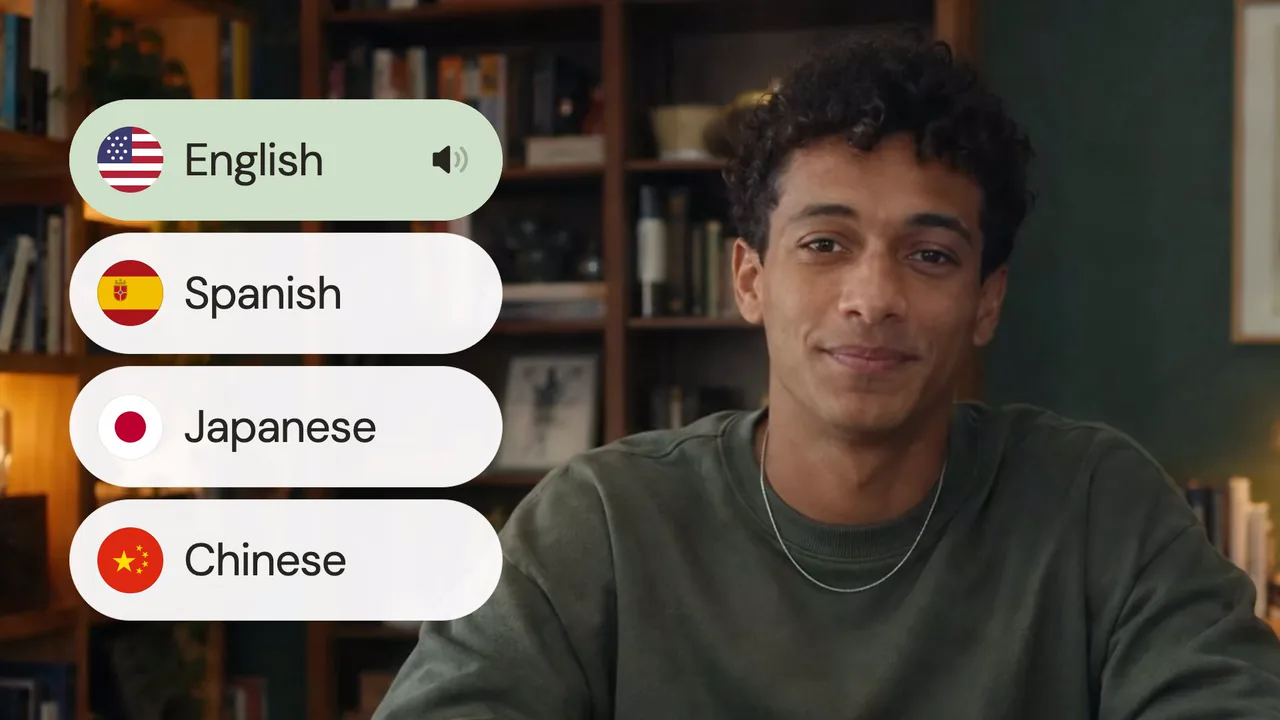
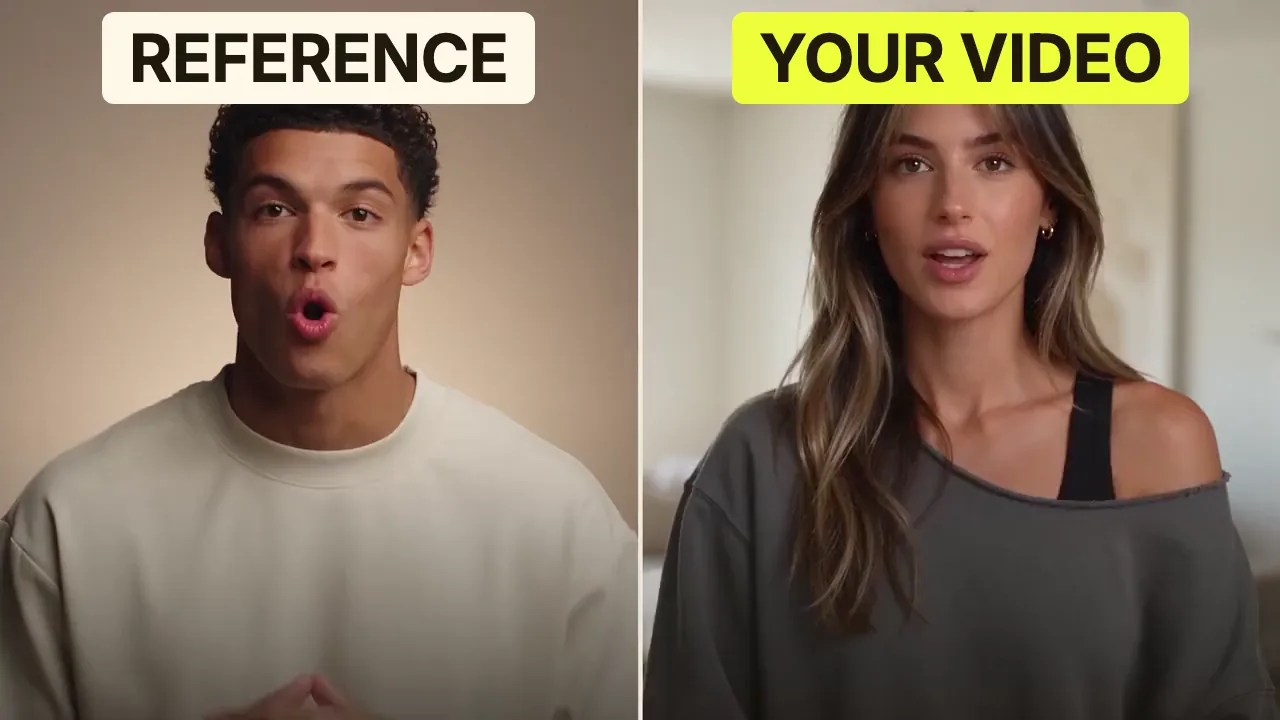
Speech CleanupUpload your talking-head footage. ChatCut automatically cuts out verbal slips, repetition and awkward pauses, keeping your delivery natural and seamless.Long video to shortsPaste a video link or upload a file. ChatCut plans the edits and polishes each clip, turning your long video into multiple short videos ready to publish on their own.Add captionsUpload your talking-head video. ChatCut automatically recognizes the speech, generates captions and applies your selected caption style.Motion Graphics StylesUpload a talking-head video and get motion graphics in the Editorial Explainer style added automatically: notebook chapter pages, grey-paper data charts and yellow highlighter marks, alternating with your on-camera shots like a news explainer. Good for news explainers, current affairs and data stories. If the footage has obvious flubs, repeats or long pauses, it cleans them up first, then packages it. You get a packaged, editable timeline ready to tweak and export. Works best with clear audio and one presenter.Editorial ExplainerVideo TranslationUpload a video and choose a target language. ChatCut automatically translates and dubs the speech, syncs lip movements, preserves the original voice and adds captions as needed.Talking-Head Edit RecreationEdit your talking-head footage with the cuts and styling of a reference video. Share a talking-head video you like (upload it or paste a link), then add your own recording. AI breaks down the reference's pacing, captions and on-screen text, motion graphics, B-roll, framing and sound, and applies them to what you say. You get a finished video and an editable project. It uses your own footage throughout, with no face swaps or generated shots.

FAQ

Remove audio from video FAQ

How do I remove audio from a video?

Choose the video and click Remove audio. The downloaded MP4 contains the video without an audio track.

Does muting the player remove sound from the file?

No. Muting a player changes only what you hear while watching. This tool removes audio from the file it exports.

Will removing audio reduce video quality?

For compatible H.264 files, the video is copied without re-encoding. Other supported codecs are converted to H.264, which can change visual quality.

Can I remove music but keep the voice?

No. This tool removes all audio, including music, speech, and background sound. It does not separate voices from music.

Can I mute only one part of the video?

This tool removes sound for the full clip. For a partial mute, split the clip in ChatCut and mute the relevant section or set its volume to zero.

Can I recover the sound afterward?

The downloaded file has no audio to recover. Keep the original file if you may need its sound again.

Is it free and does it add a watermark?

This local tool is free, needs no sign-up, and adds no watermark. File processing stays in your browser.

What happens to videos that are already silent?

A readable video without audio can still be exported as a silent MP4. Nothing needs to be removed from its sound track.