Video to GIF converter

Turn a short moment into a looping GIF. Choose up to 15 seconds, adjust the size and frame rate, and download it directly from your browser.

Drop a video here

MP4, MOV, WebM · up to 15 seconds per GIF · Up to 2 GB on a computer

This browser can't run the tool

Up to 15 seconds per GIF. Blank end uses the next 5 seconds, or the rest of a shorter video. Maximum height is 640 px; aspect ratio stays intact. Audio is removed. Source video is limited to 16 megapixels per frame.

Making GIF…

Runs on your device. Keep this tab open.

Done on your device

Download

ChatCut opens in a new tab with your request. Add your file there.

  • No upload or sign-up
  • No watermark
  • Up to 15 seconds

Trusted by 400,000+ creators

Why ChatCut

Why convert video to GIF with ChatCut

  • Pick the moment

    Set a start and end time instead of turning the whole video into a heavy animation.

  • Choose the width

    Use 320, 480 or 640 px wide. Aspect ratio stays intact and height is capped at 640 px.

  • Control the motion

    Choose 10 fps for a lighter loop or 15 fps for more motion detail.

  • Preview the loop

    Watch the animated result before saving it. GIF output has no audio.

  • Convert on your device

    The video is decoded and encoded in this tab without sending it to a server.

  • Keep the GIF file

    Download a normal GIF with no watermark. No account or credits are required for this conversion.

How it works

How to convert video to GIF

  1. 01

    Choose a video

    Select a browser-decodable MP4, MOV or WebM up to 500 MB.

  2. 02

    Set a short range

    Enter start and end times, up to 15 seconds apart. Pick the width and frame rate.

  3. 03

    Download the GIF

    Check the animated preview and save it. Shorter ranges and smaller widths usually mean smaller files.

Learn

Video to GIF: choosing a clear, compact loop

A GIF is a sequence of images without sound

GIF stores indexed images and their display timing instead of a video soundtrack. Each frame palette has at most 256 colors. That works well for a brief visual action, but photographic gradients and detailed footage can lose color detail. This tool builds a 256-color palette for each sampled frame and produces a silent repeating animation. If narration, music or subtle picture detail is essential to understanding the moment, keep a video version alongside the GIF.

Select the action before choosing dimensions

Use start and end times to isolate one complete action, such as opening a menu or showing a reaction. The selected range must be within the source and no longer than 15 seconds. Leaving the end blank selects the next five seconds or the remaining duration of a shorter video. A concise range often communicates more clearly than including the setup and aftermath. Watch the repeat point too, because a sudden jump from the final frame to the first can distract.

Balance width and motion against file size

Choose a maximum width of 320, 480 or 640 pixels and a frame rate of 10 or 15 fps. The tool keeps the aspect ratio, caps height at 640 pixels and does not enlarge a small source. A tall recording can therefore finish narrower than the selected width. Lower dimensions mean fewer pixels in each frame, while a lower frame rate means fewer sampled images. Start with the smallest setting that still makes the action and any essential text readable.

Know why conversion can make a larger file

A short GIF can outweigh the source video because the formats compress moving images differently. This page samples decoded frames and encodes them as a new animation; it does not copy the compressed video track. Compare the finished file size rather than assuming that a short loop is lightweight. If it is too large, shorten the range, lower the width or use 10 fps. The source must also be browser-decodable, within 500 MB and within the per-frame pixel limit.


Use cases

When to convert video to GIF

  • Show a product action

    Loop a button click or a small interaction in a help article.

  • Share a reaction

    Save a short expression or movement from your own footage.

  • Explain a workflow

    Show one step from a screen recording without a video player.

Keep editing

Build a video around your GIF

Add the downloaded GIF in ChatCut, combine it with clips, add text or use your own music. ChatCut imports GIFs but does not export GIF files; finish the larger edit as a video.

New on YouTube Seedream 5.5 Is Now in ChatCut Seedream 5.5 in ChatCut
More from our channel All videos

Skills

Hundreds of skills for any video

100+ Skills. No experience needed. Start in one click.

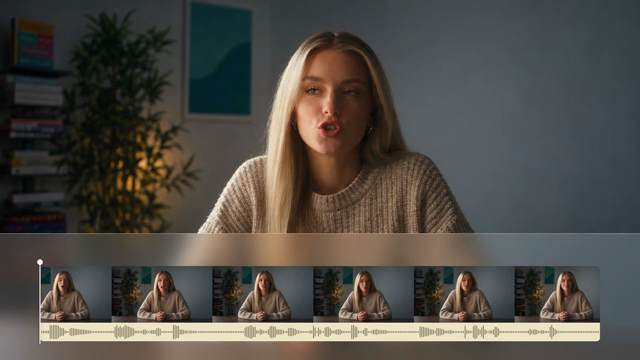
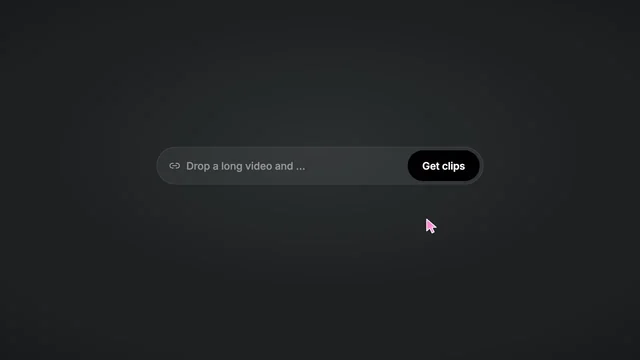
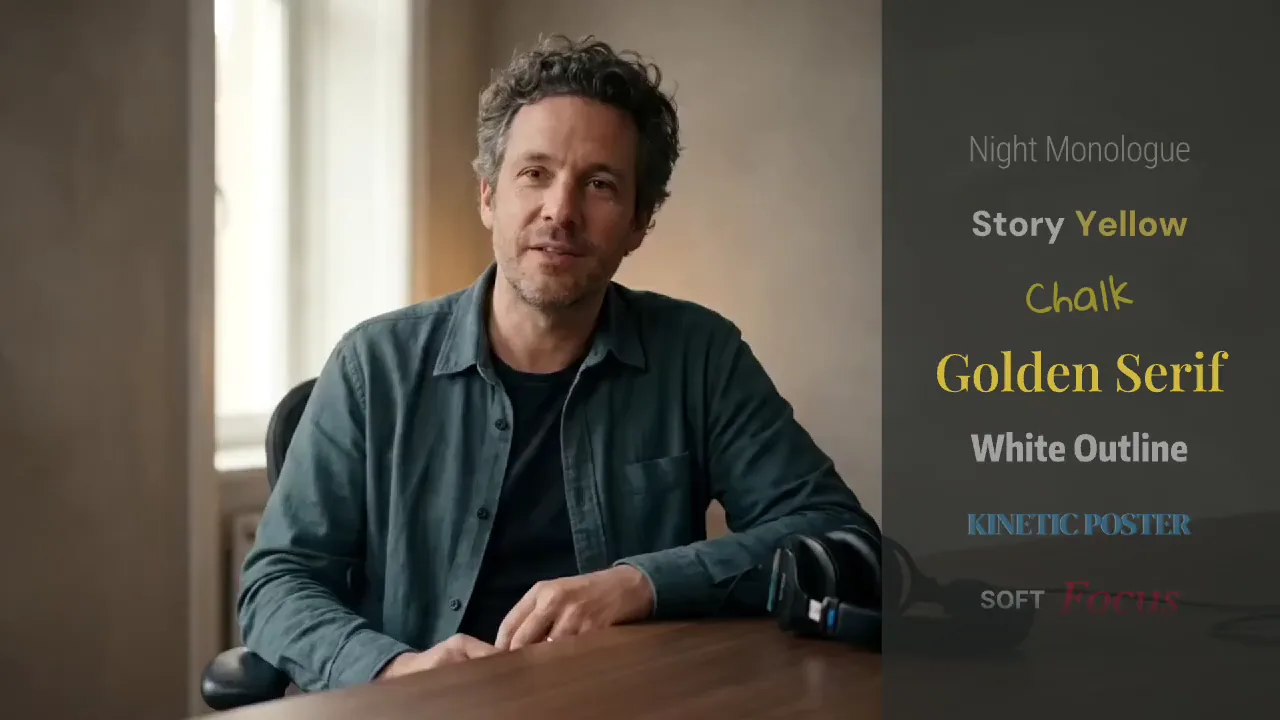
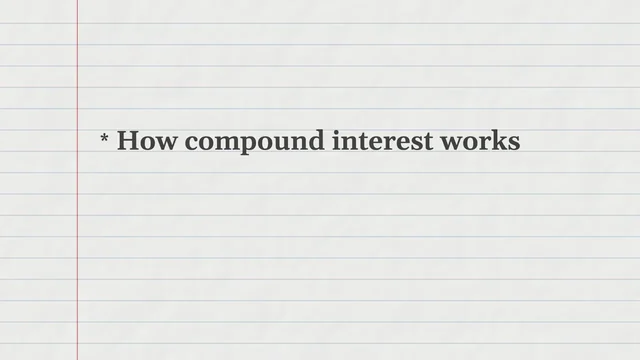
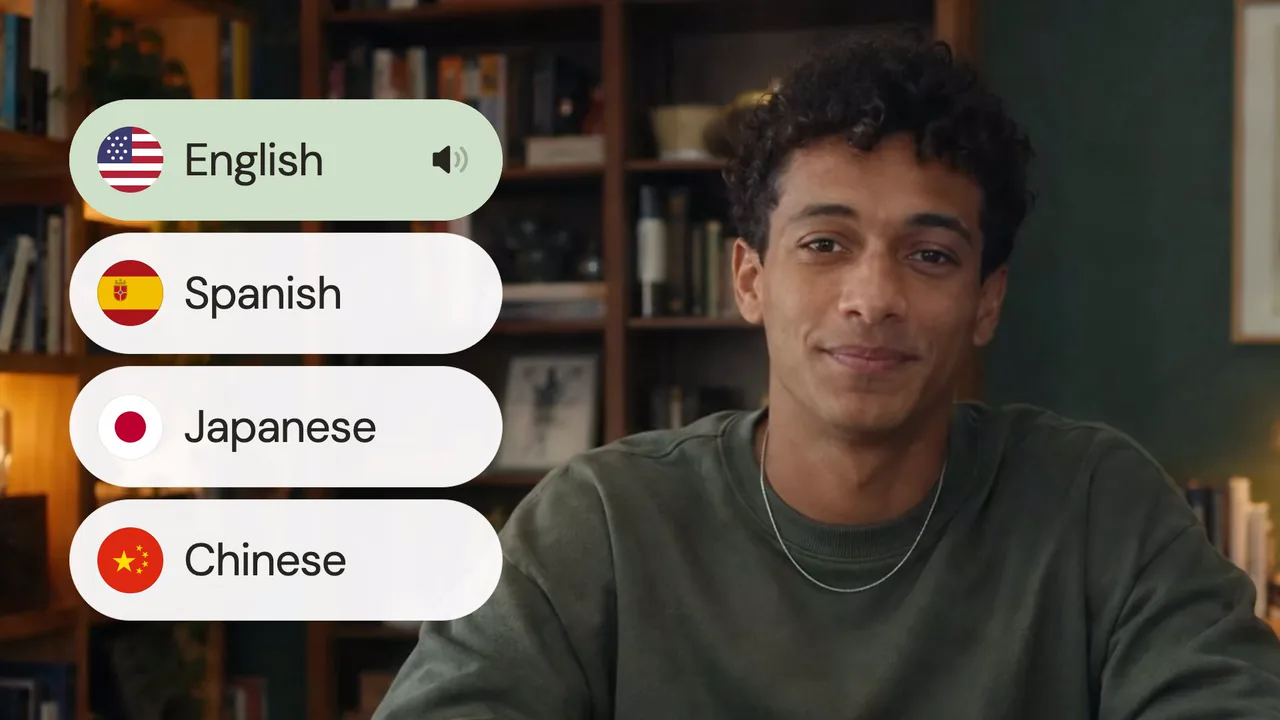
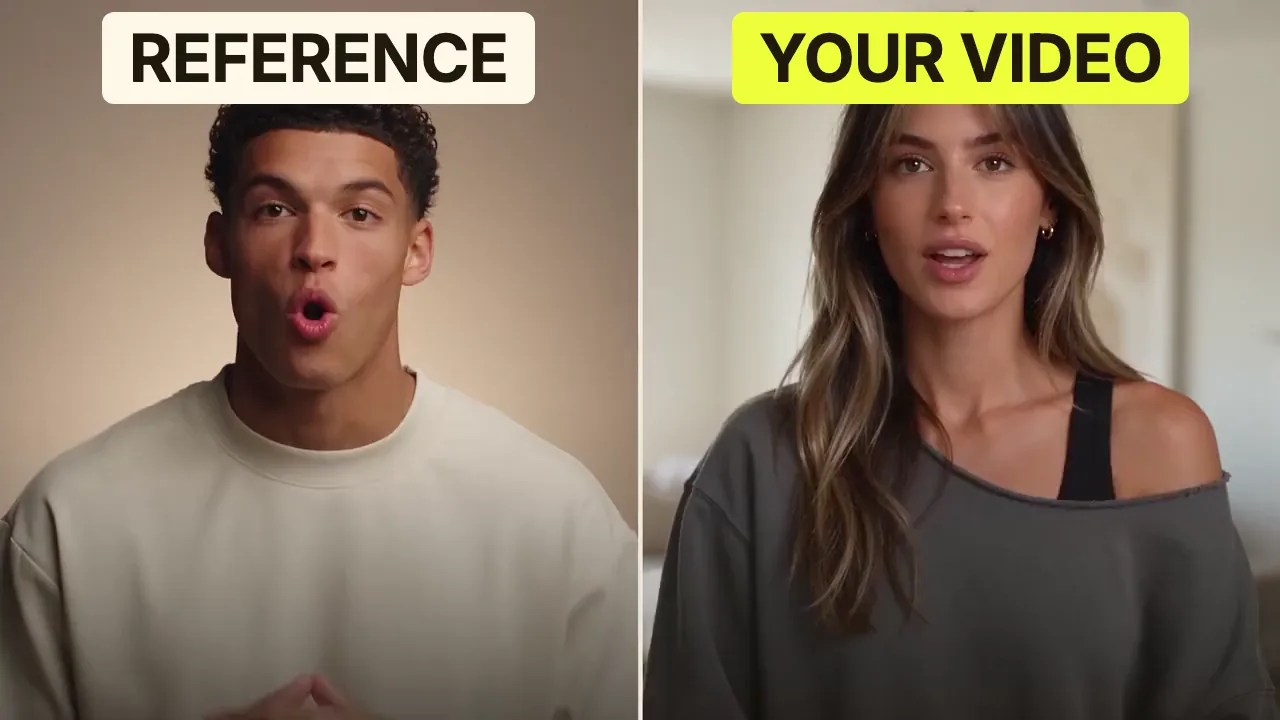
Speech CleanupUpload your talking-head footage. ChatCut automatically cuts out verbal slips, repetition and awkward pauses, keeping your delivery natural and seamless.Long video to shortsPaste a video link or upload a file. ChatCut plans the edits and polishes each clip, turning your long video into multiple short videos ready to publish on their own.Add captionsUpload your talking-head video. ChatCut automatically recognizes the speech, generates captions and applies your selected caption style.Motion Graphics StylesUpload a talking-head video and get motion graphics in the Editorial Explainer style added automatically: notebook chapter pages, grey-paper data charts and yellow highlighter marks, alternating with your on-camera shots like a news explainer. Good for news explainers, current affairs and data stories. If the footage has obvious flubs, repeats or long pauses, it cleans them up first, then packages it. You get a packaged, editable timeline ready to tweak and export. Works best with clear audio and one presenter.Editorial ExplainerVideo TranslationUpload a video and choose a target language. ChatCut automatically translates and dubs the speech, syncs lip movements, preserves the original voice and adds captions as needed.Talking-Head Edit RecreationEdit your talking-head footage with the cuts and styling of a reference video. Share a talking-head video you like (upload it or paste a link), then add your own recording. AI breaks down the reference's pacing, captions and on-screen text, motion graphics, B-roll, framing and sound, and applies them to what you say. You get a finished video and an editable project. It uses your own footage throughout, with no face swaps or generated shots.

FAQ

Video to GIF FAQ

How do I convert a video to GIF?

Choose a video, select a range of up to 15 seconds and press Make GIF. Download the looping image after it finishes.

Can I convert MP4, MOV and WebM?

Yes, when your browser can decode the video codec inside the file. H.264 MP4 is a useful fallback if a MOV or WebM will not open.

Can a GIF include sound?

No. GIF stores images and frame timing, so audio is removed. Keep an MP4 when you need sound.

Why is my GIF larger than the video?

GIF compresses moving photographs less efficiently than modern video codecs. Shorten the clip, choose 320 px or use 10 fps to reduce its size.

What is the maximum GIF length?

This tool creates up to 15 seconds at a time and accepts source videos up to 500 MB. Output width and height are each capped at 640 px.

Is this video to GIF tool free and private?

The conversion is free and runs locally without an account, upload or watermark. Continuing in ChatCut is a separate step where you add the file yourself.

Can I edit and export the GIF in ChatCut?

ChatCut can import GIFs into a project. It does not export GIF files, so use this page for GIF output or export your larger ChatCut edit as a video.