MP4 and WAV store different kinds of media
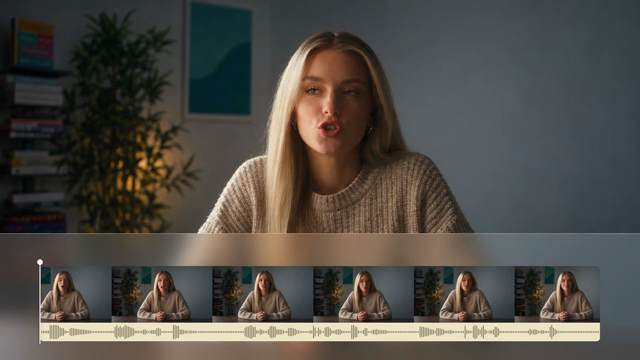
MP4 can hold a video track and compressed audio in the same container. It is common for camera recordings, screen captures, and finished video exports. WAV is an audio container; this page uses it for uncompressed output. Extracting the soundtrack gives an audio editor a file without video frames. It does not turn a mixed recording into separate instruments or speakers. Choose a source that contains the exact take you need, and keep the picture available for reference.
Uncompressed does not mean restored
An MP4 may already contain lossy audio, such as AAC. Writing that sound to WAV does not recover frequencies or detail removed by the earlier encode. It gives the next editing step uncompressed audio rather than adding an MP3 compression stage. Noise, distortion, and quiet passages from the source remain part of the recording. Listen before handing off the file, and describe any source problems to the person editing it instead of expecting the format change to fix them.
File size follows the audio data
Uncompressed audio size depends on its duration, sample rate, bit depth, and channel count. There is no MP3 bitrate control on this page because WAV is already selected. A soundtrack can become larger than the original compressed audio, and sometimes larger than the entire source video. Compare the displayed input and output sizes before downloading. If your next task is listening or sending a review copy, consider MP3 instead; keep WAV for an app or workflow that needs it.
Extraction needs a readable audio track
The converter checks for audio, excludes video from the output, and writes a new WAV file. A recording with no audio cannot yield a soundtrack, and an unsupported codec can prevent conversion even when the filename ends in .mp4. Browser memory also matters because the result is built locally. For a failed job, check that the original actually plays with sound, then try a supported source or shorter clip. Save the completed download before closing the page.