Reverse video and play it backward

Turn a clip of up to 60 seconds into a backward-playing MP4. The tool reverses the picture and removes audio, with processing kept on your device.

Drop a video here

MP4, MOV, WebM · browser-supported codecs · Up to 2 GB on a computer

This browser can't run the tool

Reversing video…

Runs on your device. Keep this tab open.

Done on your device

Download

ChatCut opens in a new tab with your request. Add your file there.

  • No upload
  • No sign-up
  • No watermark

Trusted by 400,000+ creators

Why ChatCut

Why reverse video with ChatCut

  • Reverse the whole clip

    The last frame comes first and the action runs backward from end to start.

  • No backward speech

    Audio is removed from the result. Add a separate soundtrack afterward if you need sound.

  • Keep the original pace

    Frame timing is reversed at normal speed. Use the speed changer separately for a faster or slower result.

  • Up to 60 seconds

    A short-clip limit and small decoding batches keep memory use bounded. Footage must be 1080p or smaller.

  • A real reversed file

    The output MP4 contains frames in reverse order. It works without a special reverse-playback control.

  • Local and watermark-free

    Your file is processed in this tab and saved without a watermark or account.

How it works

How to reverse video and save an MP4

  1. 01

    Choose a short clip

    Pick a video up to 60 seconds, 512 MB, and 1080p in landscape or portrait.

  2. 02

    Reverse the picture

    Run the tool to encode frames in backward order. The audio is removed.

  3. 03

    Preview and download

    Watch the result and save the silent MP4. Keep the source if you also want a forward version.

Learn

Reverse video with clear picture and sound expectations

Reverse events without mirroring the picture

Reversing changes the order of the recorded moments. A falling object appears to rise, and a person walking forward appears to retrace their steps. It does not exchange the left and right sides of each frame, which is a separate mirroring operation. The result keeps approximately the original duration and pace. Choose a source with clear motion if you want the backward effect to be easy to see. Static shots or long pauses may look much the same in either direction.

Start with the short section you need

Choose a source of up to 60 seconds, 512 MB, and the supported 1080p pixel limits. If the interesting movement sits inside a longer recording, trim that passage first. Reversing requires reading frames in small batches and writing them in backward order. The implementation limits each decoding window and checks its estimated frame memory. Very high frame rates can still exceed that check, so reducing source resolution or frame rate may be necessary even when the recording is shorter than a minute.

Treat the download as a silent new version

The tool encodes the reversed picture as H.264 video inside an MP4 and omits the source audio. It does not reverse speech or music, and there is no option here to keep those tracks. Save the source if you might need its sound later. Check the first and last moments of the new file, because their roles have exchanged. Re-encoding can change image quality or file size; reversing the download again is not a way to recover an identical copy of the original file.

Build a forward and backward sequence

For a back-and-forth effect, save the reversed result and join it after the original using the separate merging tool. Use a silent copy of the original if you want consistent silence across both halves, because the reversed half contains no audio. Review the meeting point where forward motion changes direction. A pause or held pose at the end of the source will also affect that turning point. This page creates only the backward version; combining the two directions is a separate step.


Use cases

When to reverse video for a different story

  • Creative reveals

    Start with the final arrangement and show objects moving back out of place.

  • Motion experiments

    See water, a jump, or a falling object run backward.

  • Forward-backward edits

    Merge the original clip with the reversed download to build a back-and-forth sequence.

Keep editing

Turn the reversed shot into a sequence

Download your reversed MP4, then add it in ChatCut to combine it with forward footage, trim the ending, or add your own music. The local reversal is already baked into the downloaded file.

New on YouTube Seedream 5.5 Is Now in ChatCut Seedream 5.5 in ChatCut
More from our channel All videos

Skills

Hundreds of skills for any video

100+ Skills. No experience needed. Start in one click.

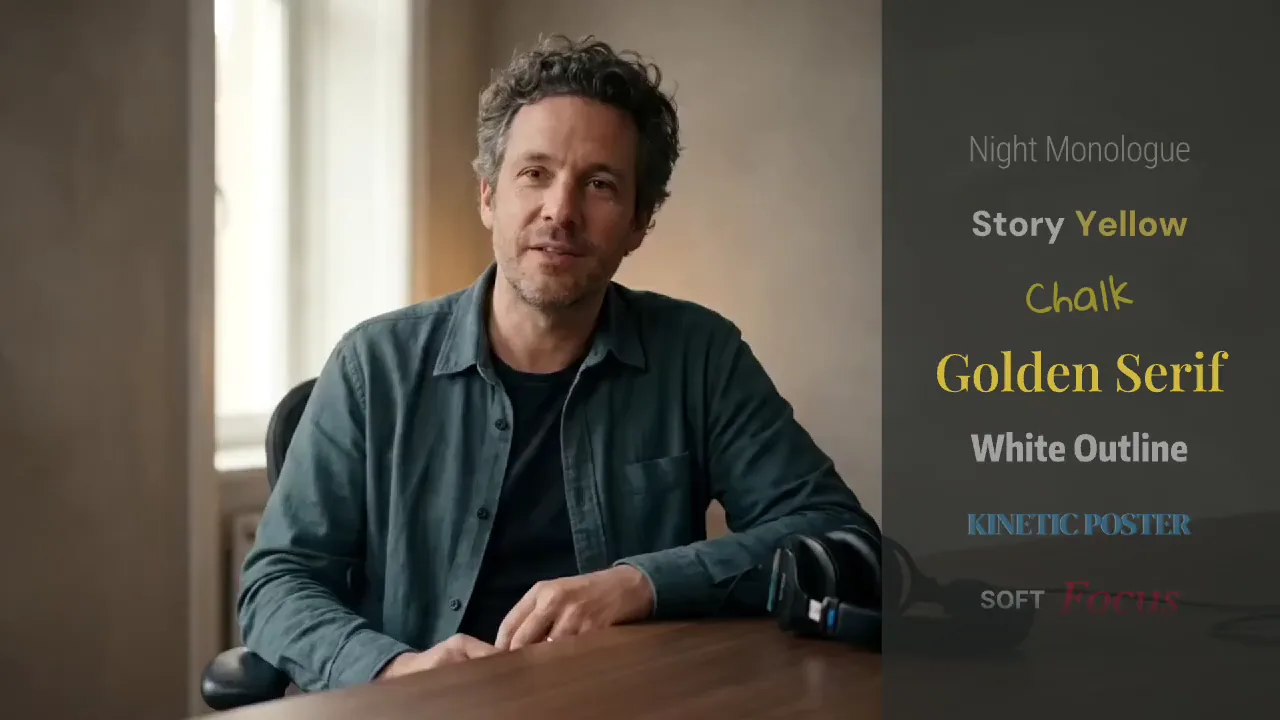
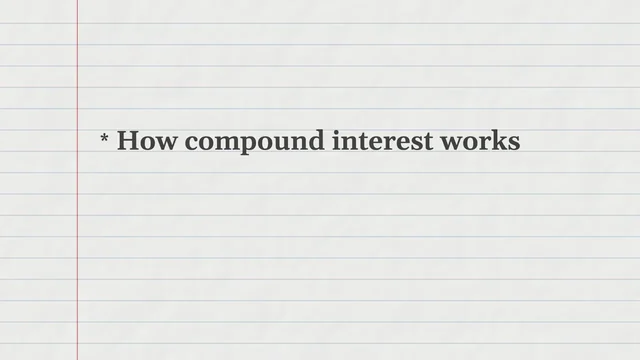
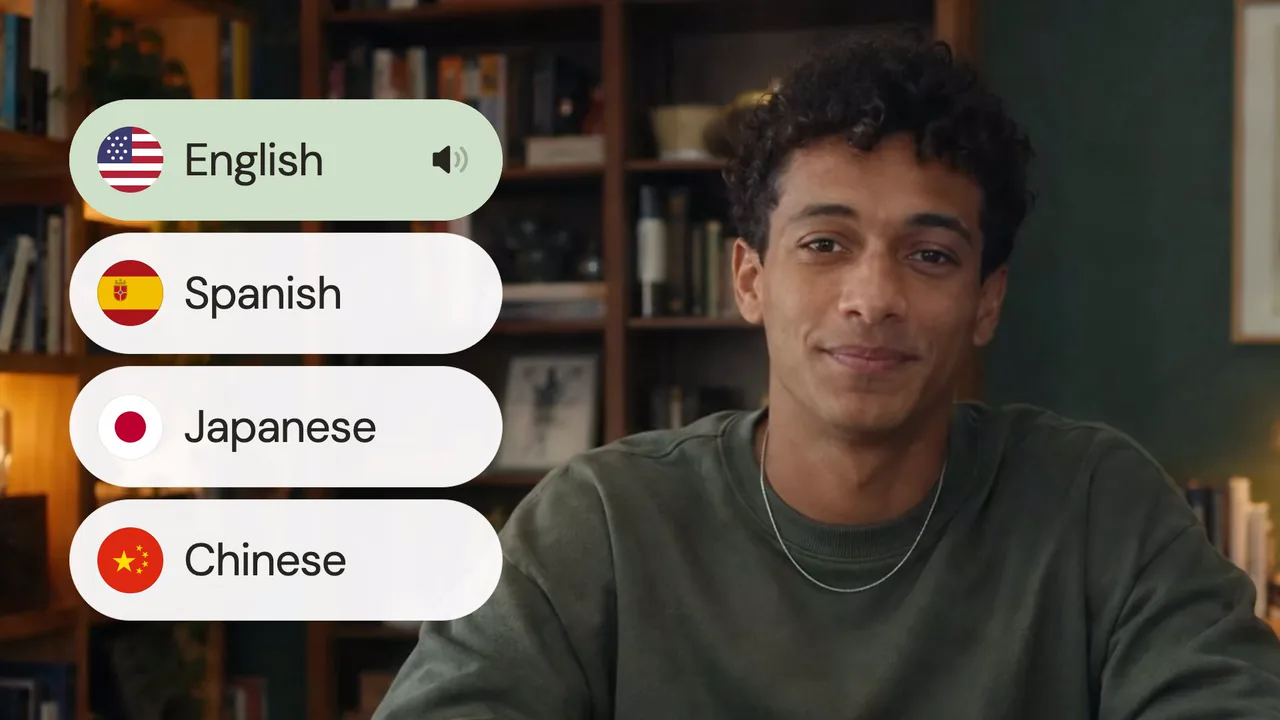
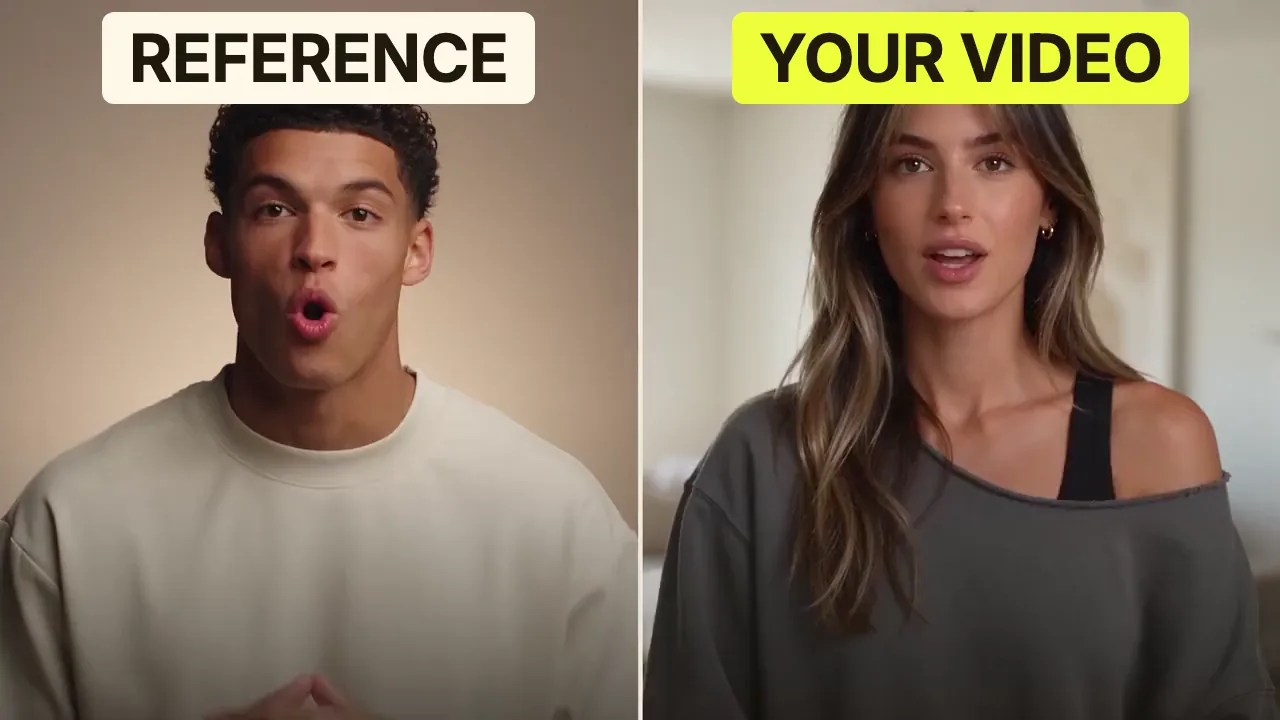
Speech CleanupUpload your talking-head footage. ChatCut automatically cuts out verbal slips, repetition and awkward pauses, keeping your delivery natural and seamless.Long video to shortsPaste a video link or upload a file. ChatCut plans the edits and polishes each clip, turning your long video into multiple short videos ready to publish on their own.Add captionsUpload your talking-head video. ChatCut automatically recognizes the speech, generates captions and applies your selected caption style.Motion Graphics StylesUpload a talking-head video and get motion graphics in the Editorial Explainer style added automatically: notebook chapter pages, grey-paper data charts and yellow highlighter marks, alternating with your on-camera shots like a news explainer. Good for news explainers, current affairs and data stories. If the footage has obvious flubs, repeats or long pauses, it cleans them up first, then packages it. You get a packaged, editable timeline ready to tweak and export. Works best with clear audio and one presenter.Editorial ExplainerVideo TranslationUpload a video and choose a target language. ChatCut automatically translates and dubs the speech, syncs lip movements, preserves the original voice and adds captions as needed.Talking-Head Edit RecreationEdit your talking-head footage with the cuts and styling of a reference video. Share a talking-head video you like (upload it or paste a link), then add your own recording. AI breaks down the reference's pacing, captions and on-screen text, motion graphics, B-roll, framing and sound, and applies them to what you say. You get a finished video and an editable project. It uses your own footage throughout, with no face swaps or generated shots.

FAQ

Reverse video FAQ

How do I reverse a video?

Choose a clip and start the export. The tool encodes its frames in backward order as a new MP4.

Will the reversed video have sound?

No. This tool removes all audio. Add a music or narration file after downloading if you want a soundtrack.

Does reversing also slow the video down?

No. The reversed clip keeps approximately the same duration as the original. Use the speed changer for a separate speed adjustment.

Can I reverse a long video?

This tool accepts clips up to 60 seconds to keep browser resource use manageable. Trim a longer recording before choosing it here.

Can I make a boomerang or back-and-forth video?

Reverse the clip here, then use Merge videos to join the original and reversed versions. Use a silent original if you want both halves to have no audio.

Which formats work?

MP4, MOV, and WebM files work when the browser can decode their video codec. Output is H.264 MP4; use a recent Chrome, Edge, or Safari with encoding support.

Is the reversed result uploaded or watermarked?

No. This page processes the video on your device and adds no watermark. The separate ChatCut prompt opens the editor, where you add your file yourself.

What other limits apply?

Use footage no larger than 512 MB and 1920 × 1080 or 1080 × 1920. Very high frame rates can hit the per-batch memory limit; the tool will ask for a smaller version.