Video resizer

Change your video dimensions. Pick a preset and choose between keeping the whole picture with black bars or cropping to fill.

Drop a video here

MP4, MOV, WebM · max 5 min / 500 MB / 4K · Up to 2 GB on a computer

This browser can't run the tool

Keep all preserves the full picture with black bars. Fill frame crops the center without stretching. Up to 5 minutes, 500 MB and 4K pixels. Saves an MP4.

Exporting video…

Runs on your device. Keep this tab open.

Done on your device

Download

ChatCut opens in a new tab with your request. Add your file there.

  • No upload
  • No account or watermark
  • Up to 5 minutes · 500 MB

Trusted by 400,000+ creators

Why ChatCut

Why use this video resizer

  • Vertical 1080 × 1920

    Create a 9:16 frame for portrait clips.

  • Landscape 1920 × 1080

    Place a clip in a wide 16:9 frame.

  • Square and portrait feed

    Choose 1080 × 1080 or 1080 × 1350 for a different composition.

  • Keep the whole picture

    Contain mode preserves the image and fills unused space with black bars.

  • Fill without stretching

    Cover mode fills the frame with a centered crop.

  • Resize locally

    Save a separate MP4 without sending the source video to a server.

How it works

How to resize a clip with the video resizer

  1. 01

    Choose a video

    Open a clip up to 5 minutes and 500 MB.

  2. 02

    Select dimensions and fit

    Pick a preset. Keep all adds black bars; Fill frame crops the center.

  3. 03

    Preview and download

    Check the exported frame and save the MP4 on your device.

Learn

Choose dimensions and fit in the video resizer

Pick the shape and the pixel dimensions

The presets set both the frame shape and the output size: 1080 × 1920 for vertical, 1920 × 1080 for landscape, 1080 × 1080 for square, and 1080 × 1350 for portrait feed. Select the layout that suits the composition you want. These choices describe the exported picture; they do not guarantee acceptance by a particular publishing service. This page offers those four sizes rather than a custom width and height field, so check whether a preset matches your intended use.

Keep all when edge details matter

Keep all uses a contain fit. The whole source picture fits inside the chosen output rectangle without changing its proportions. Unused space becomes black bars, which can appear above and below a wide shot placed in a tall frame. This is useful when the recording includes slides, on-screen instructions, or several people spread across the image. Preview small text at the intended viewing size. Keeping every edge visible may make the actual picture occupy only part of the new frame.

Fill the frame when the center is enough

Fill frame uses a centered cover fit. The picture fills the output rectangle without stretching, and edges outside that rectangle are removed. A centered speaker can work well, but a person standing near one side may disappear from the result. This page does not offer a position control for the center crop. Use the separate cropping tool if you need to choose a different visible region. Watch the full export, especially if the camera or subject moves across the original frame.

Understand quality, audio, and file size

The tool saves an MP4 using H.264 video settings and retains supported audio. If conversion would discard a video or audio track, it reports an error. Resizing changes pixel dimensions, but it is not a target-file-size control. A smaller frame does not guarantee a particular number of megabytes, and enlarging a small source cannot recover detail that was never recorded. Keep the original and compare fine text or textured areas in the output before using the resized version in another edit.


Use cases

When a video resizer helps

  • Repurpose a wide clip

    Fit a landscape recording inside a vertical frame without cutting off the sides.

  • Create matching dimensions

    Give several source clips the same output size before combining them.

  • Prepare a square post

    Compare a full-picture fit with a center crop for a square layout.

Keep editing

Keep editing your resized video in ChatCut

Add your downloaded file in ChatCut to trim clips, change the canvas ratio, add captions or work with music. Manual timeline editing does not use credits; AI music generation uses credits.

New on YouTube Seedream 5.5 Is Now in ChatCut Seedream 5.5 in ChatCut
More from our channel All videos

Skills

Hundreds of skills for any video

100+ Skills. No experience needed. Start in one click.

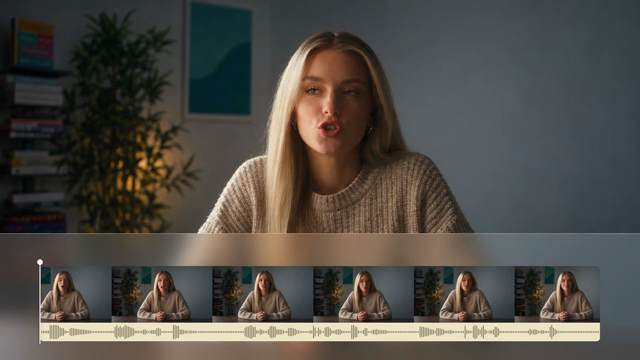
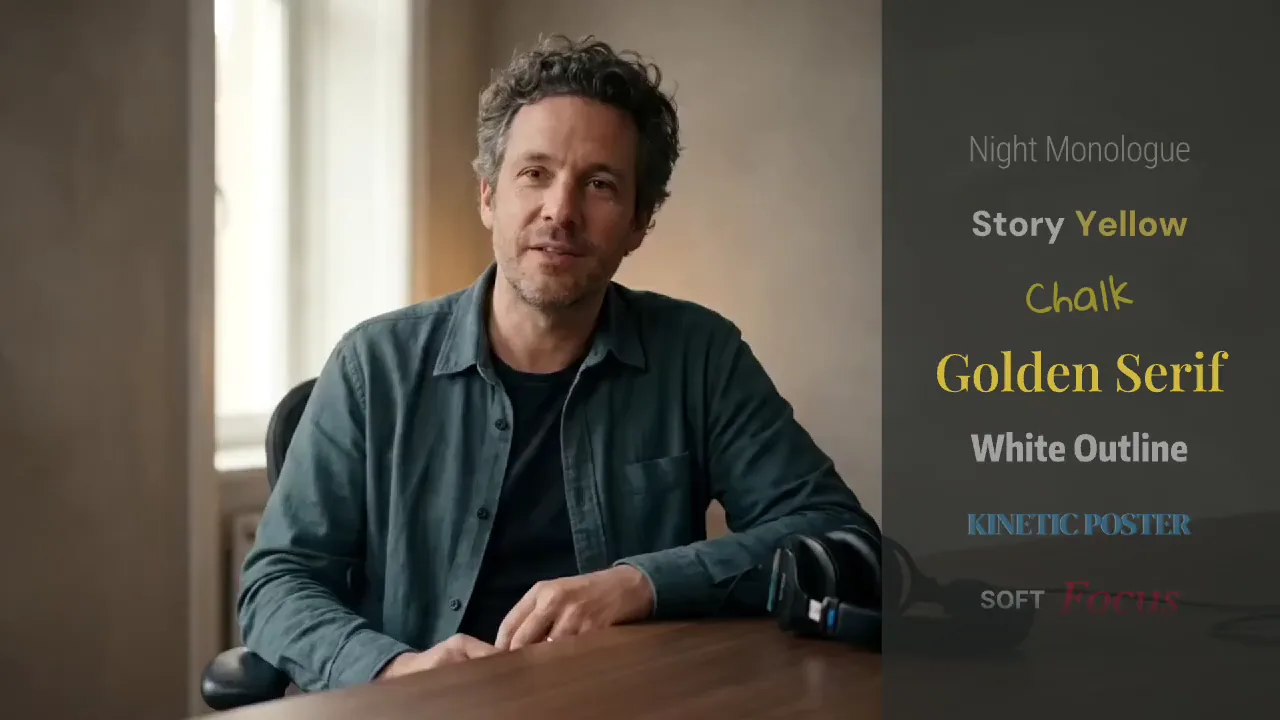
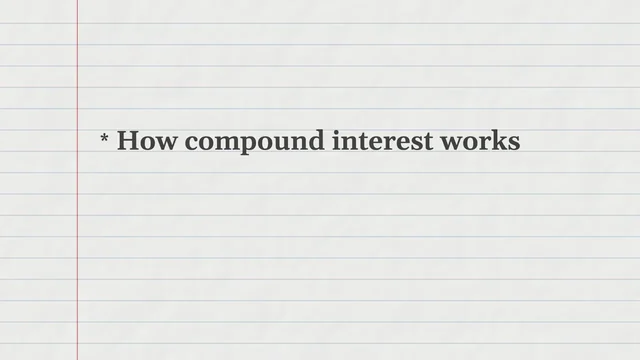
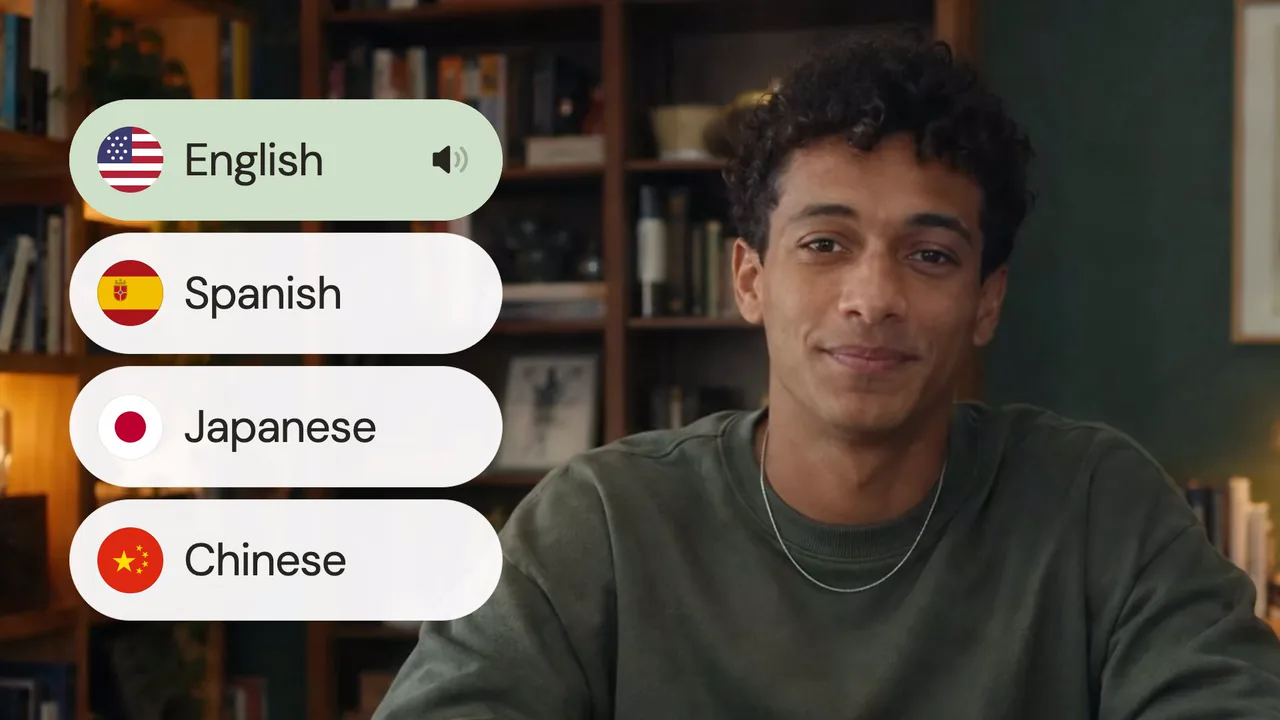
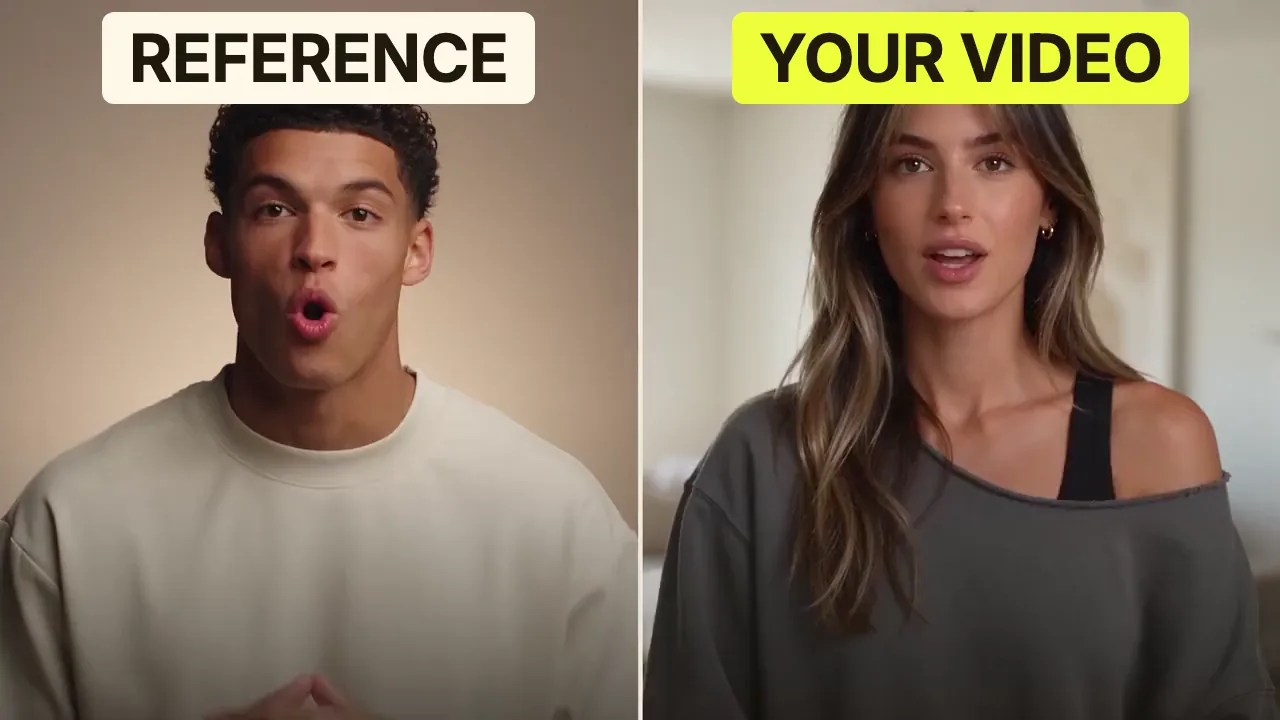
Speech CleanupUpload your talking-head footage. ChatCut automatically cuts out verbal slips, repetition and awkward pauses, keeping your delivery natural and seamless.Long video to shortsPaste a video link or upload a file. ChatCut plans the edits and polishes each clip, turning your long video into multiple short videos ready to publish on their own.Add captionsUpload your talking-head video. ChatCut automatically recognizes the speech, generates captions and applies your selected caption style.Motion Graphics StylesUpload a talking-head video and get motion graphics in the Editorial Explainer style added automatically: notebook chapter pages, grey-paper data charts and yellow highlighter marks, alternating with your on-camera shots like a news explainer. Good for news explainers, current affairs and data stories. If the footage has obvious flubs, repeats or long pauses, it cleans them up first, then packages it. You get a packaged, editable timeline ready to tweak and export. Works best with clear audio and one presenter.Editorial ExplainerVideo TranslationUpload a video and choose a target language. ChatCut automatically translates and dubs the speech, syncs lip movements, preserves the original voice and adds captions as needed.Talking-Head Edit RecreationEdit your talking-head footage with the cuts and styling of a reference video. Share a talking-head video you like (upload it or paste a link), then add your own recording. AI breaks down the reference's pacing, captions and on-screen text, motion graphics, B-roll, framing and sound, and applies them to what you say. You get a finished video and an editable project. It uses your own footage throughout, with no face swaps or generated shots.

FAQ

Video resizer FAQ

How do I resize a video?

Choose a video, select an output size and a fit mode, then export the MP4.

What is the difference between contain and cover?

Contain keeps the whole image and adds black bars when ratios differ. Cover fills the frame by cropping the center.

Can I resize without black bars?

Use Fill frame. It preserves proportions but removes edges when the source and output ratios differ.

Does resizing make a video smaller in megabytes?

Not necessarily. File size depends on duration, content and encoding; use a video compressor when file size is your goal.

Will upscaling make my video sharper?

A larger frame does not restore detail that was missing from the source. Low-resolution footage can still look soft.

Are these platform presets upload guarantees?

No. They set common dimensions only; platforms may also impose duration, file-size and other requirements.

Is this video resizer free?

Yes. It runs locally without an account or watermark. The limit is 5 minutes, 500 MB and 3840 × 2160 source pixels; unsupported codecs may need conversion first.