Convert MP4 to WebM

Make a VP9 WebM copy of a supported MP4, with Opus audio when present. Conversion runs in this tab and gives you a preview before download.

Drop a video here

MP4, M4V · Up to 2 GB on a computer

This browser can't run the tool

Output: WEBM · VP9 / Opus

Video is re-encoded to VP9 and sound to Opus. Keeps the main video and audio track.

Up to 128 MB, 5 minutes and 4096 × 2160.

Converting video…

Runs on your device. Keep this tab open.

Done on your device

Download

ChatCut opens in a new tab with your request. Add your file there.

  • No media upload
  • No sign-up or watermark
  • 128 MB · 5 minutes max

Trusted by 400,000+ creators

Why ChatCut

Why convert MP4 to WebM with ChatCut

  • WebM for web use

    Prepare a VP9 video file for a website or workflow that accepts WebM.

  • Opus audio

    Supported audio is converted to Opus alongside the video.

  • No requested resizing

    Keep the source frame size without selecting a new crop or aspect ratio.

  • No upload step

    The browser handles decoding and encoding on your own device.

  • Inspect the output

    Preview the WebM and compare its size with the MP4.

  • Keep an MP4 fallback

    Download a separate WebM and retain the MP4 for destinations that need it.

How it works

How to convert MP4 to WebM

  1. 01

    Choose an MP4

    Pick a supported MP4 from your device. Keep it within 128 MB and 5 minutes.

  2. 02

    Convert to WebM

    Start the local conversion to WebM. Keep this tab open until the file is ready.

  3. 03

    Preview and download

    Check the result, save the converted copy, or restart with another video.

Learn

MP4 to WebM: codecs, file size and playback

MP4 and WebM package different common codecs

MP4 is a container commonly used with H.264 video and AAC sound. WebM is designed for web media and commonly uses VP8 or VP9 video with Vorbis or Opus audio. This page specifically creates VP9 with Opus when audio is present. A website requesting WebM may need that combination, while another destination may prefer your original MP4. Keep both files until you have checked the requirements and playback behavior of the place where the clip will appear.

What the browser encodes for this output

The engine selects the primary video and audio tracks. A track already using the target codec can be copied; a different supported codec is encoded again. For a typical H.264/AAC source, both picture and sound need conversion. Newly encoded video targets 8 Mbps, and newly encoded audio targets 192 kbps. No resize or crop is requested on the WebM path. Extra soundtracks, subtitle tracks and attachments are not carried into the output file.

Why a web format is not a size guarantee

A WebM extension does not set a file size. Duration, image content and encoding settings all affect the result, and this converter does not offer a size target. An already compressed source can produce a larger copy. Compare the actual output size and inspect moving areas, small text and gradients before replacing a website asset. If the original already meets your requirements, retaining it may be more useful than accepting a larger file just for its extension.

Check both conversion support and destination playback

The browser must support the necessary decoding and encoding for the selected tracks. A file with an unsupported audio track can fail even when its picture plays elsewhere. Successful conversion also does not prove that every receiving application will accept VP9 WebM. Preview the result, then test it in the intended player. Changing the format does not remove a background or create transparency, so use a separate editing workflow if the visual content itself needs to change.


Use cases

When to convert MP4 to WebM

  • Website clips

    Prepare a WebM version of a short MP4 animation or recording.

  • Format comparisons

    Compare playback and size before choosing which file to use.

  • WebM-only handoffs

    Create a compatible copy for a tool that requests WebM.

Keep editing

Keep editing after conversion

Add your downloaded file in ChatCut to trim it, add captions or make a vertical cut. Manual editing and export do not use credits; built-in Agent requests do.

New on YouTube Seedream 5.5 Is Now in ChatCut Seedream 5.5 in ChatCut
More from our channel All videos

Skills

Hundreds of skills for any video

100+ Skills. No experience needed. Start in one click.

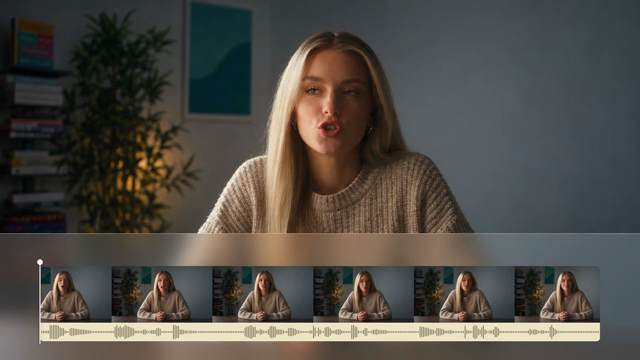
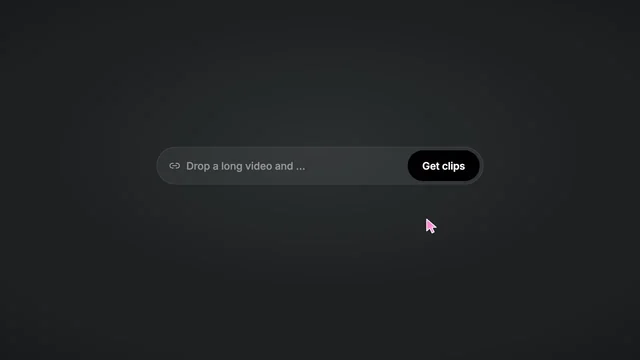
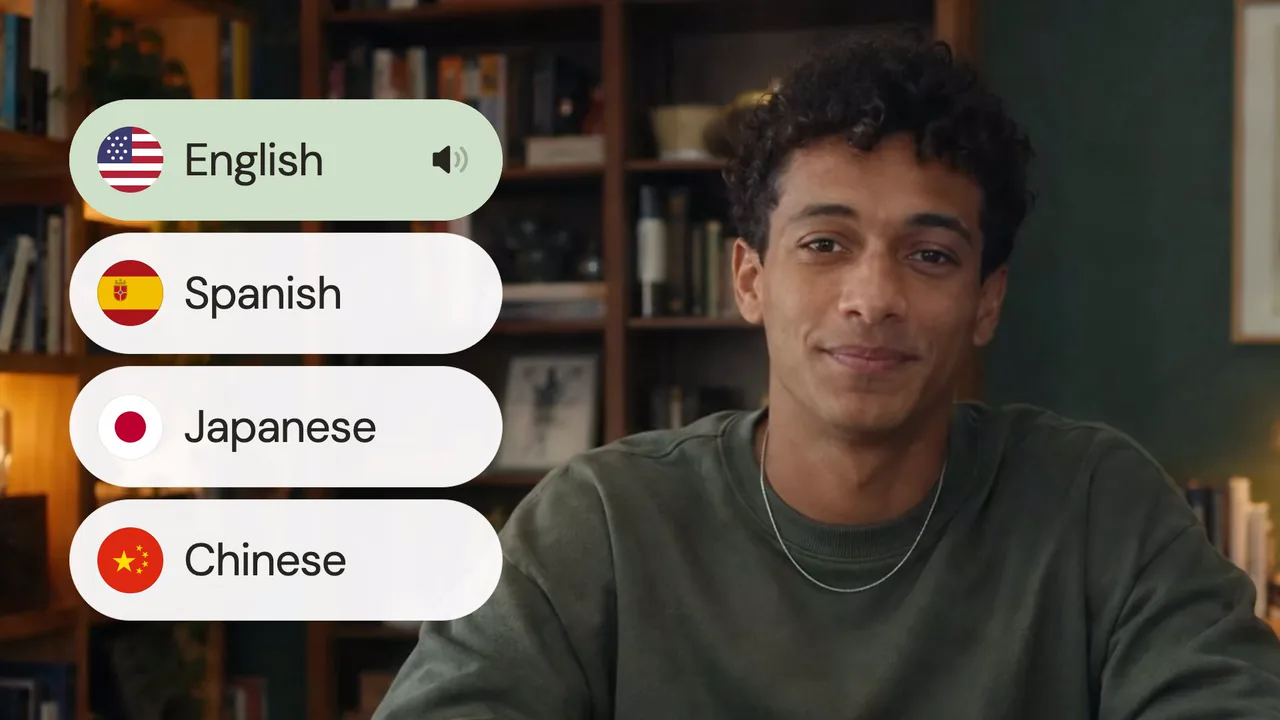
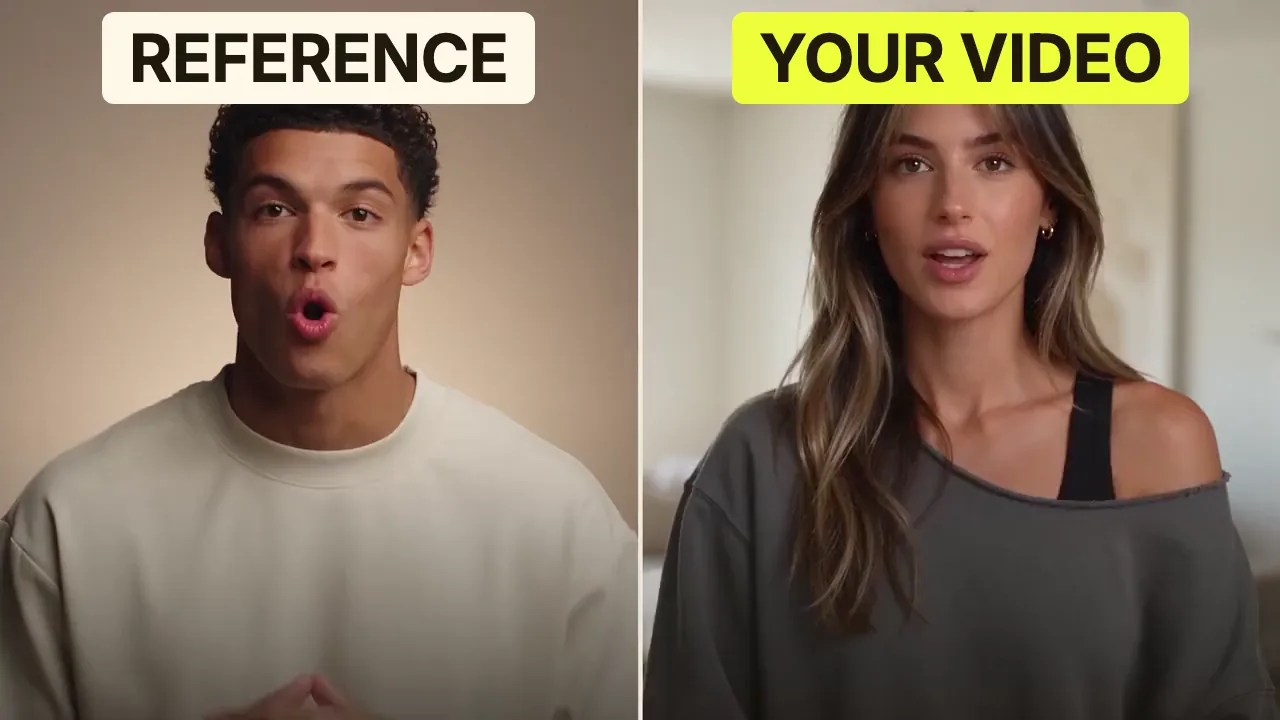
Speech CleanupUpload your talking-head footage. ChatCut automatically cuts out verbal slips, repetition and awkward pauses, keeping your delivery natural and seamless.Long video to shortsPaste a video link or upload a file. ChatCut plans the edits and polishes each clip, turning your long video into multiple short videos ready to publish on their own.Add captionsUpload your talking-head video. ChatCut automatically recognizes the speech, generates captions and applies your selected caption style.Motion Graphics StylesUpload a talking-head video and get motion graphics in the Editorial Explainer style added automatically: notebook chapter pages, grey-paper data charts and yellow highlighter marks, alternating with your on-camera shots like a news explainer. Good for news explainers, current affairs and data stories. If the footage has obvious flubs, repeats or long pauses, it cleans them up first, then packages it. You get a packaged, editable timeline ready to tweak and export. Works best with clear audio and one presenter.Editorial ExplainerVideo TranslationUpload a video and choose a target language. ChatCut automatically translates and dubs the speech, syncs lip movements, preserves the original voice and adds captions as needed.Talking-Head Edit RecreationEdit your talking-head footage with the cuts and styling of a reference video. Share a talking-head video you like (upload it or paste a link), then add your own recording. AI breaks down the reference's pacing, captions and on-screen text, motion graphics, B-roll, framing and sound, and applies them to what you say. You get a finished video and an editable project. It uses your own footage throughout, with no face swaps or generated shots.

FAQ

MP4 to WebM FAQ

Which WebM codecs does this tool use?

This page outputs VP9 video and Opus audio when audio is present. The ChatCut web editor separately offers WebM export with VP8.

Is WebM always smaller than MP4?

No. Size depends on the source and encoding settings. This converter does not target a specific file size.

Does converting MP4 to WebM make the background transparent?

No. A format change does not remove a background or create an alpha channel.

Can ChatCut Desktop export WebM?

The supported editor export path is the ChatCut web editor. Desktop does not offer that WebM video export option; this local page produces its own WebM.

How long does MP4 to WebM take?

It depends on clip length, resolution and your device. VP9 encoding can take time; keep the tab open and use Cancel if you need to stop.

Is this conversion free?

Yes. Conversion on this page is free, needs no sign-up and adds no watermark. Continuing in ChatCut is separate: built-in Agent messages use credits; manual editing and export do not.

Is my video uploaded during conversion?

No. The conversion engine reads and writes media inside your browser. If you choose to continue in ChatCut, add the downloaded file there yourself.

What are the file and browser limits?

Use a recent browser with WebCodecs. Files are limited to 128 MB, 5 minutes and 4096 × 2160 pixels; AVI is limited to 60 seconds, and codec support varies by browser.