Free online audio converter

Change an audio file to MP3, WAV, OGG or AAC in your browser. Choose a format and bitrate, then listen to the result before downloading it.

Drop a audio file here

Browser-decodable audio · max 10 min · Up to 2 GB on a computer

This browser can't run the tool

Up to 10 minutes and 200 MB. Output is 48 kHz stereo. AAC encoding depends on your browser; choose MP3 or WAV if unavailable.

Converting audio…

Runs on your device. Keep this tab open.

Done on your device

Download

ChatCut opens in a new tab with your request. Add your file there.

  • No file upload
  • No sign-up
  • Free local processing

Trusted by 400,000+ creators

Why ChatCut

Why choose this local audio converter

  • Four output choices

    Make MP3, uncompressed WAV, Opus in OGG, or AAC in ADTS. Available encoding depends on your browser.

  • Choose the bitrate

    Select 128, 192 or 320 kbps for compressed output. WAV does not use this bitrate setting.

  • Consistent audio format

    Output uses 48 kHz stereo. This standardizes your file without promising better source quality.

  • Common audio inputs

    Choose MP3, WAV or other audio the browser can decode. Unsupported files get a readable error.

  • Local conversion

    The file stays in this browser tab during conversion, without a server upload or account.

  • Listen before saving

    Preview the result and compare its size with the original before downloading.

How it works

How to use the audio converter

  1. 01

    Choose audio

    Open browser-decodable audio up to 10 minutes long and 200 MB.

  2. 02

    Choose output

    Pick MP3, WAV, OGG or AAC. Set a bitrate for compressed formats.

  3. 03

    Convert and save

    Wait for conversion, play the result and download your file.

Learn

Audio converter formats: what each choice changes

MP3 is a compressed listening copy

MP3 is useful when a recording needs to fit into a smaller attachment or play in a familiar audio app. This online audio converter offers 128, 192, and 320 kbps for compressed output. Higher bitrate gives the encoder more data per second, with a larger result for the same duration. It does not repair a poor source. Listen to a quiet section and a busy section of the converted file before deciding whether the smaller setting is sufficient.

WAV is an uncompressed working copy

Converting MP3 to WAV can help when the next editor requires uncompressed audio. This tool writes 16-bit PCM WAV at 48 kHz stereo. It does not recover detail discarded by MP3 compression, and the file will generally take more space. The bitrate selector does not apply to WAV. Keep the source too, particularly when it has a different sample rate or channel layout, because this conversion standardizes the output rather than preserving every original audio setting.

OGG and AAC need the right receiving app

OGG output here contains Opus audio, while AAC output is saved in an ADTS .aac file. Neither name is interchangeable with every container that might hold the same codec. An app that asks specifically for M4A may not accept an ADTS download, and an OGG reader must support Opus to play this result. Confirm the receiving app accepts your choice. Encoding also depends on the browser; if a format is unavailable, the tool suggests trying MP3 or WAV.

Conversion creates a new audio encode

Every file is converted to 48 kHz stereo, even if the selected output extension matches the input. Compressed output can add another lossy encoding step. This tool changes format; it does not normalize loudness, remove noise, or cut a time range. Use a supported input no longer than ten minutes and no larger than 200 MB, then check the result player. Save the download as a separate working file so you can return to the original for other choices.


Use cases

When an audio converter helps

  • MP3 to WAV for editing

    Create an uncompressed working copy for an editor that asks for WAV.

  • Smaller files for sharing

    Choose MP3 and a lower bitrate when an uncompressed recording is too large.

  • Format compatibility

    Pick the format accepted by your next app, then test the downloaded file there.

Keep editing

Keep working with the converted audio

Add your download in ChatCut to trim, transcribe or arrange it. Web exports MP3; Desktop offers MP3, WAV, FLAC and AAC in M4A. Manual editing and export do not use credits; built-in Agent messages do.

New on YouTube Seedream 5.5 Is Now in ChatCut Seedream 5.5 in ChatCut
More from our channel All videos

Skills

Hundreds of skills for any video

100+ Skills. No experience needed. Start in one click.

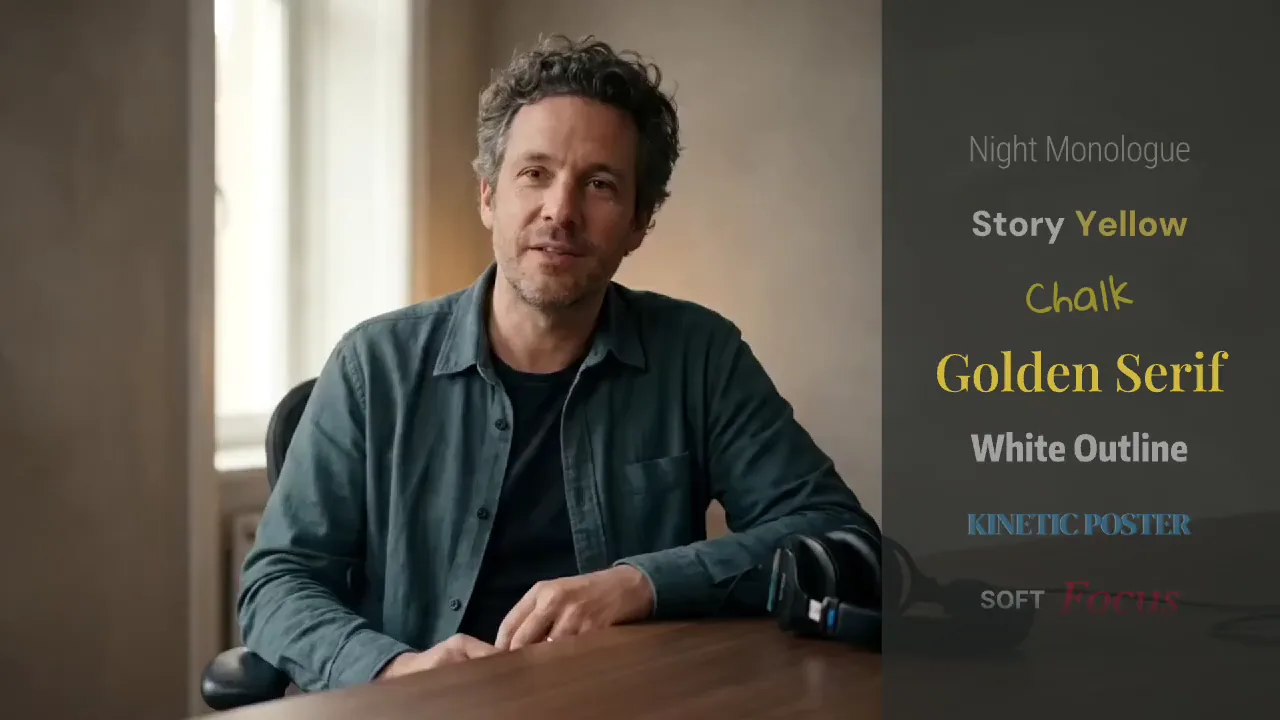
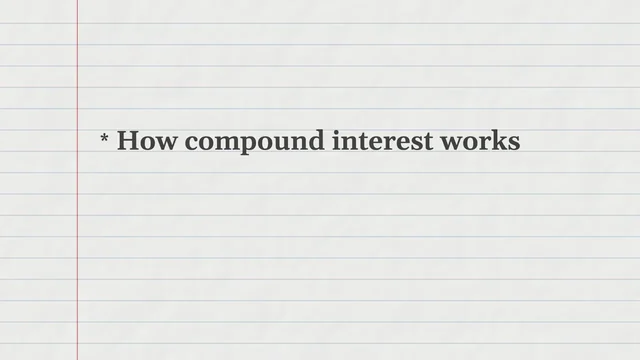
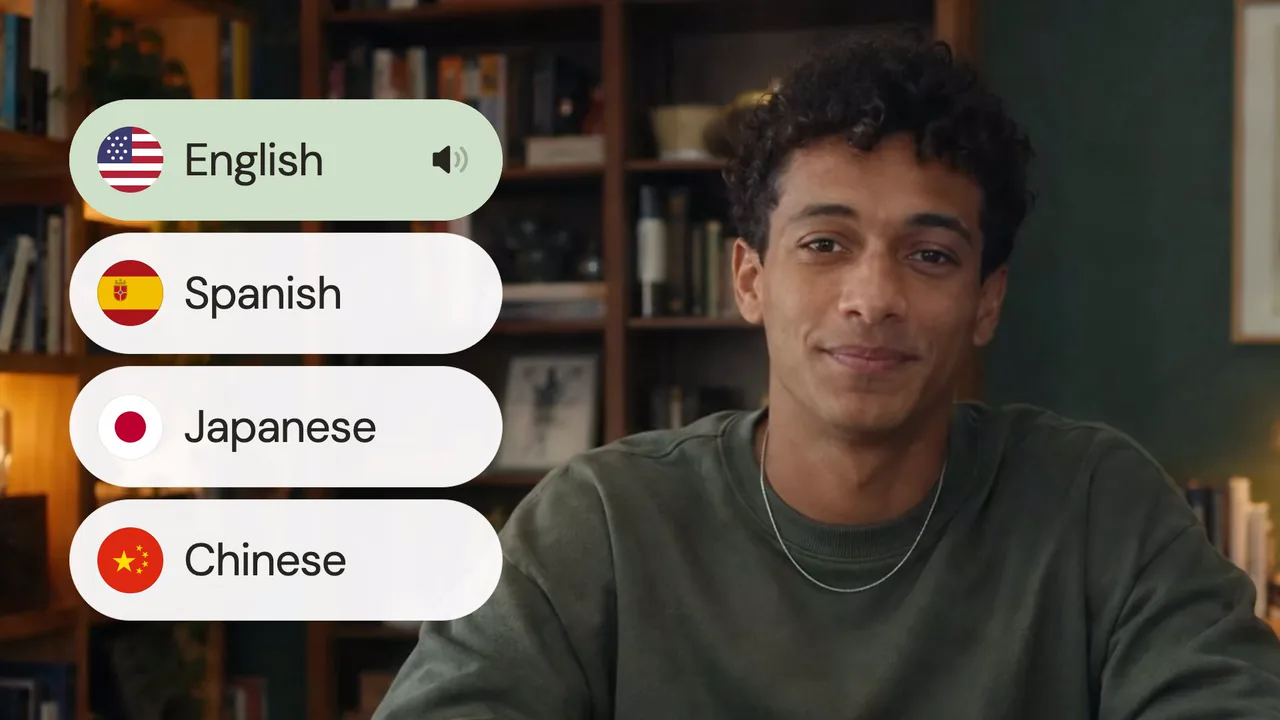
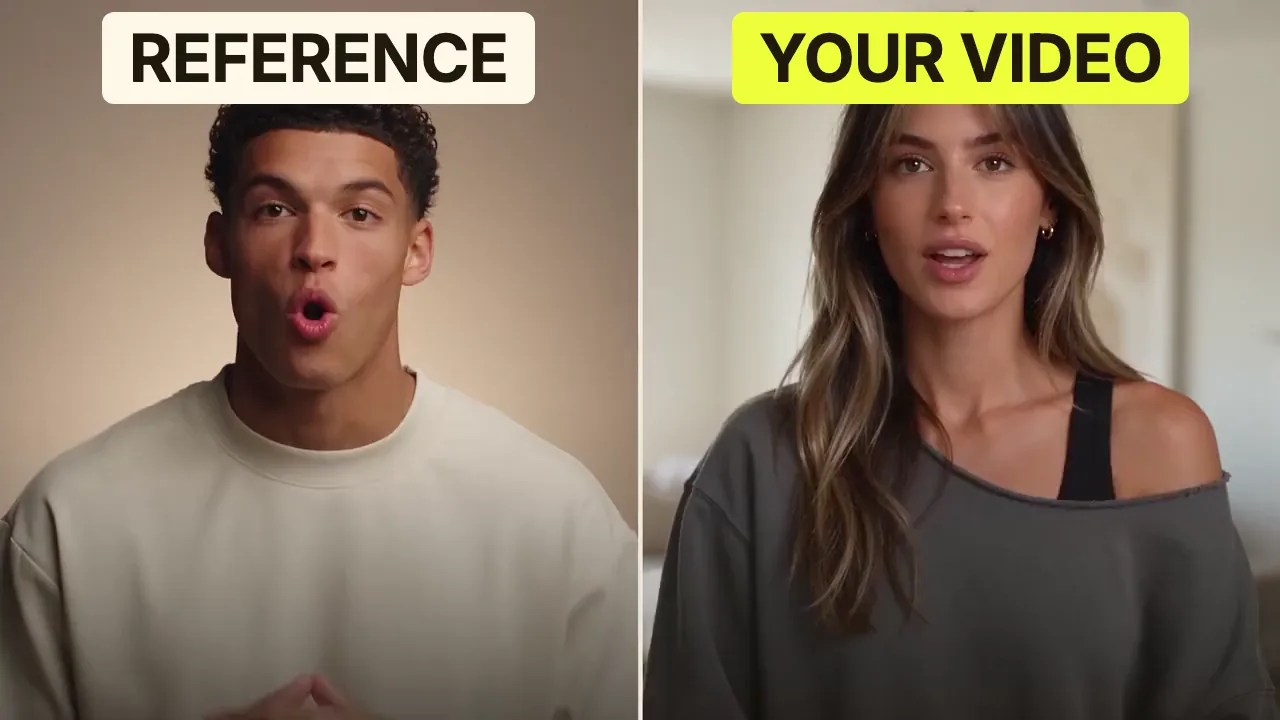
Speech CleanupUpload your talking-head footage. ChatCut automatically cuts out verbal slips, repetition and awkward pauses, keeping your delivery natural and seamless.Long video to shortsPaste a video link or upload a file. ChatCut plans the edits and polishes each clip, turning your long video into multiple short videos ready to publish on their own.Add captionsUpload your talking-head video. ChatCut automatically recognizes the speech, generates captions and applies your selected caption style.Motion Graphics StylesUpload a talking-head video and get motion graphics in the Editorial Explainer style added automatically: notebook chapter pages, grey-paper data charts and yellow highlighter marks, alternating with your on-camera shots like a news explainer. Good for news explainers, current affairs and data stories. If the footage has obvious flubs, repeats or long pauses, it cleans them up first, then packages it. You get a packaged, editable timeline ready to tweak and export. Works best with clear audio and one presenter.Editorial ExplainerVideo TranslationUpload a video and choose a target language. ChatCut automatically translates and dubs the speech, syncs lip movements, preserves the original voice and adds captions as needed.Talking-Head Edit RecreationEdit your talking-head footage with the cuts and styling of a reference video. Share a talking-head video you like (upload it or paste a link), then add your own recording. AI breaks down the reference's pacing, captions and on-screen text, motion graphics, B-roll, framing and sound, and applies them to what you say. You get a finished video and an editable project. It uses your own footage throughout, with no face swaps or generated shots.

FAQ

Audio converter FAQ

How do I convert MP3 to WAV?

Choose your MP3, select WAV and convert. WAV is uncompressed and usually larger, but cannot restore detail lost to MP3 compression.

Which audio inputs work?

The media parser and browser must both support the container and audio codec. MP3 and WAV are useful starting points; support for other audio varies.

Is AAC output the same as M4A?

No. This page writes AAC in an ADTS .aac file. ChatCut Desktop offers AAC saved in an M4A container when exporting an edited timeline.

What codec does OGG output use?

This tool writes Opus audio in an OGG container. Check that your receiving app supports OGG Opus.

Why is AAC unavailable?

AAC encoding depends on the browser and operating system. If the tool reports that AAC is unavailable, choose MP3 or WAV.

What are the limits?

Choose one file up to 200 MB and 10 minutes long. Output is 48 kHz stereo, and processing uses device memory.

Is audio conversion free?

Local conversion is free and needs no sign-up or upload. Continuing with the built-in ChatCut Agent is a separate action that uses credits.

Can I export FLAC here?

This tool does not create FLAC. To export a timeline as FLAC, add your audio in ChatCut Desktop and open Export → Audio.