Convert MOV to MP4

Make an MP4 copy of a supported QuickTime video without uploading it. Compatible H.264 and AAC tracks can be copied; other supported codecs need re-encoding.

Drop a video here

MOV / QuickTime · Up to 2 GB on a computer

This browser can't run the tool

Output: MP4 · H.264 / AAC

H.264 video and AAC audio are copied as they are; other supported codecs are re-encoded. Keeps the main video and audio track.

Up to 128 MB, 5 minutes and 4096 × 2160.

Converting video…

Runs on your device. Keep this tab open.

Done on your device

Download

ChatCut opens in a new tab with your request. Add your file there.

  • No media upload
  • No sign-up or watermark
  • 128 MB · 5 minutes max

Trusted by 400,000+ creators

Why ChatCut

Why convert MOV to MP4 with ChatCut

  • An MP4 for sharing

    Convert the MOV container to an MP4 with H.264 video and AAC audio when present.

  • Avoid needless re-encoding

    H.264/AAC MOV files can keep their existing encoded tracks.

  • Preview the new copy

    Check picture, duration and playback in the result panel before saving.

  • Private camera footage

    Your source MOV stays on your device throughout this conversion.

  • No added watermark

    This local converter adds no logo or watermark to your MP4.

  • Keep your original

    Download a separate MP4 copy. The source file is not overwritten.

How it works

How to convert MOV to MP4

  1. 01

    Choose a MOV

    Pick a supported MOV file from your device. Keep it within 128 MB and 5 minutes.

  2. 02

    Convert to MP4

    Start the local conversion to MP4. Keep this tab open until the file is ready.

  3. 03

    Preview and download

    Check the result, save the converted copy, or restart with another video.

Learn

MOV to MP4: containers, codecs and quality

What a QuickTime file contains

MOV is the container associated with Apple QuickTime. It can package different kinds of encoded video and audio, so the extension alone does not identify the compression or image quality. Phone recordings and editing exports can both use MOV while containing very different tracks. Before converting an important recording, keep the original and check which codecs it uses. A browser that opens one QuickTime clip may still be unable to decode another.

What goes into the MP4 copy

This page writes an MP4 container with H.264 video and AAC audio when sound is present. The engine handles the primary tracks only. Existing H.264 video can be copied, and existing AAC audio can be copied independently. For example, a compatible picture track does not need to be encoded again just because the audio needs conversion. Extra soundtracks, embedded subtitles and attachments are not included, so keep the source for a complete archive.

Why the result may not be smaller

Repackaging compatible tracks changes their container without reducing their encoded picture or sound data. That can solve a format requirement, but it is not a size reduction setting. When a different supported codec needs conversion, the engine targets 8 Mbps for video and 192 kbps for audio. The new copy can therefore be larger than an already compact source. Compare size and playback after conversion, and use compression separately if your main problem is a heavy file.

Check camera formats before a handoff

HEVC and ProRes sources are not guaranteed to decode in this browser workflow. An unreadable track produces an error, even if the original plays in a desktop application. This output also makes no promise to retain HDR or transparency. For a client handoff, confirm that H.264 MP4 meets the request, then review the beginning, ending and sound in the converted copy. Retain a dedicated camera or editing export when special image properties are required.


Use cases

When to convert MOV to MP4

  • Phone recordings

    Share a supported MOV recording with a service that asks for MP4.

  • Client review copies

    Make a convenient copy of a short QuickTime clip for review.

  • Editing preparation

    Bring the resulting MP4 into ChatCut to trim or caption it.

Keep editing

Keep editing after conversion

Add your downloaded file in ChatCut to trim it, add captions or make a vertical cut. Manual editing and export do not use credits; built-in Agent requests do.

New on YouTube Seedream 5.5 Is Now in ChatCut Seedream 5.5 in ChatCut
More from our channel All videos

Skills

Hundreds of skills for any video

100+ Skills. No experience needed. Start in one click.

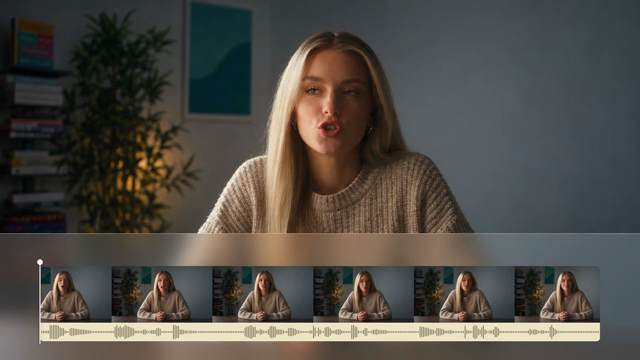
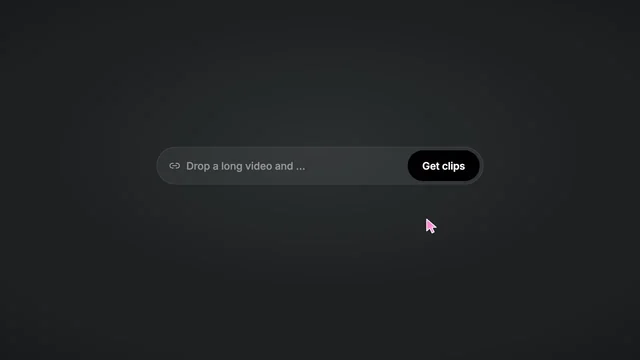
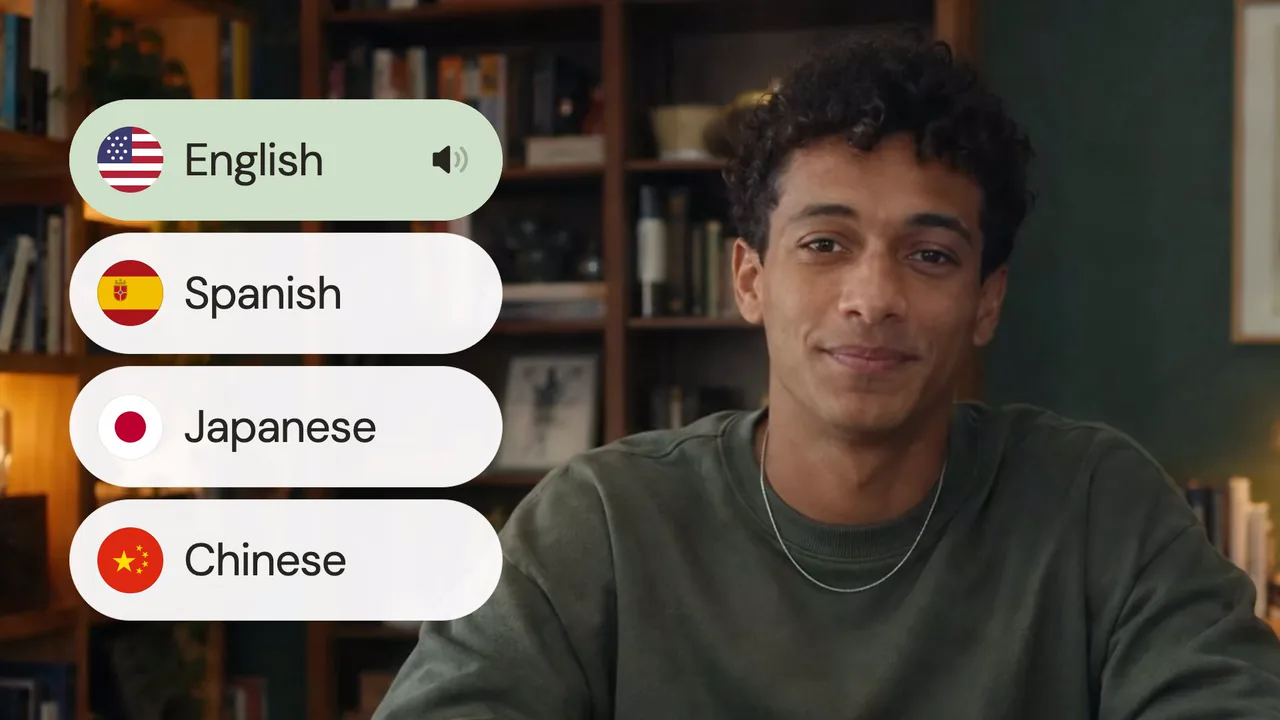
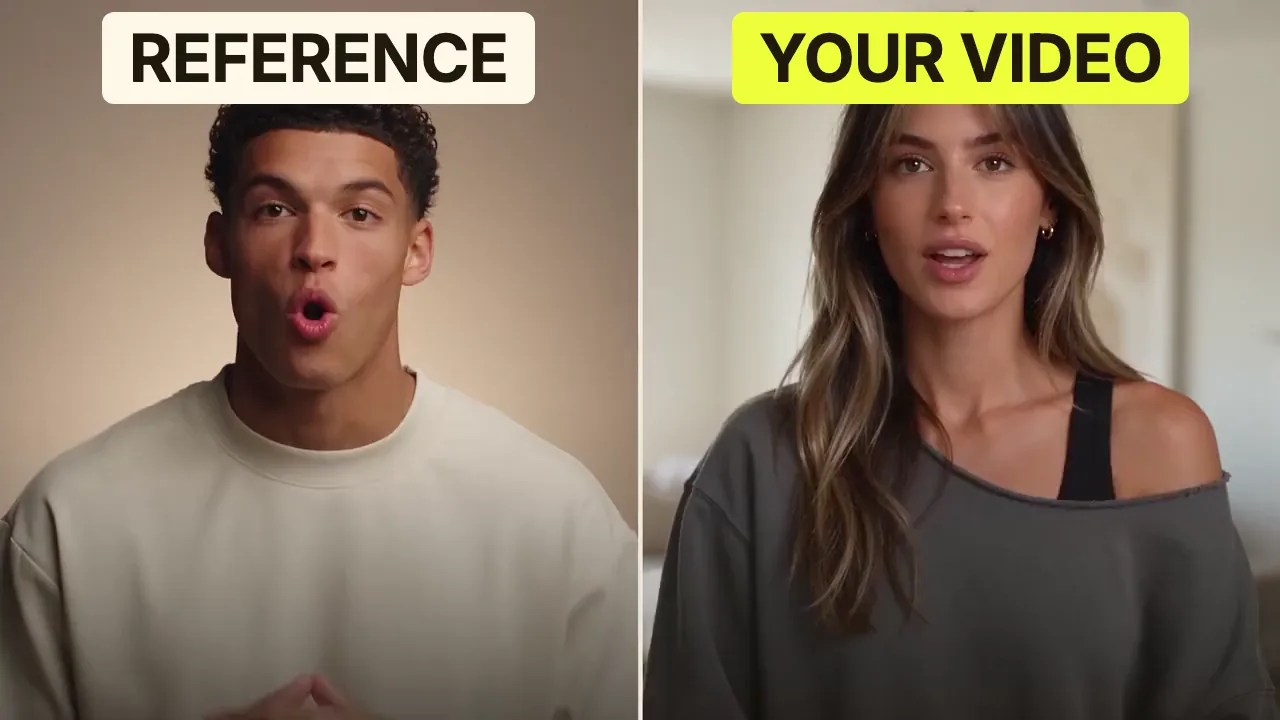
Speech CleanupUpload your talking-head footage. ChatCut automatically cuts out verbal slips, repetition and awkward pauses, keeping your delivery natural and seamless.Long video to shortsPaste a video link or upload a file. ChatCut plans the edits and polishes each clip, turning your long video into multiple short videos ready to publish on their own.Add captionsUpload your talking-head video. ChatCut automatically recognizes the speech, generates captions and applies your selected caption style.Motion Graphics StylesUpload a talking-head video and get motion graphics in the Editorial Explainer style added automatically: notebook chapter pages, grey-paper data charts and yellow highlighter marks, alternating with your on-camera shots like a news explainer. Good for news explainers, current affairs and data stories. If the footage has obvious flubs, repeats or long pauses, it cleans them up first, then packages it. You get a packaged, editable timeline ready to tweak and export. Works best with clear audio and one presenter.Editorial ExplainerVideo TranslationUpload a video and choose a target language. ChatCut automatically translates and dubs the speech, syncs lip movements, preserves the original voice and adds captions as needed.Talking-Head Edit RecreationEdit your talking-head footage with the cuts and styling of a reference video. Share a talking-head video you like (upload it or paste a link), then add your own recording. AI breaks down the reference's pacing, captions and on-screen text, motion graphics, B-roll, framing and sound, and applies them to what you say. You get a finished video and an editable project. It uses your own footage throughout, with no face swaps or generated shots.

FAQ

MOV to MP4 FAQ

Why is my MOV file so large?

MOV is a container, not a compression setting. A high bitrate or an editing codec can make it large; changing only the container will not substantially shrink it.

Can I convert MOV to MP4 without losing quality?

If the MOV already has compatible H.264 video and AAC audio, the tool copies those tracks. Other supported codecs need re-encoding, so identical quality is not guaranteed.

Does this support ProRes or every iPhone MOV?

No. HEVC, ProRes and other MOV codecs depend on browser support and may fail. Use a desktop converter if the browser cannot decode your file.

Will the MP4 keep transparency or HDR?

This tool does not promise alpha or HDR preservation. Keep the original MOV when those properties matter and check a dedicated export workflow.

Will renaming .mov to .mp4 work?

Renaming only changes the filename. This tool writes an actual MP4 container and converts incompatible tracks when the browser supports them.

Is this mov to mp4 tool free?

Yes. Conversion on this page is free, needs no sign-up and adds no watermark. Continuing in ChatCut is separate: built-in Agent messages use credits; manual editing and export do not.

Is my video uploaded during conversion?

No. The conversion engine reads and writes media inside your browser. If you choose to continue in ChatCut, add the downloaded file there yourself.

What are the file and browser limits?

Use a recent browser with WebCodecs. Files are limited to 128 MB, 5 minutes and 4096 × 2160 pixels; AVI is limited to 60 seconds, and codec support varies by browser.