Choose boundaries around a complete action
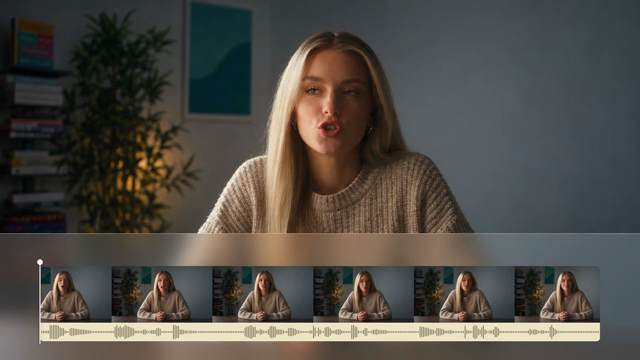
Before entering times, watch the source preview and identify the first moment viewers need to see. For a spoken answer, include the beginning of the first word and the end of the final word. For a demonstration, include the setup needed to understand the movement. Start and End use seconds, with decimal values available for finer adjustments. Leaving End empty keeps everything after Start. A start of 12 and an end of 27 selects a 15-second section from the recording.
Keep one section, then check the cut
This video cutter exports one continuous time range. It can remove material before and after that range, but it does not select several separate highlights in one operation. If there is an interruption in the middle, save separate sections and combine them afterward, or split the clip on a timeline. Watch the first and last moments of the exported result before sharing it. A numeric boundary is useful, but the available source frames determine what is actually visible at the cut.
Understand the picture and sound output
The download is an MP4 with H.264 video settings. The conversion can re-encode the picture, so a shorter duration does not mean the retained frames are guaranteed to be unchanged at the file level. Supported source audio stays with the selected section. If the browser cannot preserve a video or audio track, the export stops with an error instead of presenting a partial result as complete. Keep your source file if you expect to revise the boundaries or create another version later.
Prepare a source the browser can handle
The source must fit the tool limits before trimming: up to five minutes, 500 MB, and the pixel count of 3840 × 2160. Selecting a short passage from a longer recording does not bypass the source-duration check. MP4, MOV, and WebM are offered as inputs, but the browser still needs to read the tracks inside the file. If the recording cannot open, try an H.264 MP4. Choosing another time range cannot fix an unsupported source codec.