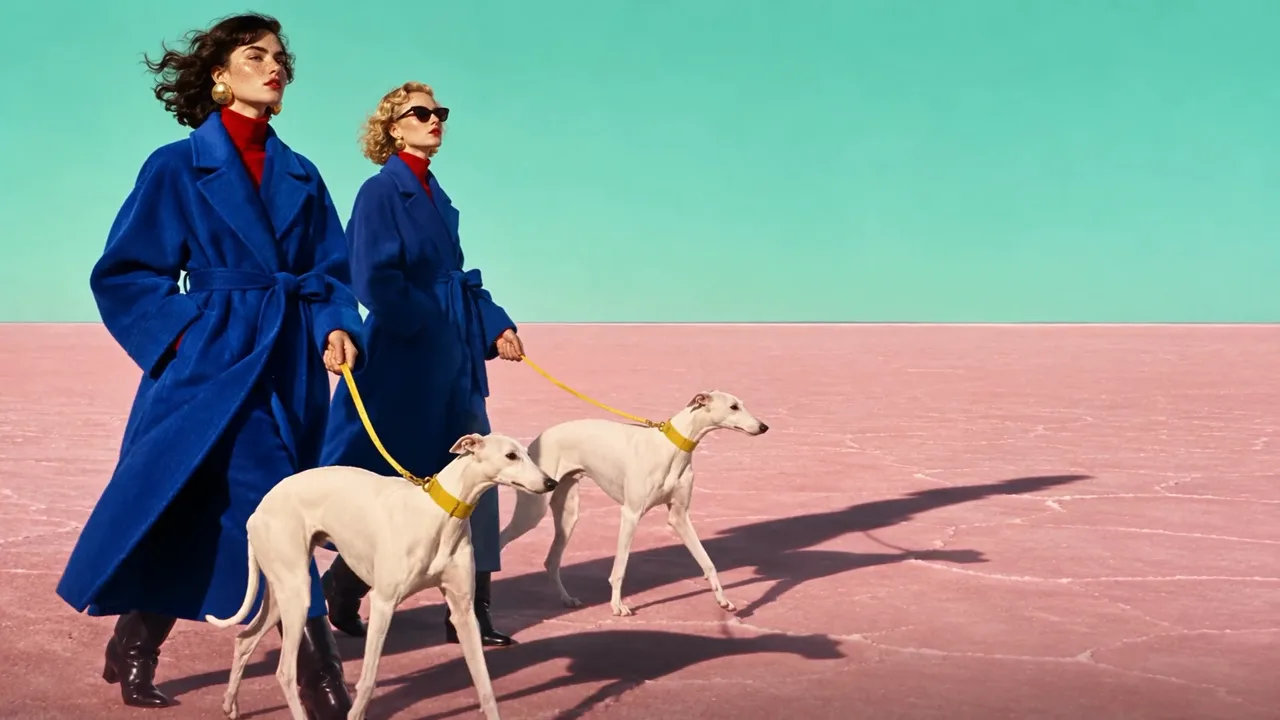
To use Seedance, pick Seedance 2.5 (or 2.0) in a tool that offers it, choose how you’ll guide it (text, a first frame or reference images), write the shot with its timing and sound, generate a cheap 480p draft, and turn the one you like into the 1080p final. This guide does each step in ChatCut on the same scene, two women walking two greyhounds across pink sand, so you can see what each step changes.
Most Seedance tutorials stop at “click Generate”. We also show what went wrong, what each clip cost, and how the clips end up in an edited video.
Key Takeaways
- Text alone gives you the action, not the look. Our first text-only take got the walk right but turned the cobalt coats teal and cut the women off at the shoulders.
- An image fixes what words can’t. A first frame locks the composition; reference images lock who and where, and each must be labelled in the prompt.
- Time ranges turn one clip into a sequence.
0-3s,3-6s,6-10sproduced three shots in the order we asked. - Sound is part of the prompt. Write the line, say who speaks, and describe the ambience; Seedance generates audio with every clip.
- Draft first. A 6-second 480p draft cost 2.91 credits; the same clip at 1080p is 16.18. Finish only the take you’ll use.
What you need before you start
- A tool that runs Seedance. This guide uses ChatCut, which has Seedance 2.5, Seedance 2.0 and its Fast and mini versions alongside a video editor. ByteDance’s own ModelArk API and apps such as Dreamina also run Seedance; the prompting advice here works anywhere.
- A paid plan and credits. Video generation in ChatCut needs a paid plan; each clip uses credits, and the estimate shows before you send.
- Your inputs, if any. A still for the first frame, or images of the people, products and places that must stay the same.
Which version? Use Seedance 2.5 unless you need something only 2.0 does:
| Seedance 2.5 | Seedance 2.0 | |
|---|---|---|
| Clip length | 4–30 s | 4–15 s |
| References | 30 images, 10 videos, 10 audio | 9 images, 3 videos, 3 audio |
| Cheap test | 480p draft that becomes the 1080p final | Fast or mini versions, up to 720p |
| Edit or extend a video | Edit and Extend modes | Through video references |
| 10 s at 1080p in ChatCut | 26.89 credits | 17.81 credits |
Step 1: Open Video Gen and choose Seedance
In ChatCut:
- Open a project and switch the AI composer from Agent to Video Gen.
- Click the model name in the bottom toolbar and choose Seedance 2.5.
- Open Video settings and pick the Input (text, Frames or References), aspect ratio, resolution and duration.
- Write the prompt, check the credit estimate, and select Send message.
- Watch progress in My Assets; drag the finished clip to the timeline.
You can also stay in Agent mode and describe what you want in plain words; the Agent picks the settings and writes the prompt. The video generation docs list every model’s inputs.
Step 2: Start with text
Write the subject, the action, the camera and the sound. Keep it to one action for the first try.
What happened: the walk, the direction, the two leashes and the sound are all right. Two things aren’t. The coats came out teal, not cobalt; colour words are guidance, not a lock. And “keeps every foot and paw visible” made the camera frame low, so the women are cut off at the shoulders. That’s the limit of text: it controls what happens, but not exactly how it looks.
Step 3: Add a first frame
If you already have the picture you want, make it the first frame. In Video settings → Input, choose Frames and drop the image on First Frame. Then the prompt only has to describe movement.
What changed: the coats are cobalt, both women are in frame head to toe, and the clip starts on exactly the picture we gave it. A first frame is the most reliable way to control composition. You can add a Last Frame too, and Seedance will move between them; our room makeover prompt does that.
Step 4: Use reference images instead
A first frame fixes one picture. Reference images fix who and where while leaving the camera free. In Video settings → Input, choose References and add the images in order. In the prompt, name each one and say what it controls.
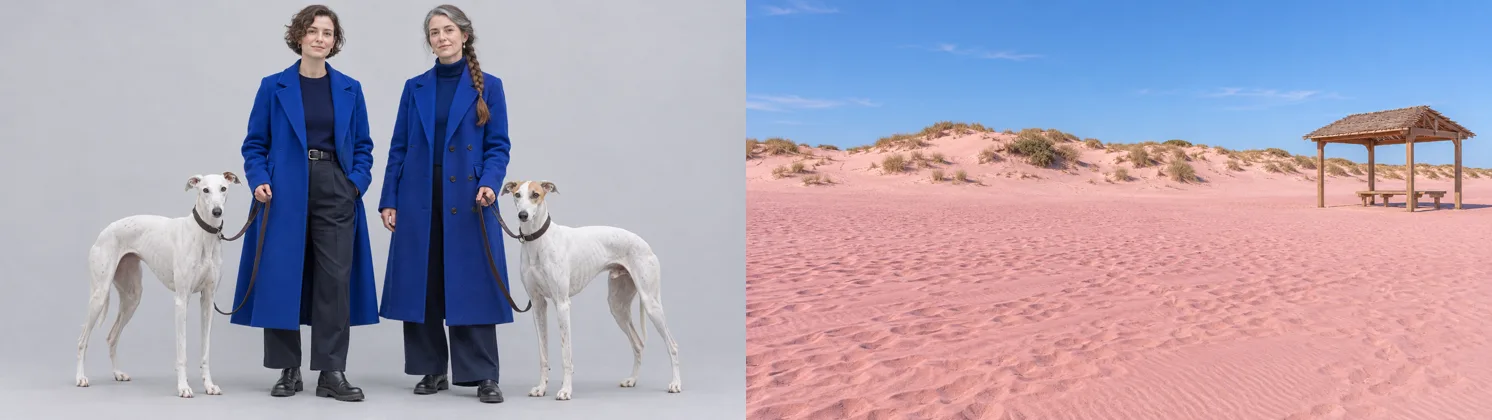
What changed: the coats are cobalt again, the dunes and the shelter come from the location image, and the grey studio background of the cast sheet didn’t leak in, thanks to “reject the cast-sheet backdrop”. The framing problem from step 2 is still there, because we kept the same “every foot and paw” line, and near the end one woman walks behind the other. References fix identity; framing is still your words’ job.
Two rules: frames and references can’t be combined in one Seedance 2.5 request, and an unlabelled reference gets blended into everything. Seedance 2.5 accepts up to 30 images, 10 videos and 10 audio clips.
Step 5: Split it into shots
Give each shot a whole-second range and its own camera. Seedance cuts between them inside one clip.
What happened: three shots, in order, on time: the wide walk, a low close-up of a dog’s legs in the sand with the leash, and the wide stop by the shelter. The wide shots also fixed the cropped heads, because we stopped asking for every paw. Keep ranges to 3–5 seconds and one action each; two actions in one range usually loses one.
Step 6: Add dialogue and sound
Seedance generates sound with every clip, so describe it the way you’d brief a sound designer. For speech, quote the line, say who says it, and give the other person something silent to do.
What happened: we transcribed the clip, and the line came back word for word: “They chose the quiet route today.” The braided woman nods without speaking, and both dogs’ heads stay in frame. A steady camera and a single line are the easiest dialogue to get right; save walking-and-talking for when this works.
Step 7: Draft at 480p, finish at 1080p
Every Seedance 2.5 clip you generate at 480p in ChatCut is a draft. When one is right, ask the Agent to turn that draft into its 1080p final. Seedance renders the same shot again at 1080p, reusing the prompt, references, length, aspect ratio and audio. You have 7 days.
The clip in step 3 is exactly that: a 480p draft that we approved and finished at 1080p. Expect the shot, the motion and the timing to carry over and small details to be redrawn; check faces and any text in the final, not the draft.
| Step | Clip | Credits in ChatCut |
|---|---|---|
| 2. Text | 6 s, 480p draft | 2.91 |
| 4. References | 6 s, 480p draft | 2.91 |
| 5. Timed shots | 10 s, 480p draft | 4.84 |
| 6. Dialogue | 8 s, 480p draft | 3.87 |
| 3 and 7. First frame, finished | 6 s draft + 1080p final | 2.91 + 16.18 |
| Reference images | GPT Image 2.6, two images | about 0.3 |
The clips in steps 2 to 7 cost about 34 credits together, roughly $6 to $9 at ChatCut’s plan prices of $0.18 to $0.25 per credit. Generating all five straight at 1080p would have cost about 97. The Seedance 2.5 price guide has every duration and resolution.
Step 8: Edit the clips into a video
A generated clip is a shot, not a video. In ChatCut the clips land in My Assets; drag them to the timeline, trim the dead frames at the start and end of each, order them, and add music and captions if you need them. Keeping generation and editing in one project means a retake is one prompt away instead of an export and re-import.
For a full example, our Seedance short film breakdown makes five shots with the same character and prop, then cuts them into a 35-second film on the ChatCut timeline, with every prompt and credit listed.
Two more inputs worth knowing
Borrow a camera move from a video. Add a video as a reference and say it supplies “the camera movement only”. The new scene follows its path and speed.
Edit or extend a clip you already have. In Video settings, Seedance 2.5 has Edit video and Extend video modes: add the source clip and describe the change, or what happens next. Name what must stay the same, and inspect the result before replacing the original; an edit is a new render, not a pixel-exact patch.
Seedance troubleshooting
| Problem | Likely cause | Fix |
|---|---|---|
| Colours or faces drift from what you described | Text only | Add a first frame or label reference images |
| People cropped or framed oddly | A framing side effect of another instruction | State the framing: “full body, head to toe” or “waist-up two-shot” |
| One action in a shot goes missing | Two actions in one short range | One action per range, 3–5 seconds each |
| References blended together | Images not labelled | ”@Image1 is…, @Image2 controls … only” |
| Studio background leaks in from a character sheet | Sheet backdrop read as a location | Add a location image and “reject the sheet backdrop” |
| Unwanted music or wrong voice | Sound not described | Describe ambience, effects and music; name the speaker; “no music” |
| Liquid or motion never stops | No end state | Say how the shot ends: “settles”, “stops”, “returns to the start” |
| A request is refused | Content review | Remove real people, brands, logos and anything violent; use invented names |
Change one thing per retry, and keep the inputs that worked. For prompts that already work, see our 22 tested Seedance 2.5 prompts; to see how Seedance compares with another model on the same prompts, read Seedance 2.5 vs Kling 4.0.
How is Seedance 2.0 different to use?
The steps are the same; the limits differ. Seedance 2.0 clips run 4 to 15 seconds, take up to 9 images, 3 videos and 3 audio clips, and have no 480p draft route. For cheap tests, use Seedance 2.0 Fast (quicker, up to 720p) or Seedance 2.0 mini (about half the price, up to 720p), knowing that a later full-model run won’t reproduce the test exactly. Seedance 2.0 is also the route to native 4K in ChatCut; see our native 4K guide. For 2.0 prompts, see our Seedance 2.0 prompt examples.