Claude motion graphics are animations that Claude writes as code and renders to MP4 rather than generating with a video model. This test was run by Claude Opus 5.5 in Claude Code, using the ChatCut desktop connection. We sent 16 plain-English prompts across nine everyday motion design jobs, exported all 16 finished 720p MP4s in about 24.5 minutes total (1 to 2.5 minutes per clip), and spent 0 ChatCut credits.
Below you get every rendered video paired with the exact prompt we typed, how the three ways of making motion graphics with Claude compare across plans, what needed a second pass before export (and how frame checks caught it), and how to run your own first graphic.
Results at a glance
Every clip on this page comes from one session on November 14, 2026. Claude wrote each animation as a Remotion TypeScript component, imported it into a dedicated ChatCut project as an editable Motion Graphic, sampled six to eight timeline frames to inspect its own layout, fixed any visual glitches, and exported an H.264 MP4.
| Measure | Our 16-prompt test |
|---|---|
| Setup | Claude Opus 5.5 in Claude Code (Desktop Code tab) connected to ChatCut Desktop |
| Prompts run | 16 prompts across 9 categories, 16 finished MP4s (0 abandoned) |
| First-pass success | 10 passed on the first render; 5 needed one code layout fix, plus 1 re-export with new test footage |
| Wall-clock time | About 24.5 minutes total, or 1 to 2.5 minutes per animation including export |
| Exported files | 720p at 30 fps H.264 MP4 (1280x720 landscape, 720x1280 vertical), 0.14 MB to 4.58 MB |
| Reusability | Every clip exposes text, numbers, colors, and timing as editable ChatCut fields |
| Cost | 0 ChatCut credits (verified in billing history); Claude turns counted against our Claude plan |
Jump to a prompt category: Title cards · Kinetic typography · Data charts and counters · Logo reveals · Product UI explainers · Lower thirds · Transitions, captions, and loops
Three ways to make Claude motion graphics
If you saw Claude animations on X and went looking for a video button inside standard claude.ai chat, the plan rules are easy to miss. Today there are three practical ways to build motion graphics with Claude, and they differ in which subscription you need and what kind of file you get back.
| Route | Which plans get it | Setup required | What you get back |
|---|---|---|---|
| Claude Motion | Beta on Team and Enterprise only (not on Free, Pro, or Max) | None on Team; Enterprise owners turn it on in Organization settings > Artifacts | An editable Motion artifact inside Claude chat that exports to MP4 or shares via link |
| Claude Code + standalone Remotion | Any plan that includes Claude Code (Pro, Max, Ultra, Team, Enterprise) | Local Node.js project, TypeScript dependencies, and headless browser render | React source files in a local folder and rendered MP4s; no multi-track video timeline |
| Claude + ChatCut Motion Graphics (what we ran) | Any Claude Code plan connected to ChatCut Desktop, or any plan directly inside ChatCut | Install ChatCut Desktop on macOS or Windows and start a local Claude Code session | Editable Motion Graphics placed straight onto a video timeline (with exposed text and color fields) plus local MP4 export |
According to Anthropic’s Claude Motion announcement and help guide, Docs, Slides, and Design are available on every plan including Free, whereas Claude Motion remains a Team and Enterprise beta. If you are on a Pro or Max plan, or if you need transparent lower thirds and kinetic captions layered directly over real camera footage, the two Claude Code routes are what work right now. Under Remotion’s license, running standalone Remotion is free for individuals and companies of up to three people, while larger companies require a commercial license.
One boundary applies to all three routes: code-driven motion graphics animate typography, shapes, charts, vector badges, and UI layouts, not photorealistic people or camera movement. When a shot calls for live-action B-roll rather than animated type, pair your timeline with a video generation model like Seedance instead; see our guide on how to make motion graphics and our comparison of AI motion graphics generators for how the two approaches fit together.
Title cards
Every prompt below is copied word for word from our session. Swap the quoted text, hex color codes, and durations for your own series or brand.
1. Editorial serif title card
Run notes (about 1 minute, passed on first pass): Claude set the headline in Playfair Display Semibold with an italic subtitle, added a soft radial paper vignette, and exposed the title, subtitle, and three palette colors as editable fields so episode 4 only needs a text change. Check: make sure the rule finishes drawing before the hold begins and that the final fade reaches clean paper before the clip cuts.
2. Glitch RGB-split podcast intro
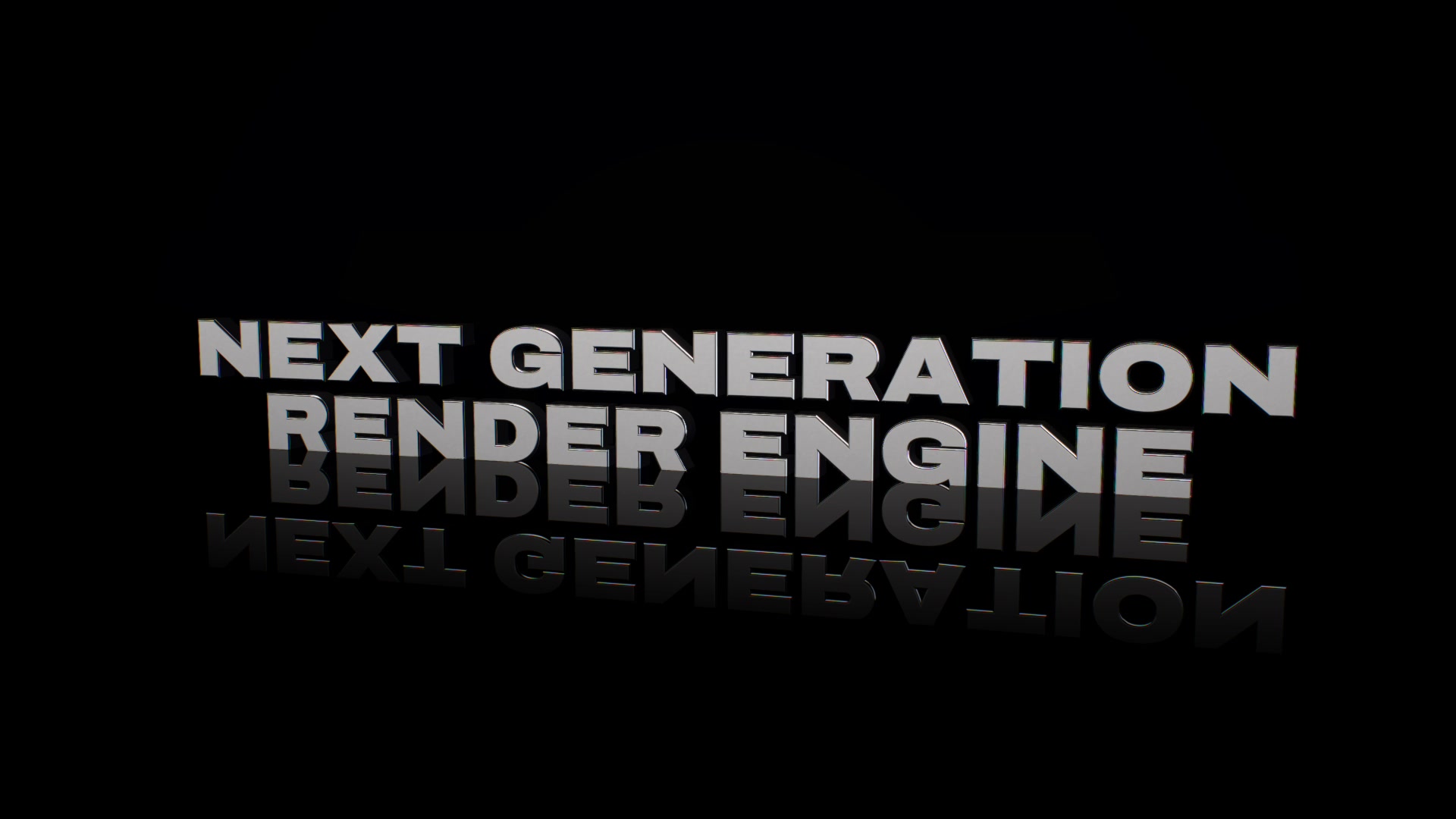
Run notes (about 1 minute, passed on first pass): Each character jitters in with a screen-blended magenta offset, the completed wordmark fires one full-width glitch burst at 2.6 seconds, and the episode subtitle types out underneath with a half-second blinking block cursor. Check: verify that seeded randomness is used for the jitter so every preview frame matches the final render.
Kinetic typography
3. Beat-synced stacked slam type
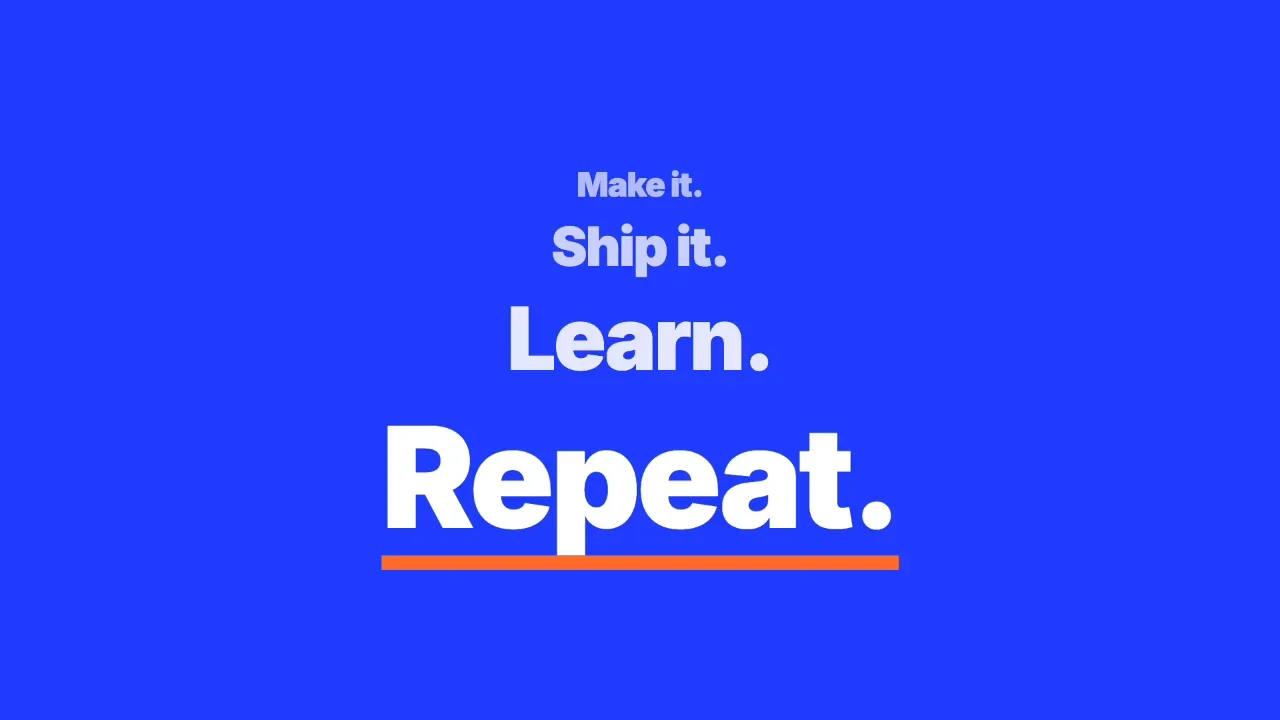
Run notes (about 2 minutes, 1 fix): On the first pass, Claude shrank each older line by 50 percent per beat, leaving “Make it.” at one-eighth scale (barely readable at 720p) while incoming text briefly overlapped the line above. Raising the step scale to 62 percent, re-centering the stack, and softening the slam scale fixed both issues. Check: inspect the final settled frame at phone width to confirm the oldest line at the top of the stack stays legible.
4. Word-by-word quote with highlighter sweep
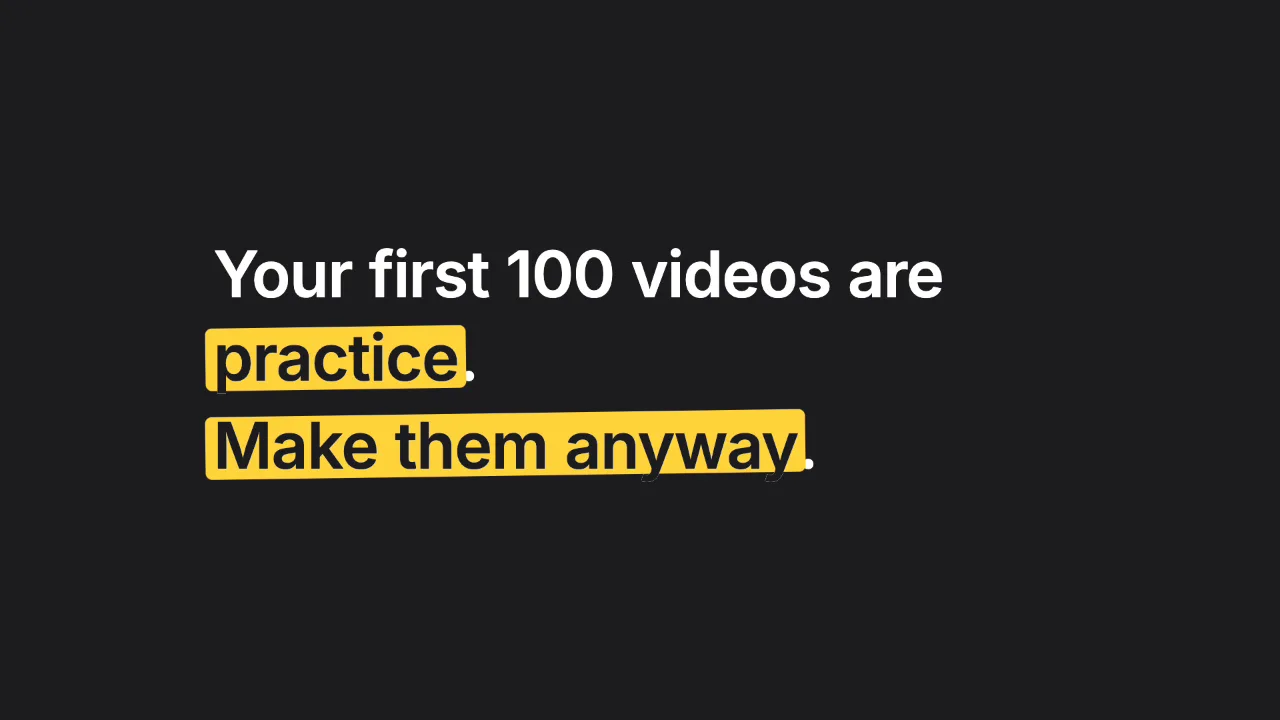
Run notes (about 2 minutes, 1 fix): First-pass frame sampling caught a classic code-animation bug: the yellow bar stopped at the baseline while the dark text overlay clipped to the full line box, slicing the tails off the letters “p” and “y” against the charcoal background. Splitting the quote into three centered lines and extending the yellow sweep below the descenders solved it cleanly. Check: always test highlighter sweeps on words containing g, j, p, q, or y, and check that trailing punctuation stays outside the highlight bar.
Data charts and counters
5. Minimalist animated bar chart
Run notes (about 1 minute, passed on first pass): Claude rounded the y-axis ceiling cleanly to 80, staggered the six bars by 0.35 seconds each, and left room on the right so the orange “+32% MoM” callout badge (matching 58 over 44, or +31.8 percent) never clips at the frame edge. Check: verify that any percentage badge in your prompt matches the underlying numbers you gave Claude, and check right-hand margin clearance.
6. Clockwise donut chart with counting legend
Run notes (about 1 minute, passed on first pass): Built as segmented SVG arcs with narrow gaps between slices, lighting up each legend row as its arc sweeps clockwise from the top. Labels, percentages, and colors remain editable properties. Check: confirm your segment numbers add up to 100 percent and that thin slices (10 percent or under) aren’t swallowed by overly wide segment gaps.
7. One-million subscriber milestone counter
Run notes (about 1 minute, passed on first pass): Claude enabled tabular numerals so the digits never jump sideways while counting from 0 to 1,000,000, added a gentle 6 percent scale bump at landing, and scattered 64 seeded gold confetti dots that fade out within 1.4 seconds. Check: watch the roll-over at 1,000 and 1,000,000 to verify commas don’t cause horizontal jitter.
Logo reveals
8. Coffee badge and single-stroke flame reveal
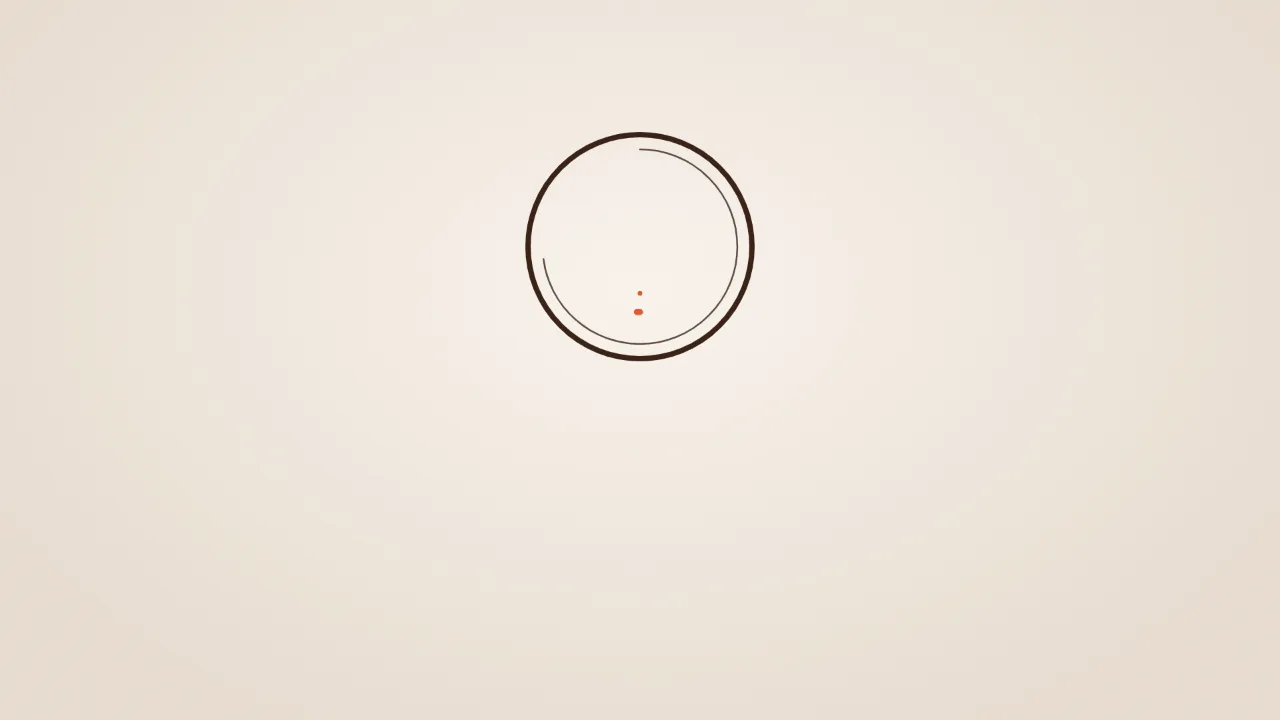
Run notes (about 1.5 minutes, 1 fix): On the first render, SVG round stroke caps left two tiny orange dots sitting inside the empty circle before the flame path started drawing. Setting stroke opacity to zero until draw progress passes zero cleaned up the opening frames. Check: step through the first second of any stroke-draw animation to make sure hidden paths aren’t leaving start-cap dots on screen.
9. Geometric collision startup sting
Run notes (about 1 minute, passed on first pass): A sky-blue triangle, mint circle, and wide rounded navy base block fly in from three edges, squash slightly at 0.85 seconds, spring into a compact mark, and slide left while a clipping mask reveals “Northwind Labs.” Claude widened the square into a rounded base block so the assembled icon looked balanced, and noted that choice in its reply. Check: zoom in on the first letter of the company name right after the slide-out to ensure the clipping box doesn’t shave its left edge.
Product UI explainers
10. Mobile to-do tap and toast explainer
Run notes (about 2 minutes, 1 fix): Everything in this clip is drawn in code with no screenshots, so every task label and color stays editable. In the first pass, the “3 tasks” subhead crowded the first checkbox and the phone card looked small inside a 16:9 frame; enlarging the card and pushing the task rows down fixed the hierarchy. Check: verify that the SVG cursor tip lands squarely inside the checkbox at the moment the click ripple fires.
11. SaaS dashboard with leader-line callouts
Run notes (about 1.5 minutes, passed on first pass): Claude placed “Weekly digest” on the left and the other two pills on the right so no leader line had to cross over the dashboard, and added an indigo outline around each target region as its callout appeared. Check: confirm each leader dot touches the exact chart line or card it names rather than floating in empty margin space.
Lower thirds
Prompts 12 and 13 generate transparent-background overlays sized to their content. To test how the alpha channel reads over real contrast shifts, we placed both graphics on track V2 above existing AI test footage in ChatCut (all names and handles are fictional).
12. Documentary interview lower third
Run notes (about 2.5 minutes): Instead of adding a heavy dark box behind the text, Claude kept the background transparent and added a soft drop shadow so the light-gray title remained readable even when the silver train door passed behind it. During the final second, the text wipes cleanly back into the teal bar before the bar exits. Check: scrub across the brightest frame of your underlying clip to make sure light-gray secondary text stays legible without a backing plate.
13. Creator handle pill with Subscribe click
Run notes (about 1.5 minutes, passed on first pass): Because the prompt didn’t attach a profile photo, Claude generated a gradient avatar circle holding the initial “S” and locked fixed pixel widths on the handle and button so the cursor click hits the center of “Subscribe” every time. Check: if you swap in a longer handle later, verify the cursor target moves with the button rather than clicking the text.
Transitions, captions, and loops
14. Three-stripe diagonal chapter wipe
Run notes (about 1.5 minutes, passed on first pass): Before importing the component, Claude caught a classic wipe math trap in its own draft: if three narrow angled stripes stagger too far apart, gaps appear at the midpoint and expose the hard cut. Moving three wide overlapping bands together guaranteed 100 percent frame coverage at 2.9 seconds where Chapter 1 switches to Chapter 2. Check: step frame by frame across the midpoint of any wipe transition to confirm zero text flicker shows through the seams.
15. Vertical 9:16 TikTok-style pop captions
Run notes (about 2.5 minutes, 1 fix): On the first pass, Claude set the flex gap between words in relative em units inside a wrapper that had no font size of its own, so the thick black stroke ate the 4.5-pixel gap and fused the line into “IQUITMY.” Switching to a fixed 40-pixel gap and dialing the active-word scale pop from 12 percent down to 7 percent kept adjacent words crisp. (For real spoken recordings rather than standalone text cards, ChatCut’s built-in caption track binds directly to word timestamps.) Check: inspect the longest uppercase word at the peak of its scale pop so its outline never collides with the next word.
16. Continuous 2-second loading loop
Run notes (about 1 minute, passed on first pass): Claude drove both the clockwise dot pulse and the text breathing curve from time modulo 2 seconds. Pixel-diffing the exported MP4 at 0, 2, and 4 seconds confirmed the frames are identical apart from minor H.264 compression noise. Check: compare frame 0 against the first frame of the next cycle before looping the clip in an edit or web page.
What went wrong on the first pass (and how to prompt around it)
Ten of our 16 animations exported cleanly on the first try, and Prompt 12 only re-exported after we swapped in matching background test footage. None of the five code revisions failed to compile; instead, they had small visual collisions that only show up when you look at rendered frames rather than trusting code that type-checks.
Five prompting and review habits come straight out of those fixes:
- Write the prompt like a shot list. Every prompt that passed on the first try named five concrete details: canvas shape (16:9 or 9:16), exact duration in seconds, hex color codes, exact on-screen copy in quotes, and what happens last (hold, fade out, or loop). Leaving timing vague forces Claude to guess when elements exit.
- Sample early, middle, and settled frames before exporting. Checking only a mid-clip thumbnail would have missed the stray orange SVG dots at 0.67 seconds in Prompt 08 and the four-frame slam overlap in Prompt 03. Ask Claude to preview multiple timestamps across the timeline and fix layout bugs before the final render.
- Watch outlines and scale pops on bold captions. Thick text strokes expand outward without pushing neighboring words away (Prompt 15’s “IQUITMY” pass), and compound scale reductions shrink text faster than expected (Prompt 03’s 50 percent per-step stack). When prompting kinetic type, tell Claude to keep every stacked line readable at 720p and leave clear air between outlined words.
- Ask for a transparent background on overlays. Lower thirds and social captions (Prompts 12, 13, and 15) are far more useful when rendered with alpha transparency instead of a solid background card. Drop a test clip underneath right away to check readability over bright highlights.
- Specify the exact loop period when you need a cycle. Saying “loop every 2 seconds; give me 6 seconds” in Prompt 16 prompted Claude to wrap every animation curve in modulo math rather than writing a one-way entrance that jumps at the cut.
How to run these prompts yourself
If you aren’t on a Team or Enterprise workspace with Claude Motion enabled, a local Claude Code motion graphics workflow with ChatCut Desktop gives you the setup we used above on macOS 13+ or Windows 10+ (x64). For a full walkthrough of the Desktop connection and troubleshooting, see our guide on how to edit video with Claude; if you’re weighing code-driven workflows against keyframe editors, see our comparison of the best motion graphics software.
- Connect Claude Code to ChatCut Desktop. Open a local session in Claude Code (terminal or the Code tab of the Claude desktop app, which Anthropic documents on Pro, Max, Ultra, Team, and Enterprise plans) and send
Read ChatCut.io/desktop to install ChatCut. Sign in to ChatCut in your browser, then open a new Claude Code conversation so thechatcut_desktoptools load. - Paste one shot-list prompt. Copy any of the 16 prompts above, swap in your own text and hex colors, and ask Claude to place it on a timeline in your open ChatCut project and check preview frames across the animation.
- Edit fields without re-prompting. Because Claude builds each asset as an editable ChatCut Motion Graphic rather than baking a flat video first, click the item on the timeline in ChatCut Desktop to change headlines, numbers, or brand colors directly in the properties panel for your next episode.
- Export locally to MP4. Ask Claude to export the timeline (or click Export → Video in ChatCut Desktop) at 720p, 1080p, or up to 4K. Creating code-based Motion Graphics and running local Desktop exports used 0 ChatCut credits across all 22 exports in our test; only your normal Claude Code plan usage applies.
Tools Claude called during our test: create_project, read_project, browse_library, push_asset, inspect_asset, manage_timelines, edit_item, preview_timeline, export, track_progress, read_billing, plus read-only browse_assets and pull_asset calls to reuse three existing test clips under the lower thirds and vertical captions.