Motion graphics used to be a specialist skill. You needed After Effects, a steep learning curve, and weeks of practice before you could animate a single title card worth keeping.
That barrier is gone.
AI tools have collapsed the time and expertise required to create motion graphics, animated visual elements like text, shapes, icons, and transitions layered over video. What took a professional designer hours now takes anyone a few minutes. According to Grand View Research, the global motion graphics market is valued at over $110 billion, and AI is reshaping who gets access to it.
This guide is for content creators, marketers, indie filmmakers, and social media managers who want professional-looking motion graphics without hiring a studio or learning After Effects from scratch. I’ve found that most people don’t need a full design workflow; they need a fast, repeatable process that gets results.
By the end, you’ll know the best tools for every skill level, a step-by-step workflow you can reuse, and how ChatCut’s AI motion graphics workflow generates animated assets in seconds. Don’t click through menus. Just tell ChatCut what you want.
What Are Motion Graphics and Why Do They Matter?
Motion graphics are animated graphic design elements: text, shapes, icons, charts, and transitions layered over video or displayed standalone. They don’t tell a character-driven story. They communicate information, reinforce branding, and guide viewer attention through movement and design. According to HubSpot research, videos with motion graphics hold viewer attention 40% longer than static equivalents, and the global motion graphics industry is valued at over $110 billion, driven by the explosion of video content across streaming, social media, and digital advertising.
That distinction matters. Full animation creates characters and narrative scenes from scratch. Motion graphics animate what already exists in graphic design: a logo, a headline, a data visualization, a lower-third. The movement serves the message, not a plot.
And that movement works. Brand recall improves because motion creates visual anchors that static frames don’t. On social platforms, animated elements stop the scroll in a way that a plain talking-head clip simply doesn’t.
The use cases are everywhere. YouTube intros. Explainer videos. Social ads. Product demos. Podcast audiograms. App promo clips. Any video that needs to communicate something quickly benefits from animated text or graphics reinforcing the message.
Historically, creating motion graphics meant learning After Effects, which has a notoriously steep learning curve. Today, AI tools have changed that equation entirely. You can use an AI motion graphics generator to produce animated assets from a text description, no keyframes required.
The barrier isn’t skill anymore. It’s knowing which tool fits your workflow.
What Tools Can You Use to Create Motion Graphics?
You can create motion graphics in After Effects, DaVinci Resolve, Canva, or ChatCut. Canva supports basic motion graphics through its motion path animator and preset animations, but it lacks timeline control and custom keyframing. After Effects offers the deepest toolset at $54.99/month but carries a steep learning curve. DaVinci Resolve is free and powerful, though complex. ChatCut generates animated assets from a text prompt with no keyframes required. The right tool depends on your skill level and how fast you need to move.
Here’s how the main options stack up.
After Effects, Industry Standard, High Learning Curve
After Effects is the professional benchmark. According to Adobe, it’s used in production pipelines at virtually every major broadcast network and film studio. The toolset is deep: custom keyframing, expressions, shape layers, 3D compositing, and a massive plugin ecosystem.
The cost is $54.99/month as part of Adobe Creative Cloud. The learning curve is steep; most professionals spend months before they’re comfortable. If you’re building a career in motion design, it’s worth the investment. If you’re a content creator who needs a lower-third by Friday, it probably isn’t.
DaVinci Resolve, Free and Powerful
DaVinci Resolve is free to download and includes Fusion, a node-based compositing module that handles motion graphics. The power is real. The complexity is also real.
Fusion uses a node graph instead of a traditional timeline, which means the mental model is different from anything else on this list. It’s a strong option for editors who already live in Resolve and want to add motion graphics without switching apps.
Canva, Beginner-Friendly but Limited
Canva’s motion path animator lets you drag elements along a path and apply preset entrance and exit animations. For simple social graphics, it’s fast and accessible.
The ceiling is low, though. There’s no frame-level keyframe control, no custom easing curves, and no way to build complex animated sequences. It’s fine for a basic animated Instagram story. It won’t get you a polished YouTube intro.
ChatCut, AI-Native, No Timeline Required
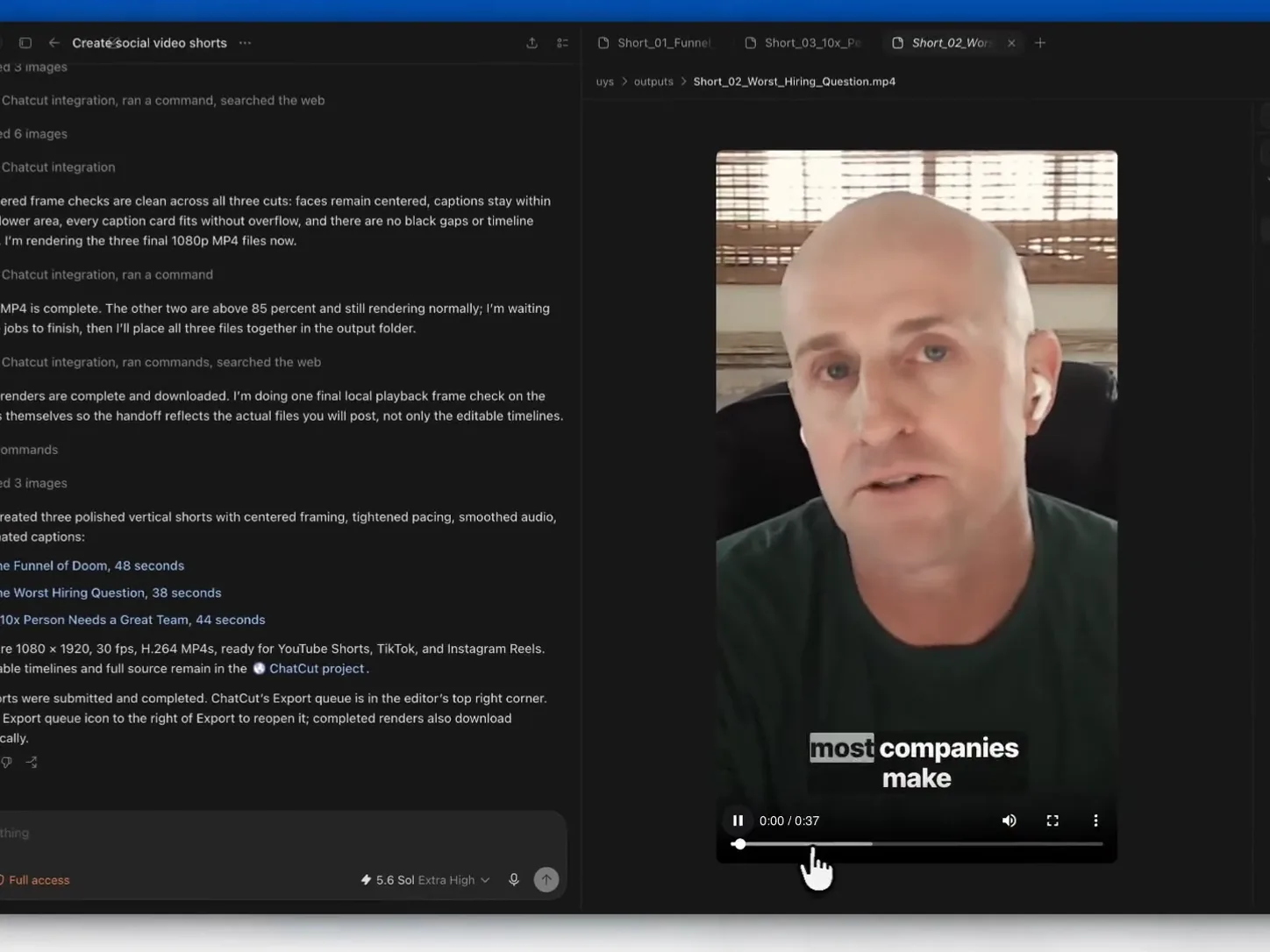
ChatCut takes a different approach entirely. Instead of building motion graphics manually, you describe what you want and the AI generates the asset and places it on the timeline. No keyframes. No layer juggling. If you want to explore what AI-generated motion graphics look like in practice, the AI motion graphics generator workflow in ChatCut is a good starting point.
| Tool | Learning Curve | Price | Best For |
|---|---|---|---|
| After Effects | High | $54.99/mo | Professional motion designers |
| DaVinci Resolve | High | Free | Editors already in Resolve |
| Canva | Low | Free / $15/mo | Simple social graphics |
| ChatCut | Low | Free tier available | Creators who want AI to handle animation |
CapCut is worth a quick mention: it has basic keyframe animation for position, scale, and opacity, but it’s primarily a mobile video editor. It’s not built for motion graphics work, and it doesn’t generate assets from prompts.
How to Create Motion Graphics from Scratch: Step-by-Step
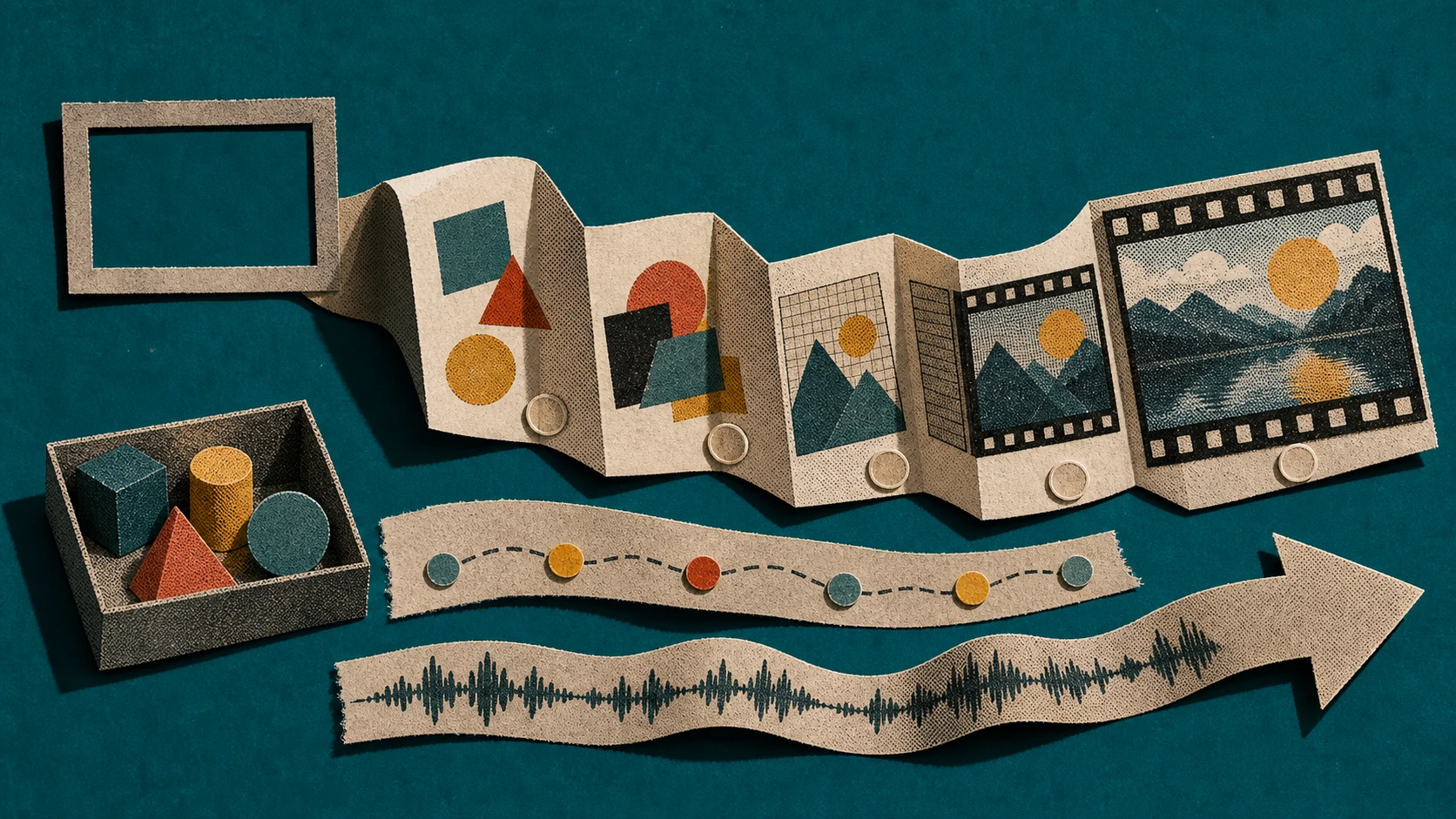
According to Adobe’s 2023 creativity report, creators who follow a structured production workflow finish projects 35% faster than those who improvise. The six-step process below is repeatable and works whether you’re using After Effects or an AI editor: define your goal, choose your tool, build or generate assets, animate, add audio, then export.
Step 1: Define Your Goal and Format
Before you open any tool, decide three things: aspect ratio, duration, and core message. Use 16:9 for YouTube and presentations, 9:16 for Reels, TikToks, and Shorts. Keep your message to a single idea per graphic. Ambiguity here costs you hours later.
Step 2: Choose Your Tool
Match the tool to your skill level. Beginners should start with ChatCut or Canva. Professionals with timeline experience will get more control from After Effects. Don’t pick a tool because it’s popular; pick it because it fits your deadline and skill set.
Step 3: Build or Generate Your Visual Assets
In After Effects or DaVinci Resolve, you’ll manually create shapes, text layers, icons, and backgrounds. In ChatCut, you skip that entirely. Type a prompt and the AI builds the asset:
Generate a neon-style animated title card that says "Welcome" with a cyan glow effect and a fast fade-inThe asset appears on your timeline, ready to edit.
Step 4: Animate with Keyframes or AI
Traditional tools use keyframes. You set a starting position, an ending position, and the software interpolates the motion between them. You control every parameter: position, scale, rotation, opacity. In ChatCut, the AI handles all of that automatically based on your description. No keyframe scrubbing required.
Step 5: Add Audio, Music, Voiceover, Sound Effects
Motion graphics land harder with sound. Add background music using an AI music generator, record or generate a voiceover with AI text-to-speech, or layer in AI-generated sound effects for transitions and hits. Even a subtle audio bed makes animated graphics feel more polished.
Step 6: Export and Share
Export MP4 for social platforms and web. Use ProRes for broadcast or client delivery where quality can’t be compressed. ChatCut exports MP4, MP3, and ProRes directly from the browser, no software installation needed.
Can AI Do Motion Graphics?
Yes. AI can now generate motion graphics directly from a text prompt, no After Effects required. Models trained on design patterns produce animated text, shape animations, lower-thirds, and transitions from natural language descriptions in seconds. The global motion graphics market is valued at over $110 billion, and AI-generated motion graphics are emerging as one of its fastest-growing segments. In ChatCut, a simple lower-third that would take 45 minutes in After Effects generates in seconds from a single prompt.
Here’s how it works in practice. You type a description. The AI interprets your intent, builds the visual asset, animates it, and drops it onto your timeline. You refine with follow-up prompts until it looks right.
The contrast with traditional workflows is stark.
Before AI: Open After Effects, create a new composition, build text layers, set keyframes for position, scale, and opacity, tweak easing curves, wait for preview renders, export. Minimum time: 45 minutes for a simple lower-third.
With ChatCut: Type "Add an animated lower-third with my name in white text on a dark background, slide in from the left" and the AI generates it, places it on the timeline, and it’s ready to preview in seconds.
ChatCut’s recent Agent upgrade made this process noticeably more precise. The AI now handles task sequencing and asset placement more reliably, so follow-up edits like “make the text larger” or “change the background to navy” actually execute cleanly.
I’ve found this especially useful for lower-thirds and kinetic title cards, where the iteration speed alone saves an hour per project.
“AI motion graphics” is still a low-competition search category. Creators who build fluency with these tools now will have a meaningful head start. Explore what’s possible with ChatCut’s AI motion graphics generator to see the full range of what you can describe and generate.
How to Create Motion Graphics for Free
You can create motion graphics for free using DaVinci Resolve, Canva’s free tier, or ChatCut’s browser-based editor. DaVinci Resolve is fully free with no watermarks on export and handles professional-grade animation through its Fusion module, but the learning curve is steep. Canva’s free tier covers basic animated social graphics but paywalls most video exports. ChatCut’s free tier combines AI generation with no mandatory watermark on standard exports and requires no download.
DaVinci Resolve is fully free with no watermarks on export, which puts it ahead of most desktop alternatives. Its Fusion module handles professional motion graphics: keyframe animation, shape layers, text animators, and compositing. The catch is the learning curve. Blackmagic Design’s official documentation runs to hundreds of pages, and most beginners spend weeks before producing anything usable. Free, but not fast.
Canva free tier gives you access to preset animations, basic motion paths, and animated text styles. It’s solid for simple social graphics like Instagram stories or LinkedIn carousels. The paywalls show up fast, though: premium templates, video exports longer than a few seconds, and most animated elements require a Pro subscription at $15/month. Good for a quick animated logo or title card; limiting for anything more complex.
ChatCut runs entirely in the browser with no download required. The free tier lets you try AI motion graphics generation without a credit card. Type a prompt, the AI generates the asset, and it drops straight onto your timeline. You don’t need to understand keyframes or layer order.
Free motion graphics templates are another shortcut worth knowing about. Pre-built AI video editing templates and guided workflows let you swap in your own text and colors without building anything from scratch, which cuts production time significantly.
One practical note: free tiers across all three tools include some export restrictions or watermarks at higher resolutions. ChatCut’s free tier is the only one that combines AI generation with no mandatory watermark on standard exports.
Try It: Make a Motion Graphic in ChatCut Right Now
ChatCut’s Motion Graphics workflow is one of six preset workflows built into the editor, each designed to cut setup time to near zero. According to ChatCut’s own onboarding data, users complete their first motion graphic in under three minutes from a cold start, with no download, no plugin, and no prior animation experience required.
Here’s how to do it.
Step 1: Open ChatCut and start a new project.
Go to chatcut.io. Create a free account and click “New Project.” The editor loads in your browser.
Step 2: Select the Motion Graphics workflow.
From the preset options on the home screen, choose Motion Graphics. This loads the AI chat panel, canvas, and timeline configured specifically for generating animated graphic assets.
Step 3: Type what you want.
Describe what you want in plain English. ChatCut handles the rest. Try prompts like these:
Create an animated lower-third with my name in bold white text on a dark background.Generate a kinetic typography intro that says Product Launch 2025 with a glitch effect.Add a neon-style animated title card at the start of the video.The AI generates the asset, places it on the timeline, and syncs it to your clip. If something’s off, type a follow-up: “make the text larger” or “change the background to navy blue.” The chat loop handles revisions without you touching a single keyframe.
This workflow covers explainer videos, social ads, YouTube intros, and app promos. If you also need to generate video footage to pair with your motion graphics, ChatCut’s AI video generator handles that in the same editor.
Frequently Asked Questions About Making Motion Graphics
How much do 20 minutes of animation cost?
Can CapCut do motion graphics?
Is Canva good for animating?
Conclusion
Motion graphics used to mean one thing: months learning After Effects, a $54.99/month subscription, and a steep frustration curve before you made anything worth showing. That barrier is gone.
Here’s the honest hierarchy. If you’re a professional motion designer working on broadcast or high-end brand work, After Effects is still the gold standard. For quick animated social graphics, Canva gets the job done. But if you want AI to handle the heavy lifting, including asset generation, timeline placement, and animation, ChatCut is the fastest path from idea to finished clip.
The motion graphics market is valued at over $110 billion, and AI-native tools are capturing an increasing share of that workflow. Early adopters have a real advantage.
I’ve found that most creators overthink the tooling decision. Pick the simplest option that produces the quality you need. For the majority of YouTube intros, explainer videos, and social ads, that’s ChatCut.
Try the Motion Graphics workflow free at chatcut.io. No download, no credit card required to start.
No timeline scrubbing. No menu diving. Just say what you need.