The best free video editing software for most people is DaVinci Resolve if your computer can handle it, and Clipchamp or iMovie if you want something you can learn in an afternoon. For short social clips, CapCut is the quickest start, as long as you skip its premium assets. If you’d rather describe the edit than learn a timeline, ChatCut lets an AI agent make the cuts and still lets you fix any of them by hand.
ChatCut makes one of the tools on this list. We checked every editor against the same facts, wrote down each one’s limits, ours included, and put ChatCut only where it actually fits.
Key Takeaways
- DaVinci Resolve is the most capable free editor: its free version works at up to Ultra HD 60 fps on Mac, Windows and Linux. It also has the steepest learning curve here.
- Clipchamp (browser, 1080p, no watermark) and iMovie (Apple devices, up to 4K) are the easiest free starts. CapCut is fastest for TikToks, Reels and Shorts.
- Shotcut, Kdenlive and OpenShot are free and open source on Windows, Mac and Linux; OpenShot’s site promises no subscriptions, watermarks or project limits.
- “Free” usually means a cap somewhere: a 1080p ceiling (Clipchamp, Lightworks), premium assets that add a watermark (CapCut, Canva), or a cloud-export allowance.
- For talking-head footage, an AI-assisted editor can cut pauses, fillers and restarts from the transcript; that’s the one job we tested hands-on.
Best Free Video Editors at a Glance
| Editor | Best for | Platforms | Free version: real limits | Paid from | Learning curve |
|---|---|---|---|---|---|
| DaVinci Resolve | Pro-level editing, color and audio | Mac, Windows, Linux | Up to Ultra HD 60 fps, 8-bit; AI tools need Studio | Studio $295 one time | Steep |
| CapCut | Short-form social video | Windows, Mac, web, iOS, Android | Templates and premium assets can add a watermark | Pro $19.99/month (US) | Easy |
| Clipchamp | Quick edits in a browser | Web | 1080p, no watermark; Microsoft account | With Microsoft 365 Personal, $9.99/month | Easy |
| iMovie | Apple users | Mac, iPhone, iPad | Free; up to 4K | Free | Easy |
| Shotcut | Open-source all-rounder | Windows, Mac, Linux | Free and open source | Free | Moderate |
| Kdenlive | Linux and power users | Linux, Windows, macOS, BSD | Free and open source | Free | Moderate |
| ChatCut | AI-assisted cleanup of talking-head video | Web, macOS, Windows | 60 min of cloud exports in total (Desktop local exports don’t count); AI generation is paid | $25/month (100 credits) | Easy |
| OpenShot | Simple projects | Windows, Mac, Linux | No subscriptions, watermarks or project limits | Free | Easy |
| Lightworks | Learning a pro-style timeline | Windows, Mac, Linux | 1080p export, no watermark | Create and Pro plans | Steep |
| VSDC | Free 4K exports on Windows | Windows | 4K export, no watermark | VSDC Pro (price not listed) | Moderate |
| Canva | Branded template videos | Web, mobile | Pro elements add a watermark on Free | Pro $144/year | Easy |
| Adobe Premiere (mobile) | Editing on a phone | iPhone, Android | No ads or watermark; 4K export | Free; Firefly AI credits extra | Easy |
Prices are listed US prices on November 18, 2026, and vary by region and offer. “Learning curve” is our read, not a vendor claim.
Which Free Editors Export Without a Watermark?
Where an official page says exports are watermark-free, we quote it. Where it doesn’t mention watermarks at all, we say so rather than repeat what other lists claim.
| Editor | Watermark on free exports (official wording) | Free export ceiling | The catch |
|---|---|---|---|
| DaVinci Resolve | Not mentioned on the product page | Ultra HD 3840 × 2160, up to 60 fps | Studio needed for the AI Neural Engine, text-based editing and 10-bit |
| CapCut | None when you edit manually; some templates, effects and premium assets add one | Not listed on its watermark help page | Delete the template’s end clip; avoid Pro assets |
| Clipchamp | ”No watermarks” | 1080p | Personal Microsoft account; 4K needs Microsoft 365 |
| iMovie | Not mentioned | 4K | Latest Mac version needs macOS 26.6 |
| Shotcut | Not mentioned (free, open source) | Not capped on the site | Hardware decoding only helps at 1080p or lower |
| Kdenlive | Not mentioned (free, open source) | Not capped on the site | macOS 13 or newer; Windows 10 or newer |
| ChatCut | No watermark on Free-plan exports (confirmed by the ChatCut team) | 1080p in the cloud; 4K with Desktop local export | 60 cumulative minutes of free cloud exports |
| OpenShot | ”Edit without subscriptions, watermarks, or project limits” | Not capped on the site | Fewer pro tools (our read) |
| Lightworks | ”Free from any overlays or watermarks” | 1080p | 4K needs Create; 8K and 10-bit need Pro |
| VSDC | ”Export in 4K without watermarks” | 4K export (edits up to 8K, 120 fps) | Windows only |
| Canva | None with free elements; Pro elements add one on Free | Not listed | Needs a Canva account |
| Adobe Premiere (mobile) | “Without ads or watermarks” | 4K | Generative AI uses paid Firefly credits |
How We Chose and Checked
We started from the editors that keep appearing in searches for “best free video editing software.” To make the list, an editor had to:
- Be free to download and use with no time-limited trial.
- Let you export finished videos on the free version, not only during a trial.
- Run on at least one common platform: Windows, Mac, Linux, the browser or a phone.
- Still be offered and supported on its official site.
We ran one hands-on test, in ChatCut, on November 18, 2026: a 60-second talking-head take through transcription, cleanup, captions and a 1080p export, then a check of the account’s credit history. We didn’t run that clip through the other eleven editors, so this guide doesn’t rank speed or caption accuracy. Their facts come from official product pages, pricing pages, help centers and app-store listings, checked on November 18, 2026.
The 12 Best Free Video Editing Software
1. DaVinci Resolve: Best free editor overall
DaVinci Resolve from Blackmagic Design combines editing, color correction, visual effects, motion graphics, audio post and now photo editing in one app. The current release is DaVinci Resolve 21.
Best for: editors who want room to grow, from a first YouTube video to graded short films.
What stands out:
- Blackmagic says the free version “works with virtually all 8-bit video formats at up to 60fps in resolutions as high as Ultra HD 3840 x 2160”, and includes multi-user collaboration and HDR grading.
- By Blackmagic’s account, its color page has finished more high-end feature films and TV shows than any other system; the Fairlight page covers audio post.
- It runs on Mac, Windows and Linux.
Limits:
- The DaVinci AI Neural Engine, text-based editing, magic mask, 10-bit video up to 120 fps and resolutions beyond 4K are reserved for DaVinci Resolve Studio.
- It’s dense. Expect to watch tutorials before your first export.
Pricing: free; Studio is $295 one time (Blackmagic was showing $236 when we checked).
Skip it if: you need a finished clip today or you’re on a low-powered laptop.
2. CapCut: Best for short-form social video
CapCut runs on Windows (7 or later, 10 recommended), macOS 10.14 or later, the web, iPhone and Android. It’s built around short-form trends: templates and effects, plus auto captions, text-to-speech and background removal.
Best for: TikToks, Reels and Shorts, especially when the format you want already exists as a template.
What stands out:
- CapCut’s help page says manual edits with your own clips, music, text and effects export without a watermark.
- The phone app’s App Store listing advertises 4K 60 fps exports.
Limits:
- The same help page says templates often add a CapCut ending clip, and some advanced templates, effects, stock elements, stickers, transitions and filters add a watermark on the free version.
- The pricing page lists AI credits and access to AI features under the paid plans; Free gets basic editing tools and free templates.
Pricing: free; Pro is $19.99 a month on the US pricing page. Prices vary by region.
Skip it if: you don’t want to check which assets are premium before exporting.
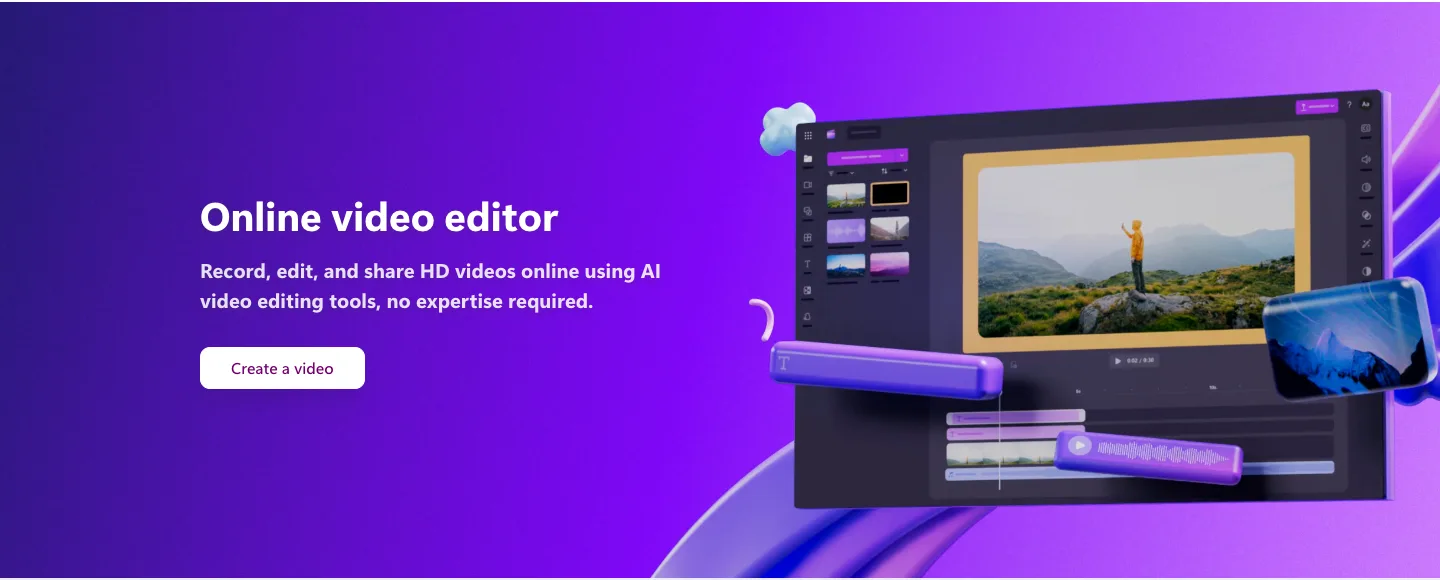
3. Clipchamp: Best for quick edits in a browser
Clipchamp is Microsoft’s browser-based editor. The free plan needs no payment or download and includes free stock, filters and effects.
Best for: Windows users and anyone on a computer where they can’t install software.
What stands out:
- The free plan exports up to 1080p “with no watermarks.”
- AI subtitles, voiceovers and silence removal are on the free plan, per Clipchamp’s FAQ.
Limits:
- You sign in with a personal Microsoft account.
- 4K exports, premium stock and the brand kit come with a Microsoft 365 Personal or Family subscription.
Pricing: free; Microsoft 365 Personal is $9.99 a month or $99.99 a year, with a first-period discount showing when we checked.
Skip it if: you need 4K for free or want to work fully offline.
4. iMovie: Best for Mac, iPhone and iPad
iMovie is Apple’s free editor. It organizes your clips, makes Hollywood-style trailers, and lets you start a project on iPhone or iPad and finish it on a Mac.
Best for: Apple users who want a clean, simple editor that’s already in their ecosystem.
What stands out:
- It’s free, and Apple’s Mac App Store listing says you can edit at resolutions up to 4K.
- It’s actively updated: version 10.4.5 for Mac shipped on September 29, 2026, and iMovie for iPhone and iPad got version 3.0.6 on October 22, 2026.
Limits:
- It’s only for Apple devices.
- The latest Mac version requires macOS 26.6, and the latest iPhone version requires iOS 27, so older devices may be stuck on older releases.
Pricing: free.
Skip it if: you’re on Windows or you’ve outgrown basic edits. Our Mac editor guide covers the next step up.
5. Shotcut: Best open-source all-rounder
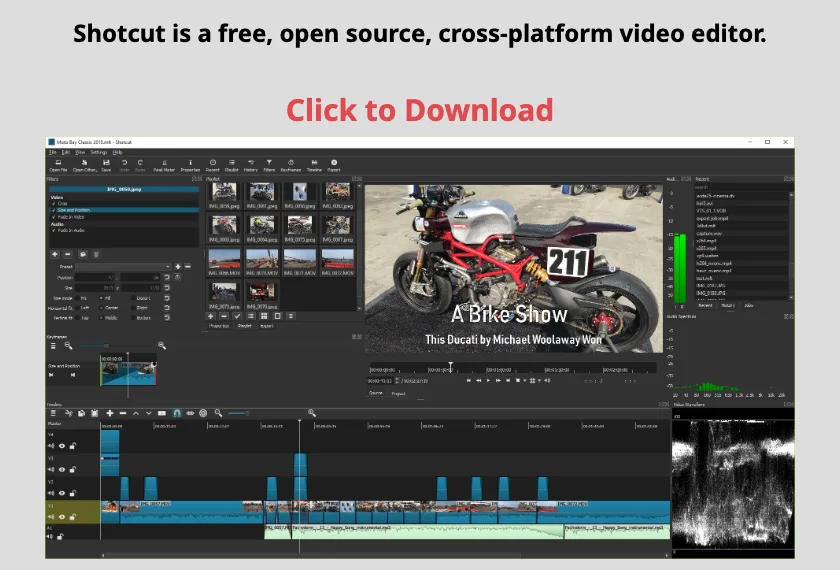
Shotcut describes itself as “a free, open source, cross-platform video editor” for Windows, Mac and Linux. It edits natively on the timeline without importing, and supports hundreds of formats through FFmpeg.
Best for: people who want a capable, no-strings editor on any desktop system.
What stands out:
- Free and open source, and actively released: the download page listed version 26.11.15 when we checked.
- Works on Windows 10 and 11, macOS and Linux.
Limits:
- Shotcut’s FAQ explains it doesn’t use hardware video decoding above 1080p, so 4K footage is decoded on the CPU.
- The interface is functional rather than friendly (our read); expect a learning period.
Pricing: free.
Skip it if: you want the quickest possible start; Clipchamp or iMovie is simpler.
6. Kdenlive: Best for Linux and power users
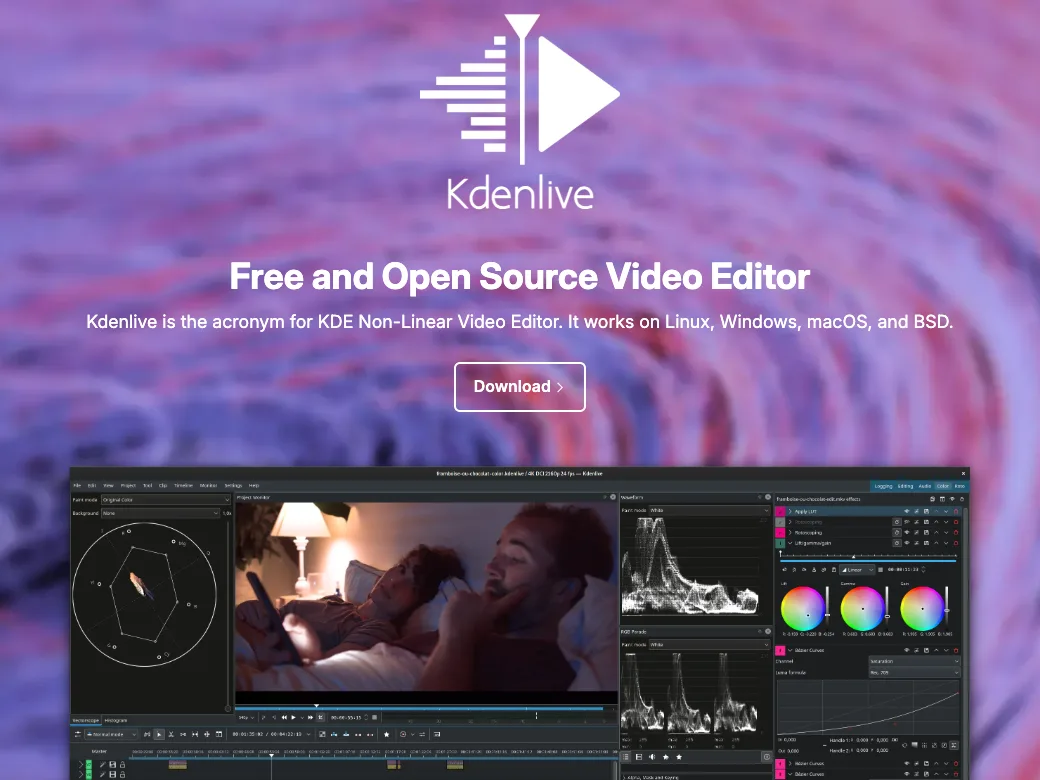
Kdenlive is KDE’s free and open-source non-linear editor. It runs on Linux, Windows, macOS and BSD.
Best for: Linux users and anyone who wants a deep, multi-track editor without paying.
What stands out:
- Free and open source, with current builds (26.08.3 on the download page) for Windows, Linux AppImage and Flatpak, and macOS on Apple silicon and Intel.
- Built for multi-track work, with color tools and scopes visible in its official screenshots.
Limits:
- Windows builds need Windows 10 or newer; Mac builds need macOS 13 Ventura or newer.
- Its depth makes it slower to learn than OpenShot or Clipchamp (our read).
Pricing: free.
Skip it if: you want the simplest possible editor.
7. ChatCut: Best free AI-assisted editor
ChatCut is an AI video editor for the web, macOS and Windows. You can edit a normal multi-track timeline by hand, delete words in the transcript to cut the matching video, or describe the change (“cut the long pauses and add captions”) and let an agent make it on the same timeline.
Best for: talking-head videos, tutorials and interviews where most of the work is cutting pauses, fillers and retakes, then adding captions.
What stands out:
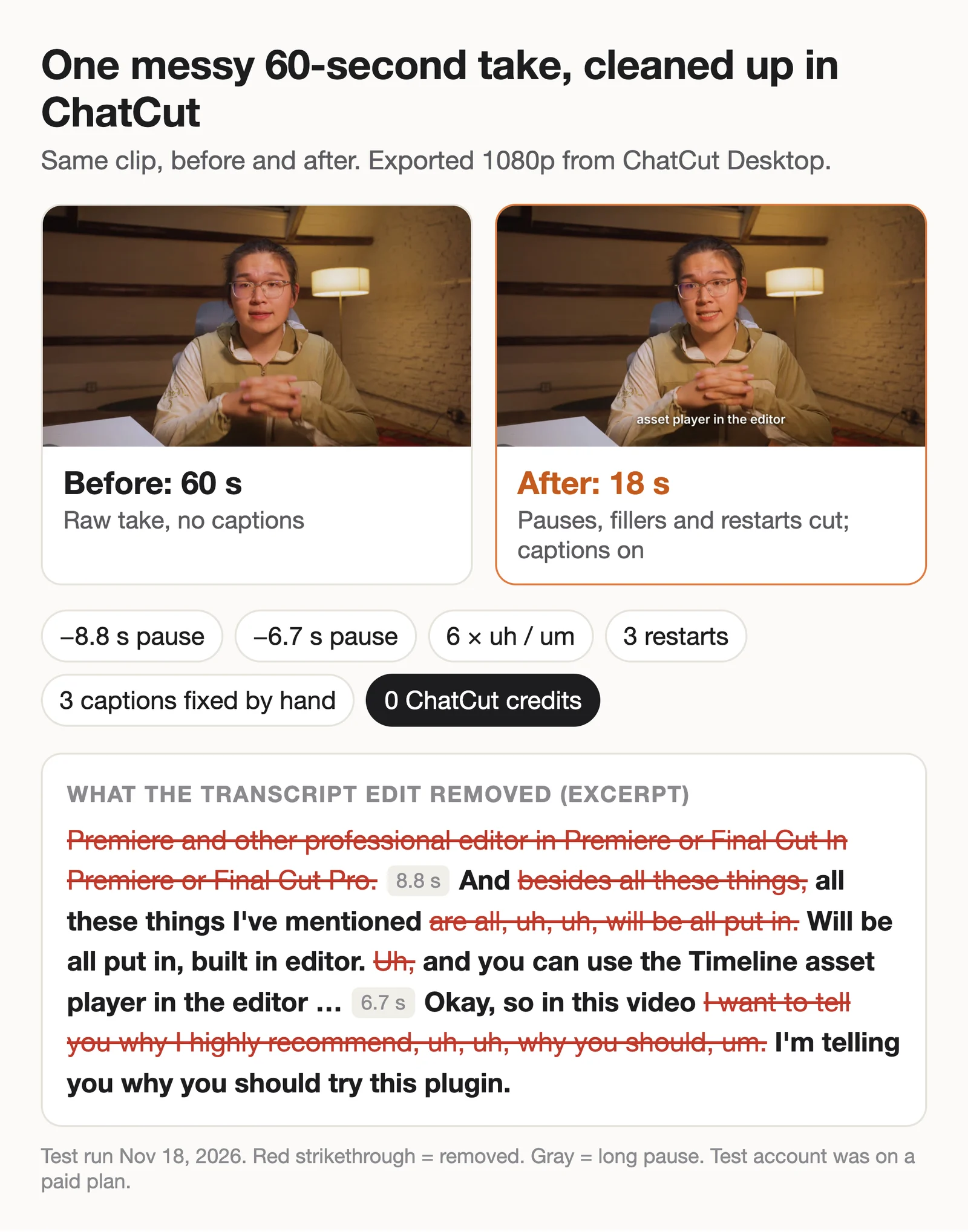
- In our test, a messy 60-second take became an 18-second captioned clip. Six “uh/um” fillers and two long pauses (8.8 and 6.7 seconds) were removed in one cleanup pass, and three false starts and a trailing half-sentence were struck from the transcript. We fixed three caption cards by hand. From import to a finished 1080p file took about a minute and a half.
- The test used 0 credits on our account. Uploads, manual editing, transcription, captions and standard exports are on the Free plan; we drove the edit from Claude Code, and when Claude Code or Codex runs the edit, its own plan pays for the reasoning.
- Local exports from the Desktop app, up to 4K, don’t count toward the Free plan’s cloud-export allowance. You can also do the cleanup by hand for free: see how to remove silences and filler words.
Try the same edit on your own recording:
Limits:
- Free cloud exports are capped at 60 minutes in total (how the quota works). Messages to the built-in agent use credits, and AI video and image generation need a paid plan.
- It needs an internet connection, Desktop included. There’s no Linux app, and the Windows app is x64 only.
- It’s not a color-grading or finishing tool. Free-plan exports carry no watermark, but free cloud exports share a 60-minute cumulative allowance.
Pricing: Free plan; paid plans from $25 a month for 100 credits.
Skip it if: you edit offline, on Linux, or mostly do color-heavy cinematic work.
8. OpenShot: Best for simple projects
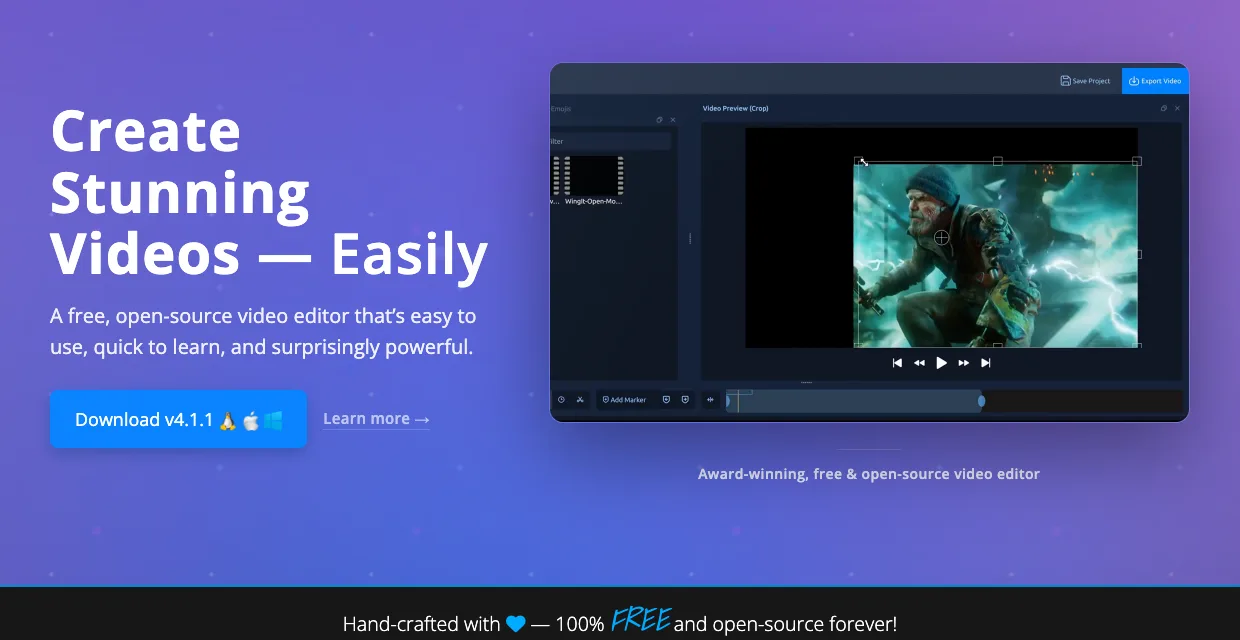
OpenShot is a free, open-source editor for Linux, Mac and Windows that aims to be “easy to use, quick to learn, and surprisingly powerful.” Version 4.1.1 was current when we checked.
Best for: first-time editors who want a clean timeline without a subscription.
What stands out:
- The site says you can “edit without subscriptions, watermarks, or project limits.”
- Unlimited tracks, keyframe animation, chroma key, and color grading with scopes and LUTs are on its feature list.
Limits:
- Its toolset is lighter than Resolve’s or Kdenlive’s (our read), so ambitious projects may outgrow it.
- It’s a desktop app for Linux, Mac and Windows; the site offers no browser or phone version.
Pricing: free.
Skip it if: you already know you’ll need advanced color or multi-cam.
9. Lightworks: Best for learning a pro-style timeline
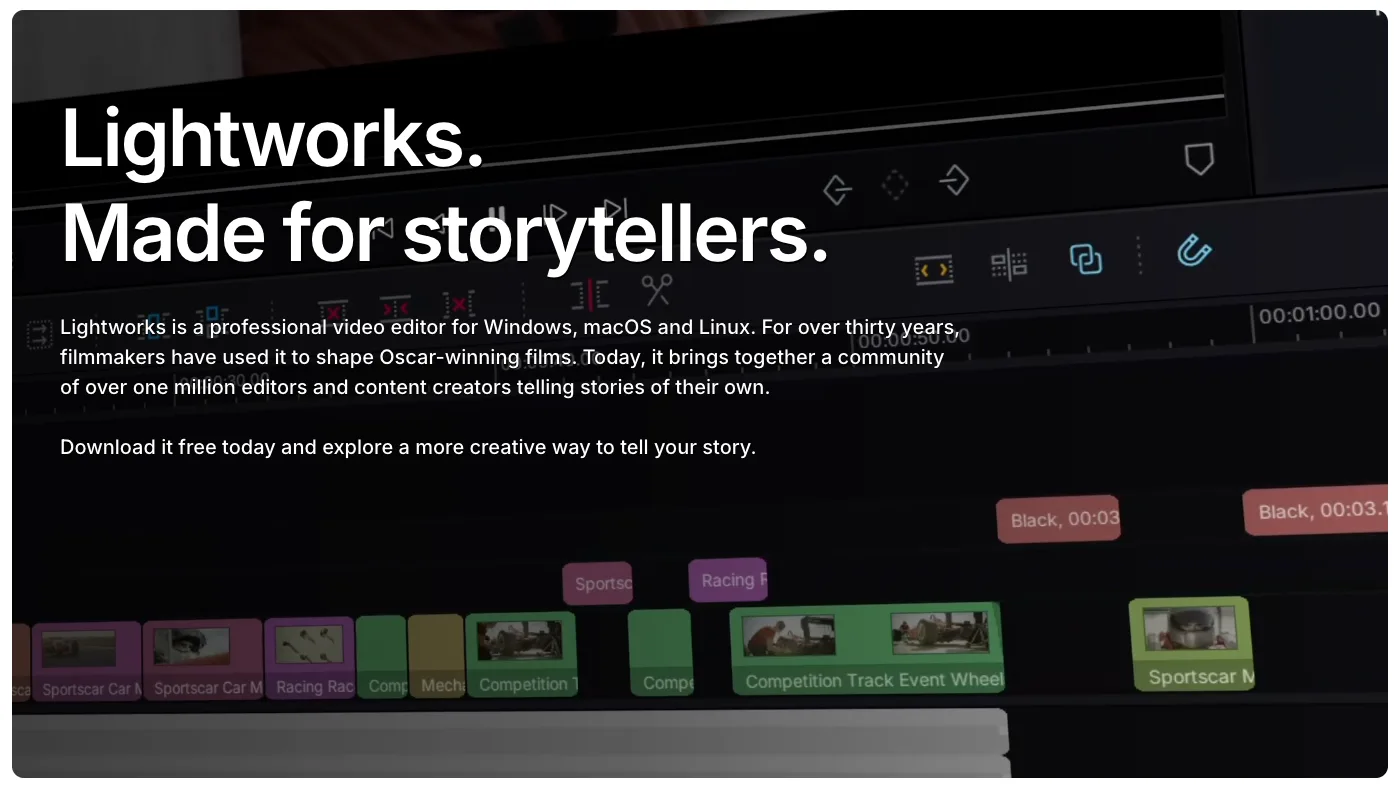
Lightworks is a professional editor for Windows, macOS and Linux that its maker says has been used on Oscar-winning films for over thirty years. The free plan is “free forever.”
Best for: people learning editing as a skill who want a professional timeline from day one.
What stands out:
- The free plan includes professional timeline editing, effects and transitions, color correction, multitrack audio and YouTube and Vimeo upload.
- Lightworks states that “any files created using Lightworks are free from any overlays or watermarks on the image.”
Limits:
- Free exports top out at 1080p; 4K needs the Create plan, and 8K, 10-bit and ProRes encoding need Pro.
- Lightworks notes that some Linux functionality may be restricted.
Pricing: free; Create and Pro come as monthly, yearly or one-time purchases. Check the pricing page for your region’s price.
Skip it if: you need 4K output without paying.
10. VSDC: Best free 4K editor for Windows
VSDC Free Video Editor is a Windows-only editor with color grading, 200+ effects and a long list of export profiles.
Best for: Windows users who want 4K output for free.
What stands out:
- VSDC says the free version can “export in 4K without watermarks” and “imposes no limits on file size or duration.”
- It edits footage up to 8K at up to 120 fps, and both the Free and Pro columns of its comparison list “No watermark.”
Limits:
- Windows only.
- VSDC says Pro users get premium-level effects and transitions that aren’t in the free version.
Pricing: free; VSDC Pro is a paid upgrade, and the product page doesn’t list its price.
Skip it if: you’re on a Mac or Linux.
11. Canva: Best for branded template videos
Canva’s video editor treats a video like any other design: templates, stock media and drag-and-drop assembly, in the browser and on mobile.
Best for: small businesses and social teams making on-brand promos, ads and announcements.
What stands out:
- Canva’s FAQ says free accounts can export videos without a watermark when they use free elements, images, footage and music.
- Canva’s pricing page lists 1.6 million+ templates and 4.7 million+ elements on the Free plan.
Limits:
- “Watermarks will only appear if you use a Canva Free account and add Pro or paid elements to your videos,” per the same FAQ.
- It’s a design tool first; frame-precise cutting is easier in a dedicated editor (our read).
Pricing: free; Canva Pro is US$144 a year.
Skip it if: your videos are mostly long recordings that need real editing.
12. Adobe Premiere (mobile): Best free editor on a phone
Adobe Premiere for iPhone and Android is Adobe’s free mobile editor, with a multi-track timeline, auto captions, keyframes and AI background removal.
Best for: creators who shoot and edit on their phone.
What stands out:
- The App Store listing promises “a video editor without ads or watermarks” and says you can “export videos in 4k for free.”
- Adobe says it never trains on user content.
Limits:
- Generative AI features use Firefly credits, which you pay for: “Only pay when you need Firefly generative AI credits.”
- The Google Play listing notes in-app purchases.
Pricing: free; Firefly credits extra.
Skip it if: you edit long recordings on a computer.
Also Considered
- Edits (Instagram) is free and its App Store listing says it exports in 4K with no watermark. It’s built for Instagram, so it’s a phone-first pick.
- Filmora has a free edition, but its store page says watermarks are added to exported files; paid plans were listed from US$49.99 a year when we checked.
- Descript has a free plan to try text-based editing, but its pricing page lists watermark-free 1080p export as a Hobbyist feature ($16 a month billed annually, $24 monthly).
How to Choose a Free Video Editor
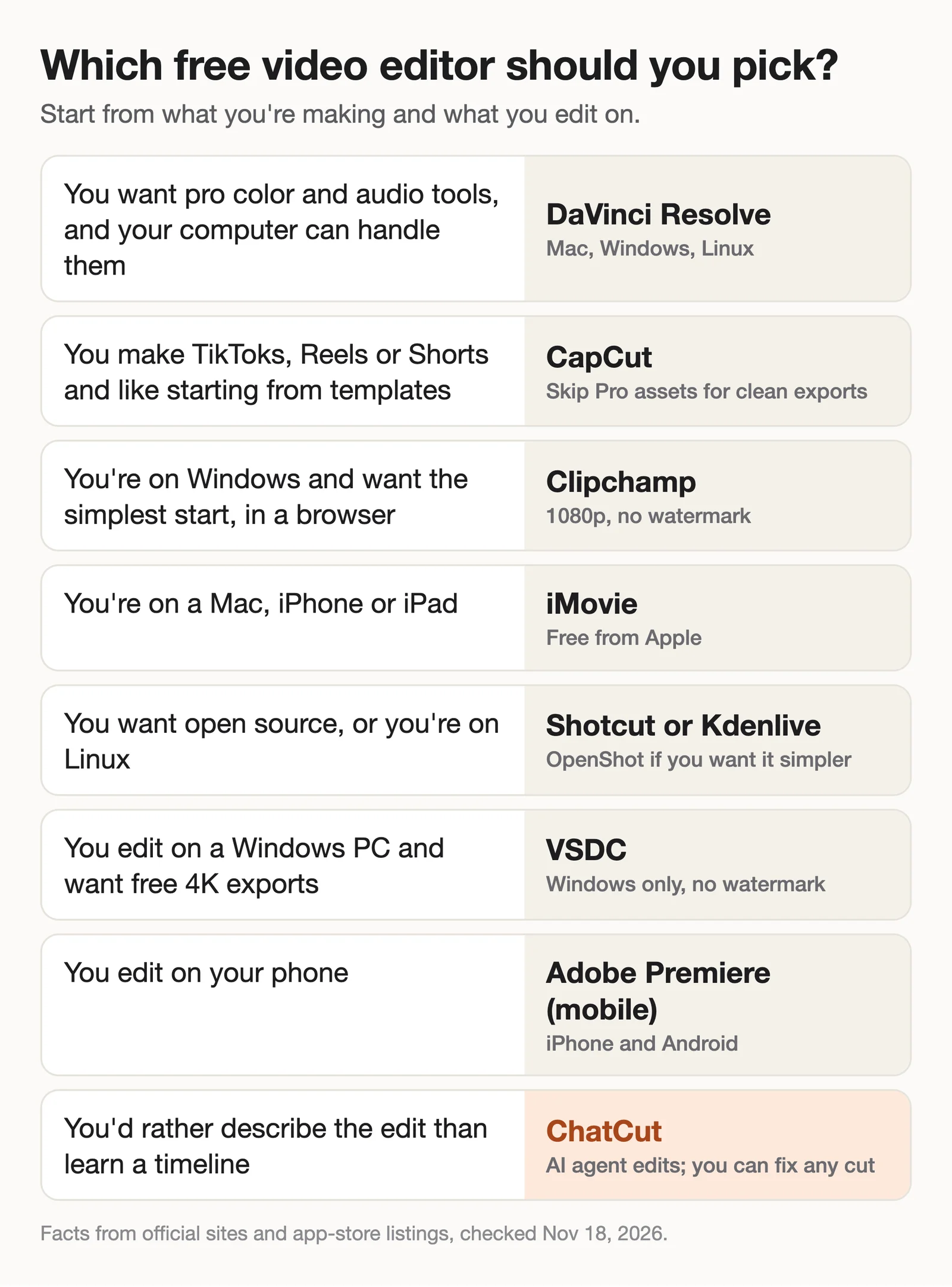
- If you want one editor you won’t outgrow, pick DaVinci Resolve and budget time for tutorials.
- If you post short-form video every day, pick CapCut and check for premium assets before you export.
- If you’re on Windows and want to start in minutes, pick Clipchamp; switch to VSDC when you need 4K for free.
- If you own a Mac or iPhone, start with iMovie.
- If you want open source or you’re on Linux, pick Shotcut or Kdenlive, or OpenShot for something simpler.
- If you edit on your phone, pick Adobe Premiere (mobile).
- If most of your footage is people talking, try ChatCut: describe the cleanup, then adjust the cuts on the timeline.
Before you commit, export a 30-second test with your real footage and check the file for a watermark, the resolution and the audio.