Good AI image prompts specify the subject, composition, lighting, materials, exact text, and details to preserve. These 30 AI image prompts and AI image editing prompts cover transparent assets, menus, posters, products, portraits, and successive revisions in Seedream 5.5. Copy a card or choose Open in ChatCut to carry its prompt into the editor.
Key Takeaways
Choose the deliverable first. A sticker needs a complete silhouette, a menu needs exact copy, and a product image needs believable materials and contact shadows.
Give edits a source and a boundary. Prompts 26–28 form a portrait-editing sequence, and 29–30 revise the poster from prompt 11.
Check the exported image. Inspect alpha edges, small lettering, product geometry, and details carried through successive edits.
Keep a useful still in the project. In ChatCut, it can become a timeline asset or the first frame for a generated video.
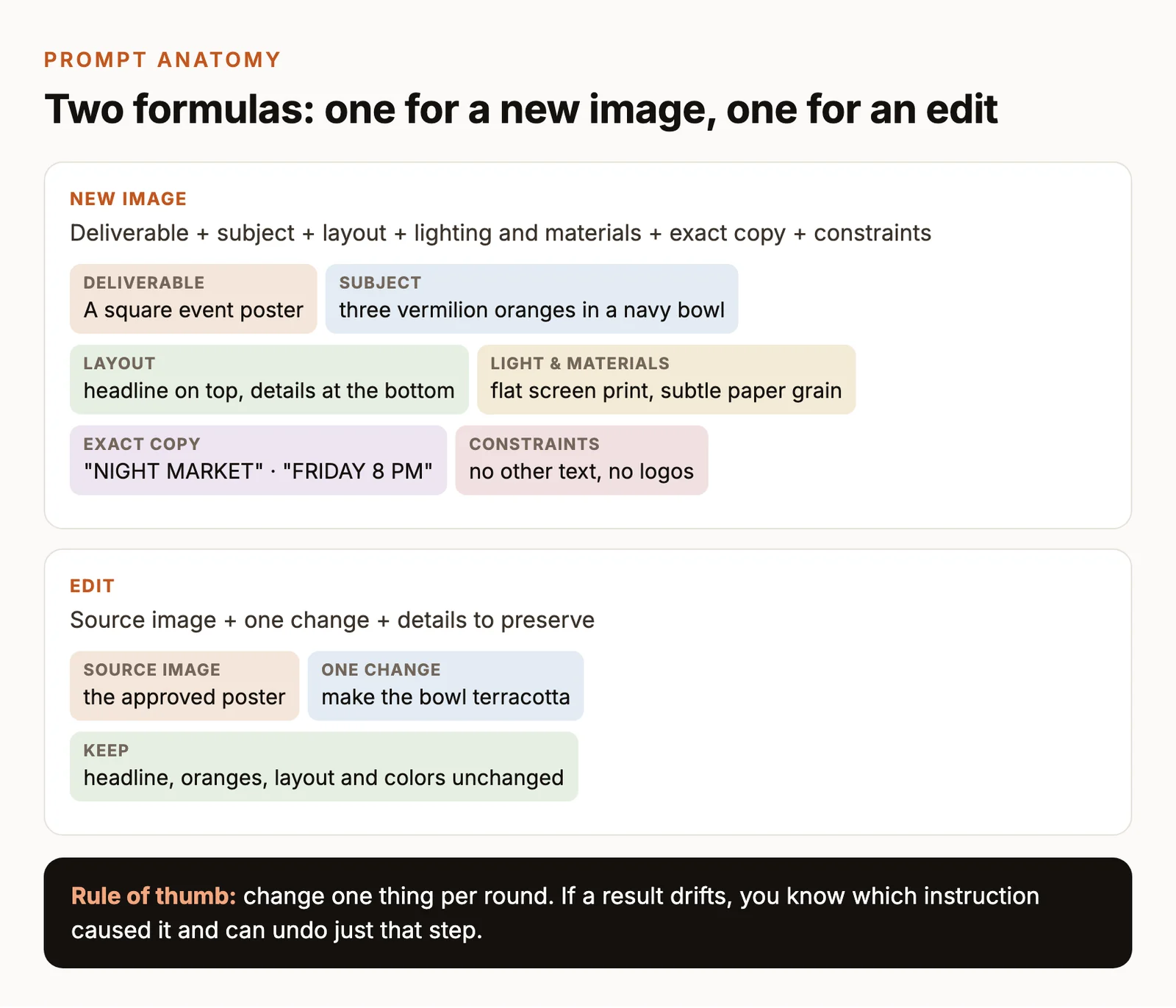
For a new image, write deliverable + subject + layout + lighting and materials + exact copy + constraints. For an edit, write source image + one change + details to preserve. The cards include concrete subjects so you can run them as written, then adapt one detail at a time.
The two prompt formulas used throughout this collection, shown on the night-market poster example.
ByteDance introduced Seedream 5.5 on November 9, 2026, emphasizing successive editing, native alpha-channel output, natural materials and skin, and clearer small text. Those capabilities guide the tasks in this collection. Read the official announcement.
Open a card in ChatCut, choose Seedream 5.5, and review the requested format before generating. For an editing card, attach its specified previous image. The button transfers the prompt text, so supply that input image in the project.
Production setting
Brief for this collection
Model
Seedream 5.5 in ChatCut
Prompt output target
The prompts request 1K; review the available output sizes in ChatCut before generating.
Requested shape
Given in each prompt; this describes the intended composition.
Available size and ratio controls
Pick Seedream 5.5 in the model menu and review the available size and aspect-ratio options before generating.
Transparent output control
Request transparency in the prompt, review the available background options, and inspect the exported alpha channel before compositing.
Credits
Review the displayed credit cost before submitting a generation or edit; use the current in-app quote for your chosen settings.
Generation and review record
The displayed examples were generated with GPT Image 2.6 and visually reviewed for this collection. Seedream 5.5 generation dates, attempt counts, and results are not recorded here.
The ratios below describe the intended composition, not verified Seedream 5.5 output settings. The images illustrate the briefs using GPT Image 2.6. Retain every editing input and inspect the full-size export against its Check before accepting a result.
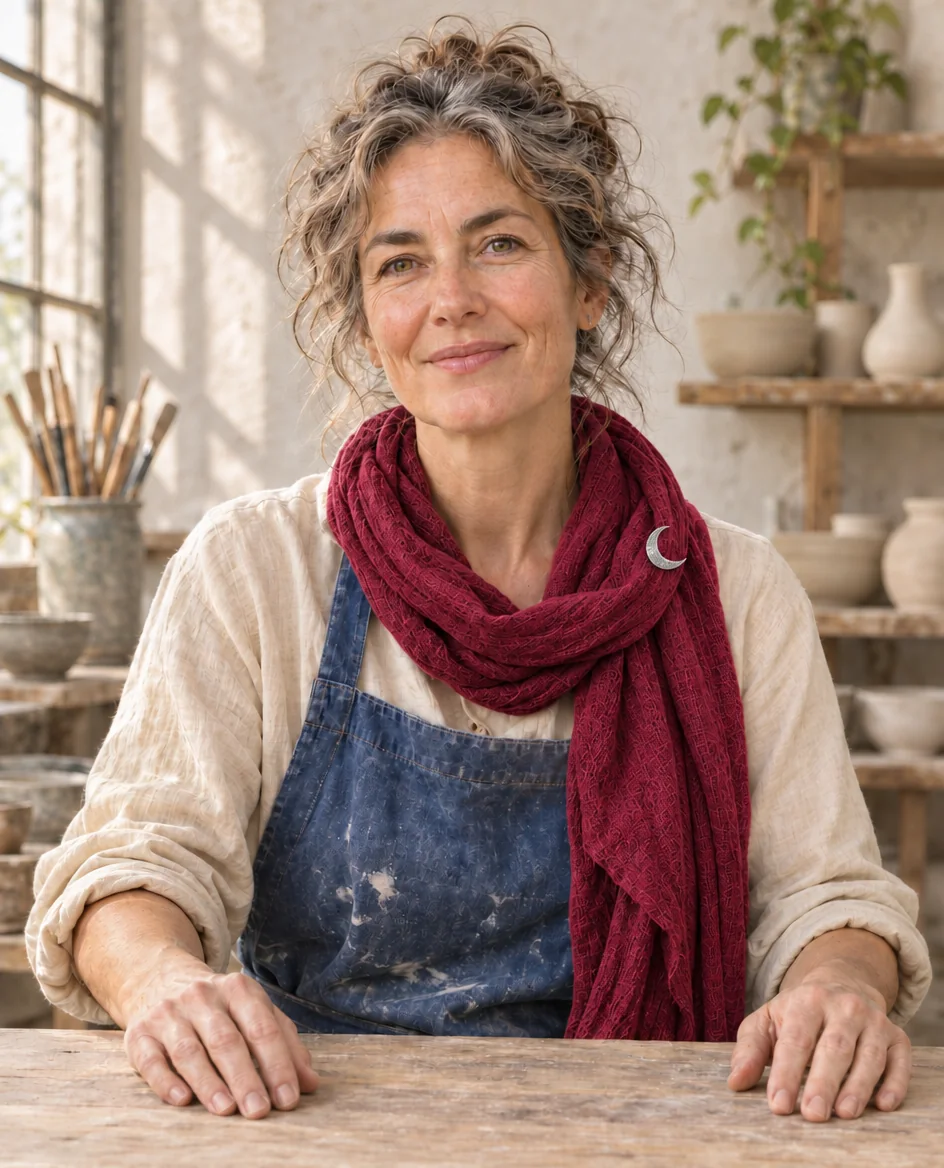
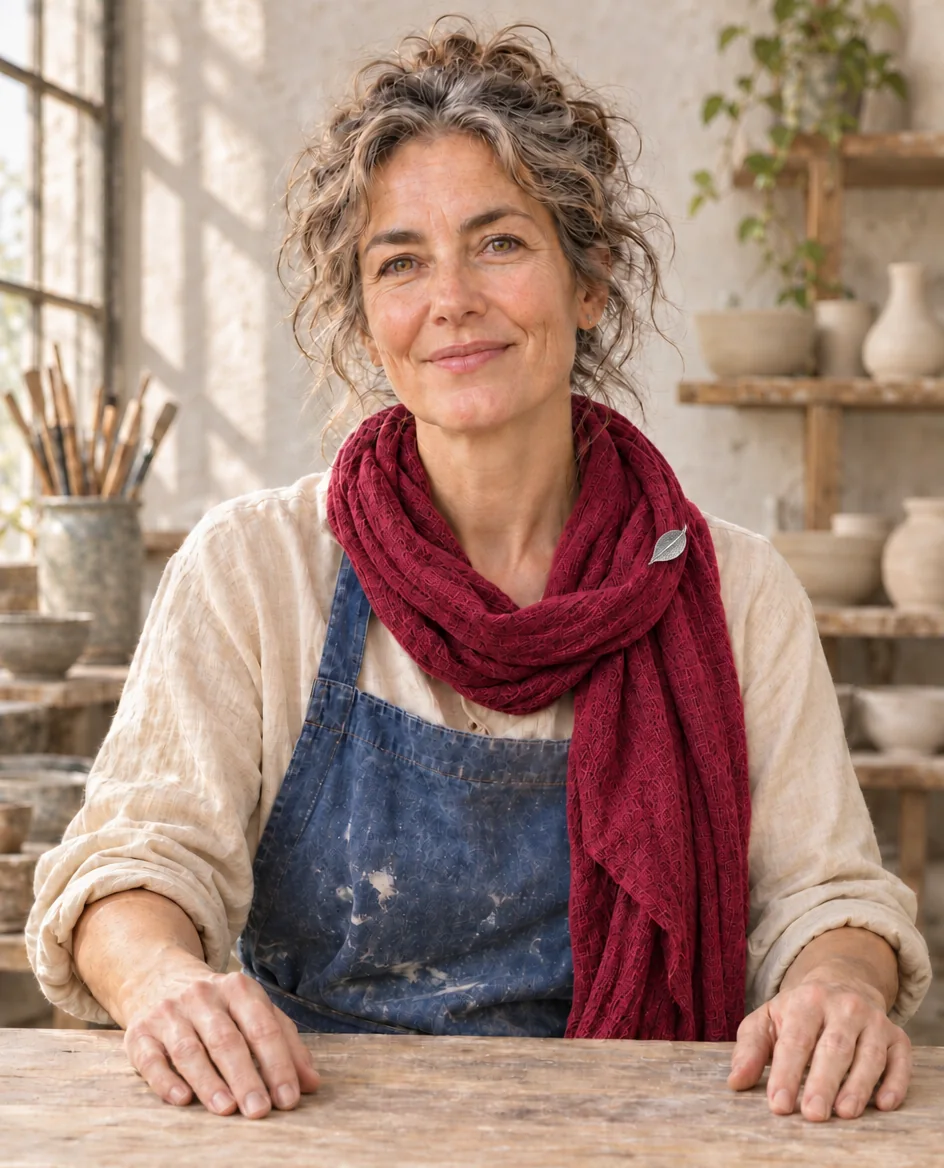
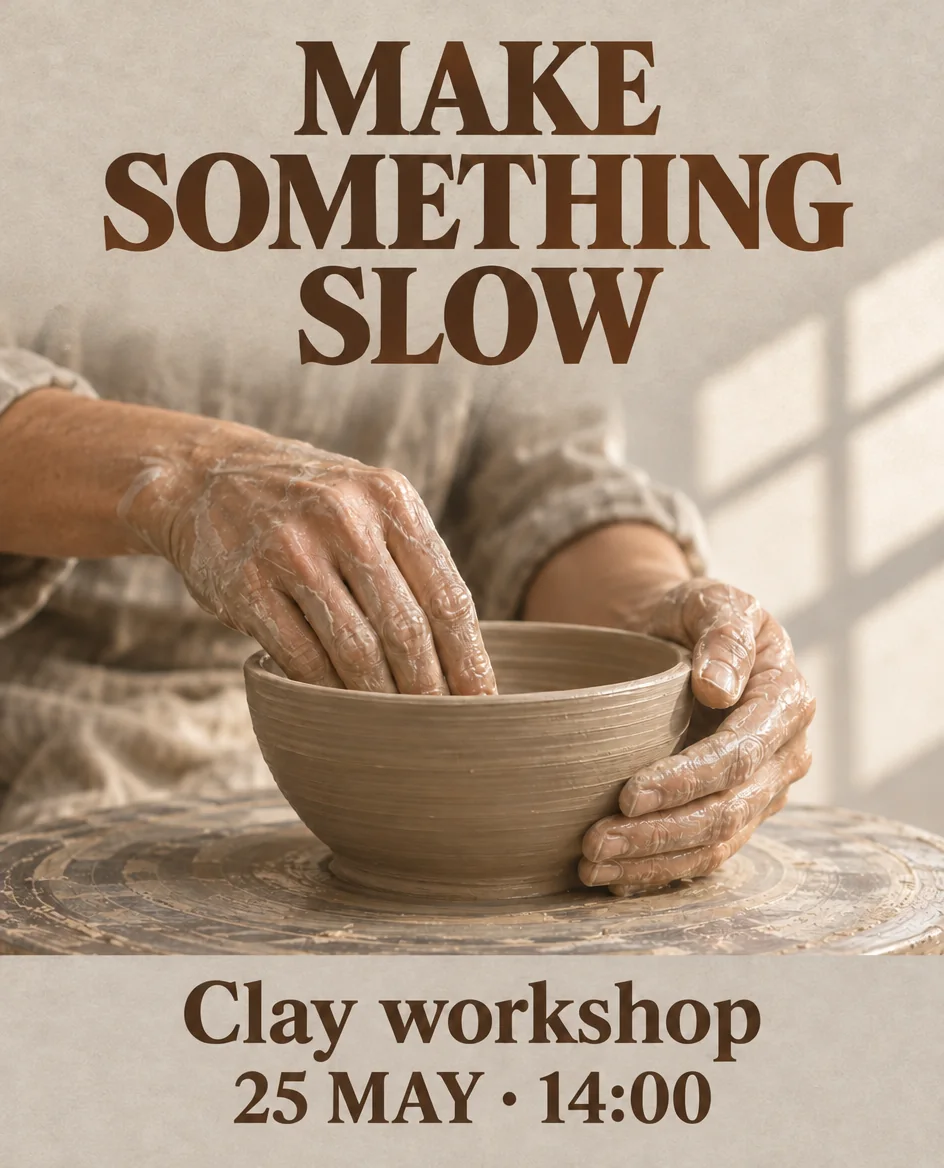
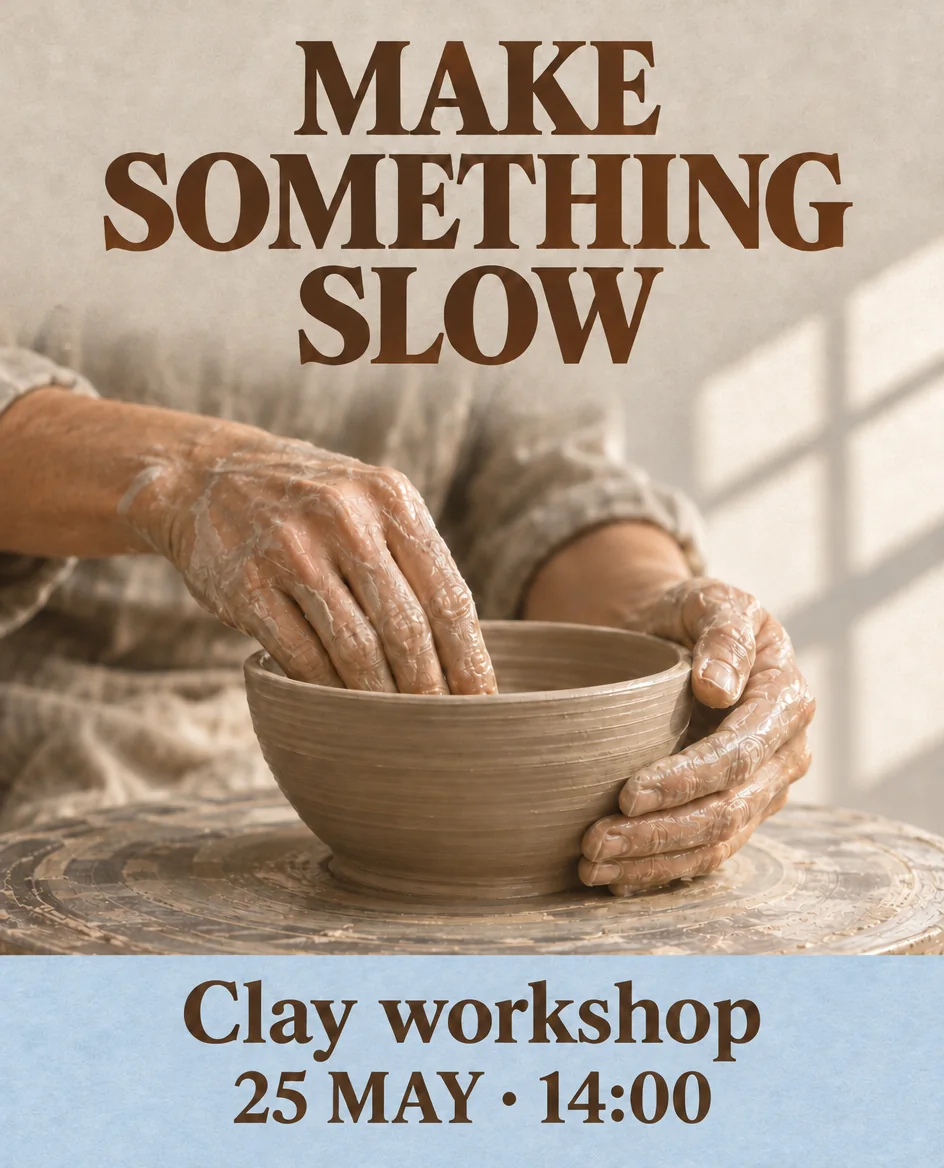
Result review These are GPT Image 2.6 prompt illustrations, not Seedream 5.5 test results. The menu and chart show readable supplied copy and values, while the portrait edits show changes beyond the requested accessory. Seedream 5.5 results will be added; the observations below apply only to the displayed examples.
AI image prompts for transparent assets and stickers
Ask for clear space around the subject and genuine transparent output. ByteDance’s model page shows fully transparent and semi-transparent assets, including detailed cutouts and textured lettering. See the official examples.
1. A sleepy red panda sticker
Use it for a reaction sticker or a character overlay on a video.
Use Seedream 5.5 to create a square 1K sticker of a sleepy red panda hugging a crescent-shaped cushion, with closed eyes and a small smile. Use flat coral, charcoal, and cream shapes with a thick cream outline. Center the complete silhouette with generous clear space around it. Output RGBA with a fully transparent background outside the sticker. Exclude text, a ground plane, and a painted checkerboard.
Prompt 01 example generated with GPT Image 2.6. Seedream 5.5 results will be added.
Check Inspect the outline over light and dark backgrounds for opaque rectangles, clipped ears, and edge fringes. The displayed example shows both ears, the striped tail, and the crescent cushion inside a continuous cream outline.
2. Six matching hiking stickers
Use it for a coordinated set of small decorative assets.
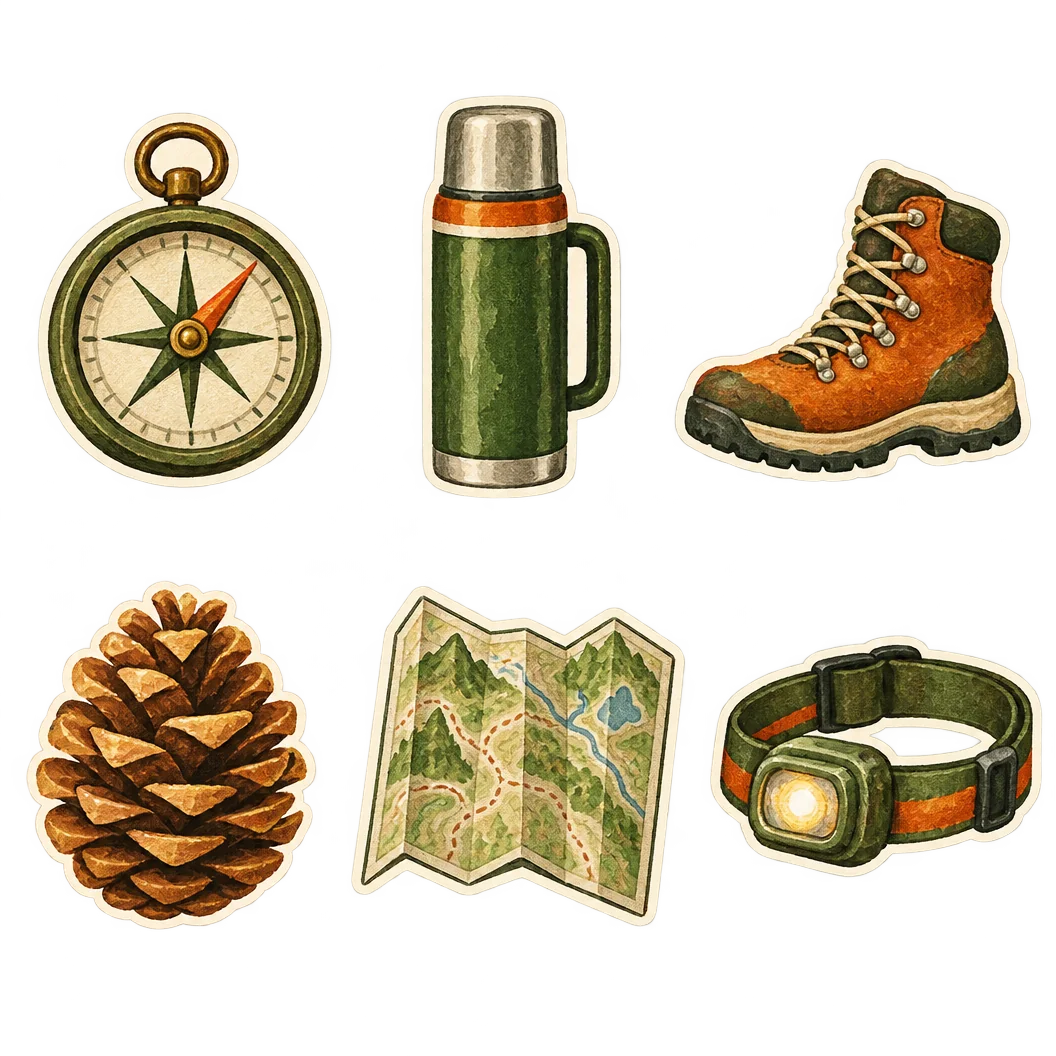
Use Seedream 5.5 to create a square 1K sheet of six hiking stickers in two rows of three, showing a compass, thermos, boot, pine cone, folded map, and headlamp. Give every sticker the same hand-painted gouache texture, moss-green and burnt-orange palette, and narrow cream outline. Leave wide transparent gutters around complete silhouettes. Output RGBA with a transparent background. Exclude labels and overlapping objects.
Prompt 02 example generated with GPT Image 2.6. Seedream 5.5 results will be added.
Check Count six complete objects and inspect each transparent gutter before cropping the sheet. The displayed example contains six separate stickers in two rows of three, with visible gaps between every object.
3. A translucent ribbon overlay
Use it for a textured accent over footage or a product image.
Use Seedream 5.5 to create a 16:9 1K overlay of one loose S-shaped ribbon of translucent amber organza drifting diagonally from lower left to upper right. Show fine woven fibers, softly folded edges, partial transparency through the fabric, and denser amber where it overlaps itself. Output RGBA with fully transparent space around the ribbon. Exclude surfaces, scenery, lettering, and an opaque backdrop.
Prompt 03 example generated with GPT Image 2.6. Seedream 5.5 results will be added.
Check Composite the export over a detailed photo and inspect whether the fabric transmits the image beneath it. The displayed example has fine woven texture and darker amber at overlapping folds; its appearance alone does not establish usable fabric transparency.
4. A soap-textured title cutout
Use it for a short title placed over a video or presentation.
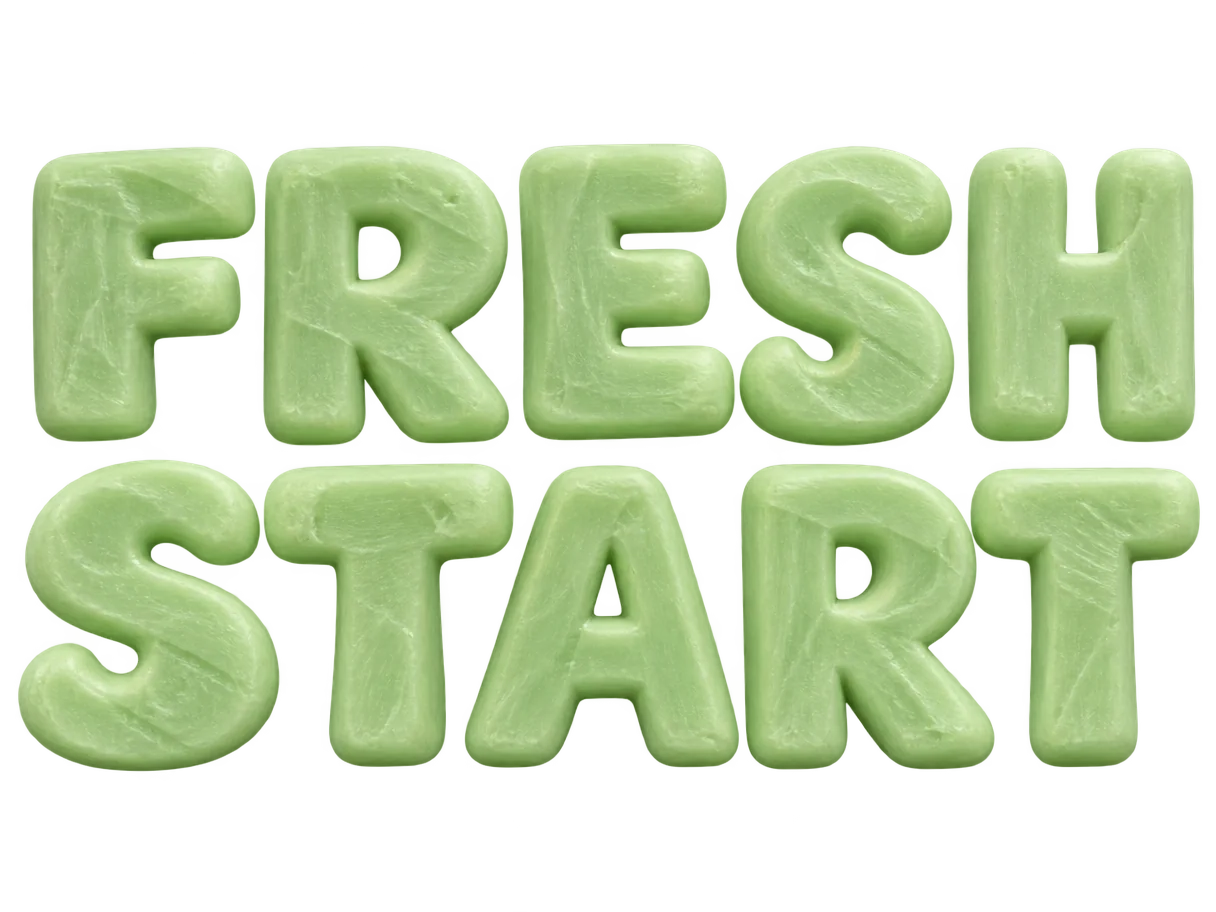
Use Seedream 5.5 to create a 4:3 1K transparent title graphic with the exact English words 'FRESH START' on two centered lines, FRESH above START. Make the thick letters look carved from pale-green soap, with rounded edges, small tool marks, and subtle variations in material. Keep the letters front-facing and clearly separated. Output RGBA with transparent space around and inside the letters. Exclude extra words, a platform, and decorative objects.
Prompt 04 example generated with GPT Image 2.6. Seedream 5.5 results will be added.
Check Read both words letter by letter and inspect transparency inside the R and A. The displayed example spells FRESH START on two lines in rounded green letters with visible surface scratches.
5. A delicate botanical cutout
Use it for an organic frame element with fine stems and open gaps.
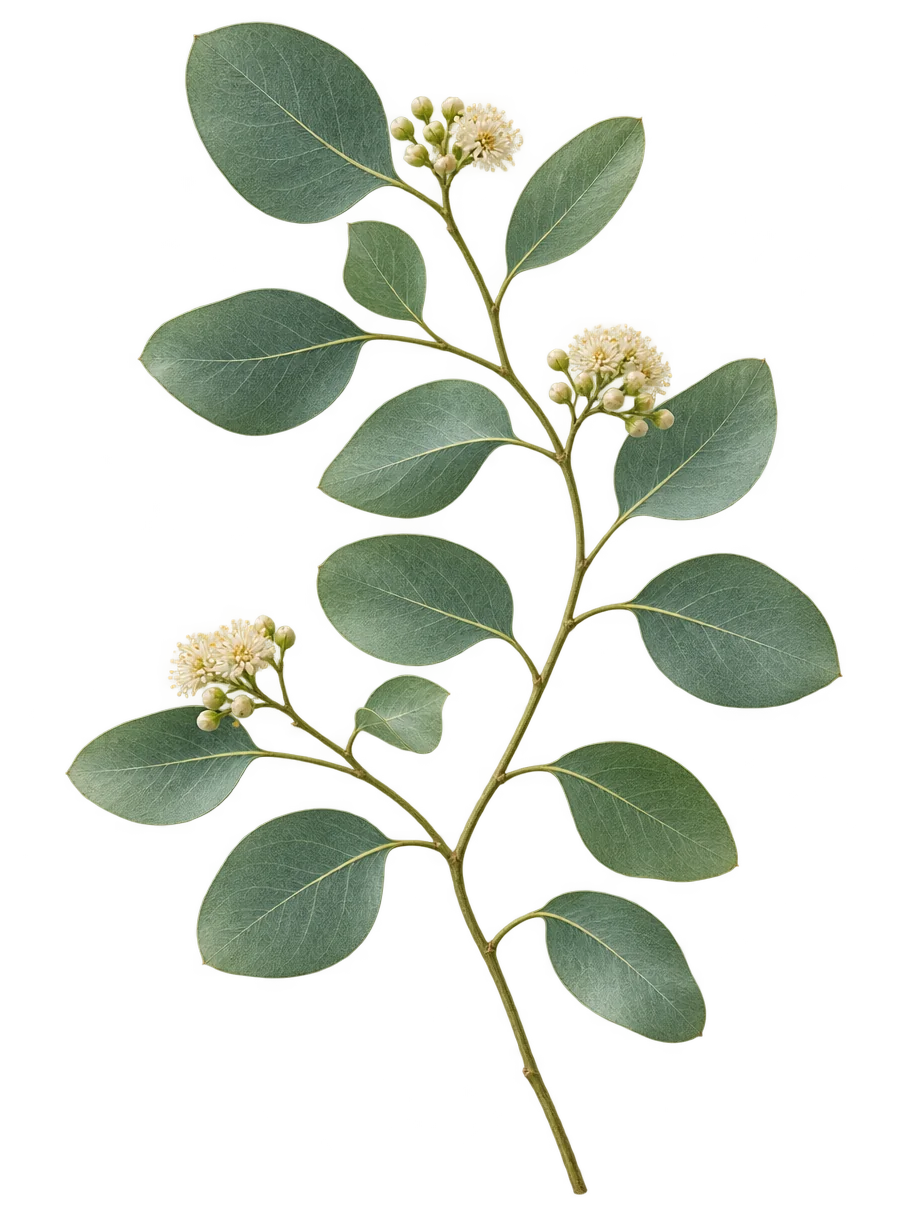
Use Seedream 5.5 to create a vertical 3:4 1K botanical cutout of a single arching eucalyptus stem with twelve dusty-green leaves and three tiny cream flower clusters. Show matte leaf surfaces, fine branching stems, and soft directional light from the left. Keep the complete stem within the frame with clear margins. Output RGBA with transparent gaps between every leaf and branch. Exclude a vase, ground shadow, text, and background scenery.
Prompt 05 example generated with GPT Image 2.6. Seedream 5.5 results will be added.
Check Count the requested leaves and flower clusters, then inspect fine stems and internal gaps for missing or filled regions. The displayed example shows twelve leaves and three cream flower clusters, but the uppermost leaf nearly touches the top edge.
AI image prompts for small text, menus, and infographics
Supply every word and value, then specify where it belongs. The prices, dates, discounts, and chart values in this collection are fictional design copy you can replace with approved content.
6. A compact cafe menu
Use it for a short menu with aligned item names and prices.
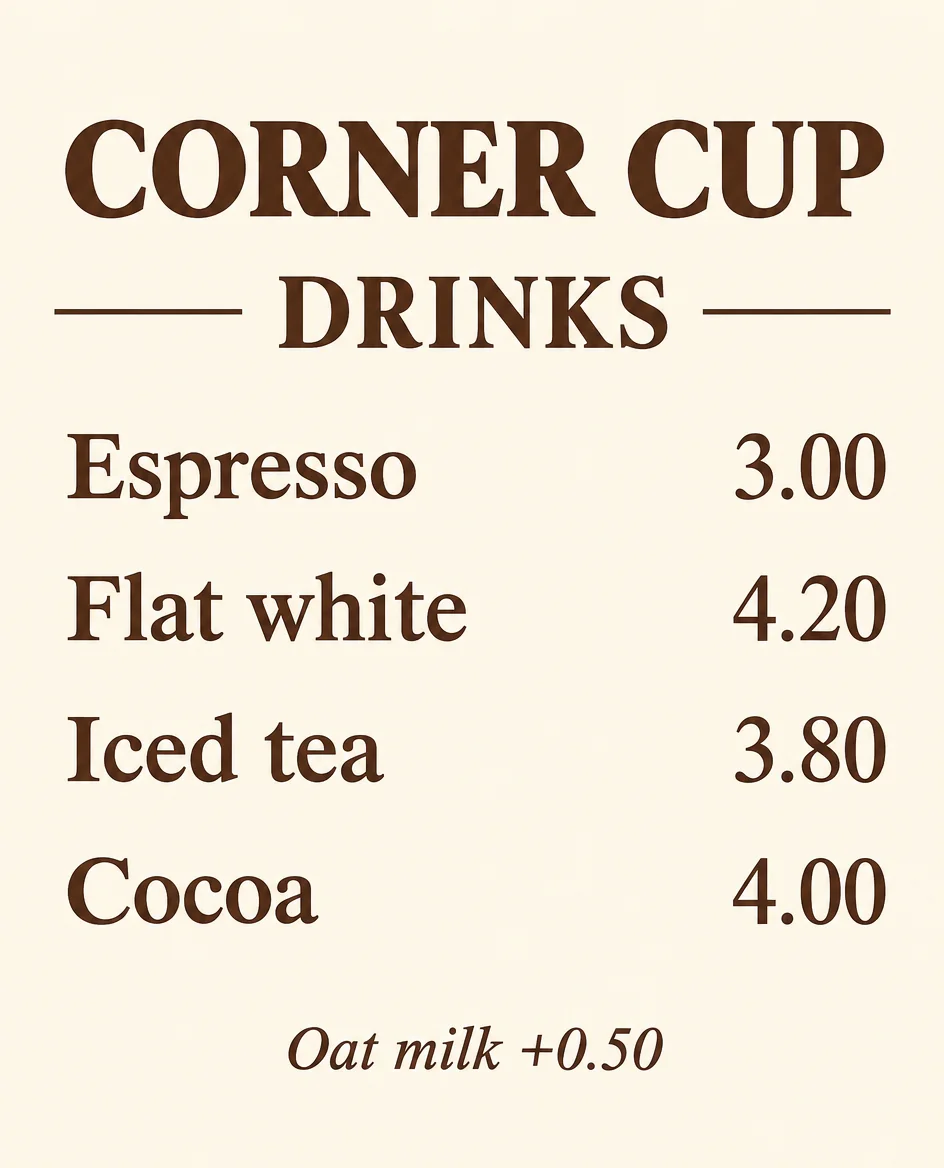
Use Seedream 5.5 to design a flat, front-facing 4:5 1K cafe menu on ivory paper with dark-brown English text. Put 'CORNER CUP' at the top and 'DRINKS' beneath it. Set four rows with names left-aligned and prices right-aligned, pairing 'Espresso' with '3.00', 'Flat white' with '4.20', 'Iced tea' with '3.80', and 'Cocoa' with '4.00'. Add the small footer 'Oat milk +0.50'. Use generous line spacing. Include only this text and exclude photographs.
Prompt 06 example generated with GPT Image 2.6. Seedream 5.5 results will be added.
Check Read every item, decimal point, and supplement at the intended viewing size. The displayed example pairs Espresso with 3.00, Flat white with 4.20, Iced tea with 3.80, and Cocoa with 4.00, and includes the Oat milk +0.50 footer.
7. A four-step process infographic
Use it for a workflow with a clear left-to-right reading order.
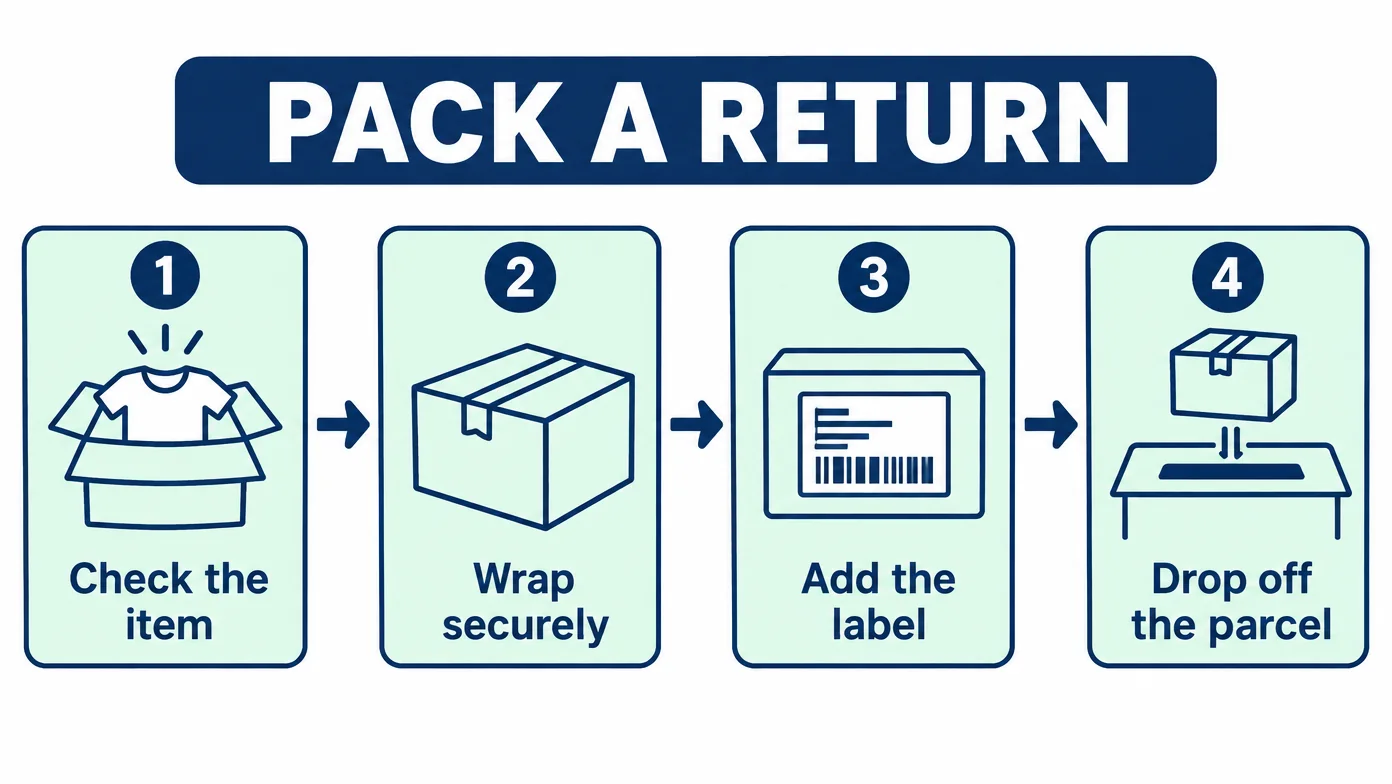
Use Seedream 5.5 to create a 16:9 1K instructional graphic titled 'PACK A RETURN'. Place four equal panels beneath the title, numbered 1 to 4 from left to right. Pair simple line drawings with these exact captions in order, 'Check the item', 'Wrap securely', 'Add the label', and 'Drop off the parcel'. Draw one right-pointing arrow between adjacent panels. Use navy lines, pale-mint panels, and a white background. Include only the supplied wording and panel numbers.
Prompt 07 example generated with GPT Image 2.6. Seedream 5.5 results will be added.
Check Match each caption to its illustration and verify the four numbers and three arrow directions. The displayed example has four numbered panels, the four supplied captions in order, and three right-pointing arrows.
8. A chart with supplied values
Use it for a presentation graphic based on a small fixed dataset.
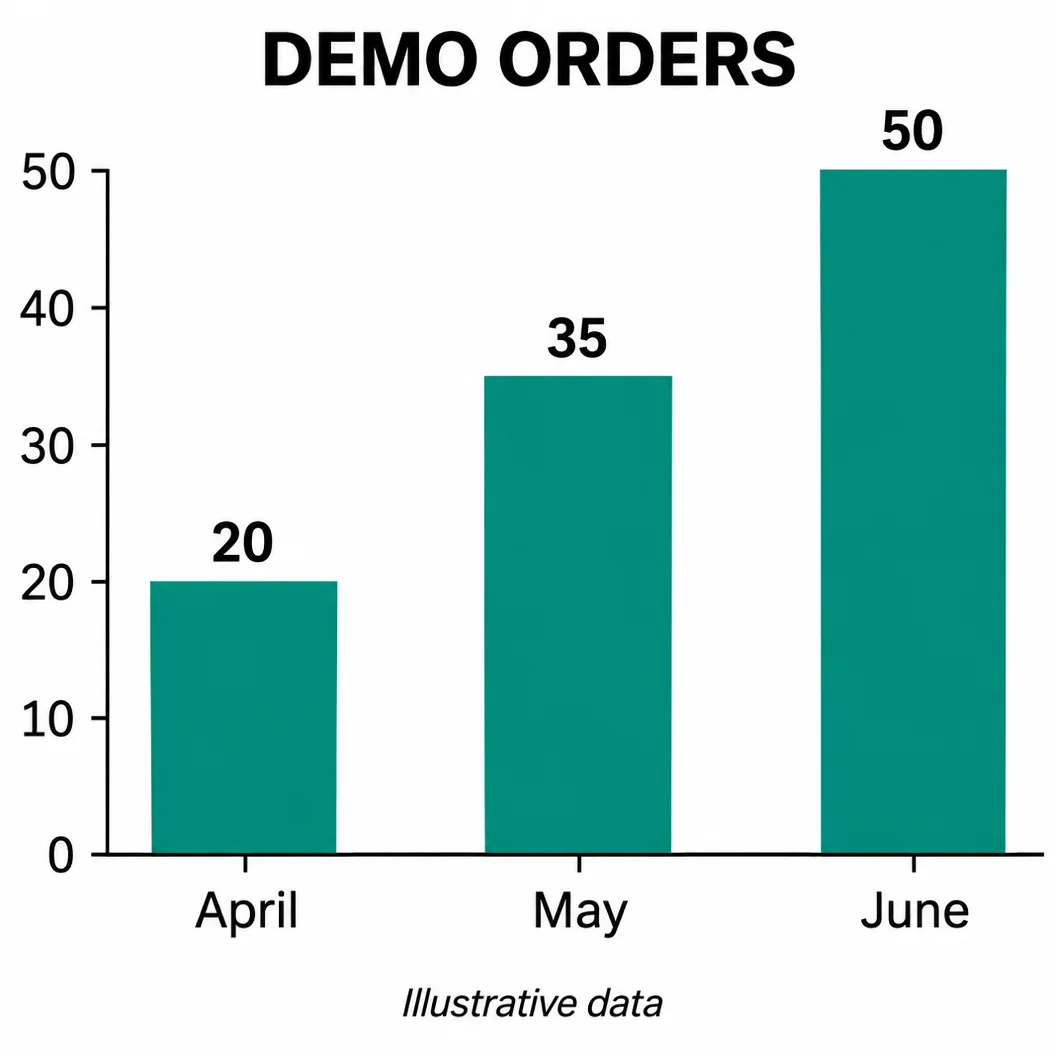
Use Seedream 5.5 to create a square 1K bar chart titled 'DEMO ORDERS'. Show exactly three vertical teal bars labeled 'April', 'May', and 'June', with values 20, 35, and 50 printed above them. Start the vertical axis at 0, with equally spaced ticks labeled 0, 10, 20, 30, 40, and 50. Make the bar heights proportional to the supplied values. Use a white background and the footer 'Illustrative data'. Exclude 3D effects, extra categories, and additional annotations.
Prompt 08 example generated with GPT Image 2.6. Seedream 5.5 results will be added.
Check Compare the printed values and bar heights with the supplied dataset and zero-based scale. The displayed example labels the bars 20, 35, and 50, with heights aligned to the zero-based scale and the Illustrative data footer beneath.
9. A bilingual opening-hours card
Use it for a small information card with supplied Chinese and English copy.
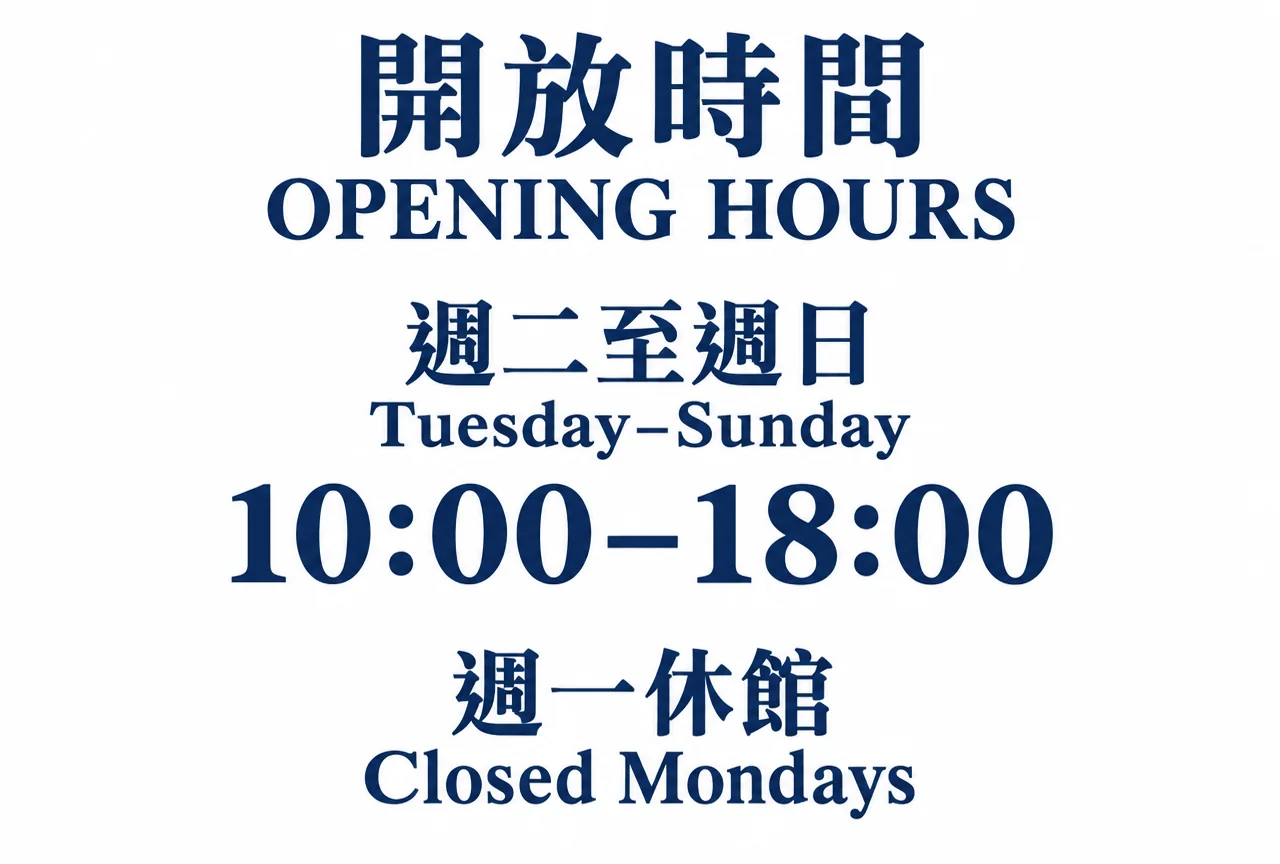
Use Seedream 5.5 to design a front-facing 3:2 1K information card with a white background and dark-blue type. Place the Traditional Chinese translation of 'Opening hours' at the top with 'OPENING HOURS' immediately beneath it. In the center, place the Traditional Chinese translation of 'Tuesday–Sunday' above 'Tuesday–Sunday', followed by a larger line '10:00–18:00'. At the bottom, place the Traditional Chinese translation of 'Closed Mondays' above 'Closed Mondays'. Keep each language pair together with generous spacing. Include only these exact words and times, with no illustrations.
Prompt 09 example generated with GPT Image 2.6. Seedream 5.5 results will be added.
Check Have a fluent reader verify the Chinese characters and confirm both language versions give identical days and times. The displayed example pairs Traditional Chinese and English lines for Tuesday through Sunday, 10:00–18:00, and closure on Mondays.
10. A two-column workshop schedule
Use it for a compact timetable with unambiguous row alignment.
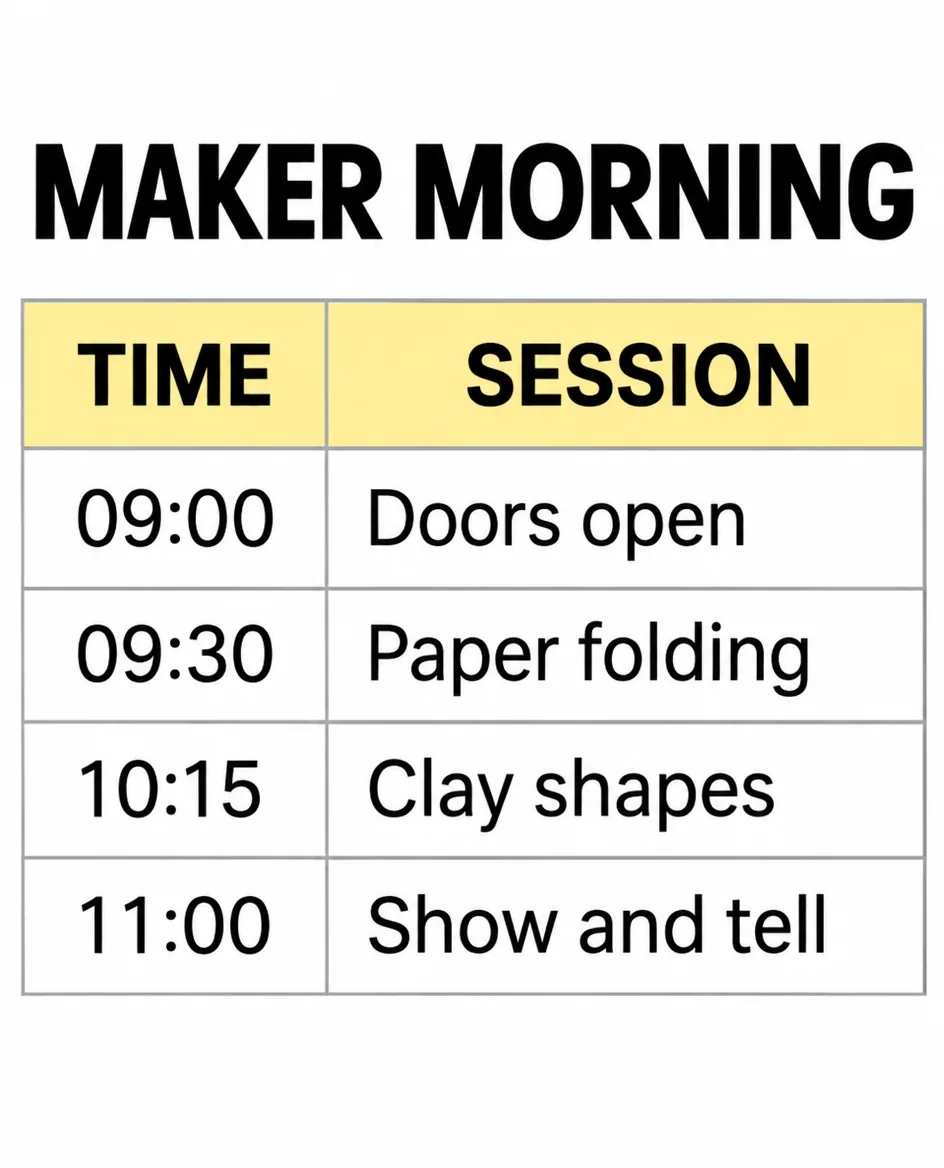
Use Seedream 5.5 to create a vertical 4:5 1K workshop schedule headed 'MAKER MORNING'. Use a two-column table with the headers 'TIME' and 'SESSION'. Include exactly four rows, pairing '09:00' with 'Doors open', '09:30' with 'Paper folding', '10:15' with 'Clay shapes', and '11:00' with 'Show and tell'. Use fine gray row rules, black sans-serif type, and a pale-yellow header. Keep each session on one line and all times aligned. Include only the supplied content.
Prompt 10 example generated with GPT Image 2.6. Seedream 5.5 results will be added.
Check Read across every row to verify that each time stays paired with the correct session. The displayed example keeps all four time-session pairs on separate rows, from 09:00 Doors open to 11:00 Show and tell.
AI image generator prompts for posters and ads
Make the message hierarchy explicit and keep copy areas clear. Save prompt 11’s result for the two poster revisions at the end of the collection.
11. A pottery workshop poster
Use it for an event poster that also serves as the source for prompts 29–30.
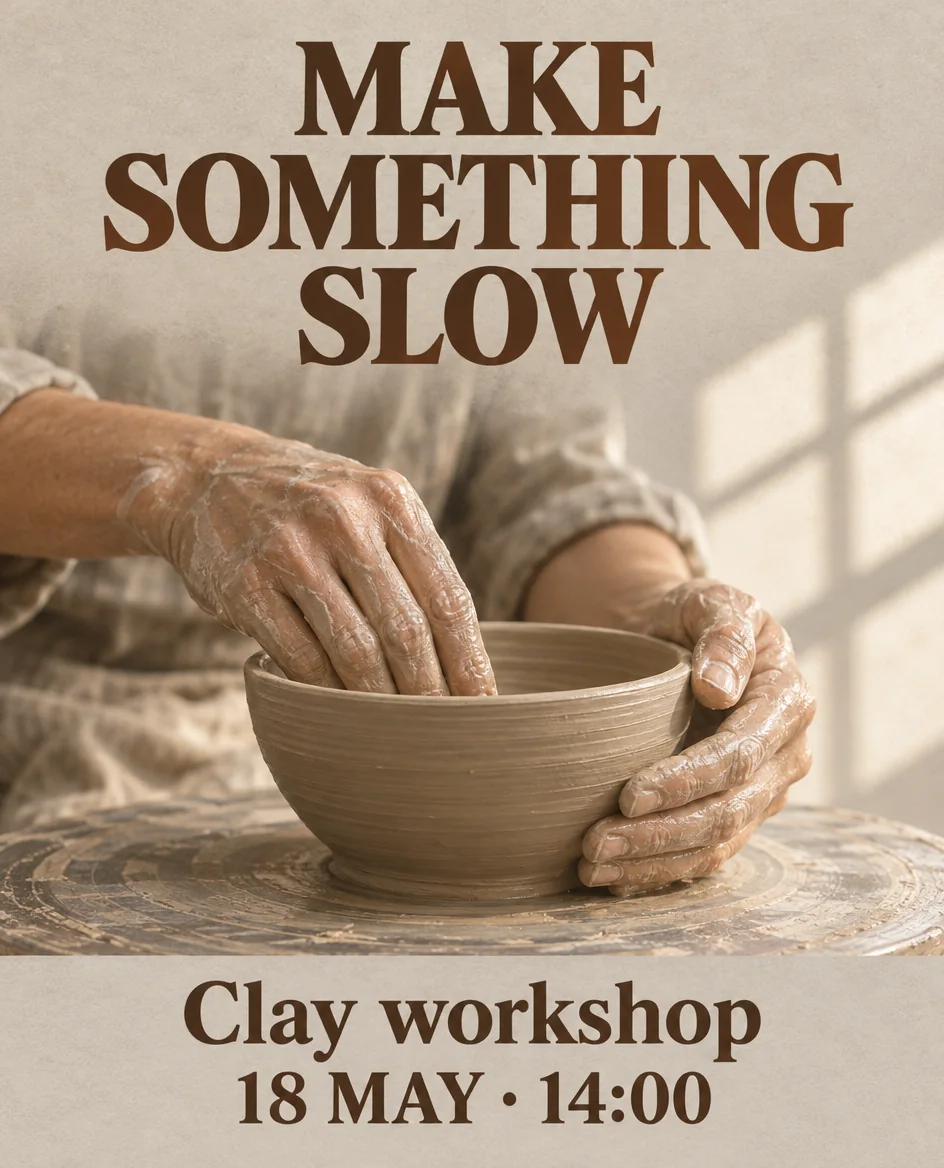
Use Seedream 5.5 to design a 4:5 1K pottery workshop poster on warm-gray paper. Set the exact headline 'MAKE SOMETHING SLOW' in dark-umber type across the upper third. In the middle, show a close-up of two hands shaping a small clay bowl, lit by a broad window from the right. Put 'Clay workshop' above '18 MAY · 14:00' inside a pale-gray footer band in the bottom quarter. Keep generous margins and a clear reading order. Include only the supplied copy, with no logo or venue details.
Prompt 11 example generated with GPT Image 2.6. Seedream 5.5 results will be added.
Check Proofread all three text areas and inspect finger anatomy and contact with the bowl before saving this editing source. The displayed example reads MAKE SOMETHING SLOW above two clay-covered hands and retains Clay workshop and 18 MAY · 14:00 in the footer.
12. A stationery sale graphic
Use it for a promotion with one clearly bounded offer.
Use Seedream 5.5 to create a square 1K promotional graphic for a fictional stationery shop. Use cobalt-blue type on a pale-peach background. Put 'DESK RESET' at the top, a larger '20% OFF' in the middle, and 'Notebooks only · Ends Sunday' beneath it. Arrange three unbranded notebooks along the bottom edge with crisp studio shadows. Keep all text unobstructed. Include only the supplied wording, with no discount code or logo.
Prompt 12 example generated with GPT Image 2.6. Seedream 5.5 results will be added.
Check Verify the percentage, product restriction, and end-day wording together. The displayed example clearly separates DESK RESET, 20% OFF, and Notebooks only · Ends Sunday above three notebooks.
13. A vertical bottle ad with copy space
Use it for a product-led advertising layout with room for a headline.
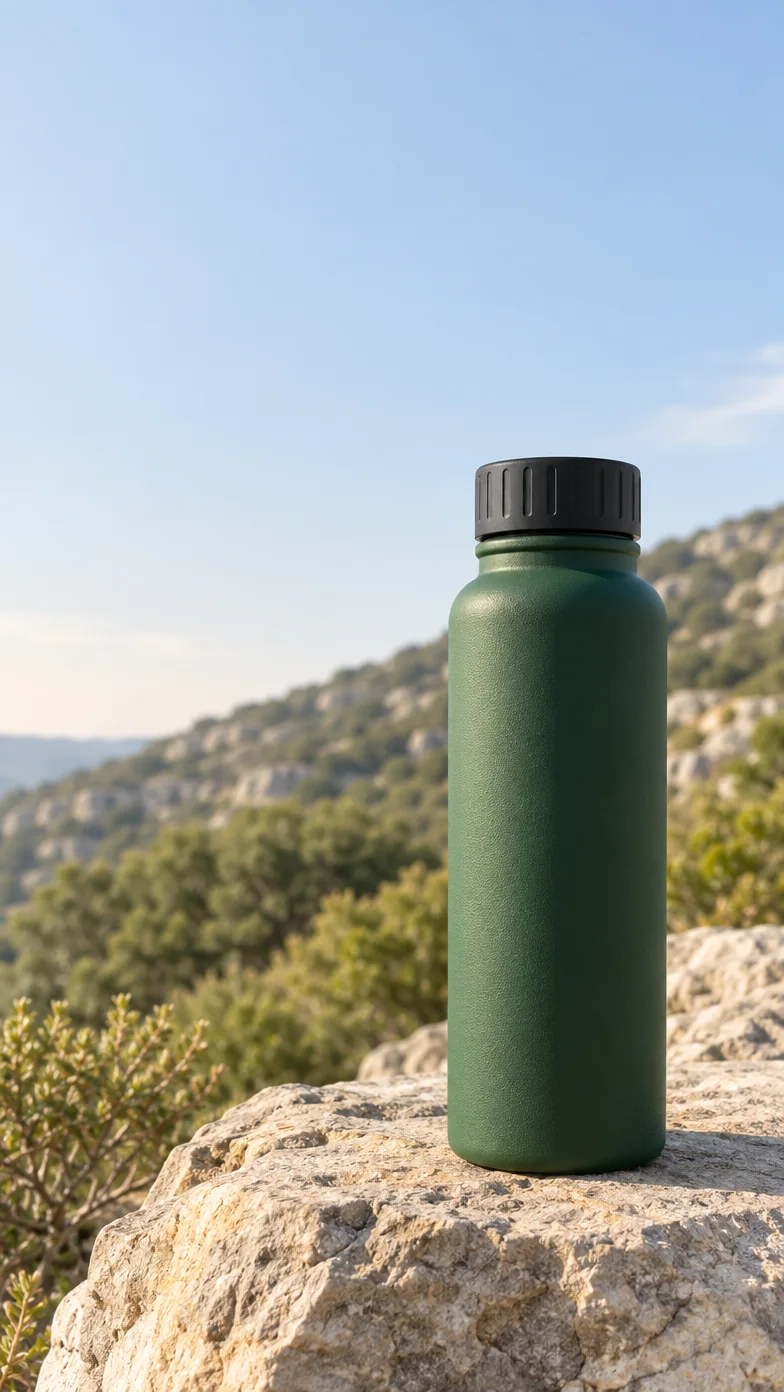
Use Seedream 5.5 to create a 9:16 1K advertising still for a fictional reusable water bottle. Place one matte forest-green cylindrical bottle with a black screw cap on a sunlit limestone ledge in the lower-right half. Show a realistic contact shadow, fine powder-coated texture, and a softly blurred hillside behind it. Leave the upper-left third as quiet pale sky for a headline to be added later. Keep the bottle fully inside the frame. Exclude labels, logos, lettering, and extra bottles.
Prompt 13 example generated with GPT Image 2.6. Seedream 5.5 results will be added.
Check Preview your intended headline in the reserved area and inspect the cap, silhouette, and contact shadow. The displayed example places one green bottle toward the lower right, leaving broad pale sky above and to the left for copy.
14. A bilingual exhibition poster
Use it for a poster pairing short Japanese and English headings.
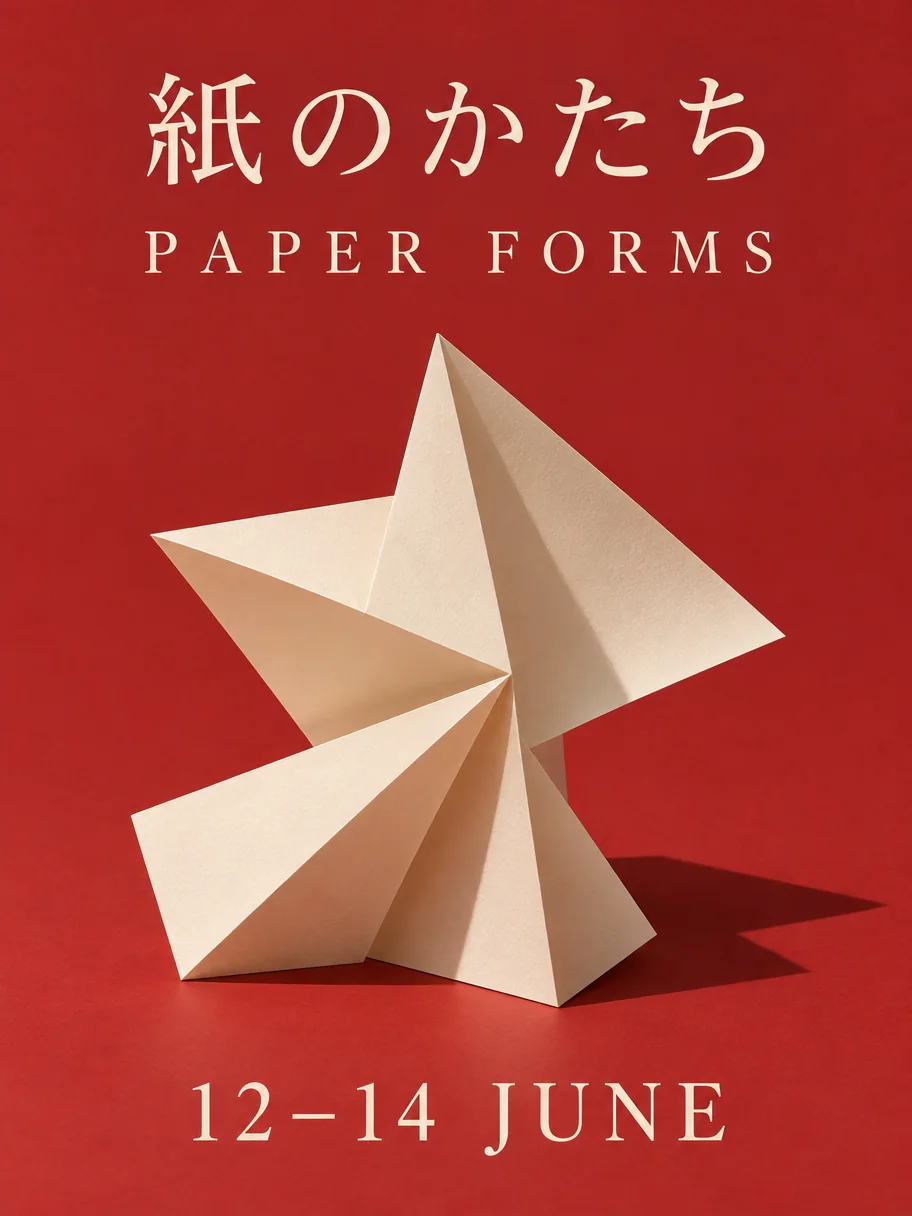
Use Seedream 5.5 to design a vertical 3:4 1K exhibition poster. Place the Japanese title meaning 'Paper forms' at the top and 'PAPER FORMS' directly beneath it. Center an abstract sculpture of folded ivory paper casting one crisp shadow onto a muted-red surface. Put the exact date '12–14 JUNE' at the bottom. Use restrained typography and generous spacing between the scripts. Include only these words and the date, with no logo or decorative lettering.
Prompt 14 example generated with GPT Image 2.6. Seedream 5.5 results will be added.
Check Have a fluent reader check the Japanese and verify the subtitle, date, and single shadow. The displayed example separates the Japanese heading, PAPER FORMS, folded-paper sculpture, and 12–14 JUNE date, with a crisp shadow extending right.
15. A wide reading-campaign banner
Use it for a landscape banner with copy beside a single focal object.
Use Seedream 5.5 to create a 16:9 1K banner for a fictional reading campaign. On the right half, show a worn clothbound book resting open on a dark-oak table, with soft morning light revealing the page edges. On a plain cream area on the left, place the exact headline 'ONE CHAPTER TODAY' above the smaller line 'Find your next read'. Keep both lines clear of the book and preserve generous margins. Exclude other wording and readable text on the book pages.
Prompt 15 example generated with GPT Image 2.6. Seedream 5.5 results will be added.
Check Read both lines at the intended display size and inspect the book’s spine, page joins, and text margins. The displayed example keeps both text lines on the cream left area and shows the open book with blank pages on the right.
AI image prompts for product photography
These text-only briefs describe fictional products for concept images. To photograph an existing item through generation, attach its reference and specify the shape, color, construction, and label that must be preserved.
16. A neutral ceramic teapot catalog shot
Use it for a clean product concept with an easily inspected silhouette.
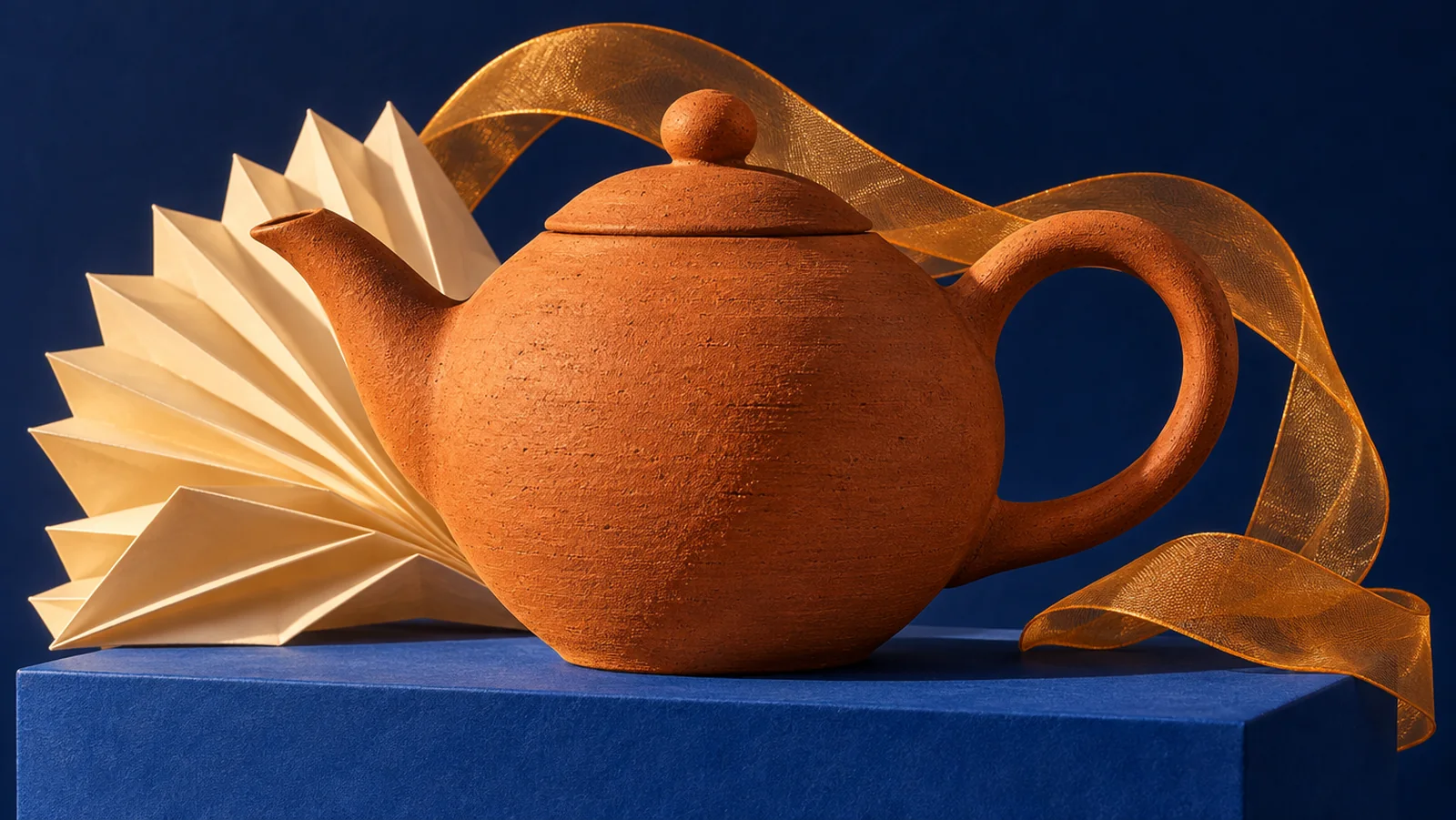
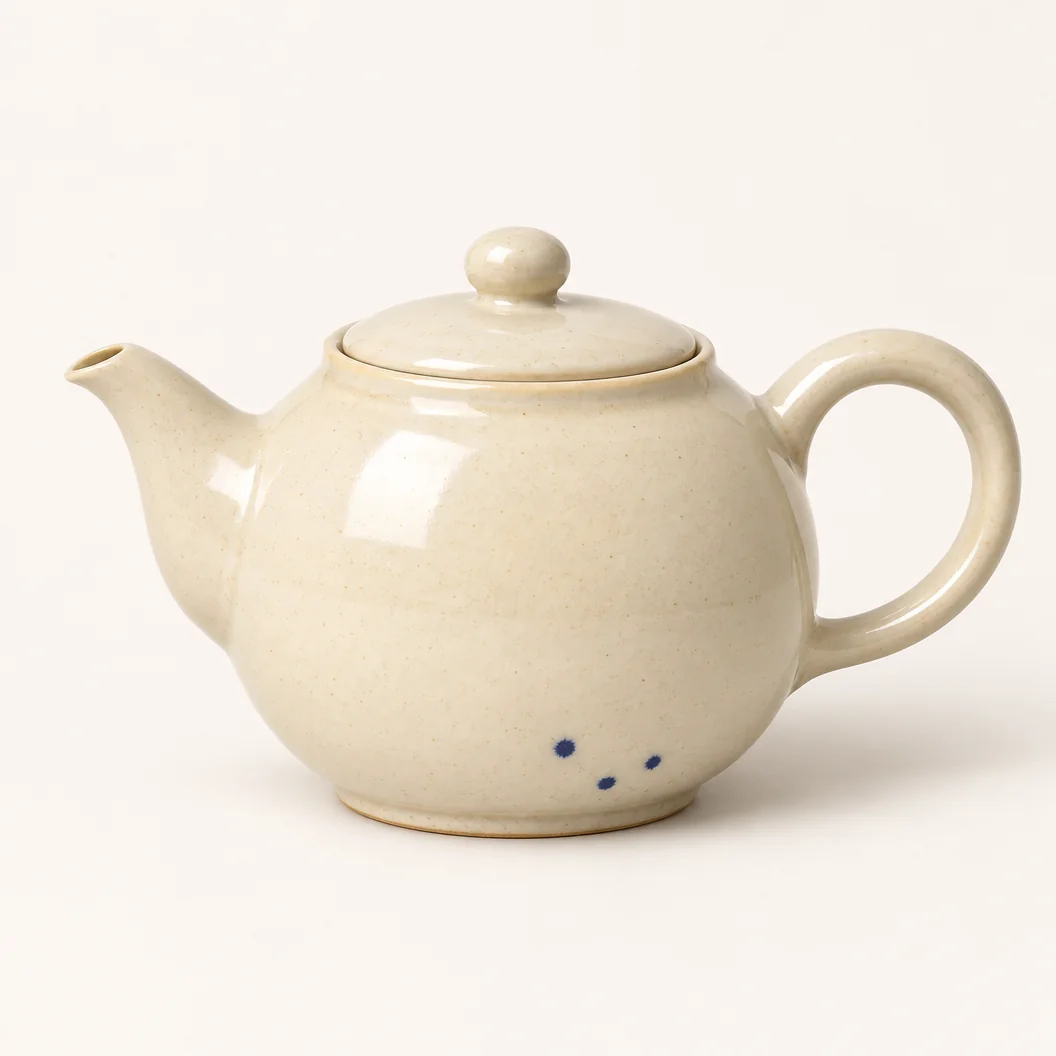
Use Seedream 5.5 to create a square 1K catalog photograph of one fictional ceramic teapot in a three-quarter view on a seamless off-white background. Give it a rounded cream-glazed body, a short curved spout, one loop handle, a fitted lid, and three small cobalt speckles near the base. Show the entire object with level camera framing. Use broad softbox light from the upper left and a faint contact shadow. Exclude props, lettering, and logos.
Prompt 16 example generated with GPT Image 2.6. Seedream 5.5 results will be added.
Check Inspect the handle opening, spout connection, lid fit, speckle count, and grounded base. The displayed example has one open loop handle, a fitted lid, and three distinct cobalt marks near the base.
17. Glass and liquid in a perfume hero shot
Use it for a transparent-material study with controlled reflections.
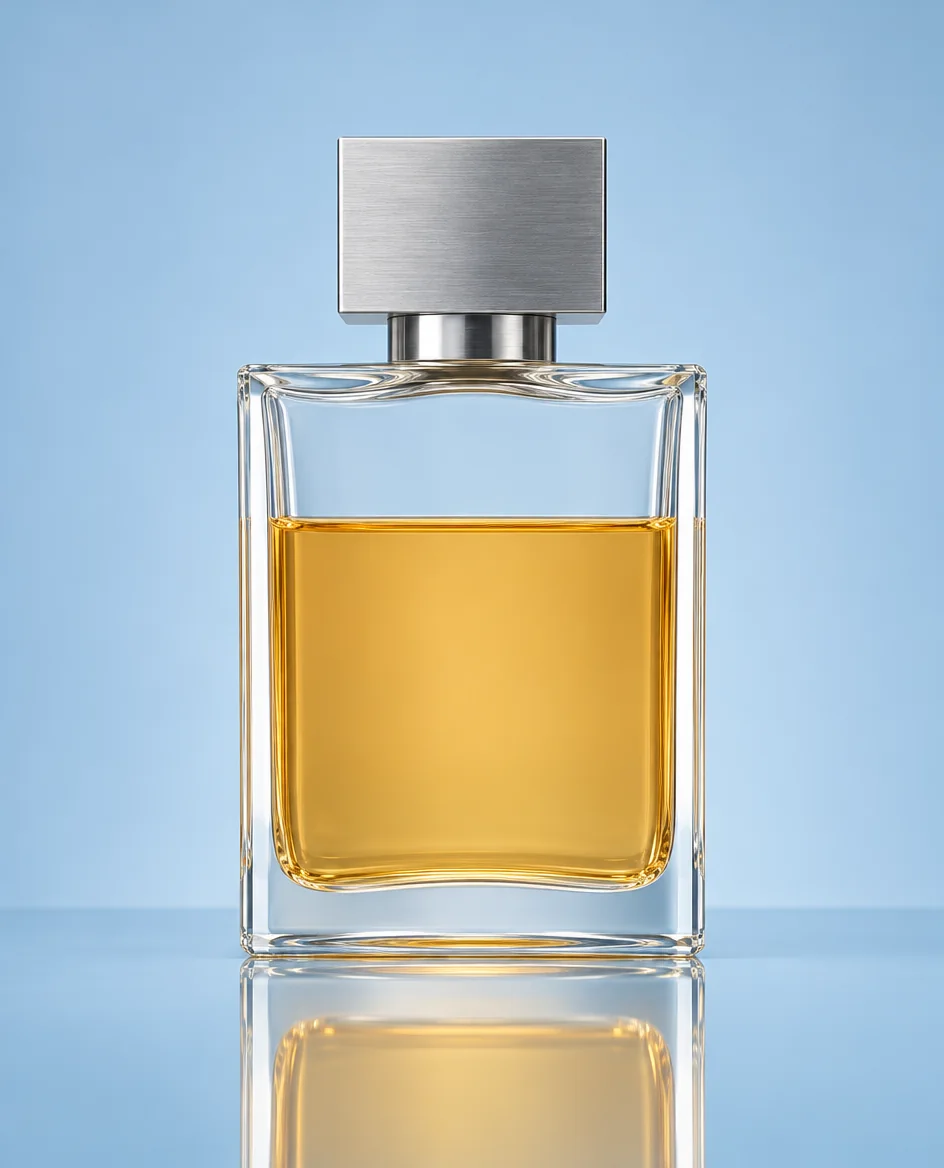
Use Seedream 5.5 to create a vertical 4:5 1K studio hero photograph of a fictional rectangular clear-glass perfume bottle with a square brushed-silver cap and pale-amber liquid filling two thirds of its body. Place it on pale-blue acrylic against a matching studio background. Use two narrow white highlight strips along the bottle sides, subtle glass refraction, a level liquid boundary, and one believable reflection below it. Keep the bottle unbranded. Exclude lettering, mist, splashes, and flowers.
Prompt 17 example generated with GPT Image 2.6. Seedream 5.5 results will be added.
Check Trace the bottle edges, liquid boundary, cap, and reflected silhouette for duplicated or disconnected features. The displayed example shows a level amber liquid boundary, bright glass-edge highlights, and a single reflected bottle below the base.
18. Leather stitching in close-up
Use it for a material-detail concept focused on construction.
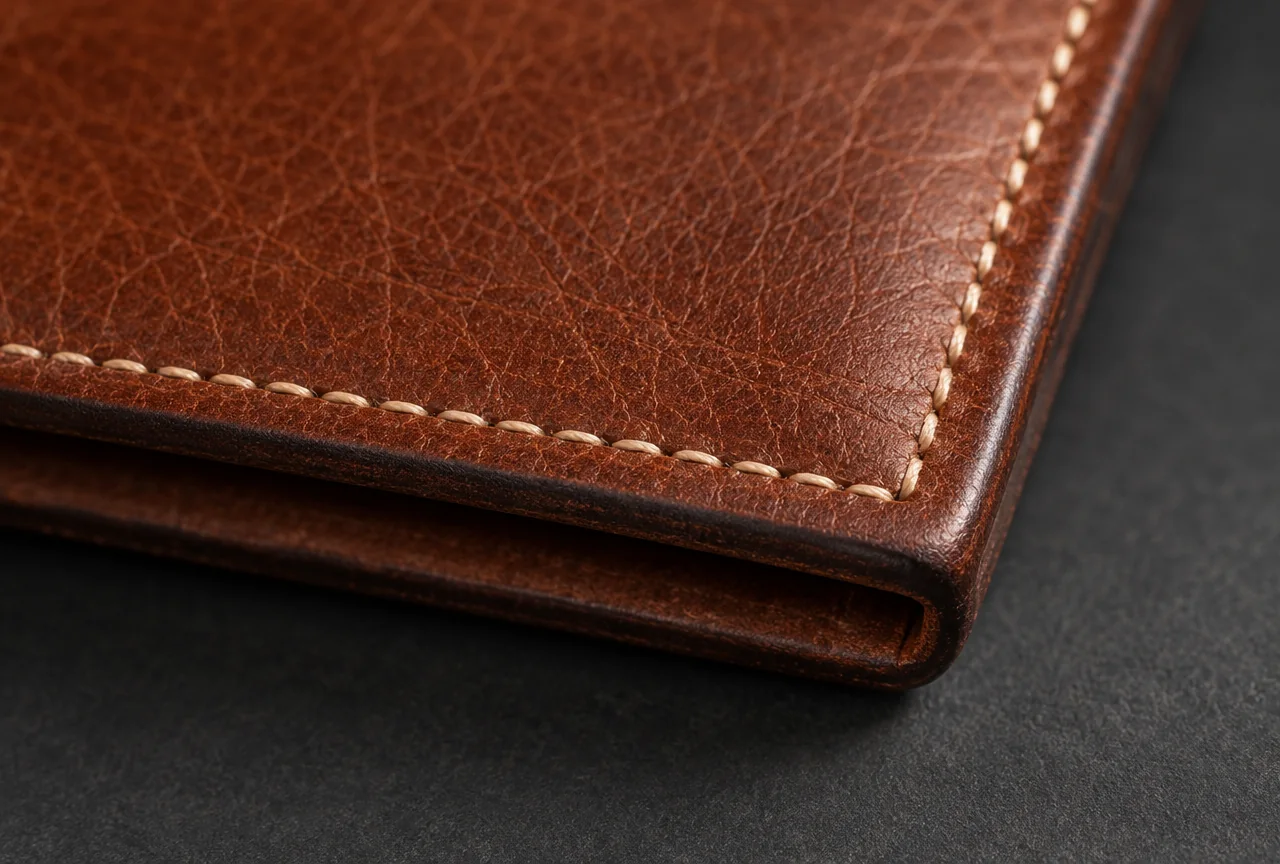
Use Seedream 5.5 to create a horizontal 3:2 1K macro product photograph of the stitched corner of a fictional chestnut-leather bifold wallet. Show fine irregular leather grain, evenly spaced cream saddle stitches, a folded edge, and a dark-brown burnished edge finish. Use raking light from the right, shallow depth of field, and a neutral-charcoal backdrop. Keep the stitch line in sharp focus. Exclude branding, extra compartments, and a glossy plastic coating.
Prompt 18 example generated with GPT Image 2.6. Seedream 5.5 results will be added.
Check Follow the stitch line around the corner and inspect thread continuity, spacing, and the folded edge. The displayed example shows cream stitches turning around the leather corner above a dark folded edge, with visible irregular grain.
19. A desk fan in a believable room
Use it for lifestyle placement with visible scale references.
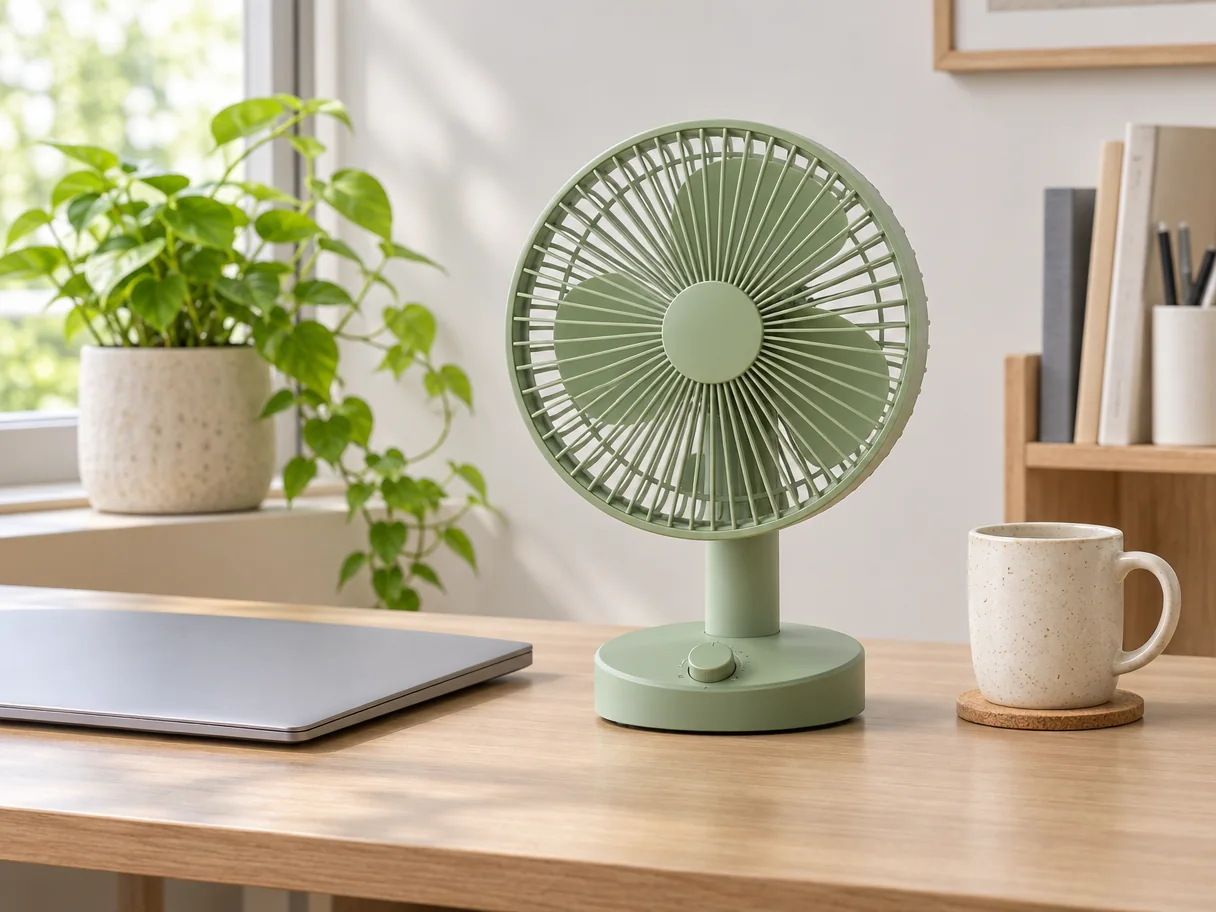
Use Seedream 5.5 to create a horizontal 4:3 1K lifestyle photograph of a fictional compact sage-green desk fan on a small home-office desk. Give the fan a circular radial grille, three blades, one control dial, and a round base. Place a closed laptop and an ordinary ceramic mug beside it to establish scale. Use diffuse window light from the left and contact shadows beneath every object. Keep the fan unobstructed. Exclude people, logos, and lettering.
Prompt 19 example generated with GPT Image 2.6. Seedream 5.5 results will be added.
Check Compare the fan’s scale with the mug and inspect its grille, blade count, control dial, and desk contact. The displayed example shows three blades behind the radial grille and one dial on the round base, with a closed laptop and mug beside the fan.
20. A tea box with an exact label
Use it for a packaging concept with short, specified front-panel copy.
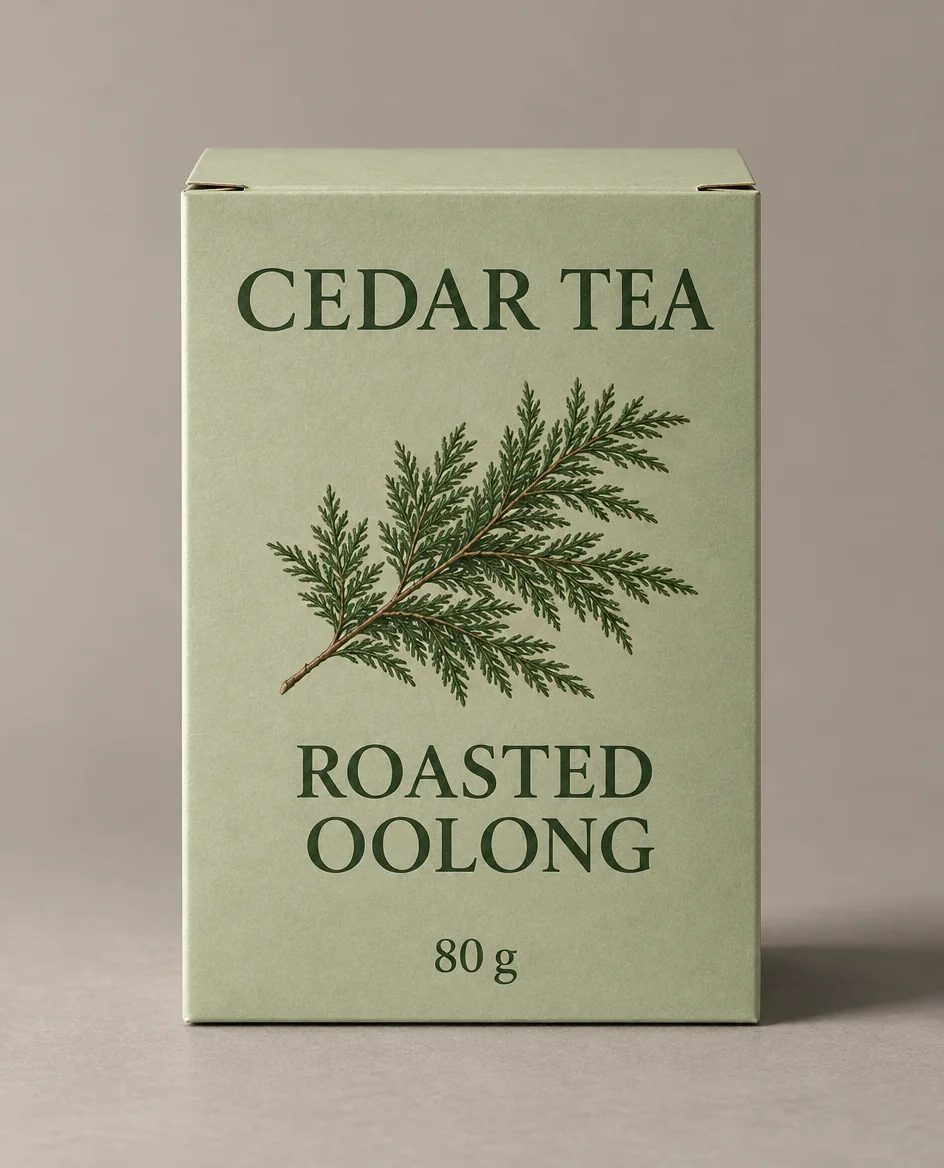
Use Seedream 5.5 to create a front-facing 4:5 1K studio photograph of one fictional rectangular tea box standing on a warm-gray surface. Use pale-sage paperboard, visible folded top flaps, and a small dark-green cedar-branch illustration. The front must read exactly 'CEDAR TEA' at the top, 'ROASTED OOLONG' in the center, and '80 g' near the bottom. Use soft side light and a small contact shadow. Exclude seals, certification marks, and extra wording.
Prompt 20 example generated with GPT Image 2.6. Seedream 5.5 results will be added.
Check Read all label text and inspect the front-panel perspective, fold lines, and contact shadow. The displayed example reads CEDAR TEA, ROASTED OOLONG, and 80 g, with visible top flaps and a shadow extending to the right.
Seedream 5.5 prompts for portraits and cinematic scenes
Describe the light source and the materials it touches. Save prompt 21’s portrait as the input for the three-round editing sequence below.
21. A ceramic artist with natural skin texture
Use it for an editorial portrait and the starting image for prompts 26–28.
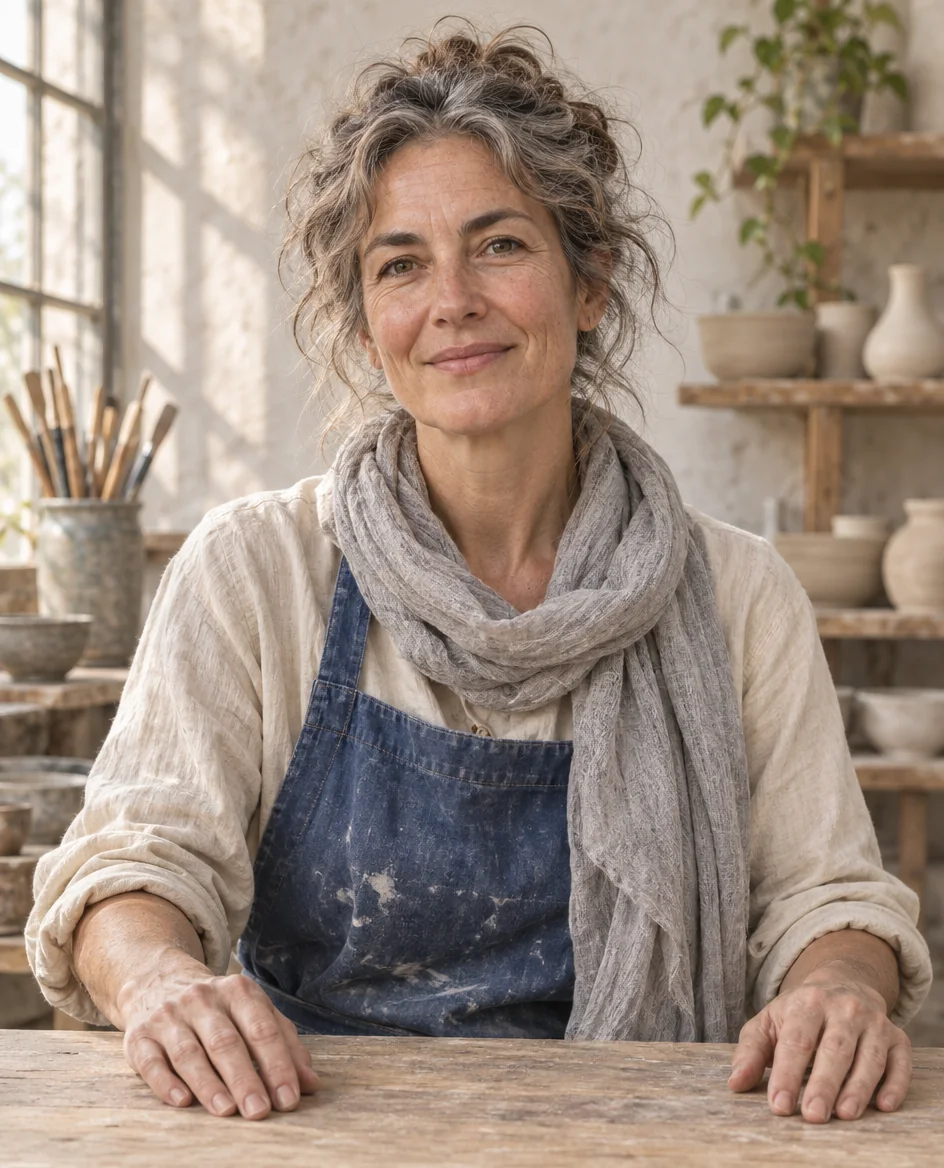
Use Seedream 5.5 to create a vertical 4:5 1K editorial portrait of a fictional middle-aged ceramic artist seated in a quiet workshop, framed from the waist up. Show natural skin pores, fine smile lines, a few stray hairs, a faded-indigo apron over a cream shirt, and a loosely draped light-gray linen scarf. Both hands rest apart on a bare wooden workbench across the lower quarter. Use broad window light from the left, a relaxed closed-mouth smile, and a softly blurred plaster wall. Exclude jewelry, lettering, and beauty smoothing.
Prompt 21 example generated with GPT Image 2.6. Seedream 5.5 results will be added.
Check Inspect the face, scarf folds, fingers, and workbench before saving the portrait as the editing source. The displayed example shows a gray scarf, visible facial lines, and both hands resting apart on the wooden bench.
22. A bookbinding studio with mixed materials
Use it for an interior still built around wood, wool, and metal.
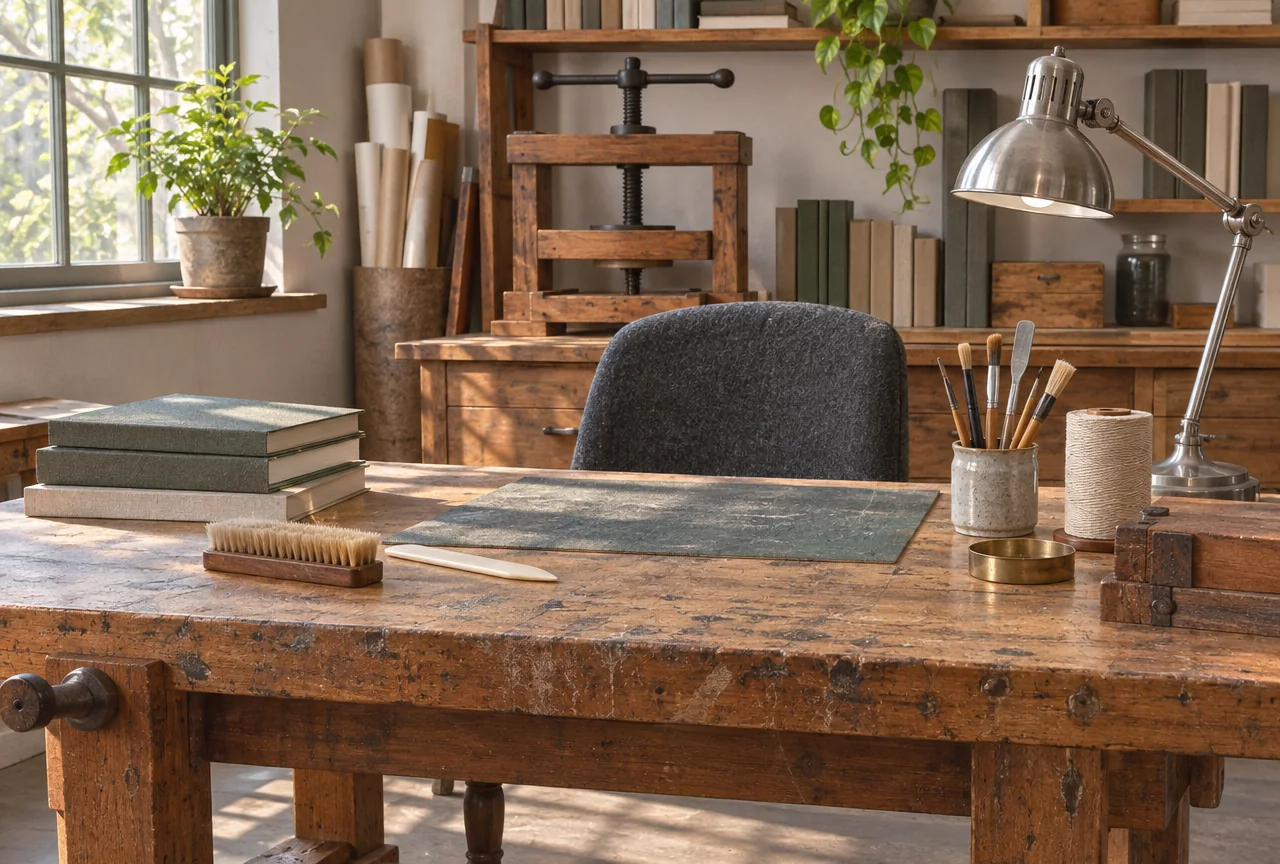
Use Seedream 5.5 to create a horizontal 3:2 1K interior photograph of a small bookbinding studio. Place a scarred beech workbench in the foreground, a charcoal-wool chair behind it, and a brushed-steel task lamp on the far right. Late-morning window light enters from the left, casting consistent shadows across the bench and floor. Show worn wood, soft fabric fibers, and restrained metal reflections. Keep the room unoccupied and the book spines blank. Exclude signs and lettering.
Prompt 22 example generated with GPT Image 2.6. Seedream 5.5 results will be added.
Check Trace the shadows toward the window and inspect chair legs, lamp joints, and the boundaries between materials. The displayed example separates the scarred wooden bench, dark upholstered chair, and metal task lamp, with light entering through the left window.
23. A bicycle shop after rain
Use it for an atmospheric still with distinct wet and dry surfaces.
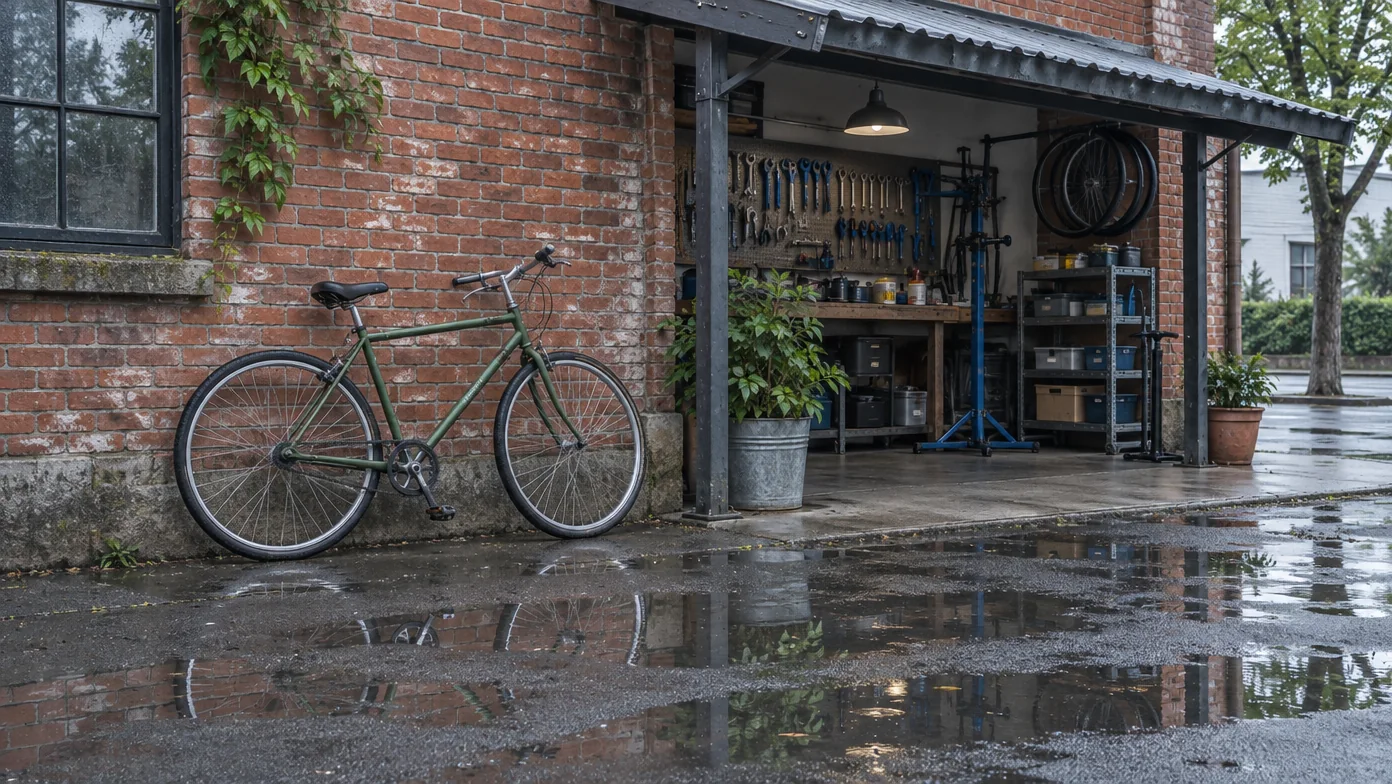
Use Seedream 5.5 to create a horizontal 16:9 1K street photograph of a quiet bicycle repair shop just after rain. One unbranded bicycle leans against a weathered-red brick wall beneath a shallow awning. The exposed pavement has small irregular puddles, while the area under the awning stays mostly dry. Use cool overcast daylight, subdued colors, and fragmented reflections inside the puddles. Keep the bicycle fully visible. Exclude people, signs, readable text, and dramatic lens flare.
Prompt 23 example generated with GPT Image 2.6. Seedream 5.5 results will be added.
Check Inspect the frame and spokes, then compare reflections on the wet pavement with the sheltered dry strip. The displayed example keeps the bicycle fully visible and reflects the brick facade in foreground puddles beside a comparatively dry shop threshold.
24. A florist composed for image-to-video
Use it for a first-frame concept with readable action and a clear background aisle.
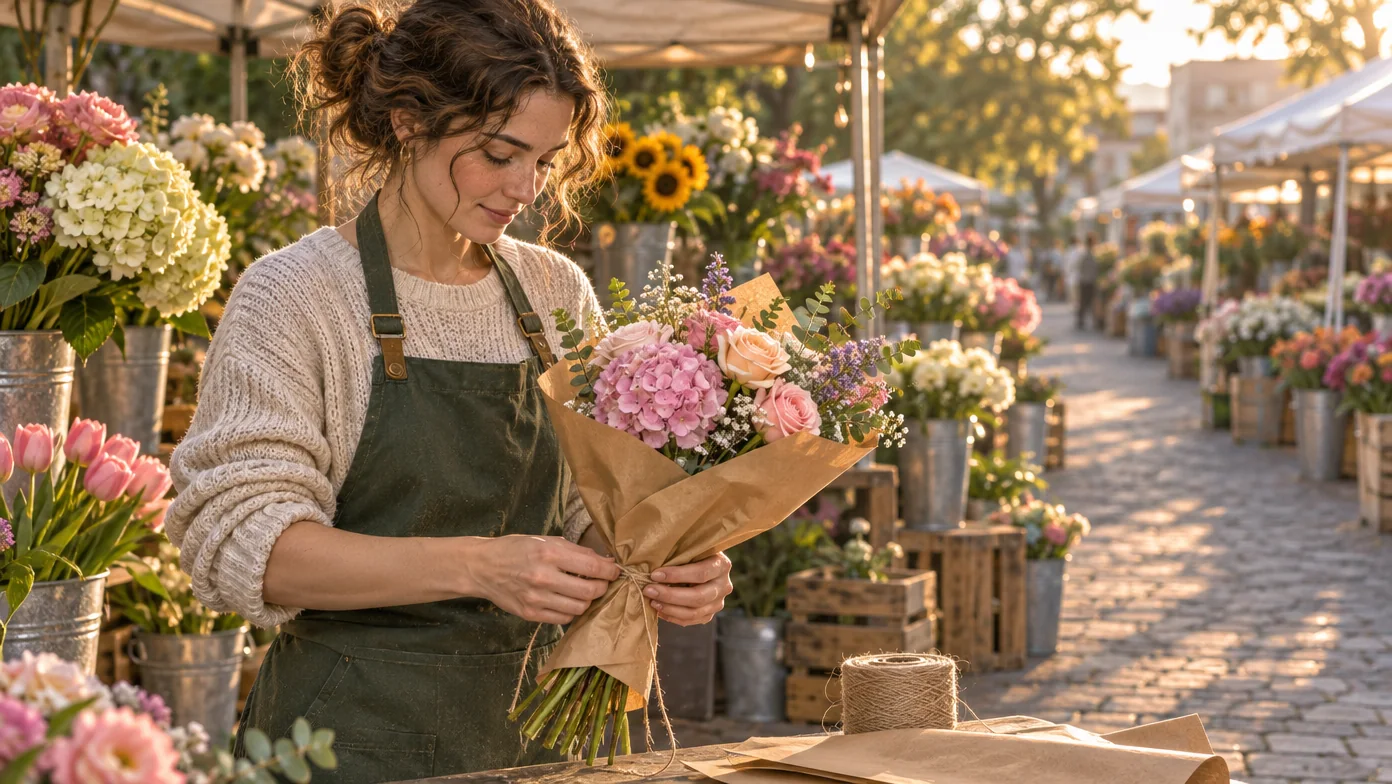
Use Seedream 5.5 to create a 16:9 1K cinematic still of a fictional florist behind an early-morning market stall, tying paper around a small bouquet. Frame the scene at waist height with the florist on the left third and a clear aisle extending into the right background. Use soft low sunlight, natural skin texture, tactile brown paper, and individually defined petals. Keep both hands visible and the bouquet separated from the background. Exclude readable signs and on-screen text.
Prompt 24 example generated with GPT Image 2.6. Seedream 5.5 results will be added.
Check Inspect the hands, wrapping paper, separated flowers, and open aisle before using this still as a video reference. The displayed example places both hands around the bouquet wrapping on the left, with a clear sunlit aisle receding on the right.
25. A miniature paper greenhouse
Use it for a tactile illustration with a clear material vocabulary.
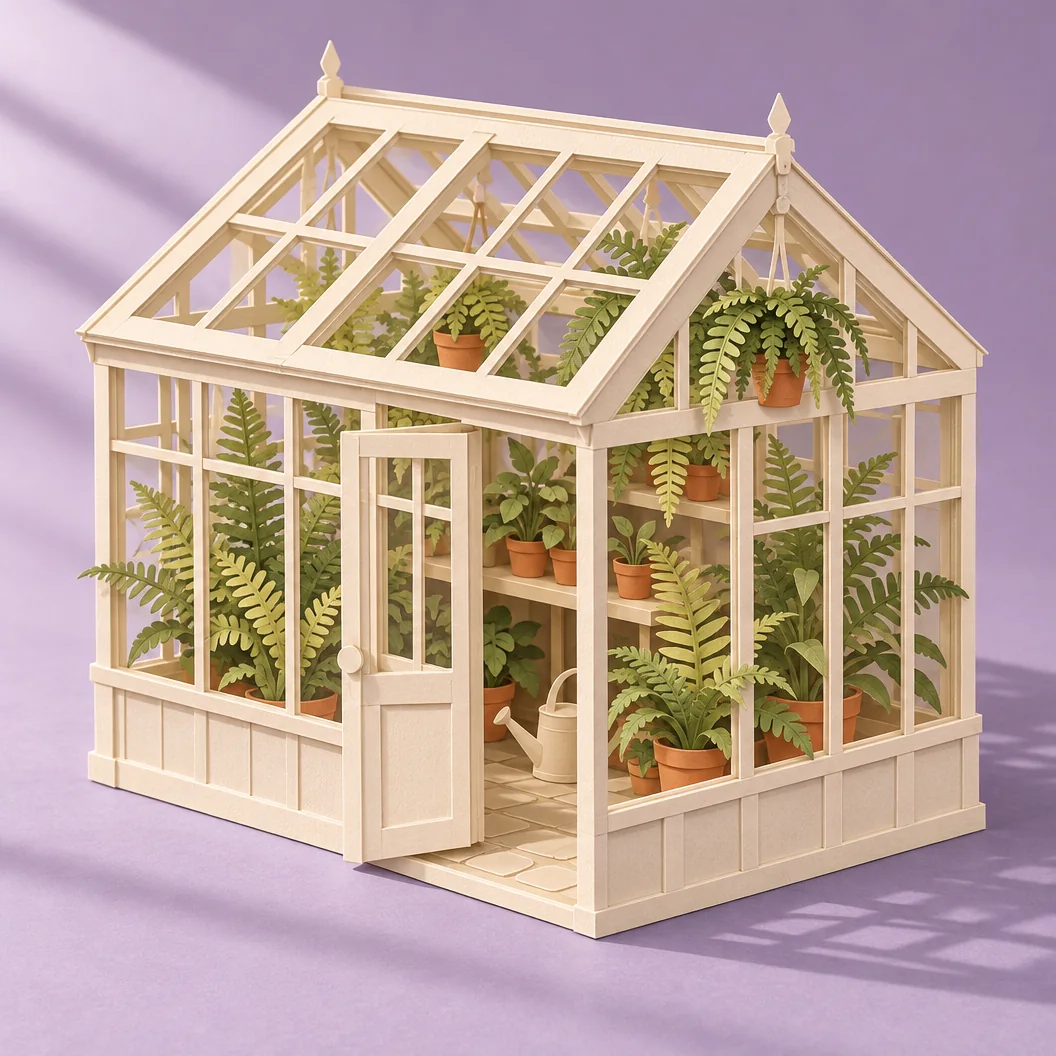
Use Seedream 5.5 to create a square 1K studio photograph of a handmade miniature greenhouse constructed from layered ivory card, with folded paper ferns and tiny terracotta-colored paper pots inside. Show visible cut edges, delicate crease lines, and believable layered depth. Place it on a muted-lavender surface under one broad light from the upper left. Use a three-quarter camera angle with the whole greenhouse in frame. Exclude lettering, logos, people, and glossy plastic surfaces.
Prompt 25 example generated with GPT Image 2.6. Seedream 5.5 results will be added.
Check Inspect cut edges, paper folds, pot contact, and consistent shadows between the nested layers. The displayed example shows layered ivory framing, cut-paper fern leaves, and small terracotta-colored pots, with frame shadows on the lavender surface.
AI image editing prompts for multi-round revisions
Run each round separately and feed the accepted output into the next round. For the portrait, follow 21 → 26 → 27 → 28. For the poster, follow 11 → 29 → 30. Keep the original alongside every result so you can inspect changes outside the requested area.
26. Portrait round 1 — recolor the scarf
Use it to change the scarf on the portrait from prompt 21 while retaining its folds.
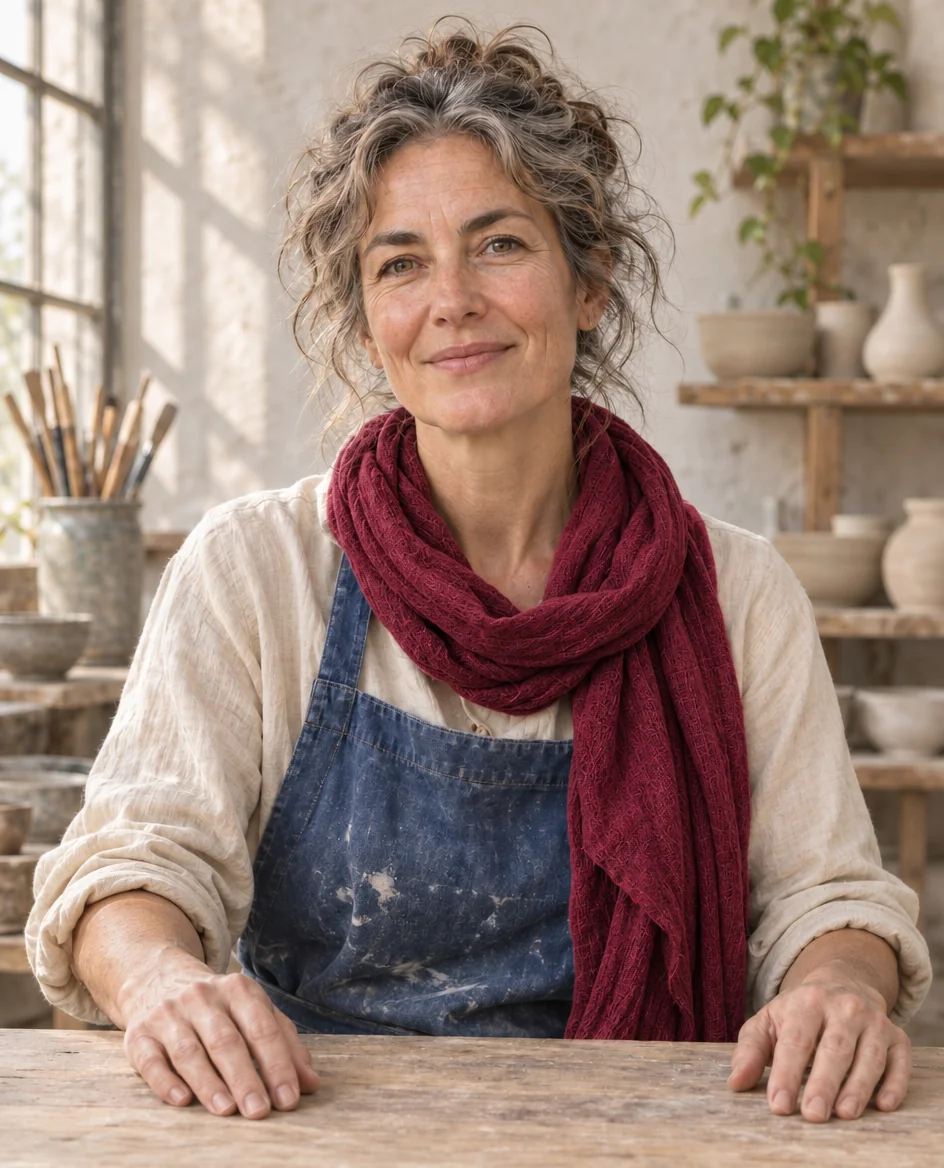
Use Seedream 5.5 to edit the attached ceramic-artist portrait from prompt 21. Change only the light-gray linen scarf to deep burgundy, preserving its weave, folds, edges, and shading. Keep the face, skin texture, hairstyle, expression, hands, cream shirt, indigo apron, workbench, background, framing, and light direction unchanged. Retain the source 4:5 composition and 1K output target. Add no new objects or lettering.
Prompt 26 example generated with GPT Image 2.6. Seedream 5.5 results will be added.
Check Compare facial landmarks and scarf edges with prompt 21, then inspect the shirt, hands, and wall for unintended changes. In the displayed GPT Image 2.6 example, the scarf changes from gray to burgundy while the broad pose remains similar, but its neckline folds also change.
27. Portrait round 2 — add a small brooch
Use it to add a restrained accessory to the accepted result from prompt 26.
Use Seedream 5.5 to edit the attached accepted result from prompt 26. Add one small silver crescent brooch to the burgundy scarf beside the artist's left shoulder, on the viewer's right. Match its tilt to the fabric and add subtle contact shading. Preserve the scarf color and folds, face, hair, skin texture, expression, hands, clothing, workbench, background, framing, and lighting. Retain the source 4:5 composition and 1K output target. Add no other accessories or lettering.
Prompt 27 example generated with GPT Image 2.6. Seedream 5.5 results will be added.
Check Inspect the brooch placement and contact shading, then compare the face and retained burgundy scarf with the preceding round. In the displayed GPT Image 2.6 example, a silver crescent appears on the viewer-right scarf, while the smile and scarf drape differ slightly from the preceding image.
28. Portrait round 3 — replace only the brooch
Use it to replace the accessory in prompt 27 while carrying the earlier color edit forward.
Use Seedream 5.5 to edit the attached accepted result from prompt 27. Replace only the silver crescent brooch with a small silver leaf brooch in the same position and of the same overall size. Match the existing fabric contact and light direction. Preserve the burgundy scarf, its folds and weave, the artist's identity, face, hair, expression, hands, clothing, workbench, background, and framing. Retain the source 4:5 composition and 1K output target. Add no other changes or lettering.
Prompt 28 example generated with GPT Image 2.6. Seedream 5.5 results will be added.
Check Compare all four portrait versions for identity drift and verify that the scarf color and earlier composition survive the replacement. In the displayed GPT Image 2.6 example, a silver leaf replaces the crescent and the scarf remains burgundy, but the scarf folds and facial expression vary across the sequence.
29. Poster round 1 — correct one date
Use it to update the date on the pottery poster from prompt 11.
Use Seedream 5.5 to edit the attached pottery poster from prompt 11. Replace only '18 MAY' with '25 MAY' in the footer, matching the existing letter size, weight, color, baseline, and spacing. Preserve '14:00', 'Clay workshop', the headline 'MAKE SOMETHING SLOW', the pale-gray footer band, the hands and bowl, paper texture, lighting, and all layout positions. Retain the source 4:5 composition and 1K output target. Include no extra text or visual changes.
Prompt 29 example generated with GPT Image 2.6. Seedream 5.5 results will be added.
Check Proofread the entire poster against prompt 11, including the retained time, headline, and workshop label. In the displayed GPT Image 2.6 example, the footer reads 25 MAY · 14:00 and the headline remains readable, while finger contours differ from the original poster.
30. Poster round 2 — recolor the footer
Use it to change the footer on the accepted result from prompt 29 while retaining the corrected date.
Use Seedream 5.5 to edit the attached accepted pottery poster from prompt 29. Change only the pale-gray footer band to pale powder blue, preserving its boundaries and texture. Keep the exact footer copy 'Clay workshop' and '25 MAY · 14:00', the headline 'MAKE SOMETHING SLOW', every text position, the hands, bowl, main paper color, lighting, and framing unchanged. Retain the source 4:5 composition and 1K output target. Add no new elements or wording.
Prompt 30 example generated with GPT Image 2.6. Seedream 5.5 results will be added.
Check Compare both edited posters with the original for footer boundaries, exact copy, hand details, and texture drift. In the displayed GPT Image 2.6 example, the footer turns pale blue and retains 25 MAY · 14:00, while the clay texture and hand details also shift.
Fix an AI image prompt after a weak result
What needs attention
What to change next
An opaque rectangle surrounds a cutout
Check the export’s alpha channel and transparent-output setting, then inspect the edges on two backgrounds.
Small lettering is garbled
Shorten the copy, give the affected line more space, and repeat its exact wording.
A chart’s labels look correct but its geometry is wrong
Compare bar heights with the supplied values and correct the chart before using it.
A product detail drifts from a real item
Attach a clearer reference and name the exact construction detail to preserve.
A later edit changes the face or previous revision
Return to the last accepted input and narrow the next request to one local change.
The scene looks overly glossy
Specify one light source and the actual surface texture, such as matte glaze or worn linen.
Put exclusions directly into the main prompt. Use any separate negative-prompt control according to the selected service’s documented settings.
Take a finished image into a ChatCut video
Seedream 5.5 is available in ChatCut’s web editor, desktop app, and Agent-plugin workflow. Keep the generated image in your project, place it on the timeline, or use a suitable still such as prompt 24 as a video model’s first frame. Then add captions, voiceover, and music before exporting.
For animation, choose a model such as Kling 4.0 or Seedance 2.5 and describe the movement you want in a separate video prompt. Explore Kling 4.0, Seedance 2.5, and our image-to-video workflow.
Specify the deliverable, subject, composition, lighting, materials, exact text, and constraints. Start with a card that fits your task, then change one detail at a time. For an edit, identify the input image, the requested change, and the details to preserve.
Where can I find AI image prompt examples to copy and paste?
This collection contains 30 complete prompts across six task groups. Each card pairs a prompt with its image and a specific visual check, alongside Copy and Open in ChatCut controls. For prompts 26–30, attach the earlier result named on the card.
What are good AI image editing prompts?
A useful editing prompt names one change and the surrounding details to preserve. Prompts 26–28 recolor a scarf, add a brooch, and replace that brooch in successive rounds. Prompts 29–30 update a poster date and then its footer color, using each accepted output as the next input.
How do I write AI image generator prompts for social media?
Name the placement, intended shape, subject, copy area, and exact words. Prompt 12 provides a square sale graphic, prompt 13 reserves space in a vertical ad, and prompt 15 puts a headline beside a product-like focal image. Preview the result at the size your audience will see.
What should I include in Seedream 5.5 prompts for transparent backgrounds?
Request RGBA output, transparent space around the complete subject, and clear gaps between elements. ByteDance describes full and partial transparency in the model's capabilities. Check ChatCut's output settings and inspect the exported alpha channel. Official model examples.
Do Seedream prompts need negative prompts?
Include concrete exclusions in the main brief, such as extra text, additional products, or an opaque backdrop. Use a separate negative-prompt field according to the settings documented by the service where you generate.
Are these AI image prompts free to use?
You can copy and adapt the prompts in this article. Image generation follows the service's plans and credit pricing. See our Seedream access and pricing guide for the available routes and their conditions.
Can I use Seedream 5.5 prompts in ChatCut?
Yes. Open a card in ChatCut, choose Seedream 5.5, review the output settings, and attach the specified source for an edit. Keep the generated image in your project for timeline editing or image-to-video work. The Seedream 5.5 model page is the starting point.