A useful image prompt tells the model five things: the job and aspect ratio, the main subject (and what any attached photo controls), the camera angle and light, the exact words to print or exclude, and what must stay unchanged. Below are 20 GPT Image 2 prompts grouped by job: funny ChatGPT image prompts, posters and social graphics, product shots and thumbnails, portraits and storyboards, and surgical revisions. Instead of the loose tag lists common in awesome GPT Image 2 prompts repositories, the best image prompts for ChatGPT read like a brief: each card gives the required input, a copyable prompt for ChatGPT or ChatCut, bracketed swaps, and what to check before publishing.
We wrote these 20 prompts as original starting templates for this guide and have not executed or published model test outputs for them. Treat each card as an adaptable brief, replace the bracketed details with your own subject, and inspect the actual image you get. Want a guided starting point for a surreal product image? Open the 3D Surreal Skill and bring your own product photo.
Jump to a prompt category:
- Before you copy a prompt (five-point checklist)
- Funny ChatGPT image prompts (Cards 1–6: pets at work, dinosaurs, miniature crews, absurd ads)
- Prompts for posters and social graphics (Cards 7–10: events, editorial covers, two-panel jokes, quotes)
- Prompts for product images and thumbnails (Cards 11–14: hero stills, surreal sets, macro inserts, reaction thumbnails)
- Prompts for portraits and storyboard frames (Cards 15–18: profile portraits, character anchors, matched wide and close shots)
- Revision prompts that keep what works (Cards 19–20: object swaps and lettering fixes)
Before you copy a prompt
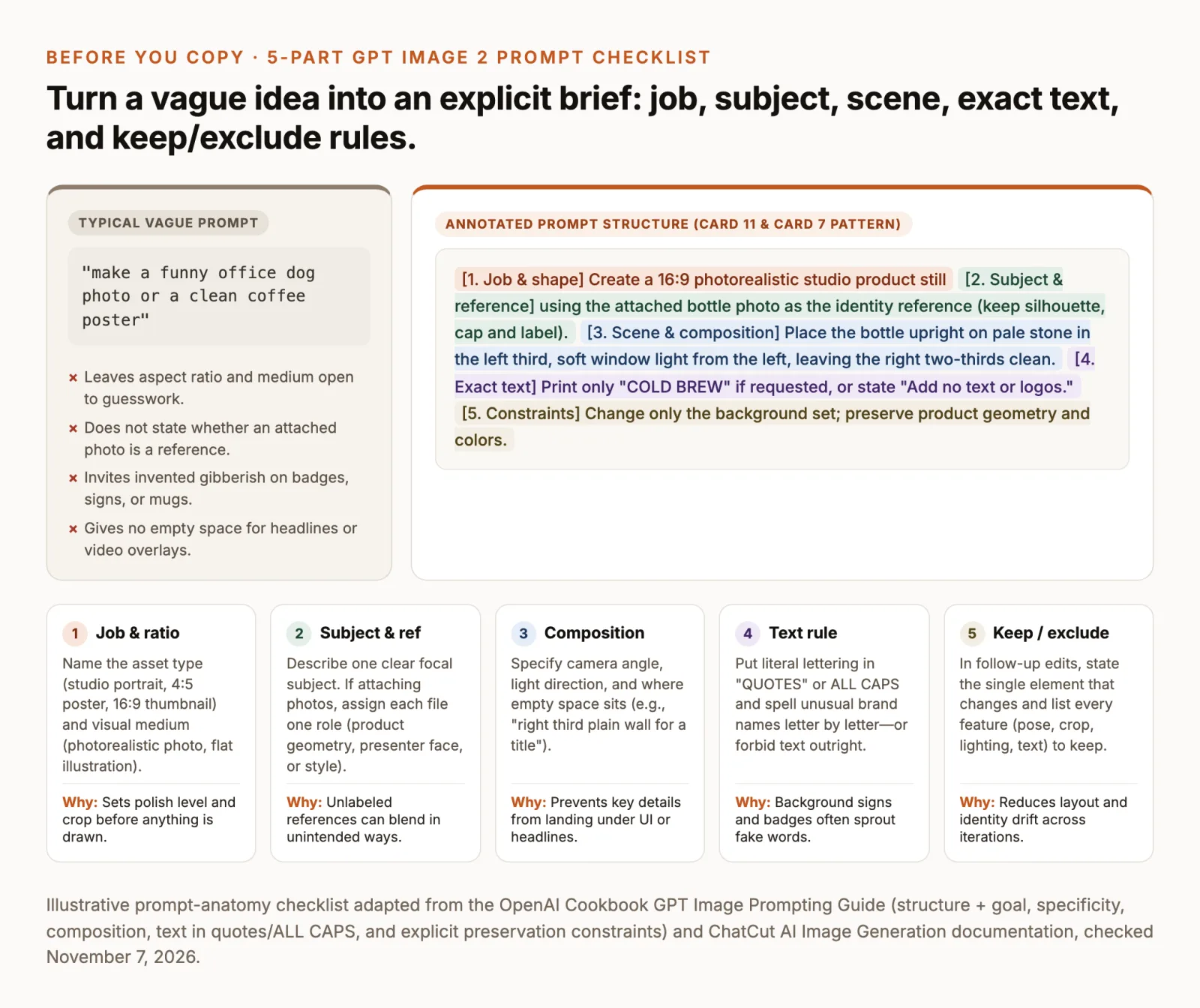
OpenAI’s GPT Image prompting guide recommends writing prompts in a consistent order (scene, subject, key details, and constraints) while naming the intended use so the model sets the right level of visual finish. Before you paste any of the ChatGPT image prompts below, check five things:
- Intended job and shape. Name the deliverable (a 1:1 studio headshot, a 4:5 event poster, a 16:9 YouTube thumbnail) and the visual medium (such as
"photorealistic"photography or flat vector illustration). In the OpenAIgpt-image-2model documentation and Cookbook size rules,gpt-image-2accepts custom dimensions whose edges are multiples of 16 up to a 3:1 aspect ratio, with1024x1024,1024x1536,1536x1024, and2560x1440(2K) documented as the standard reliable targets. - Subject and reference role. If you attach a photo of a product or a consenting person, state what that image controls (silhouette, printed label, facial features, wardrobe) and what the prompt is allowed to change. As OpenAI’s images and vision guide and ChatCut’s generation references guide note,
gpt-image-2processes reference inputs at high fidelity without an input-strength slider, so unlabelled attachments can blend in ways you did not expect. - Composition and reserved space. State the camera angle, light direction, and which part of the canvas stays unobstructed for headlines, captions, or player buttons. Describe empty regions by what they look like (
"plain warm-gray wall in the right third") rather than only saying"negative space". - Exact quoted text or a strict no-text rule. OpenAI’s prompting guide advises putting literal lettering in
"QUOTES"orALL CAPSand spelling unusual brand names letter by letter. When an image should not contain words, state"No lettering, signs, or logos"so badges, store windows, and mugs do not sprout invented text. - Keep and exclude constraints. When revising an existing image or building a multi-frame sequence, name the single element that changes and list every feature that must remain fixed.
For the full scene-subject-details framework, text-to-image versus image-to-image and inpainting setup, and access routes, read our guide on how to use GPT Image 2. This article stays focused on copyable prompt cards and inspection checks. Note also that ChatGPT’s consumer interface routes requests across OpenAI’s active image lineup (which in the OpenAI API models index and image generation guide now includes gpt-image-2 alongside gpt-image-2.5-flare, gpt-image-2.5-sunburst, and gpt-image-2.6 variants); the prompts below work across both ChatGPT and explicit gpt-image-2 workflows.
Funny ChatGPT image prompts
Visual comedy in an image generator rarely comes from asking the model to "make something hilarious". It comes from placing one absurd contradiction inside a deadpan photographic style: a corporate studio headshot of a pet, a prehistoric predator waiting for a morning train, or a miniature road crew patching a pastry. Keep the camera and lighting realistic, change only one rule of reality, and block background text so garbled lettering does not compete with the visual gag.
1. Pet employee portrait
Inputs: text only (or attach a clear photo of your own pet with + and add "Use the attached photo for the pet's coat pattern and face") · 1:1 square
Substitutions: Replace [pet] with a specific breed or animal (golden retriever, grumpy British Shorthair cat, capybara, bearded dragon). You can also swap jacket for charcoal tweed blazer or reflective warehouse vest.
Check: The oversized badge should carry the joke without invented text, and the fur texture should read as a real studio photograph rather than an animated cartoon. If the badge is too small to notice at mobile feed size, follow up with: "Keep the pet, pose and lighting. Make only the blank badge twice as large."
2. Dinosaur commuting
Inputs: text only · 4:5 vertical or 16:9 widescreen
Substitutions: Swap [Velociraptor wearing a yellow rain poncho] for Triceratops with a canvas messenger bag strapped across its frill or woolly mammoth squeezed onto a rainy city bus stop bench.
Check: Verify the scale of the creature relative to the subway doors and check how the claws hold the cup and watch. If the background signs turn into fake English words, reply: "Keep the dinosaur, poncho, pose, lighting and platform unchanged. Blur the background wall tiles so no letters or symbols appear."
3. Everyday object on holiday
Inputs: text only · 4:5 vertical
Substitutions: Replace [stainless-steel two-slice kitchen toaster] with beige 1990s CRT desktop monitor, cast-iron waffle maker, or red upright vacuum cleaner.
Check: The comedy depends on treating an ordinary appliance like a vacationing person without giving it cartoon eyes or a mouth. Check that the chrome or plastic reflects the beach environment naturally. If the model adds a face, revise with: "Keep the lounger, beach, lighting and sunglasses. Restore the toaster to a plain metal appliance with no face or limbs."
4. Tiny workers repairing a snack
Inputs: text only · 16:9 widescreen
Substitutions: Swap [glazed chocolate donut] for toasted everything bagel with cream cheese, broken waffle cone, or cracked macaron shell, and adjust the repair action (spreading cream cheese like mortar, welding sugar glass).
Check: Inspect the scale gap between the coarse pastry crumbs and the 1:87-scale figures, and make sure no oversized tools float unattached in midair. If the background looks like a construction site instead of a kitchen, revise with: "Keep the donut, miniature workers, scaffolding and lighting unchanged. Make the blurred background a simple domestic kitchen counter."
5. Fantasy creature doing chores
Inputs: text only · 4:5 vertical
Substitutions: Replace [small mossy forest dragon] with medieval knight in scuffed plate armor, stone gargoyle wearing rubber dishwashing gloves, or wizard in a faded bathrobe sorting socks.
Check: Look at how the fluorescent light and warm dryer light fall across the creature’s surface; mixed practical lighting is what sells the documentary look. If the dragon breathes fire or threatens the room, revise: "Keep the laundromat, lighting and dragon design. Change its pose so it calmly folds a white towel with both front claws."
6. Absurd fictional product ad
Inputs: text only · 4:5 vertical poster
Substitutions: Swap the bracketed invention for stainless-steel portable cloud defogger with a glass pressure gauge or mahogany pocket excuse generator with three ivory push buttons, and replace 'PROBLEM SOLVED' with any two-word uppercase headline.
Check: Read 'PROBLEM SOLVED' letter by letter and confirm that the analog dial has tick marks rather than garbled numbers. If fake body copy appears at the bottom of the poster, revise: "Keep the brass device, pedestal, lighting and the top 'PROBLEM SOLVED' headline unchanged. Remove all small lettering from the lower half of the image."
Prompts for posters and social graphics
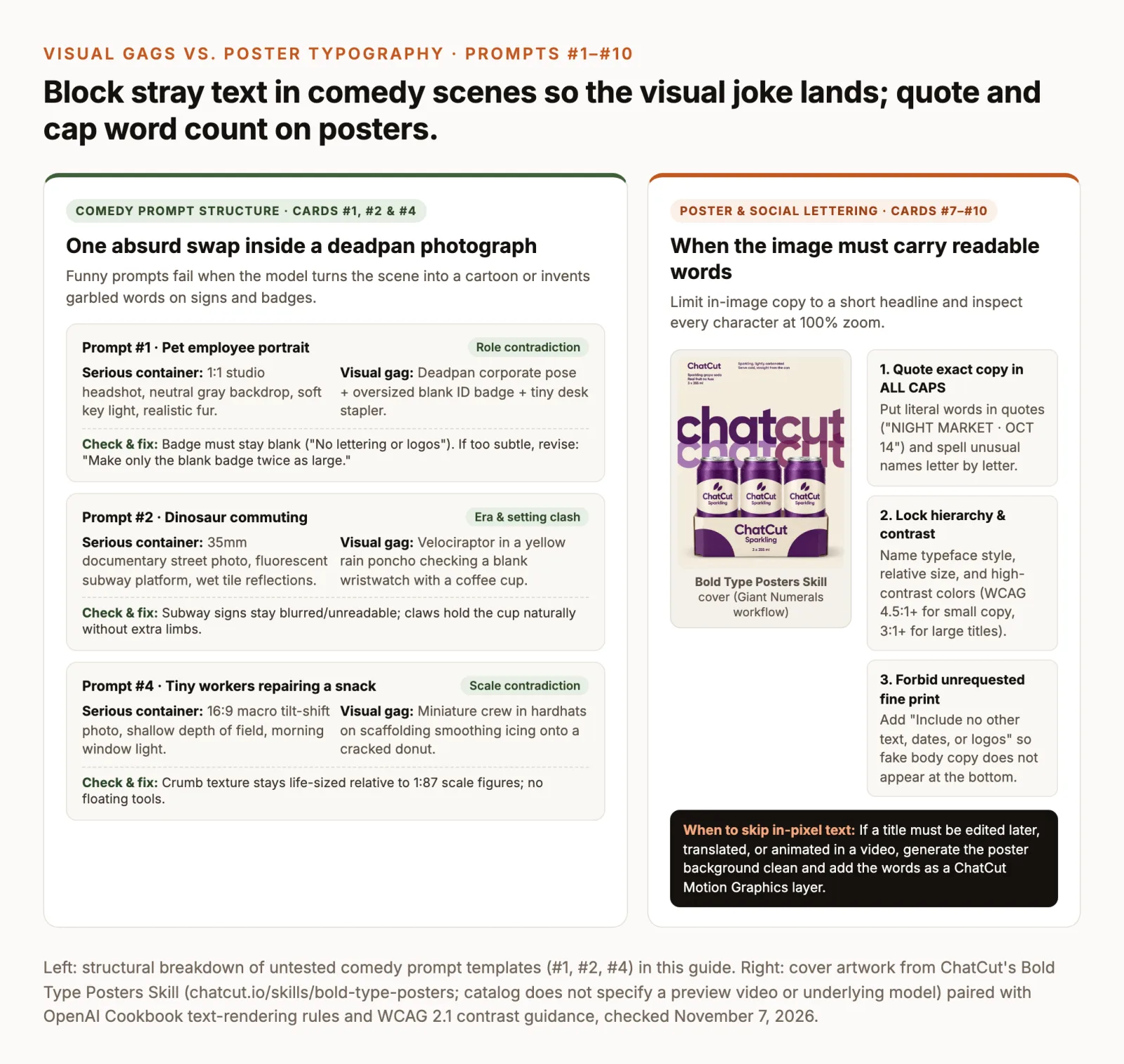
GPT Image 2 renders short titles and numerals much more reliably than earlier models, provided you constrain the typography in the prompt. OpenAI’s GPT Image prompting guide recommends placing exact copy in quotes or ALL CAPS, describing the font style, color, and placement explicitly, and using medium or high output quality when text legibility matters. For social graphics that must read on a phone screen, pair a standard feed ratio (Instagram’s help documentation for feed photos supports ratios between 1.91:1 and 4:5) with strong luminance contrast: the W3C’s WCAG 2.1 minimum contrast standard specifies at least a 4.5:1 contrast ratio for regular text and 3:1 for large-scale titles, while WCAG 2.1 enhanced contrast calls for 7:1 on small copy.
7. Event poster
Inputs: text only · 4:5 vertical (1024x1280 or 1024x1536 portrait)
Substitutions: Replace the central object (vintage vinyl turntable, ceramic ramen bowl, folding bicycle) and swap the two quoted text strings for your event title and date line (keep both under five words).
Check: Inspect every letter and dot in 'MORNING ROAST' and 'OCT 14 · STUDIO B' at 100% zoom, and check that no extra paragraph of fake venue details was added underneath.
If you want oversized display typography built around your own subject without writing Swiss grid instructions by hand, open the Bold Type Posters Skill and select its Giant Numerals option to generate a poster with your own content.
8. Editorial cover
Inputs: text only (or attach a subject reference image with +) · 4:5 or 2:3 vertical
Substitutions: Change 'SIGNAL' to any one-word masthead ('CRAFT', 'TEMPO', 'FIELD', spelled letter by letter if unusual) and replace the lighthouse with your cover subject (glass greenhouse in winter fog, red industrial crane against dusk clouds).
Check: Confirm that the subject overlaps less than the bottom quarter of the masthead letters so the word still reads immediately, and check that the corners contain no fake barcodes or prices.
9. Two-panel visual joke
Inputs: text only · 1:1 square or 4:5 vertical
Substitutions: Swap the labels for 'PLAN' and 'EXECUTION' or 'EXPECTATION' and 'REALITY', and replace the desk props with any before-and-after pair (neatly coiled studio cables vs. tangled knot of cables; clean sourdough loaf vs. flattened pancake loaf).
Check: Both panels should share the same camera angle and desk surface so the contrast comes from the props and light, and both top labels must be spelled accurately.
10. Quote card
Inputs: text only · 1:1 square
Substitutions: Replace 'SHIP THE FIRST DRAFT.' with any four-to-six-word statement in all capitals, and swap the paper color (charcoal linen, terracotta clay board, deep cobalt cardstock).
Check: Read each word at phone thumbnail size and verify that the contrast between the cream letters and dark paper stays above the WCAG 2.1 contrast minimum. If you need a longer quote or plan to animate the words line by line in a video, generate the textured paper background without text and add the lettering on the timeline with ChatCut’s Motion Graphics.
Prompts for product images and thumbnails
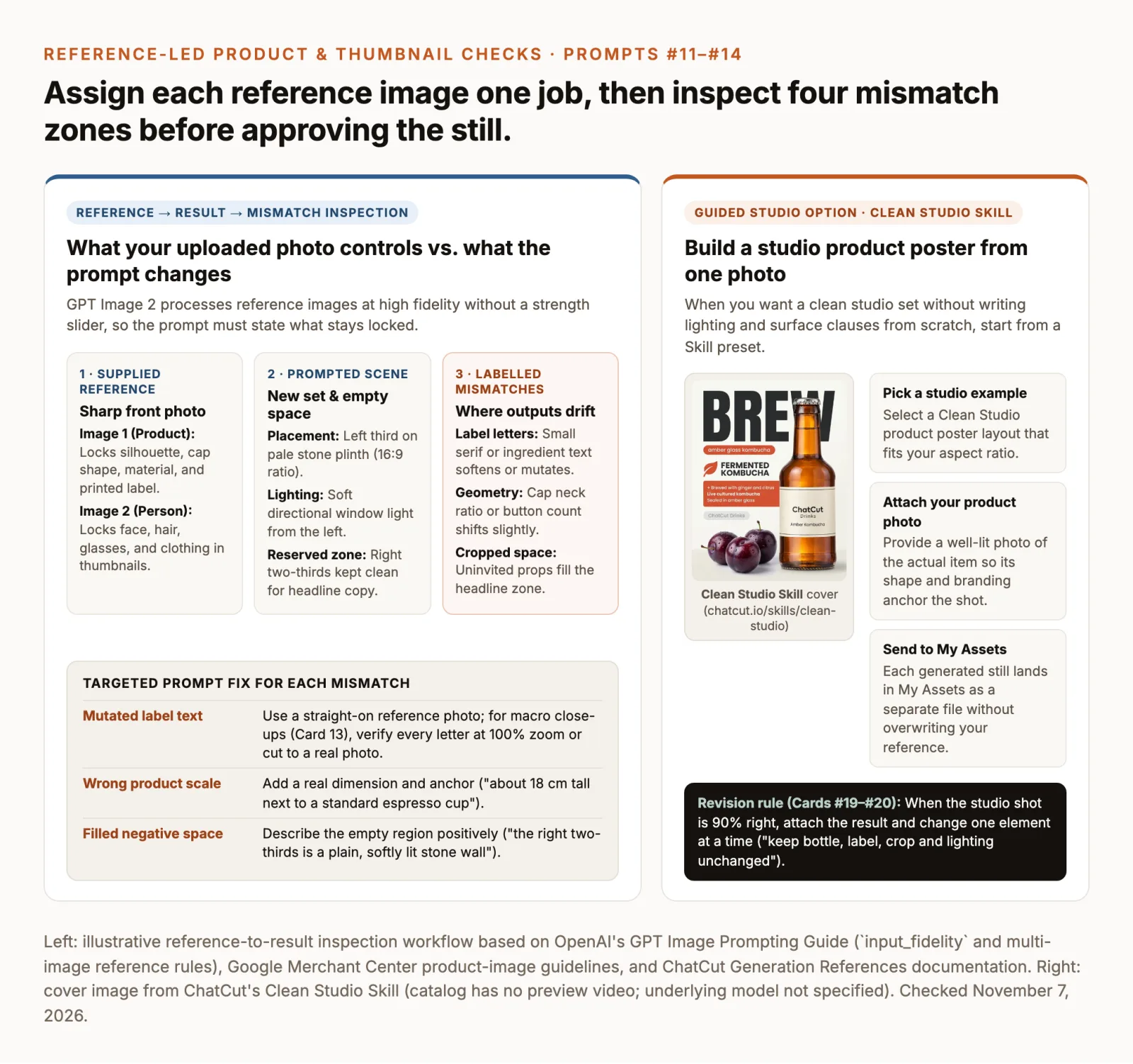
Product shots and video thumbnails usually start from an existing photo: your actual bottle, box, or gadget, and (for thumbnails) a real frame of the presenter. When you attach multiple images, OpenAI’s Cookbook prompting guide recommends indexing each file explicitly ("Image 1: product photo... Image 2: presenter reference...") and stating how they interact. For e-commerce and ad stills, Google Merchant Center’s product image guidelines require showing the product clearly without promotional overlay text or watermarks obstructing it, while YouTube’s custom thumbnail specifications call for a 16:9 image at 1280x720 (minimum width 640 pixels) under 2 MB.
11. Clean hero still
Inputs: attach one sharp, straight-on photo of your product with + · 16:9 widescreen (or 4:5 for vertical feeds)
Substitutions: Replace [product] with your item noun (amber glass kombucha bottle, matte-black wireless earbuds case, aluminum skincare jar), and swap pale stone surface for warm travertine plinth, brushed concrete block, or natural oak table.
Check: Compare label spelling and product geometry to the reference at 100% zoom, and verify that the right two-thirds of the frame stayed empty so you can place a title over it in your editor.
For a guided workflow where you pick a studio poster layout and upload your product photo instead of writing lighting clauses from scratch, open the Clean Studio Skill.
12. Surreal product scene
Inputs: attach one clean front photo of your product with + · 4:5 vertical or 16:9 widescreen
Substitutions: Swap [glass perfume bottle] for your product (running shoe, insulated steel tumbler, mechanical keyboard) and replace the surreal set (giant sliced citrus fruit in midair, miniature spiral marble staircase rising out of calm ocean water).
Check: Confirm that the surreal scale comes from the environment around the product rather than stretching or warping the product’s own proportions. If you prefer to pick from curated surreal poster concepts and supply your product photo, use the 3D Surreal Skill linked at the top of this guide.
13. Product detail insert
Inputs: attach the same product photo used in Card 11 · 16:9 widescreen
Substitutions: Replace [knurled aluminum cap and upper neck of the bottle] with the specific physical detail buyers inspect (stitched leather seam and brass buckle, embossed ceramic rim, frosted glass dropper tip).
Check: Put Card 11 and Card 13 side by side on your timeline: light direction, surface color, and material texture should match closely enough to cut from wide to close without a visual jump. If small label text appears in the macro crop and mutates by even one letter, film or crop the real product photo for that close-up instead.
14. Reaction thumbnail
Inputs: attach two photos with + in order: Image 1 is a clear frame of the presenter (used with their permission); Image 2 is the product or object · 16:9 widescreen (1536x1024 or cropped to 1280x720)
Substitutions: Swap [compact camera] for whatever item the video reviews or tests, and adjust the expression (focused skeptical squint, calm confident nod).
Check: Shrink the result to 320 pixels wide to simulate a mobile feed: the presenter’s face should still look like Image 1, the hand holding the product should have five natural fingers, and the right third should remain unobstructed. Leaving the headline out of the first pass avoids regenerating a good face just to fix a typo.
Prompts for portraits and storyboard frames
When generating portraits or a sequence of storyboard stills for a video, consistency depends on repeating the same anchor description across frames rather than chaining each generated output into the next prompt. OpenAI’s GPT Image prompting guide notes that specifying body framing, scale, gaze direction ("looking down at the notebook, not at the camera"), and hand-object interactions improves proportion and continuity. Approve the still frame’s identity, wardrobe, and room geometry first; once a frame is approved, you can animate it using our image-to-video prompts (or compare how Google’s image model handles multi-shot continuity in our Nano Banana prompts guide).
15. Profile portrait
Inputs: attach a well-lit reference photo of the person (with their consent) with + · 1:1 square or 4:5 vertical
Substitutions: Swap the wardrobe (navy merino turtleneck, olive canvas chore jacket) and backdrop tone (muted sage wall, soft slate-gray paper roll) to match your channel or brand palette.
Check: Compare eyes, nose bridge, jawline, and glasses frame against the reference photo at full resolution. If the skin looks overly airbrushed, follow up with: "Keep the face, pose, clothing and lighting unchanged. Restore natural photographic skin texture and subtle film grain."
16. Character anchor
Inputs: text only · 16:9 widescreen
Substitutions: Replace the age, hair, eyewear, and four clothing items with your recurring character’s exact look. Save that description sentence verbatim so you can paste it into every storyboard frame below.
Check: All three views must show the same face, glasses, jacket color, and footwear. Regenerate this anchor until all three angles match, because every downstream storyboard shot inherits this reference.
17. Wide establishing frame
Inputs: attach the approved Character Anchor image from Card 16 with + · 16:9 widescreen
Substitutions: Replace the setting (sunlit ceramics studio, quiet server room, rooftop greenhouse) while keeping the left-to-right room geography explicit.
Check: Confirm that the character’s jacket, glasses, and facial features match Card 16 and that the light direction (window on the left, shelves on the right) is unmistakable.
18. Matching close-up
Inputs: attach the same Character Anchor image from Card 16 (not Frame 1) · 16:9 widescreen
Substitutions: Change the close-up action (measuring with brass calipers, adjusting a camera lens, sketching in a notebook) while holding the camera on the same side of the subject.
Check: Place Cards 17 and 18 back to back on a video timeline: verify that the window light stays on the left, the camera does not cross the 180-degree line, and the jacket cuff and glasses match across the cut.
Revision prompts that keep what works
When an image is 85% right, writing a brand-new prompt from scratch discards the composition, face, or lighting you already approved. OpenAI’s image generation API guide and Cookbook prompting guide recommend making focused, single-change edits that state both "change only X" and an explicit preservation list ("keep everything else the same"), repeating the preserved attributes on each turn.
Compare a typical vague follow-up with a constrained revision prompt:
- Before (causes drift):
"Swap the paper cup for a blue ceramic mug and fix the title."(Often shifts the camera crop, re-lights the background, or alters the subject’s face.) - After (surgical revision):
"Edit the attached image: replace only the white paper coffee cup with a matte cobalt-blue ceramic mug in the same hand position. Keep the subject's face, pose, clothing, crop, background, lighting direction and all existing text unchanged."
Remember that a preservation instruction guides the model rather than locking pixels mathematically, so always compare the edited output against the previous version before replacing it on your timeline.
19. Change one object only
Inputs: attach the image you want to revise (in ChatCut, select the asset in My Assets with Selection Mode or attach it with +)
Substitutions: Replace [object] and [replacement] with specific nouns and positions (the silver laptop on the desk → an open hardcover sketchbook with blank cream pages; the plain gray backdrop → a softly blurred sunlit brick wall). If you are editing a transparent-background PNG cutout generated with gpt-image-2 or gpt-image-2.5, OpenAI’s Cookbook guide advises adding "preserve the fully transparent background with no scenery, solid backdrop, or checkerboard".
Check: Compare all preserved regions side by side with the input image; a preservation instruction is not a pixel lock, so verify that faces, fingers, and nearby text did not subtly shift.
20. Correct lettering without changing layout
Inputs: attach the poster or graphic whose lettering needs a fix
Substitutions: Put the current string in the first quotes, the corrected uppercase string in the second, and hyphenate the spelling (S-I-G-N-A-L or O-C-T-O-B-E-R).
Check: Zoom to 100% and verify both the corrected word and the texture immediately behind the letters. If the lettering still breaks after one or two edits, or if you need to translate or animate the title later, ask the model to remove the text cleanly ("Remove only the headline text and fill the area with the matching paper texture") and place editable Motion Graphics titles over the image on the ChatCut timeline.
Use the image in a ChatCut project
Once you have a prompt ready (or a still you already generated in ChatGPT), you can generate, revise, and cut it into a video timeline inside ChatCut without switching between separate design and editing apps. According to ChatCut’s AI Image Generation guide and product facts, the workflow follows four steps:
- Attach references or timeline context. Open the AI panel in Agent mode. Click + to attach local product or character reference photos (up to 10 project images), or turn on Selection Mode to reference an existing clip, timestamp, or frame on your timeline with
@. - Choose your image model and paste the prompt. ChatCut’s image models include GPT Image 2, GPT Image 2.5 Flare (the default for everyday speed), GPT Image 2.5 Sunburst (for more precise editing), and Nano Banana, as listed in ChatCut product facts. In your prompt, state the aspect ratio, image count (ChatCut defaults to 1 and accepts 1–10 per request), and whether you want an Auto, Opaque, or Transparent PNG background (transparent output in ChatCut requires Image 2.5).
- Review the estimate and confirm. Enter the prompt. When a generation confirmation card appears, check the request details and credit estimate, then select Allow. Follow progress in the AI conversation or My Assets; each generated still lands in My Assets as a new asset and never overwrites your reference photos.
- Place on a video track or import existing files. Drag the finished still from My Assets onto a video track and adjust its position, scale, crop, and duration in the Inspector. If you already generated the image in ChatGPT or another tool, do not pay to generate it again: choose My Assets → Import → Files…, drag it onto the track, and use our video editing prompts to cut the surrounding footage, captions, and audio.
How plans, runtimes, and credits work:
- What costs no ChatCut credits: ChatCut’s Free plan includes the core editor: manual timeline editing, uploading files, transcription, standard caption editing, and exporting MP4/WebM video, MP3 audio, subtitles, and XML never use credits. On Free, web and cloud exports share a cumulative 60-minute account quota (Web vs Desktop Export); ChatCut Desktop renders video locally on your computer (macOS 13+ on Apple silicon or Intel and Windows 10+ x64; Linux and ChromeOS are not supported), with local video export up to 4K and cloud export up to 1080p (note that video export resolution is separate from image-generation resolution).
- Using Claude Code or Codex: When you connect ChatCut to Claude Code or Codex through the plugin or local MCP (the plugin works with desktop agents and cannot be installed inside ChatGPT’s or Claude’s websites), the agent’s editing work (cutting, reordering, removing pauses and fillers, captions, placing B-roll stills, and agent-written motion graphics) is covered by your existing Claude or ChatGPT subscription and uses no ChatCut credits. Furthermore, ChatCut’s Codex workflow uses Codex’s built-in image tool by default when available, following your Codex image allowance (AI Image Generation docs).
- When ChatCut credits apply: Messages to the built-in ChatCut Agent and ChatCut-hosted AI image, video, music, sound-effect, or voiceover generation use ChatCut credits. Selecting a ChatCut image model or generating through ChatCut’s hosted service requires an active Pro plan and deducts credits per image; check your avatar menu under Credits history → Detail for completed charges, as prices and allowances depend on your account (Plans and Credits Overview). Note that the three image Skills linked in this guide (3D Surreal, Bold Type Posters, and Clean Studio) currently have no preview videos in the public Skills directory, so we have shown their static cover artwork above.