Most people blame the model when GPT Image 2 spits out something generic. It’s almost never the model’s fault.
The real issue is the prompt. Vague inputs produce vague outputs, and that pattern holds whether you’re generating a product shot, a UI mockup, or a B-roll frame for a talking-head video. According to OpenAI’s own guidance on image generation, specificity in prompts is the single biggest driver of output quality, yet most users skip it entirely.
This guide covers three distinct workflows: text-to-image generation from scratch, image-to-image transformation using a reference, and inpainting to edit specific regions. You’ll also get the most common failure patterns and how to fix them before you waste another generation credit.
One more thing worth knowing upfront: if you’re a video creator, ChatCut integrates gpt-image-2 directly inside the editor, with free starter credits and no API key required. Generate an image, drag it onto your timeline, done. No switching tabs, no billing setup.
By the end of this, you’ll know exactly how to write prompts that work, which workflow fits your use case, and how to chain still image outputs into a full video or content pipeline.
What Is GPT Image 2 and How Does It Differ from GPT Image 1?
GPT Image 2 is OpenAI’s current image generation model, available through the API and inside ChatGPT. To use it, write a descriptive prompt, set your output dimensions, and generate. That’s the full flow. The upgrade over its predecessor isn’t subtle. OpenAI’s release documentation notes that GPT Image 2 delivers significantly better instruction-following and text rendering than the previous model. In practice, that means fewer hallucinated words inside generated images and tighter alignment between what you typed and what you get. The text rendering improvement is the most practically useful change: if you’re generating product mockups, UI screenshots, or social graphics with copy in them, GPT Image 1 was nearly unusable, while GPT Image 2 handles short labels, titles, and buttons reliably.
Key Capability Upgrades
The differences show up across four areas:
| Dimension | GPT Image 1 | GPT Image 2 |
|---|---|---|
| Text accuracy in images | Inconsistent, frequent errors | Reliable for short labels and signage |
| Photorealism | Competent but flat | Stronger lighting, material detail |
| Editing fidelity (inpainting) | Partial, often bleeds into surrounding areas | Contained edits with better edge blending |
| Instruction-following | Misses multi-part prompts | Handles compound instructions more consistently |
Photorealism also took a real step forward. Surfaces, shadows, and material textures read as more convincing, which matters for anyone using AI-generated visuals as B-roll or product imagery inside a video edit.
What Stayed the Same
The core interface didn’t change. You’re still writing natural language prompts, still choosing aspect ratios, still iterating on outputs. The underlying workflow is identical. What changed is how well the model executes on what you describe.
Inpainting works the same way conceptually: select a region, describe the replacement, generate. GPT Image 2 just does it with less bleed and better context retention around the masked area.
The prompt, then, is still the variable that matters most.
How to Write Prompts That Actually Work
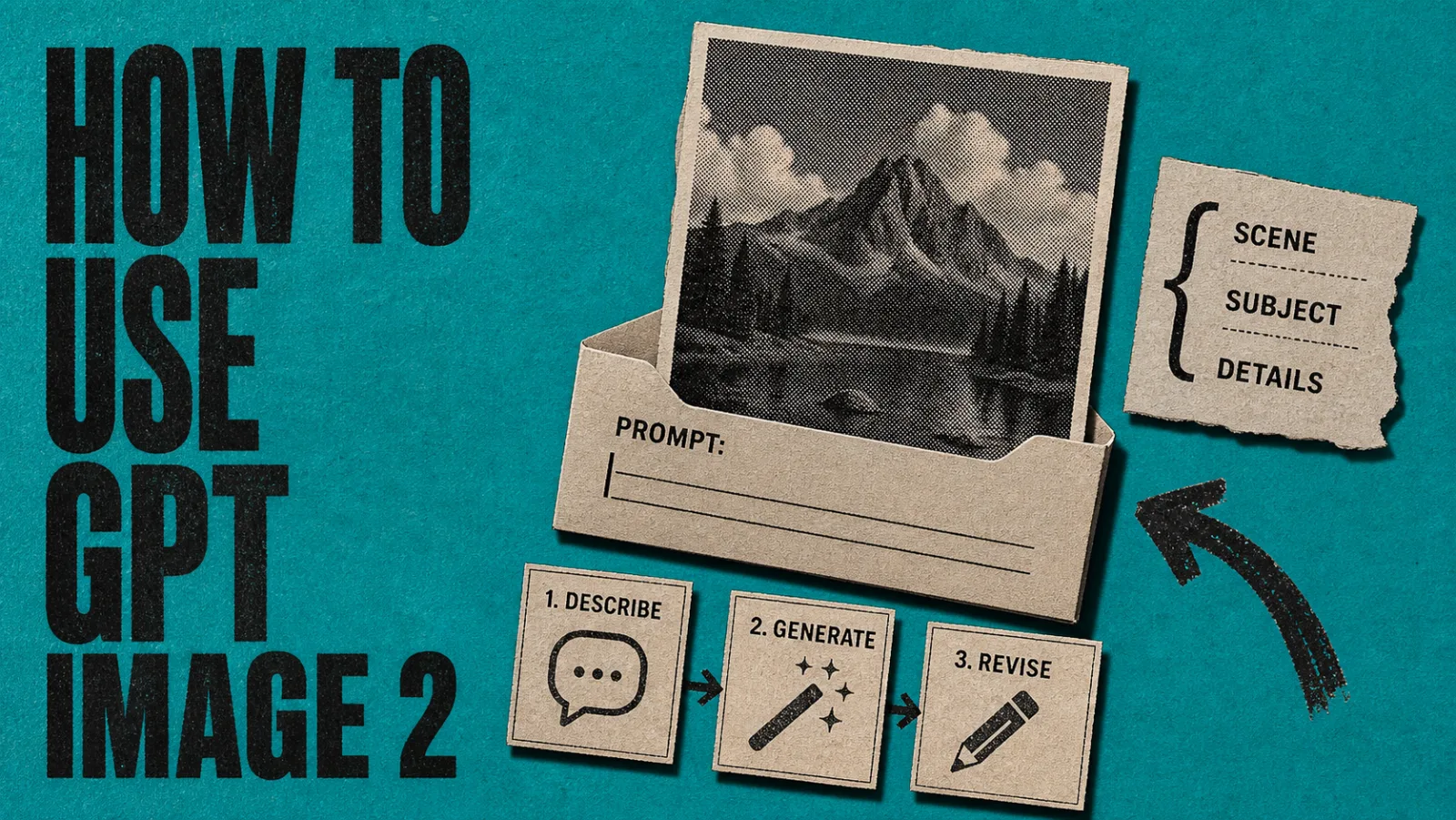
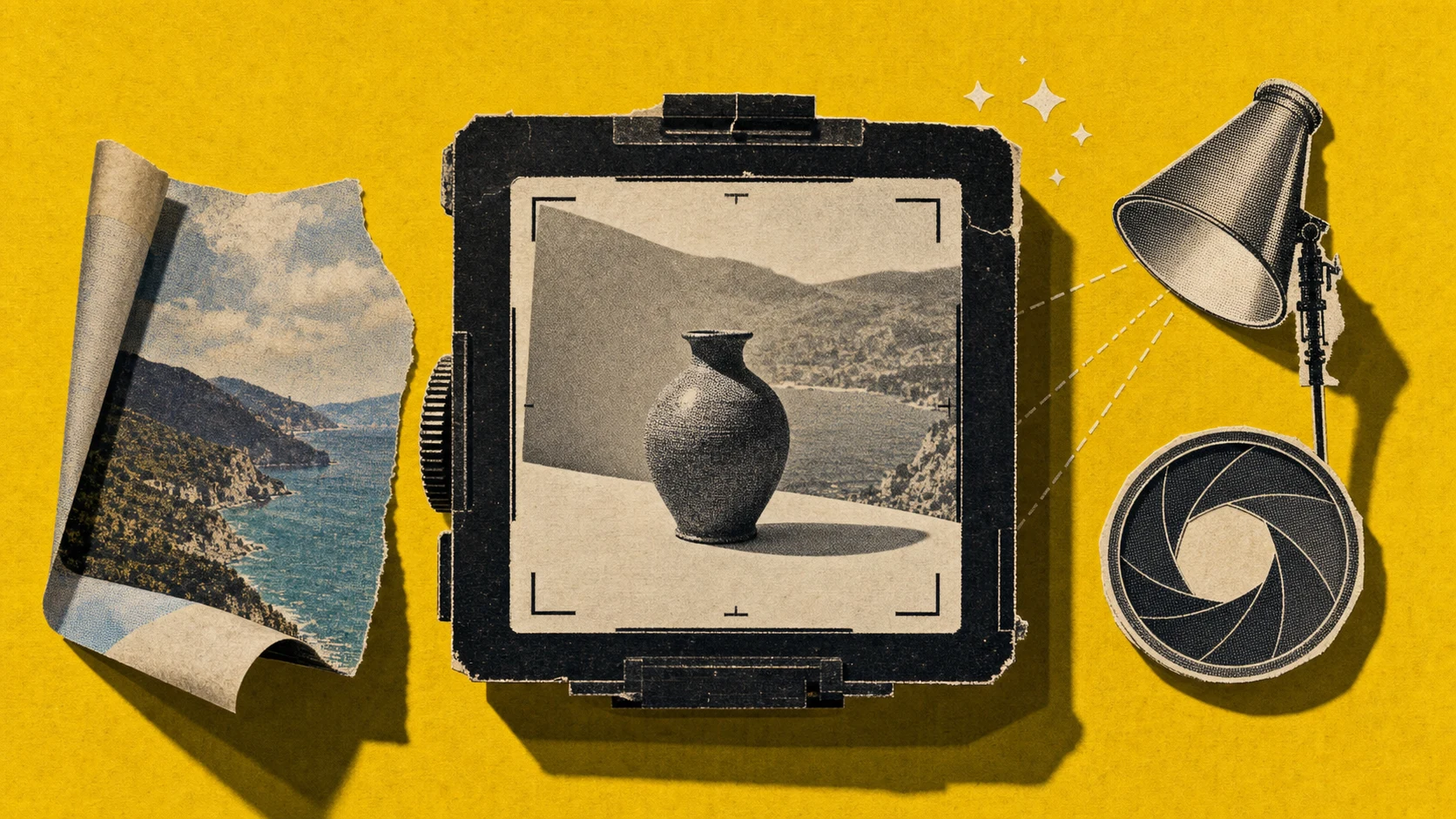
Most people blame the model when they get a bad image. The actual culprit is almost always the prompt. Prompt specificity is one of the strongest predictors of AI image quality — detailed prompts produce measurably better outputs for realism and relevance than vague ones. The fix isn’t writing longer prompts; it’s writing structured ones. Every strong GPT Image 2 prompt answers three questions in order: where is this happening (scene), what is the main element (subject), and what are the lighting conditions, camera angle, and style (details). Fill in those three layers and you’ll sidestep 90% of common failures.
The Scene / Subject / Details Framework
Every strong GPT Image 2 prompt answers three questions in order:
- Scene — Where is this happening? What’s the environment or background?
- Subject — What is the main object, person, or element?
- Details — What are the lighting conditions, camera angle, style, and output ratio?
That’s it. Fill in those three layers and you’ll sidestep 90% of common failures. Here’s a copy-paste template you can use right now:
[environment/background], [subject description], [lighting direction and quality], [camera angle or lens style], [visual style], [aspect ratio]Before-and-After Rewrites
Prompt 1
Before: a professional product photo
After: a white ceramic coffee mug on a dark slate surface, soft side lighting from the left, shallow depth of field, commercial photography style, 4:3 ratio
Prompt 2
Before: a beautiful city at night
After: a rain-slicked downtown street at night, neon signs reflecting on wet pavement, low-angle perspective, cinematic color grading with teal and orange tones, 16:9 ratio
Prompt 3
Before: a person working at a desk
After: a woman typing on a laptop at a minimalist white desk, warm morning light from a window on the right, over-the-shoulder angle, documentary photography style, 3:2 ratio
The difference isn’t word count. It’s specificity about light, angle, and style.
What to Stop Doing Immediately
Three mistakes show up constantly in weak prompts:
- Over-praising. Words like “amazing,” “stunning,” and “beautiful” don’t describe visual properties. The model can’t render “stunning.” It can render “backlit” or “high contrast.”
- Skipping lighting and perspective. Lighting is half the image. If you don’t specify it, you’ll get flat, directionless results every time.
- Forgetting ratio and style. A 1:1 square crop looks nothing like a 16:9 cinematic frame. Specify both the output ratio and a visual reference style (product photography, editorial, cinematic, illustration) in every prompt.
Fix those three, and you won’t need to regenerate the same image six times.
Three Workflows: Text-to-Image, Image-to-Image, and Inpainting
GPT Image 2 supports three distinct workflows, each suited to a different starting point. According to OpenAI’s image generation documentation, the API supports text-to-image generation, image editing via reference input, and targeted inpainting within a unified image workflow. Knowing which mode to reach for saves you from fighting the wrong tool. Text-to-image generates from a prompt alone; image-to-image transforms an existing asset using a reference upload; inpainting replaces a masked region while leaving the rest of the frame untouched. Each workflow requires a different prompt strategy and a different starting point.
Text-to-Image: Generating from Scratch
This is the baseline workflow: you write a prompt, set your output ratio, and generate.
- Write a specific prompt using the scene/subject/details framework from the previous section.
- Set your aspect ratio before generating. For video thumbnails, use 16:9. For social posts, use 1:1.
- Generate, review, and iterate. Adjust one variable at a time so you know what changed.
Example prompt: “a glass perfume bottle on a white marble surface, overhead lighting, soft shadows, minimalist product photography, 16:9 ratio.”
Expected output: a clean, studio-quality product shot ready to drop into a video or ad.
Image-to-Image: Transforming an Existing Asset
Upload a reference image, describe the transformation you want, and adjust how strongly the model should follow the original.
- Upload your source image (a rough sketch, a screenshot, or a raw photo).
- Write a transformation prompt: “render this as a polished UI mockup with a dark mode interface and rounded card components.”
- Set the influence strength. Higher values preserve the original layout; lower values give the model more creative latitude.
I’ve found this workflow especially useful for turning wireframe sketches into realistic app screenshots without any design software.
Inpainting: Editing Specific Regions
Inpainting lets you mask a section of an image and replace only that area.
- Upload your image and draw a mask over the region you want to change.
- Describe the replacement: “replace the background with a blurred outdoor cafe scene, warm afternoon light.”
- Generate. Everything outside the mask stays untouched.
Use this to swap product backgrounds, remove unwanted objects, or add a branded element to an existing visual. It’s surgical editing without touching the rest of the frame.
How Much Does GPT Image 2 Cost, and Can You Use It Free?
GPT Image 2 isn’t free through OpenAI directly, but the cost depends entirely on how you access it. API users pay per image; ChatGPT Plus subscribers get image generation included with usage limits; video creators can use free starter credits inside ChatCut. According to OpenAI’s pricing page, gpt-image-2 is token-priced, and costs vary by model, quality, and output size. If you’re generating hundreds of images a month, those per-image charges add up fast. For video creators specifically, ChatCut integrates gpt-image-2 inside its editor, with no API key or separate billing setup required.
API Pricing Breakdown
OpenAI charges per generated image based on model, quality, and output size. According to OpenAI’s pricing page, gpt-image-2 is token-priced, with token-based input costs on top for text prompts. If you’re generating hundreds of images a month, those per-image charges add up fast.
ChatGPT Plus Access
ChatGPT Plus subscribers ($20/month) get access to gpt-image-2 through the image generation feature inside ChatGPT. You don’t need to touch the API or manage keys. It’s the simplest path for individual use, though you’re working outside any dedicated creative tool.
Free Access via Third-Party Tools
This is where it gets interesting for creators. ChatCut integrates gpt-image-2 directly inside its video editor with free starter credits. No API key, no separate billing setup. You generate images as part of your editing workflow, not as a separate paid step.
Here’s a simple decision tree:
- Developer building an app: use the OpenAI API
- ChatGPT subscriber who wants quick one-off images: use ChatGPT
- Video creator who wants image generation inside an editor with free starter credits: use ChatCut
The right access point depends on what you’re making. For video work specifically, paying per image through the API often doesn’t make sense when an in-editor option with starter credits exists.
How to Use GPT Image 2 Inside a Video Workflow
Most image generators stop at the download button. You get a file, you open your editor, you import it manually. That’s three extra steps before you’ve done anything useful. Asset sourcing and preparation eats a meaningful chunk of production time for most creators. GPT Image 2 cuts into that number, but only if it’s wired directly into your editing environment. ChatCut integrates gpt-image-2 inside the editor itself, with no API key, no separate tab, and no file management. You prompt, generate, and drag the asset straight onto your timeline without leaving the editor.
Generate, Edit, Drop Into Timeline
Here’s the exact workflow:
- Open ChatCut and start a new project or load an existing one.
- In the AI chat panel on the left, type your image prompt. For example: “a close-up of a glass water bottle on a marble countertop, soft natural light from the right, minimal background, product photography style.” GPT Image 2 generates the asset inline, right inside the editor.
- Drag the generated image from the media panel onto your timeline as B-roll, a title card, or a thumbnail layer.
That’s it. You’re mid-workflow and the asset is already placed.
Use Cases: B-Roll, Thumbnails, Storyboards, Motion Graphics
Talking-head B-roll. If you’ve got a 90-second clip and your footage runs dry at 60 seconds, generate a relevant visual to cover the gap. Pair it with an AI voiceover to narrate over the generated image and keep your audience engaged. Prompt it to match your video’s color palette and it’ll cut cleanly.
Product mockups for app promos. Describe a UI screenshot or packaging shot you don’t have. GPT Image 2 renders it. Drop it into your app promo sequence without a studio shoot.
Storyboard frames. Generate scene references before you film. It’s faster than sketching and gives your team a shared visual target.
Motion graphics assets. Generate a static graphic, then animate it using ChatCut’s AI motion graphics generator. You can also pair generated images with fully AI-produced clips using the AI video generator for sequences that don’t require real footage at all.
The no-API-key point matters most here. When you’re mid-edit, the last thing you want is to context-switch into a developer console.
What Are the Best Use Cases for GPT Image 2?
GPT Image 2 handles a wider range of visual tasks than most creators realize. According to OpenAI’s release documentation, the model shows significant improvements in text rendering accuracy and instruction-following fidelity over its predecessor, making it practical for production-ready assets, not just experimentation. The six use cases where it consistently delivers are: product and e-commerce photography, brand asset variations, UI mockups and app screenshots, social media thumbnails, storyboard frames, and B-roll for explainer videos. Each of these benefits directly from the model’s improved text rendering and tighter instruction-following.
Product and E-commerce Visuals
Product photography. Shooting clean product photos requires a studio, lighting gear, and post-processing time. GPT Image 2 skips all of that.
Example prompt: a white ceramic pour-over coffee dripper on a matte black surface, soft diffused lighting from the upper left, minimal shadows, commercial product photography style, 4:3 ratio
Brand asset variations. Instead of mocking up every merchandise option by hand, generate realistic placement visuals directly from a description.
Example prompt: a navy blue tote bag with a small white minimalist logo centered on the front panel, natural daylight, lifestyle product shot, clean background
UI Mockups and App Screenshots
UI mockups. Describe an interface and get a realistic-looking screenshot, useful for demo videos, pitch decks, or explainer intros before your app is built.
Example prompt: a clean iOS fitness tracking app dashboard showing weekly step count, heart rate graph, and sleep data, dark mode, modern sans-serif typography, flat UI style
This pairs well with the App Promo workflow inside ChatCut, where generated mockup frames can drop straight onto the timeline.
Creative Assets for Video and Social
Social media thumbnails. A custom background image that matches your video’s color palette takes seconds to generate instead of hours in Photoshop. For a complete social media content workflow built around short-form video, generated visuals like these are a fast way to maintain a consistent look across posts.
Example prompt: a deep teal gradient background with soft bokeh light orbs, cinematic texture, 16:9 ratio, no text
Storyboard frames. Generate rough scene references before you film. It’s faster than sketching and gives your team a shared visual language.
Example prompt: a wide-angle shot of a person sitting at a minimalist desk facing a large monitor, warm afternoon light through a window to the right, cinematic color grade
B-roll for explainer videos. When your voiceover describes a concept that’s hard to film, generate an illustrative visual instead — and use AI captions to add text overlays directly on top of those generated visuals. If you want to go deeper on building a full AI image workflow for video, the AI image generator for video editing guide covers the end-to-end process.
Example prompt: an abstract visualization of data flowing through a network, glowing blue nodes connected by thin light trails, dark background, tech editorial style
According to Wyzowl’s 2024 Video Marketing Report, 91% of businesses use video as a marketing tool, which means the demand for fast, affordable visual assets isn’t slowing down. GPT Image 2 covers a meaningful chunk of that production gap.
Try It: Generate Your First Image in ChatCut
Here’s the fastest way to test gpt-image-2 without touching an API or entering a credit card. Go to chatcut.io, open a new project, and type an image prompt into the AI chat panel. The image generates inline; drag it straight to your timeline or media library. No API key, no separate account, and free starter credits for new accounts. According to OpenAI’s GPT Image 2 model documentation, the model handles high-quality image generation and editing, which means the prompts you’d type into a chat window work naturally here. The whole point of integrating image generation into a video editor is that the assets land exactly where you need them. If you’re new to the process, text-based AI video editing walks through the full end-to-end workflow for beginners.
- Go to chatcut.io and open a new project.
- In the AI chat panel, type an image prompt. Something like: “a close-up of a smartphone on a wooden desk, warm morning light, shallow depth of field, product photography style.”
- The image generates inline. Drag it straight to your timeline or media library.
I’ve found this workflow cuts asset sourcing time significantly, especially when you need quick B-roll or a thumbnail background mid-edit and don’t want to leave the editor to hunt for stock photos.