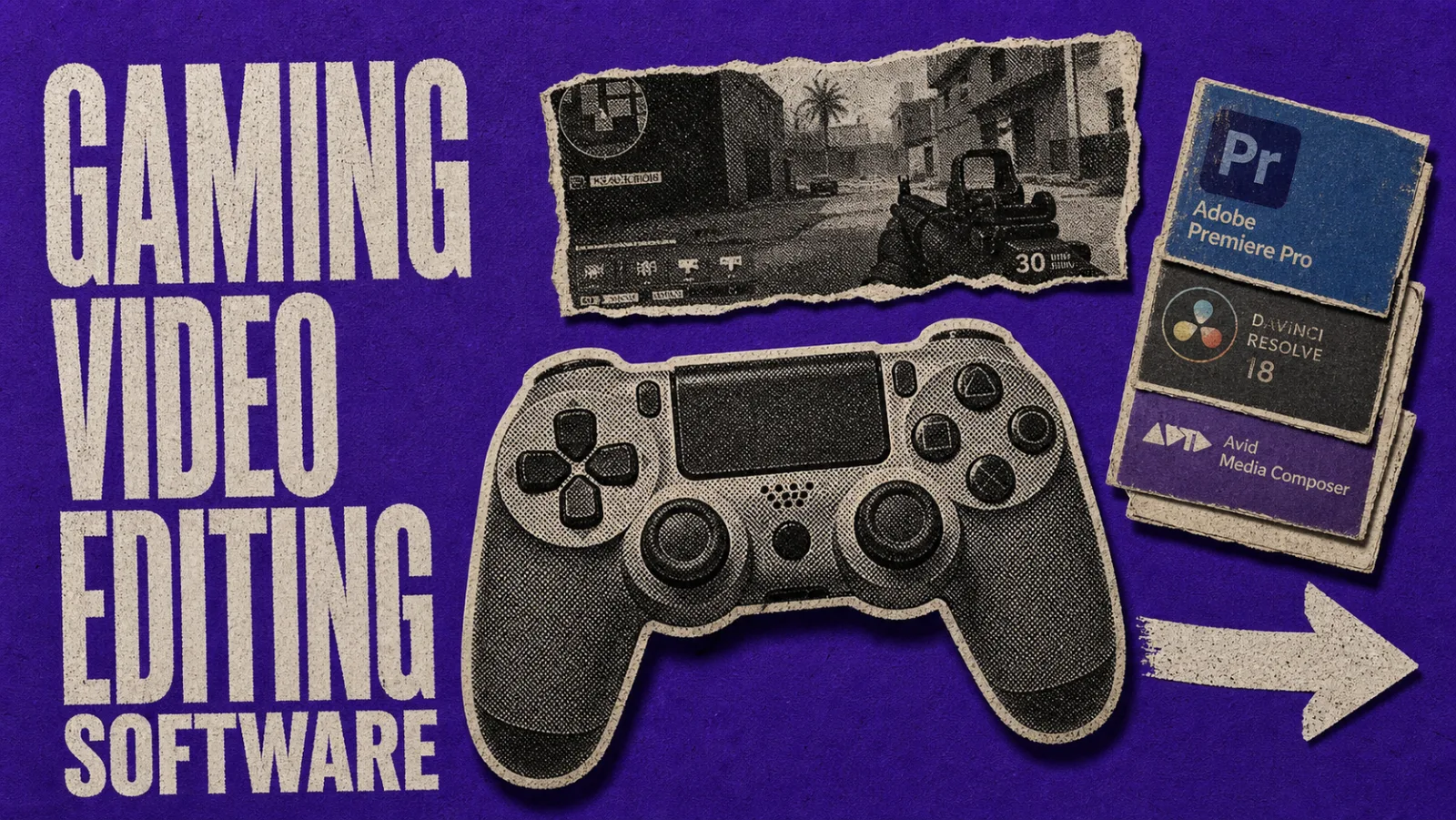
Most “best gaming video editing software” lists on Google in 2026 are reskinned generalist roundups. Premiere, DaVinci, Filmora, Vegas, with “for gamers” pasted onto the headline. That answer misses the real decision a gaming creator faces in 2026, which isn’t “which non-linear editor has the best timeline” but “where in my pipeline am I editing?”
This post treats each layer of the gaming-creator stack as a distinct choice, with named tools, named creators, and verified May 2026 pricing. ChatCut shows up in three concrete gaming workflows (long-form-to-short via text, motion graphics for stream clips, and AI-generated art assets that chain into Seedance 2 hook animations) and we’ll be explicit about what it doesn’t cover (beat-synced gameplay montages).
What does “gaming video editing” actually mean in 2026?
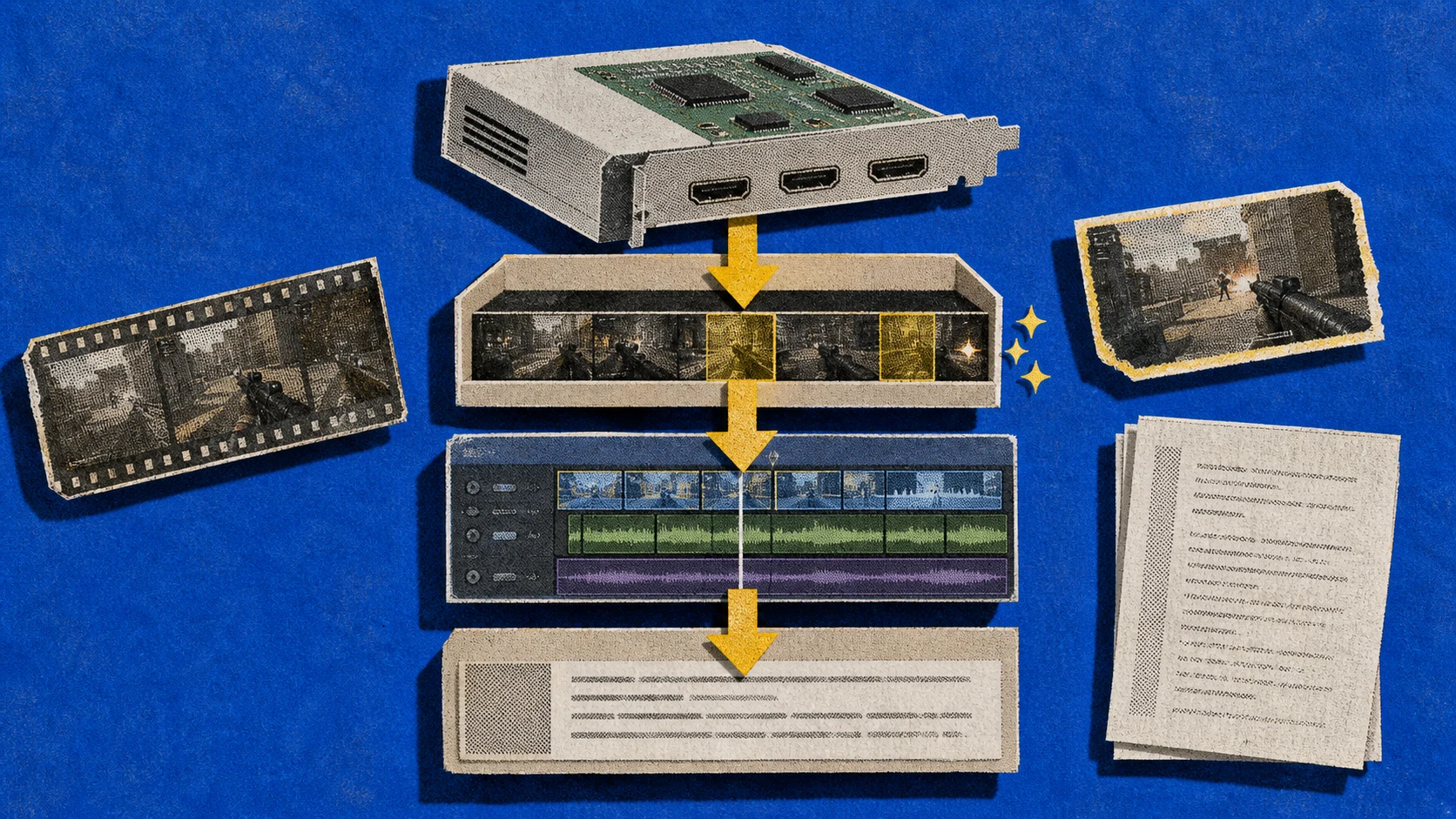
A modern gameplay video editing software stack has four layers, and no single tool covers all of them well.
- Capture. OBS Studio, NVIDIA ShadowPlay, or in-game replay tools record the source footage.
- Auto-clip and highlight detection. Eklipse for gameplay-trained AI, OpusClip for speech-trained AI, StreamLadder for clip formatting. This layer barely existed three years ago, and now it’s where most non-pro creators live.
- Non-linear editor (NLE). Premiere Pro, DaVinci Resolve, CapCut Desktop, Vegas Pro, PowerDirector, Filmora, Shotcut. The actual cuts, color, and effects.
- Talking-head and commentary cleanup. Transcript-based editors. Gaming creators who do voiceover-over-gameplay or post-stream reaction content increasingly cut text-first, then assemble in an NLE.
The trap most listicles fall into is treating layer 3 as the whole stack. A pro streamer doing 4-hour Twitch sessions and a TikTok montage creator have almost no NLE overlap, and both will spend more time in layer 2 than in layer 3 in 2026.
What do top gaming creators actually use?
Verified 2026 picks from the top of the gaming-creator pyramid.
- Markiplier edits in Adobe Premiere Pro on a custom PC (i9-14900K / RTX 4090). His editor Lixian (the on-screen cartoon) handles much of the cutting now, also in Premiere. Lixian was promoted to full-time editor in early 2019 and has been the through-line of Markiplier’s edit style ever since.
- Jacksepticeye is currently on Adobe Premiere Pro with team editors. He used Sony Vegas Pro 13 for years before switching, which is part of why Vegas still has the streamer-NLE association.
- High-volume streamers like xQc hire editor teams (Arthium, Bozzeh, and others) for the YouTube and clips channels. The editors haven’t publicly disclosed software, so we won’t fabricate one. The point isn’t the tool. At that scale you’re paying humans, not picking software.
For Valkyrae, Pokimane, Ludwig, and the other names you’d expect to see here, there’s no verified public source for their editing software, so we’re not going to invent one. The honest pattern from the top tier is that gaming creators with editor teams use Premiere Pro. Mid-tier and indie creators are scattered across DaVinci Resolve, CapCut, Vegas, and the auto-clip tools.
How does the Twitch-to-YouTube clip pipeline actually work?
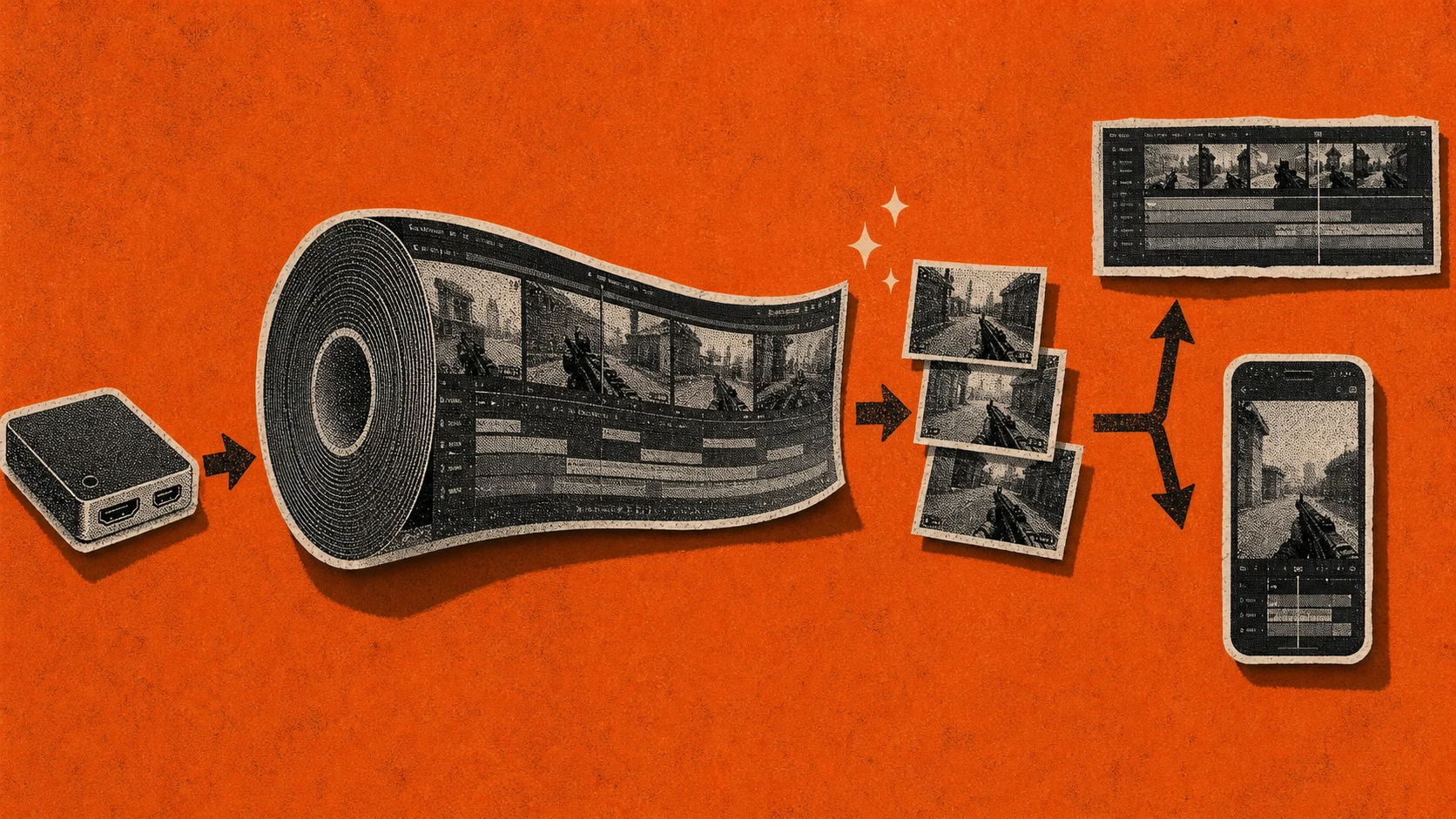
This is the section that actually distinguishes gaming video editing from regular video editing. The workflow is: capture a long stream, identify the moments worth keeping, format them for YouTube or Shorts, then edit. The middle two steps are where the AI tools live, and they’re the difference between a 4-hour edit and a 40-minute one.
OBS Studio: the free capture default
OBS Studio 32.1.2 (April 2026 hotfix) is what most streamers actually use to capture. It streams to Twitch RTMP, supports Multitrack Video for Twitch Enhanced Broadcasting (1080p60 plus 720p), and records local backups for editing. The 32.x branch added AV1 hardware encoding for NVIDIA 40-series and AMD 7000-series cards, which matters if you stream and record simultaneously. The AV1 path costs less GPU than dual-H.264.
NVIDIA ShadowPlay: instant-replay at the GPU layer
Folded into the NVIDIA App as of 2026, ShadowPlay does instant-replay clipping at the GPU layer with effectively zero performance cost. Free with any GeForce GPU. It’s what you want for the “I just got a clutch and I want the last 30 seconds” workflow, no editor needed.
Eklipse: gameplay-trained AI auto-clipping
Eklipse detects kills, headshots, clutch plays, and victory screens across more than 1,000 titles via HUD-region OCR and kill-feed parsing. The free version covers 720p with watermark, up to 15 clips per stream, and 14-day storage. Premium runs $19.99/month, $99.99 semi-annual, or $149.99 annual (about $12.50/month effective) and opens up 1080p, 8-hour streams, faster processing, and 90-day storage.
OpusClip: speech-trained for commentary
OpusClip surfaces moments by speech, not gameplay. Free tier gets 60 credits per month. The Starter plan is $15 monthly for 150 processing minutes. Pro plan is $29 monthly for 300 minutes, or $174 annually if you commit upfront. Great for podcasts and talking-head, weak for pure gameplay because it surfaces the moment you talked about your loadout, not the triple-kill that followed.
StreamLadder: clip formatting and Shorts reframe
StreamLadder focuses on the post-clip formatting step: 9:16 reframe, auto-captions, facecam framing, and brand kits for TikTok, Reels, and Shorts. It’s not an AI auto-clipper itself. It’s what you feed Eklipse output into.
The real 2026 stack for a Twitch streamer building a YouTube channel: OBS captures, ShadowPlay or Eklipse auto-clips the moments, an NLE assembles the final video, and OpusClip or StreamLadder formats the Shorts.
The 7 NLE picks for gaming creators
This is layer 3 of the stack, and where most listicles spend all their time. Here are the seven NLEs worth considering, ranked by where most gaming creators actually land in 2026.
1. Adobe Premiere Pro. Best for team-based gaming creators
Premiere is what hired editor teams reach for, and it’s still the answer when you ask “what does a Markiplier-style edit look like under the hood?” Pricing on Adobe’s plans page as of May 2026: $34.49/month on monthly billing, $22.99/month on annual paid monthly, $21.99/month on annual prepaid, and $19.99/month for verified students.
What Premiere wins on for gaming work is editor liquidity. If you ever hire someone, they probably know Premiere. If you ever take over someone else’s project, it’s probably a Premiere project. The Mercury Playback Engine handles RTX cards well, multi-cam is mature, and the Adobe Audition handoff is smoother than any other Adobe-internal handoff.
Where Premiere loses: cost stacks up if you’re solo and editing infrequently. The subscription doesn’t pay back the way a one-time purchase does. And on M1 or M2 Mac it’s a hard recommend-against, but most gaming creators are on Windows anyway, so that’s a footnote.
2. DaVinci Resolve. Best free NLE for gaming PCs (with one catch)
DaVinci Resolve is the rare free NLE that’s actually pro-grade. Full multi-track timeline, the original DaVinci color grading suite, Fusion VFX, Fairlight audio mixing, native BRAW for Blackmagic cameras. The free version supports NVIDIA RTX cards (3060 Ti, 3080, 4090, 5090) for playback, effects, color, and Fusion via CUDA.
The honest catch most gaming-PC owners need to know: H.264 hardware encode requires Studio. Studio is a one-time $295 perpetual purchase, or a $30/month rental introduced in 2025 if you don’t want to commit. Studio also opens up multi-GPU, AI tools, 8K resolution, higher frame rates, and full GPU H.264/H.265 encode and decode. A 10-minute 4K timeline that took 45-60 minutes to render on Free can finish in 12-18 minutes on Studio.
For gaming creators specifically, this matters more than it does for almost any other segment. You already own a high-end GPU. The whole point of a gaming PC is the GPU. So when DaVinci Free can’t use it for H.264 export (which is the format YouTube actually wants), you either upgrade to Studio, transcode out via OBS, or pick a different editor.
The other free-version limits worth knowing: single-GPU only, 4K UHD export ceiling, 60fps timeline cap. None of those hit a typical YouTube workflow, but the H.264 encode paywall does.
3. CapCut Desktop. Best for new gaming creators on short-form
If you’re starting a gaming channel in 2026 and don’t already know an NLE, CapCut Desktop is what most people should actually use. The free version has a real multi-track timeline, 1080p export with no watermark on your own footage, a strong gaming-montage template library, and built-in trending sound packs. CapCut Pro at $9.99/month opens advanced features.
CapCut wins on three things gaming creators care about. First, the template library is gaming-aware: hit-marker SFX, vine-boom drops, victory screens, beat-synced cut presets. Second, the cross-device sync between desktop and mobile is genuinely smooth, and a lot of mobile gaming creators eventually want a bigger screen without leaving the ecosystem. Third, Shorts-first export presets that handle 9:16, captions, and template motion in one click.
The 2025 U.S. ban scare is now mostly resolved. ByteDance’s CapCut and TikTok assets in the U.S. are owned by TikTok USDS Joint Venture LLC (deal closed January 22, 2026), with Oracle, Silver Lake, and Abu Dhabi’s MGX each holding 15%, ByteDance investors retaining approximately 30%, and ByteDance itself at 19.9%. CapCut is available on the U.S. App Store and Google Play. Some enterprise IT shops still block it on company devices. If that matters to you, plan around it.
What CapCut doesn’t do is serious color or VFX work. If you’re cutting a montage and posting it to TikTok or YouTube Shorts, that’s fine. If you’re building 30-minute essay videos with custom transitions, you’ll outgrow it.
4. Vegas Pro. Best for keyboard-heavy fast cutting
Vegas Pro is the editor that trained a generation of streamers. Boris FX took ownership and shipped Vegas Pro 2026 in September 2025, dropping the version-number scheme for year-based naming. Subscription pricing starts at $17.95/month on the cheapest plan, perpetual licenses start at $219.95, and full plans go up to $44.99/month. Vegas Pro 23 Steam Edition is the gaming-creator-specific SKU, currently $199.99 on Steam with a documented historical low of $149.99 in March 2026.
Vegas still has a loyal user base for a reason: keyboard-shortcut-heavy workflow, fast cut-and-trim, GPU-accelerated decoding on RTX hardware. It’s less culturally dominant than it was five years ago, but it’s not abandoned. If you already know the keyboard layout, switching costs are real.
5. PowerDirector. Best for fastest export on RTX hardware
PowerDirector 365 is the “I want fast, I don’t want a learning curve” pick. Subscription is $69.99/year (some pages list $74.99) or $19.99/month monthly. Perpetual licenses are PowerDirector Ultra at $99.99 and Ultimate at $139.99 for the 2026 release.
The hardware-encode pipeline is consistently among the fastest of any consumer NLE on a midrange RTX system, and the gamer-friendly UI gets you to a finished cut faster than Premiere or DaVinci. Trade-off: smaller community, fewer advanced workflows, less interchange with team-based editing pipelines. If you collaborate with editors, this is the wrong choice. If you’re solo and your only metric is “how fast can I render and upload tonight,” it’s seriously competitive.
6. Filmora. Best for one-click AI gaming effects
Filmora’s 2026 version exposes a handful of third-party AI video models (Sora 2 and Veo 3.1 among them) with 1,000 AI credits per month bundled in. Pricing is $49.99 annual or $79.99 perpetual; the Filmstock asset library is a separate $20.99/month if you want premium effect packs.
Easy onboarding, decent gaming effect packs, and a low ceiling on what serious creators eventually need. Honest framing: don’t say “completely free” about Filmora. The real all-in number lands closer to $300/year if you go all-in on Filmstock.
7. Shotcut. Best zero-budget open-source pick
Shotcut is the free open-source alternative. No watermark, supports 4K timelines, runs on Windows, Mac, and Linux. The 2026 reviews mark it down for dated UI and no AI features, but it remains a legitimate pick for hobbyists who want zero subscription. Note: no built-in screen recording, so pair it with OBS for capture.
Where does ChatCut fit? Three concrete gaming workflows
ChatCut isn’t trying to be your beat-sync montage tool. Cutting picture to the music drop, whip-pans and hit-marker drops timed to a kill feed: that’s still CapCut and Premiere territory. But what ChatCut covers for a gaming creator has expanded materially in 2026, across three concrete workflows.
1. Long → short, by editing the transcript
The classic ChatCut workflow, and still the highest-value one for gaming creators. You recorded a 90-minute reaction to a game patch and want it down to 12 minutes. You have a 4-hour Twitch VOD that needs to become a 20-minute YouTube essay. Your tutorial voiceover has filler words and dead air to clean before you lay it over gameplay.
In an NLE, that’s hours of scrubbing waveforms. In ChatCut, it’s editing the transcript. Search the text for the moments you want, delete the dead air, the video updates as you edit the words. For long-form sources (post-stream reactions, gaming podcasts, voiceovers), it’s roughly 10x faster than the timeline path. Hand the Agent a VOD audio file, ask it to find the 25 most quotable seconds, and you get a draft cut back.
2. Motion graphics for stream clips, from a prompt
Want a lower third with your stream handle, a name tag for the player you’re reacting to, an animated callout that points at a kill on the kill feed, or an on-screen text card that introduces the clip? ChatCut adds motion graphics from a natural-language description: describe what you want, where it should appear, how long it stays.
For a Twitch streamer producing daily YouTube clips, this collapses the most-edited segment of the pipeline. No keyframe rig in After Effects, no template hunt in CapCut’s library, no “I’ll just leave it as a hard cut and hope it lands” compromise. Lower thirds, animated callouts, and on-screen text are exactly the kind of repetitive-but-bespoke work that the prompt layer is good at.
3. AI-generated game art + Seedance 2 animation hooks
ChatCut wires up to GPT Image 2 for image asset generation directly inside the editor. Need a thumbnail in a stylized version of the game’s aesthetic? A custom badge for your highlight reel? A character portrait that doesn’t exist in the game? Generate it from a prompt, drop it on the timeline.
The chained workflow is where this gets interesting for gaming creators specifically. Use GPT Image 2 to generate a reference image (a stylized character pose, a custom logo, a specific frame composition), then pass that reference into Seedance 2 to generate a short animation. The output lands back in your timeline as a hook clip.
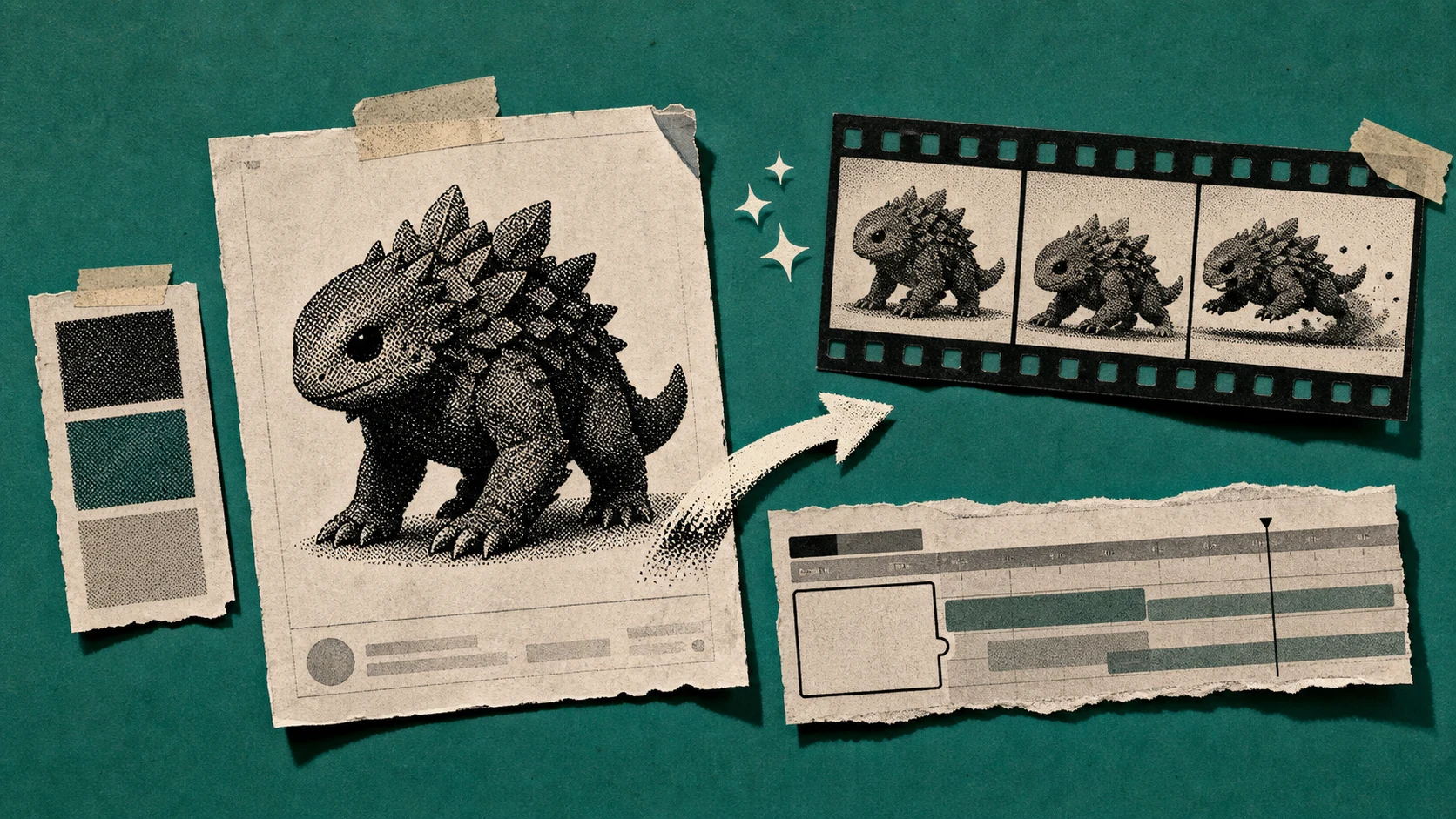
You can open a video with custom-generated game-style animation that didn’t require a stock pack or a freelancer.
The workflow is text-first throughout. Describe what you want in plain English. ChatCut handles the rest.
It’s a text-based editing workflow on top of an AI video generator stack.
The honest limits, because this article won’t pretend ChatCut covers what it doesn’t
- Up to 1080p output on both Free and Pro plans. Fine for the 60%+ of YouTube views that happen at that resolution, but if you deliver higher-resolution masters, use DaVinci or Premiere for the final pass.
- Not a beat-sync montage builder. No automatic beat detection, no “cut every clip to the drop” engine. For music-driven gameplay montages, stay in CapCut or Premiere and use ChatCut for the commentary-cleanup and motion-graphics work that feeds into the final cut.
- Free Plan is one-time 15 credits, not monthly. Pro starts at $25/month, with a 16% annual discount if you commit. For a creator repurposing weekly long-form streams plus producing daily clips, the math works. For an occasional user, the desktop tools are a better fit.
For comparing ChatCut against other AI editors more broadly, see our best AI video editors round-up. For long-form-to-short conversion specifically, see turn long videos into shorts. If your gaming workflow is mostly podcast-style commentary, the best AI tool for editing podcasts and talking-head videos deep-dive covers it.
Mobile gaming creators
For PUBG Mobile, COD Mobile, Mobile Legends, and the segments where the entire workflow lives on a phone, three picks cover the field.
CapCut Mobile
Dominant for free mobile gaming edits. Gaming-template library, native to TikTok, Reels, and Shorts. Defaults to 1080p, no watermark on your own footage. The mobile-desktop sync is the biggest reason creators stay in this ecosystem when they eventually move to a bigger screen.
KineMaster
Offers multi-layer editing and chroma-key, which CapCut Mobile only partly supports. Free version has a watermark; paid removes it. KineMaster is what you reach for when CapCut Mobile’s layer limits start to bite.
InShot
Fastest for quick uploads. Best for “30-second cool moment” clips, not full montages. The export-to-share loop is faster than anything else mobile, which matters when you’re trying to clip and post inside a single stream break.
Skip pretending desktop tools matter here. Mobile gaming creators who go big eventually move to desktop CapCut or Premiere, but most stay on phone-only forever, and that’s fine.
How do you pick? A decision tree, not a leaderboard
The right gaming video editor depends on what you’re cutting and what you already own. Pick by content type and hardware, not by leaderboard.
- Long-form gameplay essays, 20+ minutes, mid-budget creator with team aspirations. Premiere Pro. Editor liquidity is the real argument.
- Gameplay montages with effects-heavy timelines, solo creator on a gaming PC. DaVinci Resolve Studio if you want best-in-class color, or PowerDirector if you want fastest export. DaVinci Free is fine until you hit the H.264 hardware-encode wall.
- Short-form first (TikTok, Shorts, Reels), starting out. CapCut Desktop. Don’t overthink it.
- Twitch VOD repurposing, lots of commentary, want to cut to YouTube fast. ChatCut for the transcript pass, then CapCut or Premiere for the visual edit.
- Zero-budget, hobbyist, hate subscriptions. Shotcut for the NLE, DaVinci Free for color work, OBS for capture.
- Already on Vegas, keyboard muscle memory. Stay on Vegas. Vegas Pro 23 Steam Edition if you want a perpetual license cheaper than the subscription.
- Mobile-only. CapCut Mobile.
Frequently asked questions
What's the best free video editor for gaming PCs in 2026?
Is CapCut safe to use in 2026 for U.S. gaming creators?
Do you need a gaming PC to edit gaming videos?
What do streamers like Markiplier or Jacksepticeye use to edit?
How do you turn a Twitch VOD into YouTube content fast in 2026?
Try ChatCut for VOD and commentary cleanup
If your gaming workflow is mostly montage and short-form, stay with CapCut or Premiere. We’re not the right tool for that work. If you have hours of stream VOD, podcast commentary, or long-form talking-head reactions waiting to be repurposed, that’s where text-based editing changes the math.
Try ChatCut Free on your next VOD cleanup pass. Free Plan includes 15 one-time credits, no credit card required.
The best gaming editing software in 2026 isn’t one tool. It’s a stack: capture, auto-clip, NLE, and commentary cleanup. The winning move is matching each layer to the work you actually do, not picking one app and forcing it across the whole pipeline.