Yes, you can use GPT Image 2 for free in 2026. The version of the answer worth your time takes a paragraph, not a sentence.
Free access lives across at least four platforms. ChatGPT’s free plan gives you a couple of images per day. Microsoft’s Bing Image Creator hands out fifteen fast generations plus a slow-queue tail that is effectively unlimited. ChatCut bundles GPT Image 2 inside its video editor with a free starting credit allowance for new accounts. And a handful of API aggregators advertise “unlimited” free GPT Image 2, usually with quiet caps you discover on day three.
What separates them is what “free” actually means once you generate something: how many images per day, at what resolution, with which watermark, under which commercial license. Below is each path with the real specs as of May 2026, then the chained workflow that ChatCut runs and standalone generators don’t.
What GPT Image 2 actually is (and what changed since April)
GPT Image 2 (API name gpt-image-2, product brand “ChatGPT Images 2.0”) is OpenAI’s successor to the DALL·E 3 image lineage, launched on April 21 2026 (OpenAI announcement). The model handles photorealistic and illustrated output, conversational multi-turn refinement, reference-image conditioning, and the feature that broke the SERP open: in-image text rendering that doesn’t garble.
Three things have shifted since launch that matter for the “is it free” decision in May 2026.
First, the older models are gone. DALL·E 2 and DALL·E 3 API snapshots were removed on May 12 2026 per OpenAI’s deprecation page. Any 2025 listicle telling you to use “DALL·E 3 free via Bing” is now technically out of date. Microsoft’s free tier now serves a mix of GPT-4o image, GPT Image 2, and Microsoft’s own MAI-Image-2e model, with DALL·E 3 retained as a selectable option.
Second, pricing went token-based. The OpenAI Images API now bills $8 per million image input tokens, $30 per million image output tokens, and $5 per million text input tokens (OpenAI pricing page). For 1024×1024 output, the per-image dollar cost lands roughly at $0.006 (low quality), $0.053 (medium), or $0.211 (high). That math matters for the “unlimited free” claims later in this article.
Third, a new watermark layer was added. GPT Image 2 ships an imperceptible content-specific pixel watermark on top of the C2PA metadata that DALL·E 3 already carried (OpenAI system card). Output across every tier carries both signals. A separate section below covers what that means for commercial work.
Where GPT Image 2 is actually free in 2026
Five paths, in order of how much most readers will actually use them.
1. ChatGPT free plan (2-3 images per day)
The default path. OpenAI rolled GPT Image 2 to all tiers including free at launch, with stricter rate limits than the paid tiers (OpenAI rate-limit docs). Community trackers consistently put the daily cap at two to three images on a 24-hour rolling window; OpenAI doesn’t publish an exact integer in marketing pages, only “stricter rate limits.”
What you get:
- Rate: 2-3 images per day on a 24-hour rolling window
- Resolution: 1024×1024 standard
- Watermark: invisible C2PA metadata plus the new imperceptible content-specific pixel mark (identical to paid output)
- Commercial use: permitted under OpenAI Terms of Use, with the watermark caveat below
How to use it:
- Open chatgpt.com and sign in or sign up (email or Google login, no card required)
- Start a new chat
- Type a specific image prompt. “Wide-angle photograph of a coastal cliff at golden hour” beats “a sunset” by a factor of three on first-attempt usability
- Wait for inline generation (typically 15-30 seconds)
- Save with the download icon below the output
When you hit the cap, ChatGPT silently downgrades to a lighter image model until the window resets. The downgrade isn’t announced in the interface, which is the most common complaint in OpenAI community threads.
2. ChatGPT Plus ($20 per month)
Not free, but worth naming for the “free isn’t enough” reader. ChatGPT Plus runs $20 a month and includes roughly 50 image generations per 3-hour rolling window, all resolutions (1024², 1024×1792, 1792×1024), all quality tiers. For solo creators generating 5-15 images on busy days, Plus is the cleanest single-platform upgrade path. The catch: rate limits aren’t the only ceiling. Paid API users have reported a 250-images-per-minute hard cap on gpt-image-2 that’s roughly 20× stricter than other endpoints, per a thread on the OpenAI developer forum.
3. Microsoft Copilot / Bing Image Creator (15 fast boosts plus a slow tail)
Microsoft’s free path is structurally different from OpenAI’s. Bing Image Creator gives you 15 free “boost” generations per day at fast priority, then unlimited generations in a slow queue afterward (Bing Image Creator help). The underlying model isn’t always GPT Image 2. Microsoft lets you select between DALL·E 3, GPT-4o image, and their own MAI-Image-2e.
Two caveats worth flagging.
The fast tier is real value. Fifteen generations per day at sub-30-second turnaround covers most casual use. But the slow tier can take 5-15 minutes per image during peak hours, which makes “unlimited” a different number than it looks.
Model selection isn’t always honored. Users have reported on Microsoft’s official Q&A forum that explicitly picking DALL·E 3 sometimes silently routes to the GPT model anyway, producing different output than expected. If you need a specific model lineage for visual consistency, verify what you actually got before committing the output to a project.
How to use it:
- Open www.bing.com/images/create
- Sign in with a Microsoft account
- Type your prompt
- Optionally pick a model in the dropdown
- Generate, then download
4. Third-party API aggregators and the “unlimited free” myth
Several developer-marketing sites advertise “free unlimited GPT Image 2 API.” Puter.com is the most visible, with a tutorial page titled exactly that. Note-taking apps, AI aggregators, and generic image wrappers make similar claims.
The honest version: OpenAI’s API charges roughly $0.05 per medium-quality 1024×1024 image. Any service handing those out free and unlimited is paying that cost from somewhere. Usually that means ad inventory, a future paywall, account-creation friction, or quiet per-account caps. Most aggregators advertising “unlimited” enforce daily or hourly soft caps that aren’t published.
If you’re evaluating GPT Image 2 for a project, an aggregator with 20-100 free generations a month is a reasonable testing path. If you need stable production access, the math doesn’t work. Switch to ChatGPT Plus, an aggregator that publishes its limits, or a metered API account.
5. Stack three free paths for about 40 images per day
The legitimate way to push past 2-3 daily without paying: combine ChatGPT free, Bing Image Creator boosts, and Google Gemini’s free tier. Each platform’s daily reset runs on an independent schedule.
- ChatGPT free: 2-3 GPT Image 2 generations
- Bing Image Creator: 15 fast boosts (mixed model)
- Google Gemini free: 20 Nano Banana 2 images per day (Google Gemini support)
That’s roughly 40 free images per day, no card required. The Gemini path runs a different model. Nano Banana 2 isn’t GPT Image 2, so style consistency across platforms is the trade-off. For brainstorming, variant exploration, and one-off assets, the stack works fine. For a coherent project that needs the same model end-to-end, pick one platform and stay on it.
Does GPT Image 2 watermark your image?
Yes. Two layers, both invisible by default.
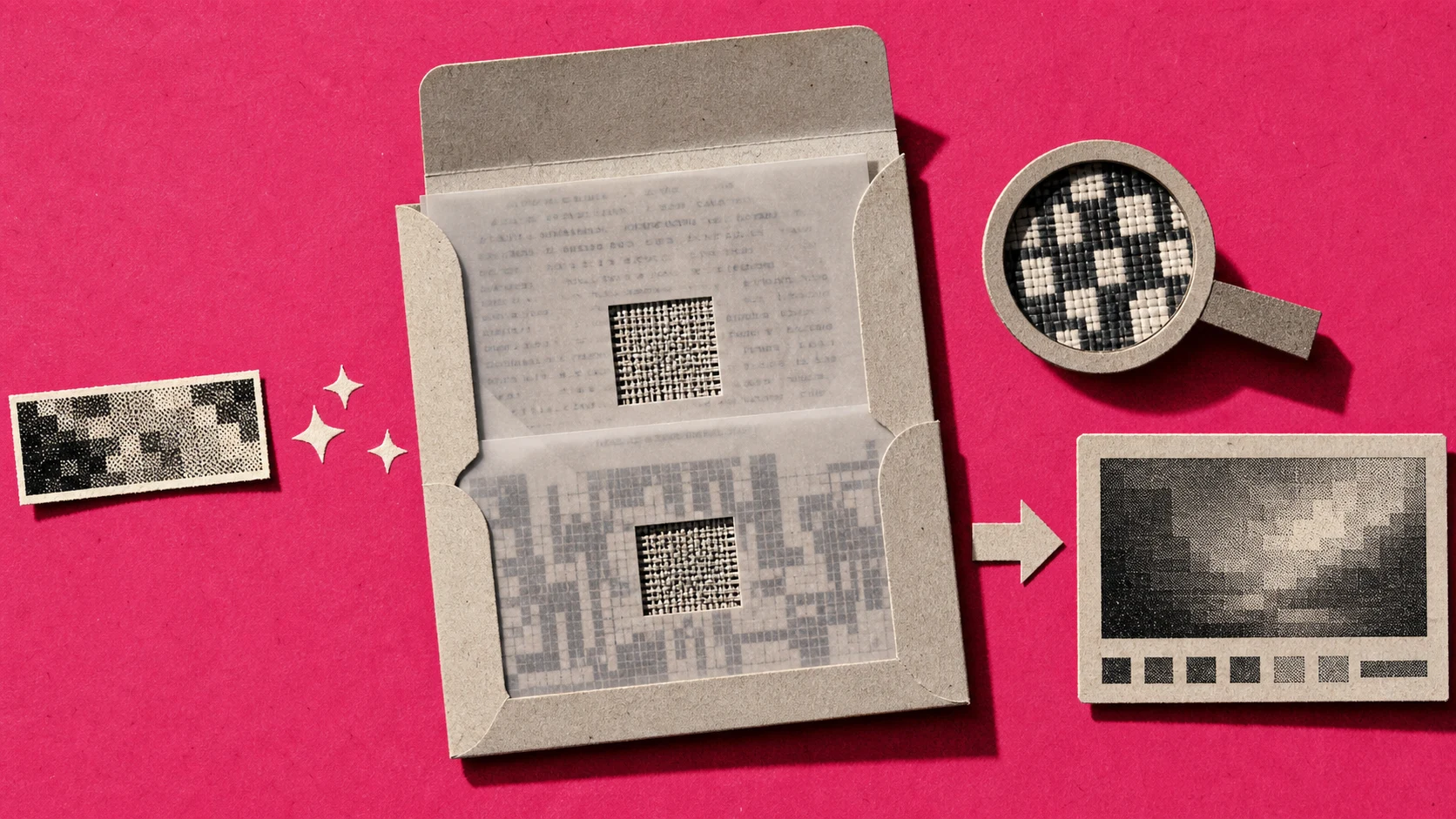
The first is C2PA metadata, an industry-standard provenance signal embedded in the image file, published by the Coalition for Content Provenance and Authenticity (OpenAI’s C2PA explainer). The metadata says “this image was generated by ChatGPT Images 2.0 on this date.” It’s invisible to viewers but readable by any tool that supports the C2PA standard. The metadata strips off the moment you screenshot the image or re-encode it, which is why OpenAI added the second layer.
The second layer is an imperceptible content-specific pixel watermark, new in GPT Image 2 (OpenAI system card). It survives screenshotting, re-encoding, and most light edits. In May 2026, an X user demonstrated extracting the watermark and showed that downstream video models produce checkerboard artifacts when GPT Image 2 outputs are used as input frames. The watermark is technical-grade, not casual-strip-able.
Three practical implications for the “is it free” decision:
- The same watermark layer appears across every tier. Upgrading to ChatGPT Plus doesn’t remove the marking. The mark belongs to GPT Image 2 itself, not to the access path.
- Commercial use is still permitted. OpenAI’s terms allow commercial use of every output; the watermark doesn’t restrict licensing.
- The EU AI Act Article 50 transparency obligations become enforceable on August 2 2026 (EU AI Act text). For EU-facing commercial distribution, you may need to surface the C2PA metadata at the point of publication. This isn’t an OpenAI choice; it’s regulatory.
If your downstream workflow runs the image through a video model, the watermark can leak through as visible artifacts. That’s the case the X researcher documented, and the workaround creators use is to render the still inside a video editor that doesn’t re-process the underlying pixels, which is the workflow ChatCut sits in.
ChatCut: GPT Image 2 inside the editor, plus the workflow only ChatCut runs
ChatCut is the fifth free path, with one structural difference from the four above. GPT Image 2 generation runs inside a video editor, not next to one. That changes what “free” buys you, and it’s the reason the next four subsections exist.
Free starter allowance, no card required
The Free Plan includes a starting credit allowance that may vary. Check your account for the current offer and eligible features before using AI image generation or other AI tools. Generation and built-in Agent requests use credits; manual timeline editing, transcription, and standard export do not. See Credits for usage details. Both tiers cap export resolution at 1080p, and ChatCut adds no brand mark to your final export. (The OpenAI C2PA and content marks on the GPT Image 2 image itself still apply, as covered in the section above.)
How to use it:
- Open chatcut.io and sign up with an email
- Create a new project
- Open the AI panel and pick AI image generator
- Type your prompt; pick aspect ratio and reference image if needed
- The generated image lands in your media library, ready to drop on the timeline
The chained workflow ChatGPT and Bing can’t run
Standalone generators give you an image. A video editor with built-in image generation gives you a chain.
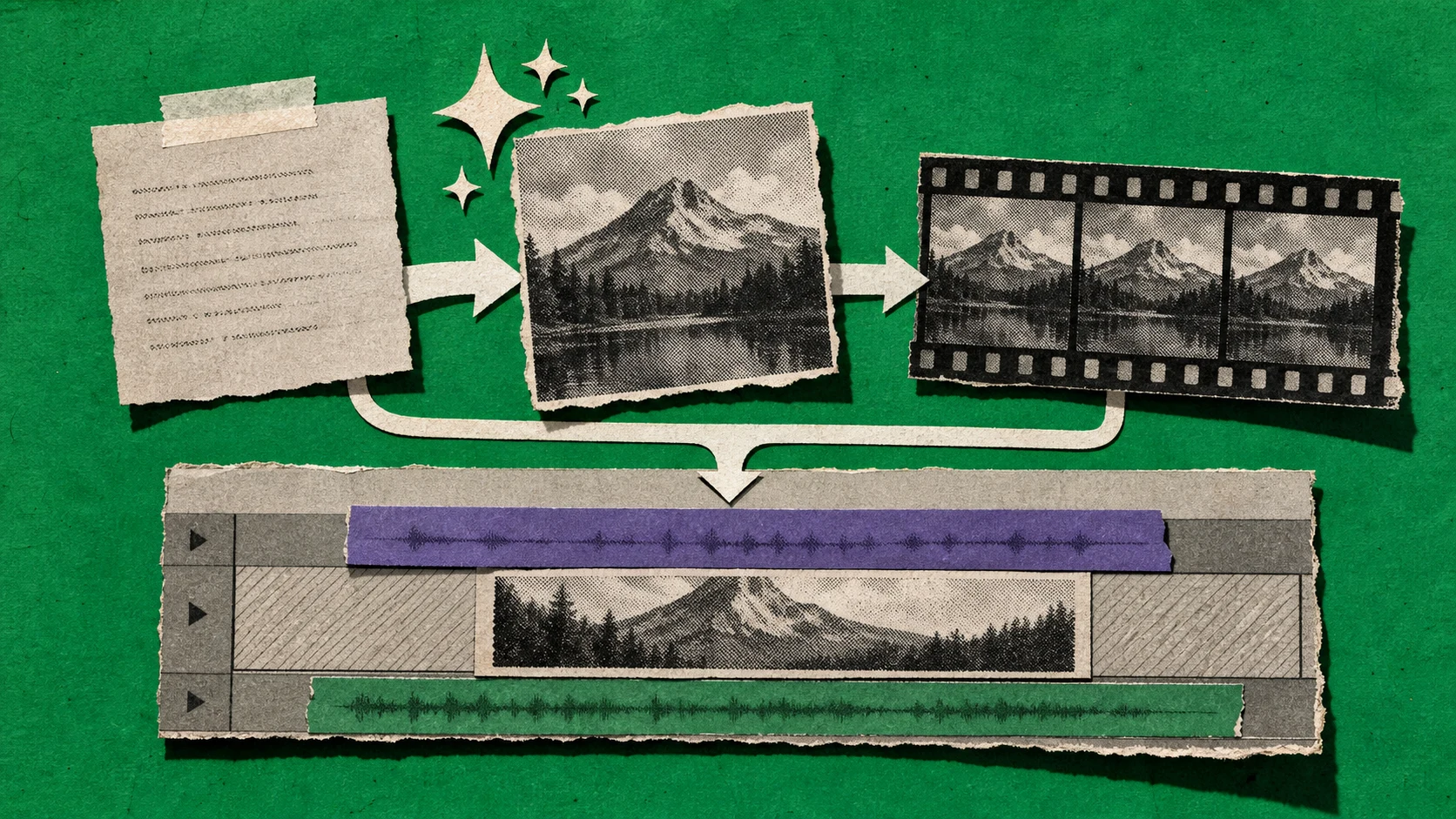
A workflow to try inside ChatCut, subject to your current allowance and plan:
- Generate a reference frame with GPT Image 2: a specific composition, a stylized character pose, a custom thumbnail, or a B-roll alternative that doesn’t exist in your source footage
- Drop the reference straight on the timeline, no export-import shuffle. Layer AI motion graphics over it from a natural-language prompt: lower thirds, animated callouts, on-screen text cards
- Cut and assemble against the timeline using transcript-driven editing, with the image landing wherever the script calls for it
- When you upgrade to Pro, the same reference frame extends into a 5-second motion clip via Seedance 2.0 image-to-video, still inside the same project
The version most creators run for narrative work looks like this: generate a stylized character pose with GPT Image 2 on the free credits, layer an animated title card, drop the result into an AI filmmaking project, and upgrade to Pro once the Seedance video-extension step joins the routine. You describe the edit. ChatCut executes it.
Beyond image generation
GPT Image 2 is one piece. The rest of ChatCut’s editor handles the layers a generator alone doesn’t:
- AI voiceover from a curated 32-voice library (18 English, 14 Chinese including Mandarin and Cantonese)
- Text-based editing that lets you cut by editing the transcript instead of scrubbing audio
- AI sound effects at 0.5-22 second clip length
- AI captions with word-level timestamps
- AI noise removal for cleaning up source audio
- Motion graphics from a natural-language description, no After Effects keyframing
- Seedance 2.0 image-to-video and AI music generation on the Pro upgrade
A creator can combine a generated establishing shot, voiceover, and motion-graphics callouts in one explainer project. Whether the starting allowance covers that work depends on the chosen tools and requests. Check the balance and available features before starting, then review actual usage in Credits history.
When to consider a paid plan
Consider a paid plan when your current allowance and available features no longer cover the work you need:
- You consistently exhaust the daily 2-3 cap on ChatGPT free and the 15 boosts on Bing
- You need reference-image consistency across multiple generations: a recurring character, a brand-aligned visual style, a specific composition reused across shots
- You’re producing video and routinely need 5-10 image-to-video chains per week
- You’re building a content pipeline that needs API access, not interactive generation
ChatCut Pro starts at $25 a month, with a 16% saving on the annual plan. Pro adds full Seedance 2.0 access, ProRes 4444 export hand-off for downstream Premiere or After Effects work, and monthly subscription credits that roll over for one month. The full breakdown is on the pricing page.
For readers whose interest is the prompt craft rather than the free-access question (what prompts work, what doesn’t, how to write for GPT Image 2’s strengths), our how to use GPT Image 2 for general prompts guide is the next stop.