ChatGPT plugins returned in 2025, and they work nothing like the version most people remember. The original plugin store launched in 2023 and shut down in April 2024. What’s available now is a different system: persistent and agentic. It is built to run across full multi-step workflows rather than a single chat response.
This guide covers what the current ChatGPT plugins are, why the confusion around the term exists, and how content creators are using them. Whether you’ve heard about OpenAI ChatGPT plugins and want to understand them from scratch, or you’re looking for practical use cases, this is where to start.
What Are ChatGPT Plugins?
ChatGPT plugins are installable packages that extend what ChatGPT can do and connect it to external tools. The plugins give ChatGPT access to data or services it cannot reach by default.
A plugin might connect ChatGPT to Google Drive so it saves files directly, add a skill that teaches it how to format content for a specific platform, or give it access to a full AI video tool that executes edits from a plain-language description. Once installed, a ChatGPT plugin is available across all future sessions, not just the conversation where you added it.
What ChatGPT plugins give you:
-
Access to external tools like ChatCut, Google Drive, Slack, Notion, without switching apps
-
Reusable skills that apply the same workflow steps across every session
-
Deep platform integrations via MCP
-
Enables video and image generation, editing, and export within one task
-
Persistent setup; install once, available in every future session
The current system works with ChatGPT’s agentic capabilities, specifically Codex (ChatGPT’s autonomous task-execution agent) and Work plan sessions.
The ChatGPT Plugin Confusion, Explained
Most content available online about ChatGPT plugins conflates three different products. The confusion is why searches for “best ChatGPT plugins” return a mix of articles about tools that no longer exist, custom AI assistants that aren’t technically plugins, and the current 2025 system. Here’s the actual breakdown.
The 2023 ChatGPT Plugin Store
OpenAI launched a plugin store in 2023 that let users activate third-party tools, including web browsing, Wolfram Alpha, Zapier. These tools could be activated during a ChatGPT conversation. Zapier’s plugin, for example, let ChatGPT interact directly with Google Sheets and Salesforce. Users could activate up to three plugins per chat session.
OpenAI shut the store down in April 2024 and invited developers to rebuild their tools as Custom GPTs. Any article listing “the best ChatGPT plugins” without acknowledging this deprecation is describing tools that have not existed for over two years.
Custom GPTs
Custom GPTs are standalone AI assistants built on top of ChatGPT and listed in the GPT Store. They can carry custom instructions, uploaded knowledge, and tool access, but they are not plugins. You open a GPT the way you’d open a separate app. It does not extend your current ChatGPT session.
OpenAI positioned GPTs as the successor to the original plugin store, which is where the conflation comes from. They serve different purposes in 2026.
ChatGPT Plugins (2025–Present)
The current plugin system launched in 2025 alongside OpenAI’s expansion of Codex. These plugins bundle capabilities into reusable packages that persist across sessions and run inside agentic workflows. This version of ChatGPT plugins is what the rest of this guide covers.
What’s Inside a ChatGPT Plugin?
A ChatGPT plugin can contain one or more of these capabilities, individually or bundled together.
- Skills
Skills are reusable instruction sets for specific types of work. When a task matches a skill, ChatGPT loads the right steps automatically without you needing to specify how to do it.
- Connectors
Connectors are direct links to external tools like Google Drive, Slack, Notion, and GitHub. Once installed, ChatGPT can read from and act inside those tools as part of a workflow..
- MCP Servers
MCP (Model Context Protocol) servers give ChatGPT access to tools and information from external systems, handling authentication and structured data in the background. Where a basic connector gives ChatGPT read and write access, an MCP server exposes a platform’s complete capabilities and lets ChatGPT use it the way a developer would through code.
- Browser Extensions
Browser extensions add capabilities required for plugin workflows that need to interact with content directly inside a web browser.
For creators, the practical difference is depth. An MCP server for a video platform, like ChatCut AI video editor, lets ChatGPT generate, edit, and export video natively within a task.
How to Access ChatGPT Plugins
The plugin store, also called the Plugins directory, is where you browse and install ChatGPT plugins. OpenAI publishes official plugins and third-party developers publish to the same directory. Community indexes like skills.sh and the awesome-codex-plugins repository on GitHub list additional plugins outside the official store.
Plugin categories include development, productivity, design, creative, and research. For creators, filtering by “creative” or “video” is the fastest path to relevant options.
Access requires a ChatGPT Plus, Pro, or Team (Work) plan. The Plugins directory is available on ChatGPT web and desktop, Codex CLI, and the IDE extension.
How Creators Are Using ChatGPT Plugins in 2026
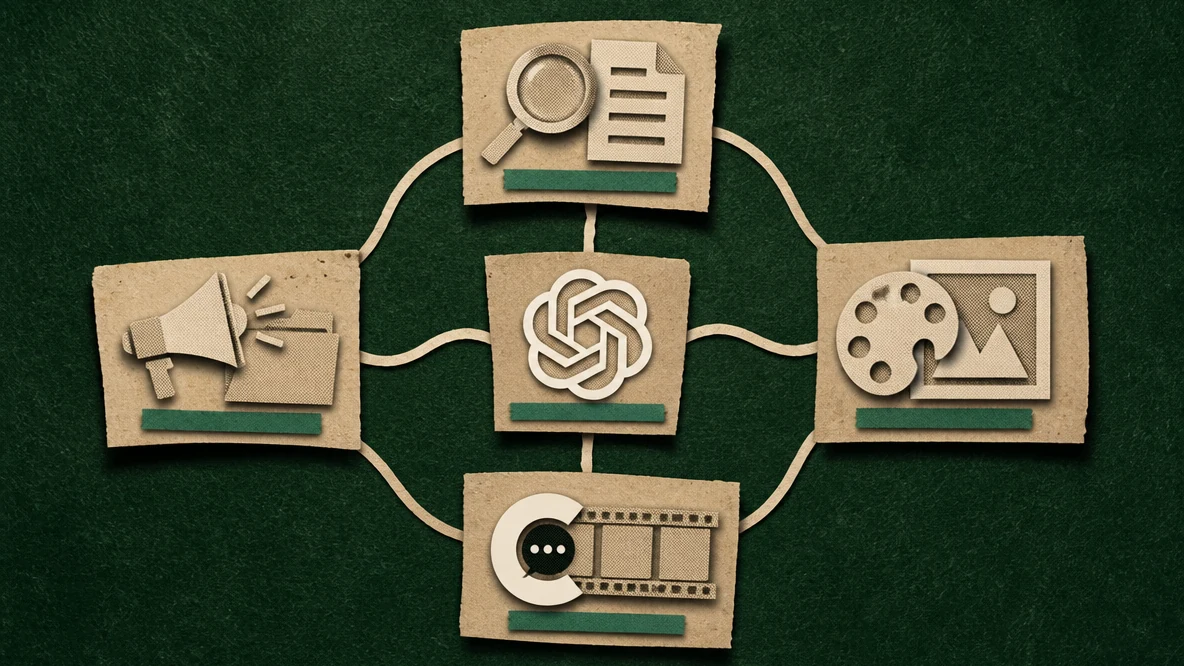
Most published documentation on ChatGPT plugins assumes a developer audience. Creator use cases work differently, and they map to specific stages of a production workflow rather than engineering tasks.
Research and Briefing
Plugins that give ChatGPT access to live web data let creators skip manual research. Instead of opening tabs, documenting notes, and writing a brief separately, one task handles the entire sequence.
A content team running a YouTube channel might use a web context plugin to have ChatGPT pull recent coverage on a topic, identify angles competitors have not taken, and return a structured four-week brief. The output goes directly into the next stage with no intermediate step.
Visual Creation
Image and design plugins connect ChatGPT to generation tools via MCP. Such MCP plugin lets ChatGPT generate video and images within a task, so a content brief and the accompanying assets come out of the same workflow without switching platforms.
For social media teams running high-volume content schedules, this reduces handoffs. The brief and all related visual assets are handled as one connected task rather than multiple individual tasks. .
Video Editing — The ChatCut Plugin
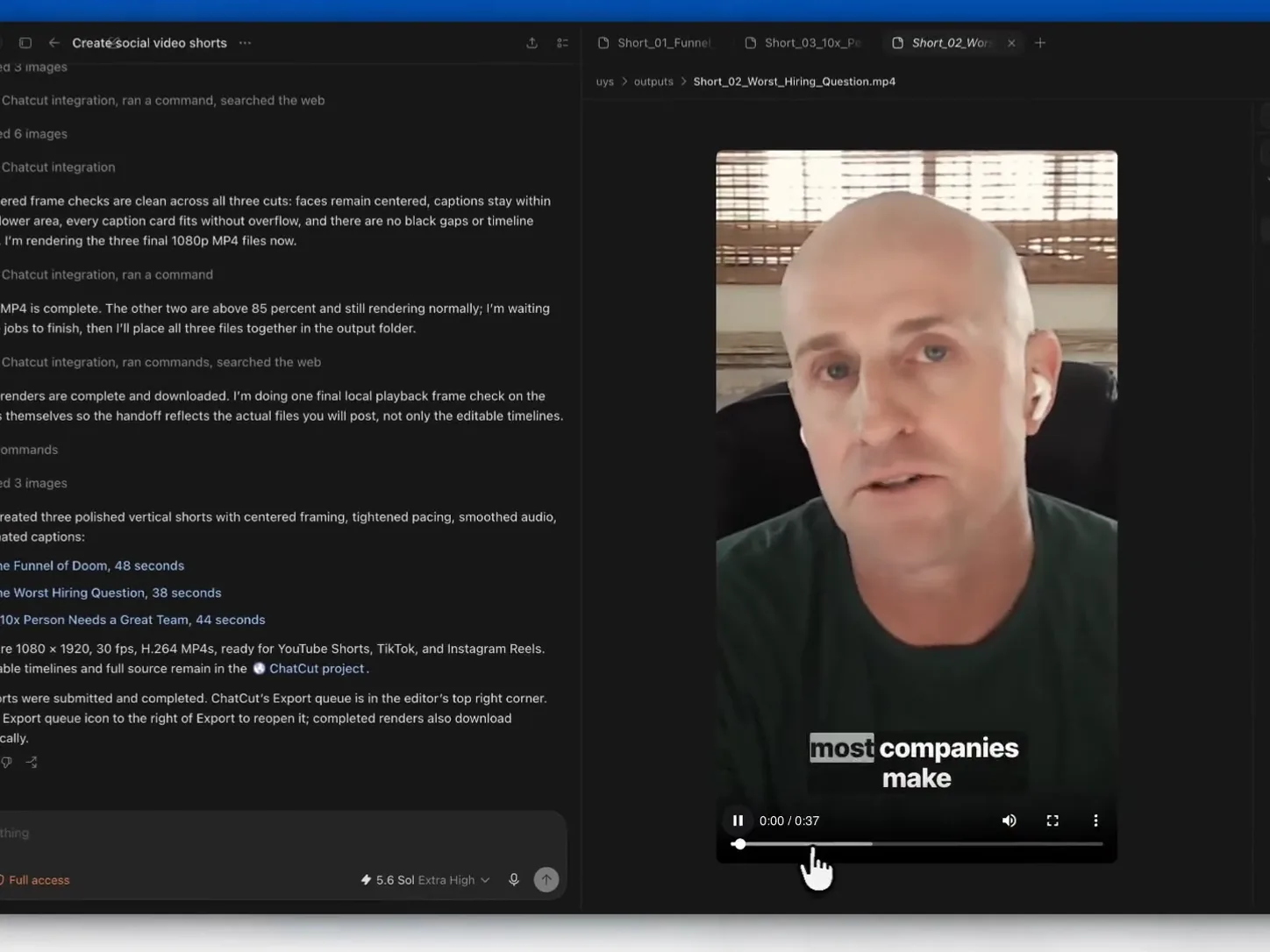
The ChatCut Codex plugin brings a full AI video editor into ChatGPT’s agentic workflow. The ChatCut plugin routes the video editing request to the right tool and applies it on a live timeline. It is the clearest example to date of what the current plugin system makes possible for video creators.
Now, the creators no longer have to manually edit, cut, reformat, or add captions to their videos. With the ChatCut plugin, those steps become a plain-language instruction: “remove silences, add captions, create a 60-second version for Instagram.”
The ChatCut plugin handles silence removal, conversational editing, auto-captioning, shot reframing, social reformatting, B-roll generation, and style-consistent motion graphics. The edited videos can be exported as MP4 files.
For creators producing regular video, this reduces the time-per-video in a meaningful way. Explore the AI video editing tips to optimize the full production workflow.
Publishing and Distribution
Platform connector plugins handle the final step of the production workflow. A task that generates a finished piece can also save it to the right folder, notify the right team members, and draft the distribution email.
For high-output solo creators, this removes the administrative work that accumulates across a busy publishing schedule. For teams, it builds a repeatable handoff process without adding project management tools.
How to Use ChatGPT Plugins — Getting Started
All plugin components are installed as one bundle. Skills, apps, and MCP servers are packaged together — you don’t install them separately. The process varies slightly by platform.
On ChatGPT web or desktop:
-
Open the Plugins directory from the sidebar
-
Search by name or browse by category
-
Click the + button to install the full plugin bundle
-
If the plugin connects to an external tool (Drive, Slack, Notion), authenticate that service when prompted — this is a separate step after the main install
-
Start a new chat. The bundled skills and capabilities activate on the next session, not the current one
On Codex CLI:
-
Run /plugins to open the browser
-
Install from the directory
-
Complete any on-screen setup prompts or OAuth connections required by the plugin
-
Then start a new session and invoke the installed plugin by using “@mention” in your prompt
On the IDE extension:
-
Open your IDE such as Visual Studio Code or Cursor
-
Navigate to the Extensions
-
Search for Codex - OpenAI’s coding agent or a popular alternative like CodeGPT.
-
Click Install.
-
Open new chat and use the plugin
One thing to know before starting: installing a plugin mid-session won’t make it available in that conversation. Always begin a new chat after installing.
Final Thoughts
ChatCut launched its ChatGPT plugin, which means the directory now has a full AI video editor in it. For anyone producing regular video content, that alone is worth checking out. Installing one plugin and running a single task will tell you more about how this system works than any overview will. For a full breakdown of which plugins are worth installing first — with setup instructions for both developer and creative workflows — the best ChatGPT plugins in 2026 guide covers the full directory.