The best AI tool for creating a video depends on what you already have. A recorded interview needs an editor. A text prompt needs a generator. A campaign assembled from a script, stock media, voiceover, and captions needs a production workflow that can coordinate several steps.
This guide compares six current tools by those jobs. It uses the linked product pages and documentation rather than claiming a same-prompt or same-footage test that was not recorded. Product capabilities and access can change, so verify the official page before committing a production workflow.
The short answer
- Editing footage you already recorded: ChatCut
- Generative creative projects with a timeline: Runway
- Veo-based filmmaking and scene creation: Google Flow
- Adobe generation and browser timeline editing: Adobe Firefly
- Prompt-to-video production using agents and multiple models: Invideo
- Design-led social video and short generated clips: Canva
These are workflow matches, not measured winners. Test the finalists with the same source material, prompt, aspect ratio, and export requirements.
AI video editor, generator, or production platform?
An AI video editor changes existing footage. It may transcribe speech, remove selected pauses or filler words, arrange clips, create captions, clean audio, or apply edits from a prompt. A useful editor keeps the result reviewable in a transcript or timeline.
An AI video generator creates new footage from text, images, reference media, or other instructions. It solves a different problem from cutting an interview or tutorial you already recorded.
An AI video production platform combines several jobs, such as scripting, generation, editing, voiceover, music, captions, and export. The breadth is useful only when you can still inspect and correct the result.
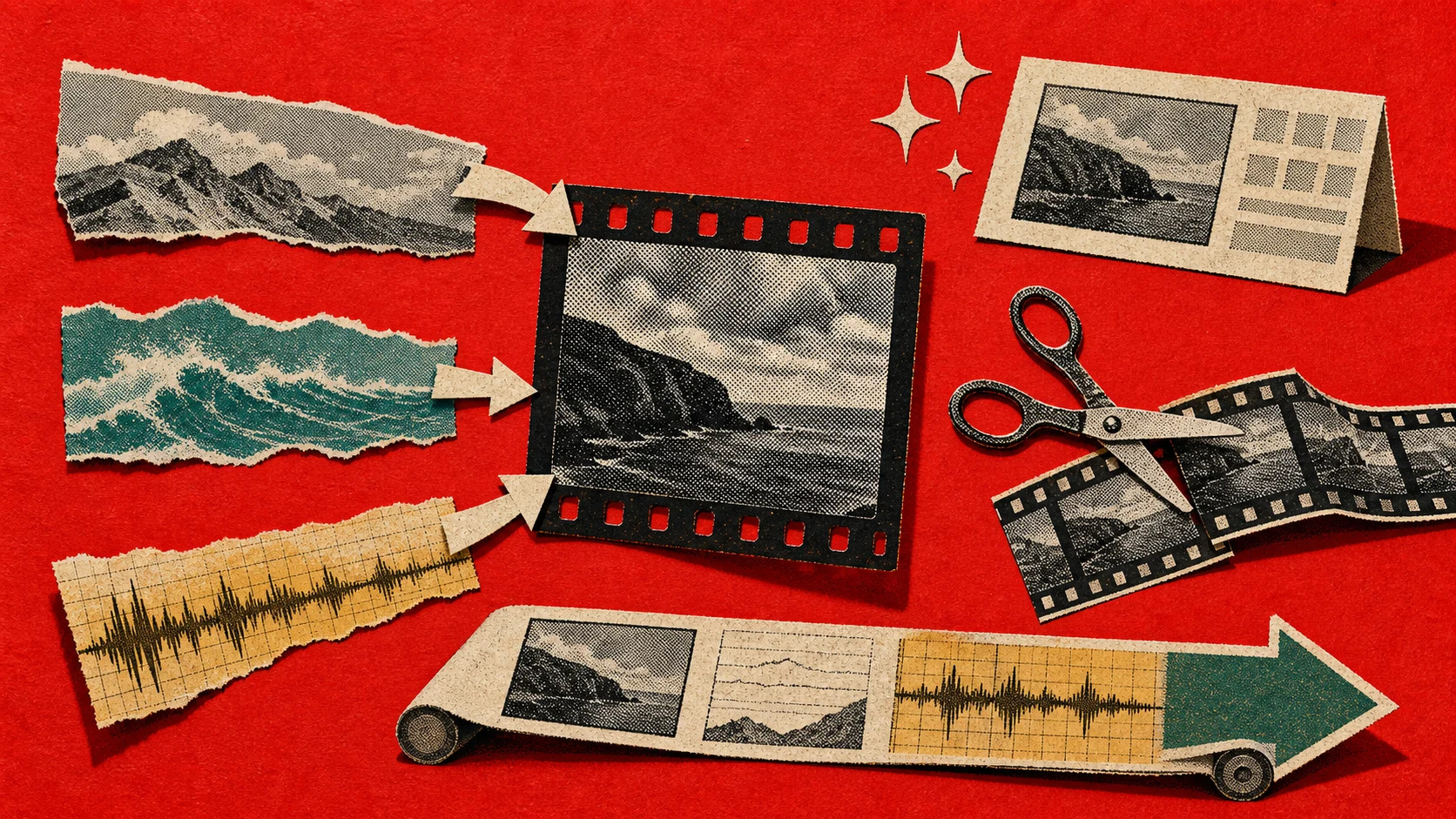
Before choosing a tool, check five things:
- Starting material. Does the workflow begin with raw footage, a script, an image, or a text prompt?
- Reviewable control. Can you correct individual cuts, clips, captions, audio tracks, and generated shots?
- Continuity. If you need several generated shots, can the tool carry characters, objects, and style across them?
- Export and handoff. Does it produce the required file, or an editable timeline that can continue elsewhere?
- Current access. Models, usage allowances, output resolution, watermarks, regions, and plans change frequently. Check the live product page.
Six AI tools for creating videos
1. ChatCut: editing recorded footage with prompts and a timeline
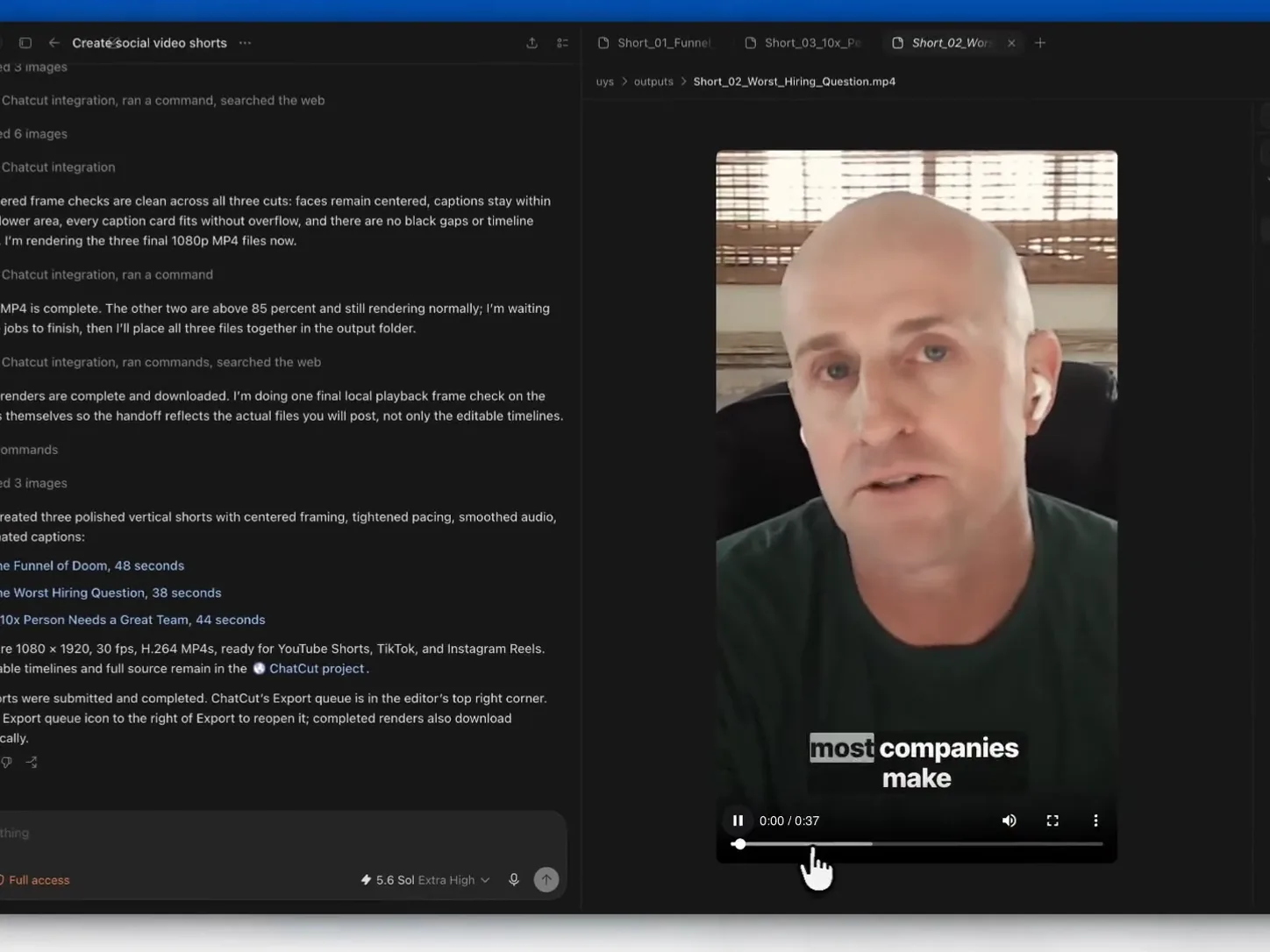
ChatCut’s AI video editor works with existing footage. You can describe an edit, work directly from the transcript, and inspect the result in a multi-track timeline. The same project can also add captions, music, motion graphics, images, voiceover, and generated video.
This fits interviews, podcasts, talking heads, tutorials, product demos, and other footage where editorial selection matters. The public podcast-to-Shorts example links the source, prompt, output, and limitations so you can assess one real workflow rather than a universal speed claim.
Use the separate AI video generator when the job begins with a prompt or reference image. Generated shots can then be combined with recorded media in an editable project.
Check first: review every selected moment, removed pause, caption, crop, audio level, generated asset, and the complete export.
2. Runway: generative production and prompted shot changes
Runway Agent can plan and generate images, video, audio, music, and voiceover, then arrange the results in a built-in timeline. Its documentation also describes manual trimming, splitting, and rearranging generated or uploaded media.
For existing shots, Runway Edit Studio uses prompts to restyle footage, replace backgrounds or objects, relight scenes, and apply other visual transformations. Runway documents Edit Studio sequences up to 30 seconds.
Best fit: generative creative projects, multi-shot concepts, and visual transformations inside short clips.
Check first: generated media varies between attempts. Review continuity, rights, audio, and every shot before assembly or publication.
3. Google Flow: Veo-based filmmaking and scene creation
Google Flow combines Google’s generative models in a creative studio. Its current product page lists text-to-video, frames-to-video, ingredients-to-video, extension, video-to-video editing, scene building, an agent, and Veo 3.1 with native audio.
The accompanying Veo documentation describes reference images for characters, scenes, objects, and style; first-and-last-frame controls; scene extension; outpainting; camera controls; and object changes.
Best fit: cinematic scene generation, reference-driven continuity, and projects centered on Veo.
Check first: availability and model features vary by plan, region, and surface. Test dialogue, audio synchronization, character continuity, and the required resolution with your own prompt.
4. Adobe Firefly: generation inside a browser editing workflow
Adobe’s Firefly video editor is a browser-based editor with a multi-track timeline. Adobe documents trimming, cutting, text and audio, text-based editing from transcripts, and the ability to generate video or add assets from Firefly generation history directly to the timeline.
This makes Firefly relevant when generation and conventional timeline assembly need to happen in the same Adobe workflow.
Best fit: teams that want browser editing, generated assets, and an Adobe-centered production path.
Check first: the editor is labeled beta. Confirm current model access, export options, credit use, and whether required finishing tools remain in Firefly or need another Adobe application.
5. Invideo: prompt-to-video production with agents
Invideo’s AI filmmaking guide describes an agent workflow that can write, storyboard, generate, and edit shots from a script, concept, scene, campaign, or film brief. Its current documentation says the workspace routes work across a catalog of video, image, and audio models.
Invideo also separates its AI workflow from Invideo Studio: the AI product focuses on prompt-led creation, while Studio provides a manual template and timeline editor. Check which product and subscription the finishing workflow requires.
Best fit: producing a narrated or visual sequence from a brief when scripting, asset generation, voiceover, and assembly need to be coordinated.
Check first: inspect which model created each asset, how credits are charged, what remains editable, and whether stock or generated media fits the rights and visual consistency your project needs.
6. Canva: design-led social video and generated clips
Canva’s AI video generator creates clips from text and adds them to a Canva design for further editing. Canva’s current page describes synchronized audio and a 16:9 clip of up to eight seconds per prompt. Its broader video editor provides trimming, splitting, layers, captions, resizing, animation, templates, and design assets.
This combination fits short social videos, presentations, ads, and branded content where layout and design assets are central to the job.
Best fit: design-led teams and creators who want short generated clips inside an existing Canva workflow.
Check first: video generation access and allowance depend on the plan. Confirm clip duration, aspect ratio, usage limits, and the editing control needed for a longer sequence.
How to choose without relying on a generic ranking
Use one representative task and score each candidate on the same checks:
- Prepare a short source package: one raw clip, one reference image, one script, and the intended aspect ratio.
- Ask each tool for the same outcome. Keep the prompt and required duration consistent.
- Make one manual correction. Record whether the correction changes a transcript, clip, layer, timeline, or only regenerates the whole result.
- Export a short file. Check resolution, duration, audio, captions, watermark, and playback outside the editor.
- Count the handoffs, failed generations, repeated instructions, and manual fixes. Those are more useful than a feature checklist.
For recorded speech, begin with the editing pass before generating B-roll. For a fully synthetic concept, create and approve a short visual test before building a multi-shot sequence. For a campaign, verify that brand assets, rights, and review steps survive every handoff.
What happened to Sora?
Older AI video lists often recommend Sora as a current product. OpenAI’s Sora page now states that the Sora web and app experiences were discontinued on April 26, 2026, and that the API was discontinued on September 24, 2026. It should not be presented as an available 2026 production choice.
This is why live product documentation matters more than a static ranking. Availability, model names, plans, limits, and editing surfaces can change after an article is published.
Method and disclosure
This comparison was reviewed on October 13, 2026 using the official product pages and documentation linked in each section. ChatCut publishes this article and is included as one option. No same-prompt or same-footage benchmark across all six products was recorded for this page, so it does not claim measured speed, quality, prompt accuracy, or an objective overall winner.