
Seedance 2.0 Prompt Guide: 5 Formulas + Worked Examples
If Seedance 2.0 keeps giving you something adjacent to the video in your head, the problem usually is not taste. It is instruction.
Most people try to fix weak results by adding more adjectives. Seedance responds better when you assign clearer jobs: which image defines the subject, which video defines the camera, which audio defines the mood, and what exactly changes from second to second.
That is why the best Seedance prompts feel less like creative writing and more like direction.
This guide covers the parts of Seedance 2.0 that matter most in practice: multimodal inputs, @asset syntax, reference-driven camera work, effects and template replication, video extension, audio control, targeted editing, beat-synced sequences, and the prompt habits that make the whole system feel dramatically more predictable.
What Makes Seedance 2.0 Different?
According to the official Seedance 2.0 page, the model supports text, image, audio, and video inputs inside one multimodal workflow. That changes prompting in three important ways:
- You can direct with references, not just words. Instead of trying to describe everything, you can show the model a frame, a clip, or an audio mood.
- Camera language becomes easier to transfer. A reference video communicates push-ins, pans, orbit shots, rhythm, and blocking much better than a paragraph of explanation.
- Sound becomes part of the creative brief. Voice tone, ambience, beat, and music are not only post-production choices. They can help shape the generation from the start.
The real upgrade is not just output quality. It is controllability.
The Core Rule: Give Every Asset a Job
Uploading assets is not enough. Seedance does not reliably infer what each file is meant to do unless you tell it.
Weak:
@image1 @image2 @video1 create a 12-second cinematic videoBetter:
@image1 as first-frame reference
@image2 as outfit and material reference
@video1 as camera movement and pacing reference

Create a 12-second nighttime chase scene in a subway station.
Same files. Completely different clarity.
What Each Input Type Is Best For
Images
- first or final frame references
- character styling and costume details
- product silhouette, texture, and close-up detail
- scene mood, palette, and composition
Video
- camera movement
- body motion and blocking
- transition rhythm
- shot pacing
- embedded ambient sound reference
Audio
- voice tone
- background music mood
- ambience and sound design
- beat timing
Text
- shot-by-shot direction
- action and timing
- dialogue
- constraints
- narrative logic
The less guessing Seedance has to do, the better it behaves.
Seedance 2.0 Specs at a Glance
In the workflow this guide is based on, these were the practical working limits:
| Input type | Working limit | Notes |
|---|---|---|
| Images | Up to 9 files, under 30MB | jpeg, png, webp, bmp, tiff, gif |
| Video | Up to 3 files, under 50MB | 2-15 seconds total, mp4 or mov |
| Audio | Up to 3 files, under 15MB | up to 15 seconds total, mp3 or wav |
| Output duration | 4-15 seconds | when extending a clip, duration applies only to the new section |
| Combined uploads | 12 files total | images, video, and audio combined |
These exact limits can change depending on where Seedance is surfaced, so treat them as a practical reference rather than a permanent spec sheet.
If you run out of upload slots, prioritize assets in this order:
- camera or motion reference
- subject or product consistency reference
- mood or audio reference
That order usually gives the best return.
A Multimodal Example That Actually Makes Sense
The easiest way to understand Seedance is to see how different reference types divide the work.
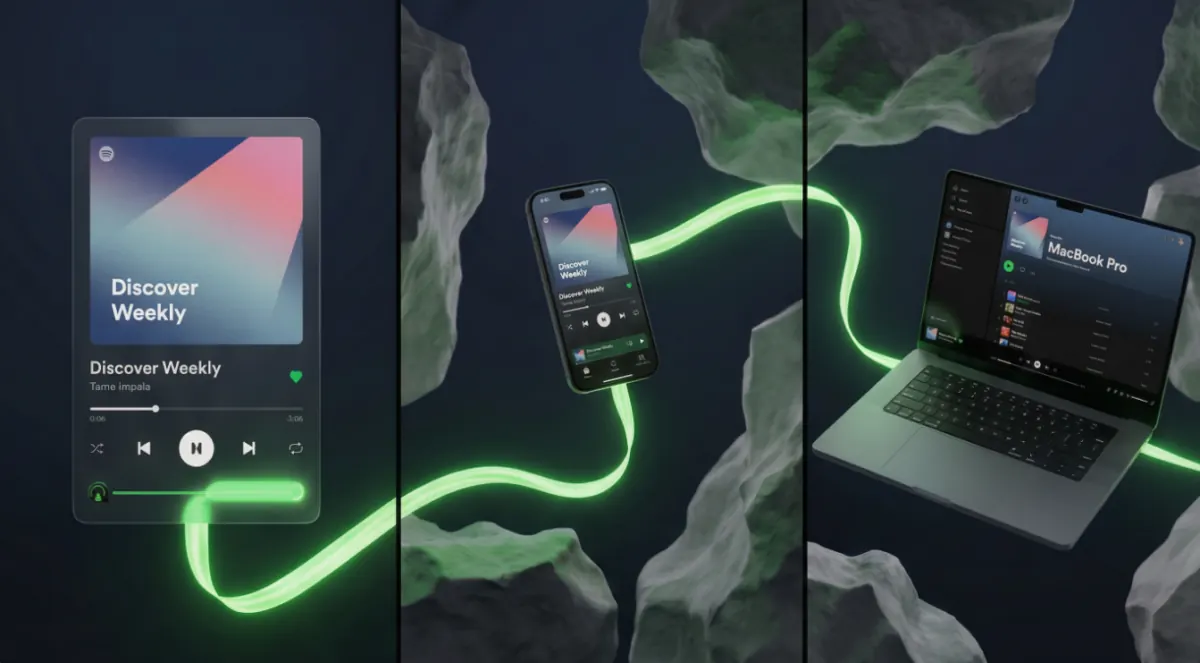
Here is the original reference board used for one of the multimodal examples:
And here is the separate logo reference used for the ending:

Prompt:
@image1 as visual reference for the interface style and scene mood
@image2 as logo reference for the final frame

0-5s: Camera glides just above dark water. A holographic colored drop falls in, bursting into soft fluid that turns into floating dark frosted-glass cards. The cards flip to reveal album art in a layered 3D arrangement.
Sound: clear water drop, then soft atmospheric bass fades in.

5-10s: Camera focuses on one card. A fluorescent green progress bar stretches into a ribbon of light, flowing through 3D rocks, then into a floating phone and minimalist laptop. The interface glows gently.
Sound: music grows stronger with smooth technology swooshes.

10-15s: Camera passes through the laptop screen into a bright liquid space. Glowing title text pulses with the beat, then all light converges into the logo from @image2.
Constraint: all English text must be correctly spelled and visually intact.
That prompt works because each input has a clear role. One image handles the world. One image handles the final mark. The rest is broken down by time, motion, and sound.
Example clip reference: Watch the short version of this multimodal example on YouTube
A Prompt Formula That Works
When a Seedance prompt is working, it usually follows this pattern:
[asset] + [job of asset] + [what happens] + [when it happens] + [camera behavior] + [sound behavior] + [constraints]For example:
@image1 as product design reference
@video1 as camera movement reference
@audio1 as music mood reference

0-4s: Slow push-in on the product sitting on a reflective black surface. Soft rim light. Premium commercial look.
4-8s: Camera orbits slightly while fine particles drift around the object, synchronized to the beat.
8-12s: Bold centered text appears. Keep the typography crisp, correctly spelled, and free of visual distortion.
This structure works because nothing important is implied. It is all assigned.
How To Keep Characters, Products, and Scenes Consistent
One of the fastest ways to ruin an AI video is to let the subject drift. A face changes shape. A product loses its surface detail. A scene slips into a different color world halfway through.
The most reliable fix is:
multi-angle references + clear @asset assignments + detail-locking text
Lock Character Appearance
@image1 as front-face reference
@image2 as side-profile reference
@image3 as outfit reference

Keep the same facial structure, hairstyle, and clothing details across all shots.
Lock Product Details
@image1 as overall silhouette reference
@image2 as side profile reference
@image3 as material texture reference
@image4 as zipper and hardware detail reference
Lock Scene Mood
@image1 as warm cafe lighting reference
@image2 as wood texture and tabletop reference

Maintain the same amber color temperature throughout the sequence.
Small wording changes matter here. Use as first frame pins a shot. Reference borrows a visual idea without forcing the frame itself.
How To Replicate Camera Work With a Reference Video
This is where Seedance starts to feel less like a generator and more like a camera-aware assistant.
The trick is simple:
- say what to reference
- say what to generate
Do not jam both ideas into the same sentence.
Formula
Reference @video1 for camera work / pacing / motion.
Use @image1 or text instructions for the new subject and scene.
Example: Pure Camera Replication
Reference @video1 for all camera movement.

Generate a tense hallway scene with one character.
At the moment of panic, use a Hitchcock-style zoom effect, then move into a slow orbit shot.
Example: Motion Reference Plus Scene Swap
@image1 as character reference
@image2 as environment reference

Reference @video1 for camera movement and facial performance rhythm.
Generate a dramatic elevator scene with rising tension.
Example: Multiple Video References
Reference @video1 for body action.
Reference @video2 for orbiting camera language.

Generate a two-character fight sequence in a warehouse.
When the references are narrow and intentional, the output feels dramatically less random.
Effects and Creative Templates: Borrow the Logic, Not the Literal Content
One of the most useful Seedance habits is treating great existing videos like effect templates rather than unattainable masterpieces.
If you upload a reference clip and define exactly which part you want to borrow, Seedance can often transfer the logic of the transition or effect into new material.
Formula
[effect reference] + [which effect to borrow] + [new subject or text]Example: Puzzle-Shatter Transition
Reference @video1 for the puzzle-shatter transition effect.
Use @image1 as the subject and reveal the product logo after the transition.
Example: Particle Sweep or Gold-Dust Reveal
Reference @video1 for particle texture and movement style.
Golden particles sweep from left to right and reveal the title from @image1 in the center.
Example: Ad Structure Replication
Reference @video1 for ad structure and shot rhythm.
Use @image1 and @image2 as product references.
Generate a premium product film with a clean hero shot, fast detail inserts, and a simple logo ending.
This approach is especially useful if you do not want to build transitions manually in an editing tool.
How To Extend a Video Without Restarting
Seedance 2.0 is also strong at continuation. Instead of regenerating a whole scene from scratch, you can extend an existing clip and describe only the new segment.
The most important rule:
Set the duration to the new section, not the full combined runtime.
If you have a 9-second clip and want 6 more seconds, choose 6 seconds.
Formula
Upload @video1 + extend by X seconds + describe only the new materialExample
Extend @video1 by 6 seconds.

0-2s: Camera tilts upward as the neon sign flickers on.
2-4s: Steam rises from the coffee cup. The door opens. Warm street light spills into the room.
4-6s: Title text fades in: Breakfast Served / 7:00-10:00
This works best when the new material feels like a natural continuation of the motion that already exists.
How To Use Audio As Direction, Not Afterthought
Many people still treat sound like a final polish step. In Seedance, that leaves a lot of control unused.
Sound changes:
- perceived weight
- pacing
- emotional intensity
- transition energy
- timing of cuts
Voice Tone
@audio1 as voiceover tone reference

Narration should sound calm, confident, and premium.
Ambient Sound From Video
Reference the ambient sound in @video1.
Use the same rainy city atmosphere with distant traffic and soft footsteps.
BGM Mood
@audio1 as background music reference

Use restrained bass, airy synth textures, and a sleek technology-commercial feel.
Dialogue With Emotional Direction
Dialogue: "I knew you would come back."
Delivery: quiet, intimate, slightly breathless, close-mic tone.
When sound and motion describe the same physical feeling, the scene becomes much more coherent.
Video Editing: Fix It, Do Not Reshoot It
Sometimes the camera move is already right and you only want to change one piece of the scene. Seedance can handle that kind of targeted edit too.
Formula
Upload @video1 + describe what must stay + describe what must changeExample: Character Swap
Keep the original motion and camera work from @video1.
Change the character's hair to long red hair.
Add the shark from @image1 slowly rising in the background.
Example: Story Rewrite
Use @video1 as the scene base.
Keep the original environment and camera rhythm, but completely change the story.
Frame by frame, replace the original suspense with a surreal comedy beat.
Example: Local Motion Edit
Keep the restaurant environment and original camera path from @video1.
Add a close-up of the owner handing over a paper bag with the logo from @image1.
This kind of prompt works best when you describe the preserved motion first and the change second.
How To Make a Video Hit the Beat
If you want an AI-generated promo or MV to feel expensive, rhythm is one of the fastest upgrades.
The basic rule is:
- use video or audio for rhythm
- use images for content
Example
@audio1 as beat reference
@image1, @image2, @image3, and @image4 as visual content

Cut only on strong beats.
Use high-energy transitions.
Every major beat should trigger a scene change, text reveal, or scale shift.
The more precisely the prompt maps picture to beat, the less the result feels like random montage.
10 Prompt Details That Make a Real Difference
1. Give Every @asset a Job
If an uploaded file does not have a role, it is just noise.
2. Write on a Timeline, Not Like a Story Paragraph
0-3s, 3-6s, and 6-10s will almost always outperform a vague narrative blob.
3. Know the Difference Between Use As and Reference
Use as first frame pins a shot. Reference borrows the mood, layout, or lighting without forcing the frame itself.
4. If You Want One Continuous Take, Say So
Use phrases like one continuous take, no cuts, and uninterrupted camera movement.
5. Prioritize the Most Valuable Assets
When you run out of upload slots, protect motion references first, then subject consistency, then mood.
6. Pick the Right Input Mode
If you only need a single image and text, keep the workflow simple. If you need camera or audio reference, go full multimodal.
7. Use Physical Verbs, Not Soft Transformation Words
melt, fracture, stretch, implode, and snap open are much stronger than becomes.
8. Treat Sound Effects as Motion Cues
A heavy bass hit implies impact. A reverse suction sound implies collapse. Sound can define physicality.
9. Define Composition Before Action
Centered, diagonal, extreme close-up, wide, and full-frame typographic layouts all create different energy before anything even moves.
10. Think of Transitions as Actions
Do not write cut to next scene. Write what initiates the move, how it travels, and what it resolves into.
Final Takeaway
The best Seedance 2.0 prompts do not sound clever. They sound clear.
Decide what each asset is doing. Decide how the camera should move. Decide how sound, rhythm, and typography behave. Then tell the model exactly that.
If you want a simpler starting point, read How to Use Seedance 2.0: Beginner FAQ, Prompting Tips, and Troubleshooting. If your focus is animated promos and visual rhythm, read Why Your AI Motion Graphics Look Like a PowerPoint.