
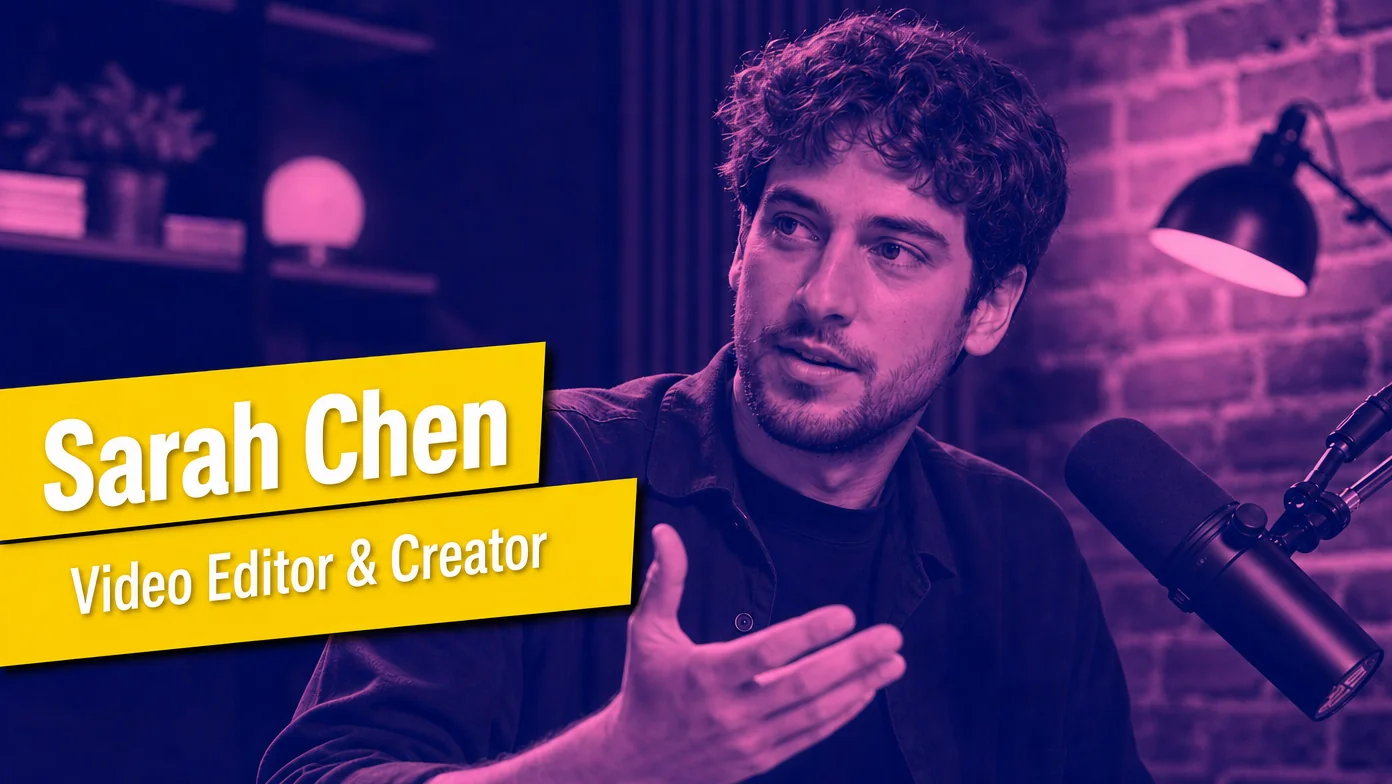
A lower third is the small text overlay that sits in the bottom-third of the frame and tells you who’s talking. Speaker name, job title, sometimes a company. They’re the workhorse of motion graphics: every interview, every documentary, every podcast video, every conference talk uses them. Done well, they disappear into the production. Done badly, they look amateur within two seconds.
For most of motion graphics history, animated lower thirds meant After Effects. A typical AE lower third takes 15-30 minutes to set up properly the first time, plus another 5-10 minutes for each variant in a series. By 2026, AI motion graphics tools have collapsed that to under a minute per asset, and the output is good enough that most viewers can’t tell the difference.
This guide walks through how to actually make animated lower thirds without ever opening After Effects. I’ll use ChatCut because that’s the workflow I run, but the logic applies to any AI motion graphics tool.
What is a lower third and why does it matter?
A lower third sits in the bottom-third of the screen (hence the name) and provides context the viewer would otherwise have to figure out from elsewhere. The most common use case: identify the person on camera. Speaker name on the first line, job title or affiliation on the second.
The history: lower thirds came from broadcast TV in the 1970s. Anchors and reporters needed a way to identify themselves and their guests without breaking out of the segment. The visual convention (text in the lower-left or center, simple two-line layout, animated entry) hardened during the cable-news era and stayed mostly the same through the YouTube era.
What makes a lower third good in 2026:
- It’s readable in 1-2 seconds. Lower thirds typically appear for 4-6 seconds. The viewer has to absorb the information before it disappears.
- It animates in and out smoothly. Hard cuts in and out of a lower third feel cheap. Even a simple fade or slide makes a video feel produced.
- It matches the video’s brand. Color, font, position should all feel intentional and consistent across the project.
- It doesn’t fight the speaker. A lower third that overlaps the speaker’s face or an important visual element distracts more than it helps.
The unsexy truth about lower thirds: they’re 80% of the motion graphics work most video producers do, and they’re the most repeatable use case AI handles well.
How do you make an animated lower third without After Effects?
The 2026 workflow has five steps. End to end, expect under 5 minutes once you’ve done it twice.
Step 1. Open the AI chat panel. In ChatCut, this is the left sidebar of the editor. Most AI motion graphics tools have an equivalent.
Step 2. Describe what you want in one sentence. The prompt template that works:
Add a lower third with [name] and [title], [animation style], [font style], [color]
A concrete example:
Add a lower third with "Dr. Sarah Chen" and "Cardiologist, Mass General", fade-in from the left, sans-serif font, dark navy background with white text
The AI generates the lower third in a few seconds and drops it into the media library as an editable component.
Step 3. Adjust in the property panel. Once the lower third exists, the Inspector panel shows every editable property: text strings, hex color values, font dropdown, animation duration slider, position toggles. Tweaking these costs zero credits. You can iterate on color, font, position, and timing as many times as you want without re-prompting.
Step 4. Drop on the timeline. Drag the lower third from the media library to the video track above your interview footage. Set the in and out points so the lower third appears 1-2 seconds after the speaker starts and disappears about 5-6 seconds in. Adjust opacity if you want it to feel softer.
Step 5. Generate the next one in the same style. For a series with multiple speakers, use the style-reference feature so each new lower third matches:
Add a lower third with "Marcus Wei" and "ER Nurse, UCSF" --style-ref dr-sarah-chen
The new lower third inherits the visual style of the first one. Different name, different title, same look.
The whole flow inside ChatCut’s AI motion graphics takes about 3-4 minutes for the first lower third in a series, then under a minute for each variant after.
Which lower third style works for which video type?
Different video types have converged on different lower third conventions. Mismatching the style to the format reads as amateur even when the lower third itself is well-made.
Corporate / B2B interview. Sans-serif font (Helvetica, Inter, Roboto), dark or muted color background with white text, simple slide-in from the left. Subtle, professional, doesn’t compete with the speaker. Standard runtime: 5-6 seconds visible.
Documentary. Similar to corporate but typically with a soft fade rather than a slide, and often more space between the speaker name and title (more visual breathing room). Position is often slightly higher than the very bottom to leave room for captions or other lower-screen content.
Podcast video. Bolder than corporate. Brand colors prominently featured (especially the active-color accent). Sometimes includes a small logo or show graphic alongside the speaker name. Position usually centered or lower-left.
News-style. Cable-news convention: bold sans-serif, white-on-red or white-on-blue, sharp slide-in, full-width or near-full-width across the bottom of the frame. Designed for high readability at broadcast distances.
Branded social content. Smaller than broadcast lower thirds, usually positioned to leave room for vertical-format crops, often combined with caption styling. Word-by-word reveal animations are increasingly common in 2026 short-form work.
The right reference: if you’re producing for a specific platform or brand, look at 5-10 examples of lower thirds in that context before deciding the style. Most production teams maintain a brand-specific lower third template that they reuse across all their work.
How do you keep lower thirds consistent across a series?
Inconsistency across a series is the single most common motion graphics mistake. Episode 1 has a green lower third with Inter font; Episode 3 drifts to teal with Roboto; Episode 5 is back to green but the slide-in animation is faster. The audience notices, even when they can’t articulate what’s wrong.
Three techniques that fix this, in order of impact.
Use a style anchor. Generate the first lower third carefully, with all the visual decisions locked in. Then reference it for every subsequent generation:
Add a lower third with "[next speaker]" and "[their title]" --style-ref episode-1-anchor
The new asset inherits palette, type, and motion timing from the anchor.
Use a template anchor when only the words change. For series where every lower third is structurally identical (same layout, only names and titles differ), use the template-reference feature instead of style-reference. This locks the layout pixel-identical and only updates the text.
Set the visual system explicitly in the first prompt. When you generate the anchor, describe the visual system in detail: “flat 2D, dark navy background (#1a2540), white sans-serif text, subtle fade-in from the left, 5-second visible duration, lower-left position”. The AI carries the brief into the asset, and downstream --style-ref calls propagate it.
For talking-head and interview workflows specifically, this template-anchored approach is the standard 2026 pattern. Most professional production teams have 3-5 lower third templates that cover their full content range. (For the deeper editing pass that follows the lower-third work, see our silence and filler-word removal guide.)
When should you still use After Effects for lower thirds?
Three cases where Adobe After Effects still wins:
Frame-level custom animation. If the lower third needs animations that respond to the specific shot (the text bouncing in time with a beat in the music, the color shifting based on what the speaker says), AE’s keyframe-level control beats AI.
Branded motion design that’s the brand’s signature. If your lower thirds are themselves a recognizable visual element of your brand (think Vox’s editorial style, or the specific motion of HBO’s documentary lower thirds), the custom motion-design work justifies AE.
One-off hero pieces. A film festival sizzle reel, a brand launch video, a single high-stakes interview where the lower third is part of the artistic statement. The 30-minute AE setup is fine when you’re producing one asset for hundreds of viewers.
For everything else (most interviews, most podcasts, most corporate content), AI motion graphics produce comparable results in a fraction of the time.
FAQ
**How long should an animated lower third stay on screen?**4-6 seconds visible is the standard convention. Longer than 8 seconds reads as overstaying; shorter than 3 seconds doesn’t give viewers time to read it. For lower thirds with longer titles (multiple lines or longer affiliation text), lean toward the higher end.
Can I export an animated lower third with a transparent background to use in another editor?
Yes. ChatCut exports motion graphics in ProRes 4444 with an alpha channel on the Pro plan. Drop the file into Premiere, Final Cut Pro, or DaVinci Resolve and overlay it on your footage cleanly. Most professional editors expect the alpha-channel ProRes 4444 format for motion graphics handoff per Apple’s ProRes white paper.
What’s the right font size for a lower third?
Default to text that’s roughly 4-6% of video height for the speaker name and 2-3% for the title. ChatCut sets these as ratios so they scale correctly across vertical (9:16) and horizontal (16:9) exports. Avoid pixel-fixed sizes; they break on different aspect ratios.
Can AI handle non-English text in lower thirds (Chinese, Arabic, etc.)?
Yes. ChatCut’s motion graphics support any font from Google Fonts, including CJK fonts and RTL languages like Arabic. The text-direction property switches the layout for RTL languages automatically.
Should I use the same lower third style for vertical and horizontal versions?
No. Vertical (9:16) lower thirds need to be smaller and positioned higher to leave room for captions and other vertical-format content. Most production teams maintain separate lower third templates for vertical vs horizontal exports.
Try it on your next interview
Open ChatCut, upload a talking-head clip, and try this prompt:
Add an animated lower third with my name and title, fade-in from the left, sans-serif font, brand color background
You’ll have an editable lower third in your media library in a few seconds. Edit the name in the property panel, drop it on the timeline above the interview audio, and you’ve replaced what used to be a 30-minute After Effects session. Skip the menus. Type what you need.