
How to Make a TikTok Video: Step-by-Step (2026)
The fastest path from “I want to try this” to a video on the For You feed: 10 minutes inside the TikTok app on a phone. The longer path, and the one that actually scales: shoot or repurpose long-form on a desktop, then post. This guide covers both, plus the 2026 algorithm changes that decide whether your video gets distributed at all.
I’ll walk through the in-app mechanics first because every creator should know them, then cover the desktop workflow for serious repurposing, and end on the algorithm signals that matter most in 2026 (spoiler: shares and saves now outweigh likes).
How do you record a TikTok video inside the app?
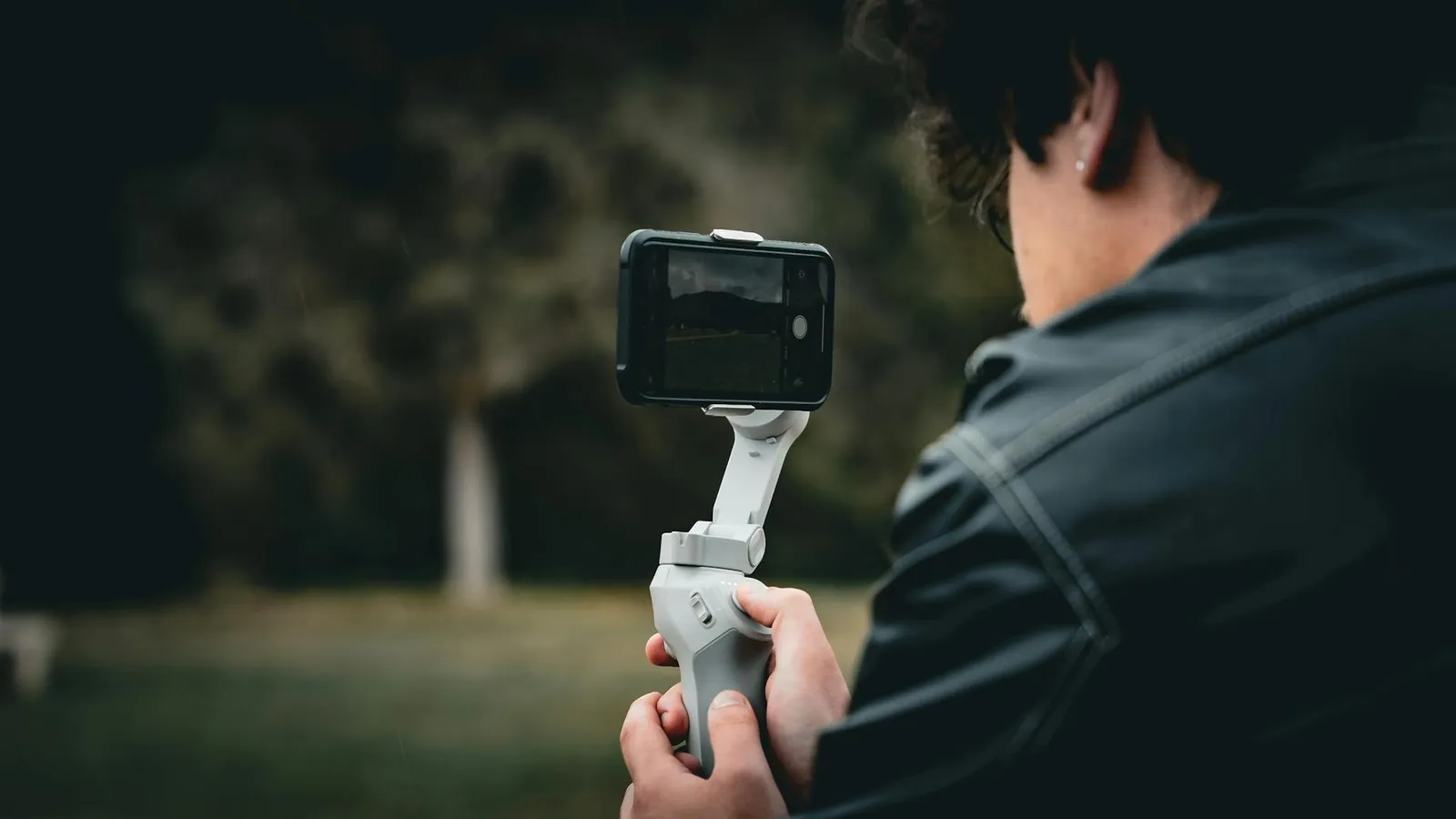
The in-app workflow is the right path for casual posts and trend-driven content where speed matters more than polish.
Step 1. Tap the + at the bottom of the home screen. The camera opens in vertical 9:16 by default with controls for front/rear camera, flash, and recording speed (0.3x through 3x).
Step 2. Set your duration before recording. TikTok offers 15 seconds, 60 seconds, or 10 minutes. Shorter clips perform better for new accounts because the algorithm rewards completion rate, and a 12-second clip is much easier to finish than a 90-second one.
Step 3. Pick a sound first if you’re using one. Tap “Add sound” before recording. TikTok clusters videos by audio: when a track is trending, every clip using it surfaces into the same audio feed. Riding a trending sound is one of the strongest organic-reach levers on the platform.
Step 4. Record. Hold the button to capture only while pressed, or tap once to toggle on and off. Each tap creates a new segment on the timeline. TikTok auto-saves your progress as a draft if you stop mid-session.
Step 5. Edit in the post-recording screen. Trim clips, add text, add captions, layer effects. The in-app editor is functional for short, recorded-on-phone clips. For anything more complex, you’ll want a desktop tool (covered below).
Step 6. Write the caption and pick hashtags. More on caption strategy in the algorithm section below. The 30 seconds you spend on the caption matters more than most creators think.
Step 7. Post or schedule. Posting now is fine. Scheduling for your audience’s evening peak helps a little but matters less than people assume in 2026.
The whole in-app flow takes 10-15 minutes for a first attempt and 3-5 minutes once you’ve done it ten times.
How do you turn long-form footage into a TikTok video?
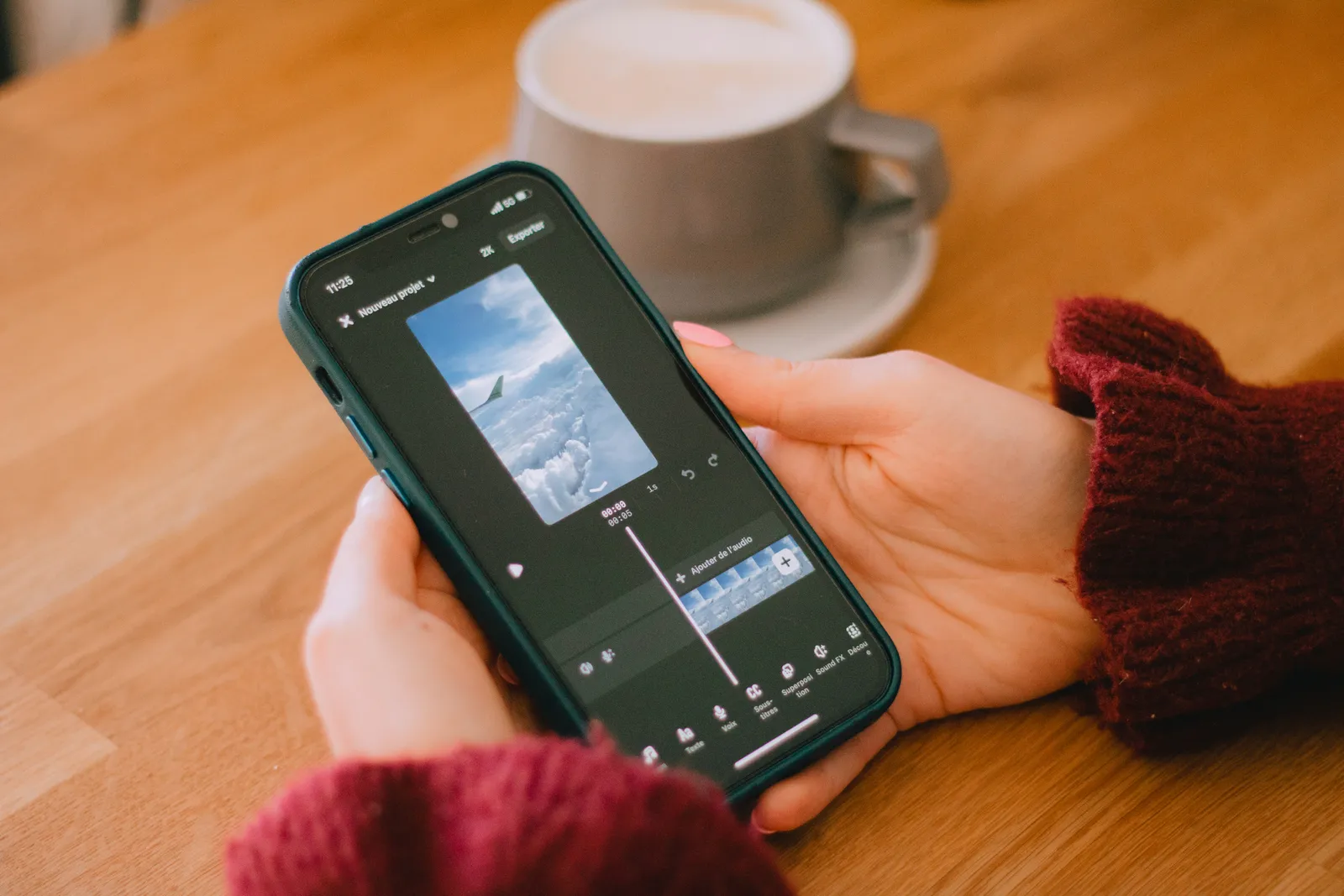
For creators with podcasts, interviews, webinars, or recorded talks, the in-app camera is the wrong tool. The right workflow lives on a laptop and uses text-based editing to extract clippable moments from long-form recordings.
The five-step desktop workflow inside ChatCut:
Step 1. Upload the long-form recording. Drop a 30-60 minute file into the editor. Auto-transcription runs in the background while the upload finishes.
Step 2. Find the most clippable moments. The transcript is searchable. Look for: counterintuitive claims (“actually”, “the truth is”), concrete numbers, personal anecdotes, disagreements, one-liner takes. Mark the timestamp ranges.
Step 3. Cut a 25-30 second clip with the AI Agent. One prompt:
Cut the section from [start] to [end] as a 9:16 vertical clip with TikTok-style captions and a 0.5-second hook at the startThe Agent transcribes, identifies the strongest 25-second window in the range, cuts it vertical, applies the TikTok caption preset, and adds a hook overlay.
Step 4. Review and tighten. Watch the result. Adjust the in/out by a second or two. Verify the caption isn’t covering the speaker’s face.
Step 5. Export and post. Vertical 9:16 MP4 with captions burned in. Upload to TikTok directly or schedule through the TikTok scheduler.
The math: a 30-minute recording contains roughly 30 quotable moments. Five clips per recording, posted across a week, is a sustainable cadence that produces a TikTok every weekday from a single afternoon of recording. This is the social-media content workflow most podcasters and YouTubers converged on in 2026.
What does the TikTok algorithm reward in 2026?
The algorithm changed significantly between 2024 and 2026, and most creator advice still describes the old rules.
Priority order of engagement signals (2026): rewatch and loop rate, completion rate, shares, meaningful comments, saves. Likes still count but sit below shares and saves on the weight scale.
The 0.5-second hook. Older guides say “hook in the first two seconds”. The 2026 reality is that the algorithm reads the opening frame as a quality signal before the viewer’s swipe behavior even registers. A static logo intro or a slow zoom into your face costs you reach before the content starts.
Save-worthy content over like-worthy content. Saves now signal “I want to come back to this”, which the algorithm reads as strong content quality. Tutorial-style content (step lists, recipes, frameworks), reference content (charts, comparisons, scripts), and inspiration content (mood boards, templates) all save well. Pure entertainment gets liked but rarely saved.
Captions written for search. TikTok’s in-app search drives a meaningful share of video discovery in 2026. Captions that match natural-language queries (“how I learned video editing in 30 days”) rank in those search results. Captions stuffed with hashtags don’t.
Posting cadence. The 2026 sweet spot for brand and creator accounts is 4-7 posts a week. More than that and quality drops; less than that and the algorithm doesn’t accumulate enough data to learn your audience.
For a deeper read on what specifically drives organic reach beyond likes, our TikTok organic likes guide covers the algorithm shifts in 2026.
What mistakes kill TikTok reach for new accounts?
Five recurring patterns I’ve seen end most beginner accounts.
Recording horizontally. TikTok’s feed is built for 9:16 vertical. Horizontal footage gets letterboxed or auto-cropped, and the algorithm reads either as a low-quality signal. Always shoot or export at 1080×1920.
Skipping the hook. Lose someone in the first second and the video stops getting pushed regardless of how good the rest is. The algorithm doesn’t wait for the payoff.
Copyrighted music on business accounts. Personal accounts get more leeway under TikTok’s licensing deals; business accounts can have audio muted on a copyright claim, which destroys watch time. Use the Commercial Sounds library if you’re on a business account.
Empty or generic caption. The caption is one of the algorithm’s main categorization signals. An empty caption or generic “check this out” gives the algorithm nothing to work with. Frontload the topic in the caption like a search query.
Inconsistent posting. Accounts that post regularly accumulate algorithmic momentum. Accounts that post sporadically don’t. Three to four times a week is the floor most growth-stage creators land on, and it’s a posting cadence question, not an equipment question.
FAQ
How long should a TikTok video be in 2026? 21-34 seconds is the engagement sweet spot for organic reach. Longer is allowed and works for tutorial content, but new accounts especially benefit from short, high-completion clips while the algorithm is still learning your audience.
Should I use TikTok’s video templates or shoot original? Shoot original. Templates are a faster way to produce content but the algorithm rewards original audio and original visual structure more than templated formats. Use templates as scaffolding when testing concepts, not as the finished product.
Personal account or Business account for a beginner? Personal (sometimes labeled Creator). Personal accounts have full music library access including trending sounds, which is one of the strongest organic-reach levers. Business accounts trade that for a Commercial Music Library, built-in analytics, and a clickable bio link.
How many hashtags should I use? Three to five targeted tags. The 2026 algorithm reads the video itself (visual content, on-screen text, audio) more heavily than the hashtag list. Hashtags are best used for niche signaling rather than discovery.
Do I need followers to get views? No. The For You Page doesn’t gate distribution on follower count. A brand-new account can land a video in front of thousands if completion rate and shares hold up. Followers function as a testing pool for new uploads, but the algorithm rates the video, not the account.
Try the long-to-short workflow
Open a long video you’ve already recorded (a podcast, an interview, a webinar, a Zoom call). Drop it into ChatCut and try:
Find the most counterintuitive 25 seconds of this video and cut it as a 9:16 vertical with TikTok-style captionsYou’ll have a TikTok-ready clip in your timeline in a few minutes. Repeat with different angles for a week of clips from one source. You describe the edit. ChatCut executes it.