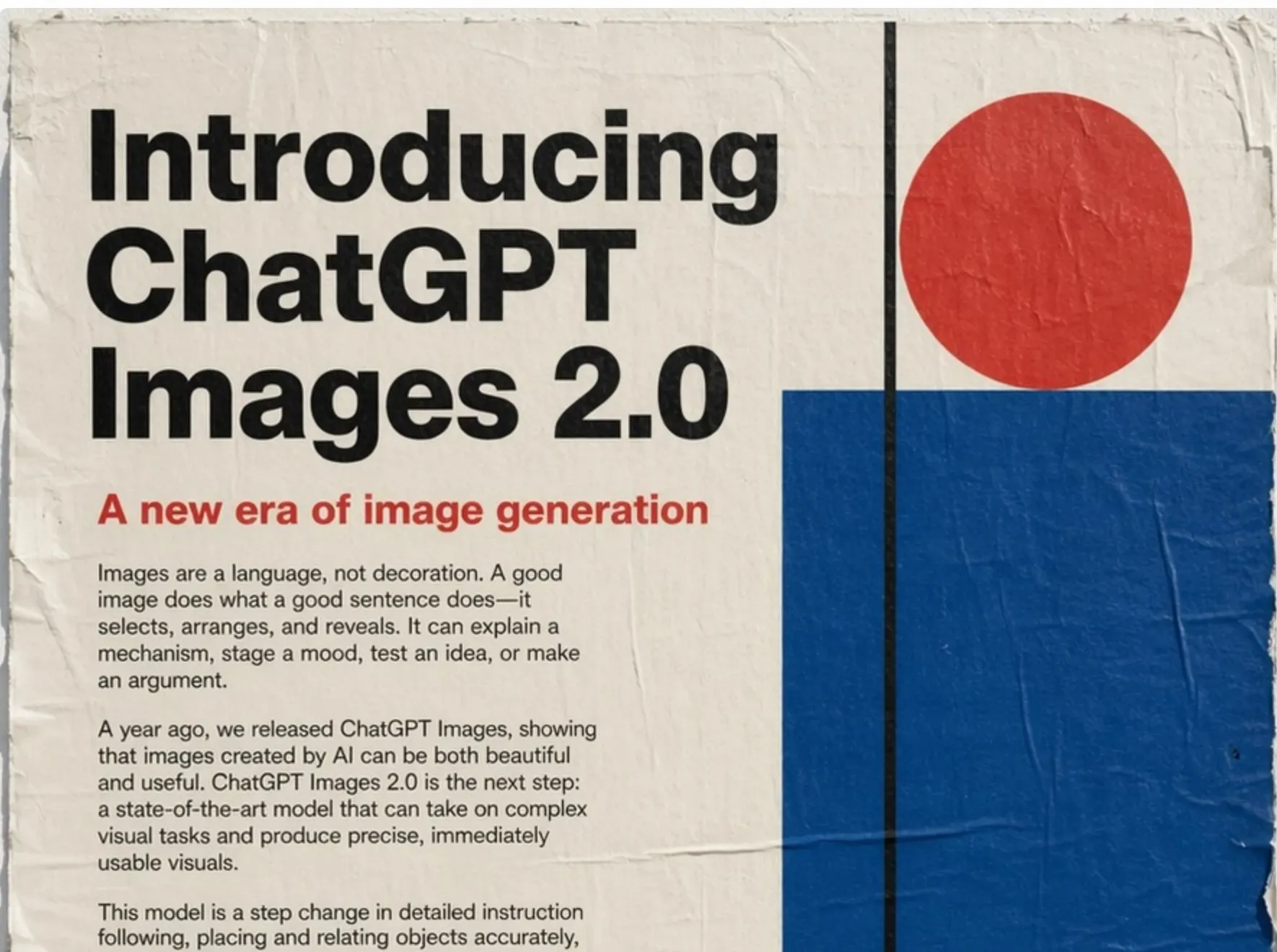
GPT Image 2 is OpenAI’s latest native image-generation model. It is available through ChatGPT, the OpenAI API, and directly inside ChatCut. Compared with GPT Image 1.5, it adds higher-resolution output, stronger prompt following, more reliable text rendering, and a more deliberate generation mode inside ChatGPT.
Those upgrades matter most when an image has a job to do: a thumbnail needs readable copy, a product photo must preserve the item, or a sequence of video stills has to keep the same character and visual language. This review separates the model itself from the ChatGPT experience and the ChatCut integration, then covers the features, pricing, limits, and alternatives that matter in production.
What Is GPT Image 2?
OpenAI released GPT Image 2 on April 21, 2026 as the image model behind ChatGPT Images 2.0. It follows GPT Image 1.5 rather than acting as a simple DALL·E rename. The older DALL·E 2 and DALL·E 3 API models were retired in May 2026, while OpenAI’s GPT Image family became the current API path.
The model is designed for generation and editing. It can follow detailed composition instructions, use image references, render denser text, and produce popular landscape, portrait, square, 2K, and 4K sizes. OpenAI also exposes it through the Image API for developers.
One distinction prevents a lot of confusion: GPT Image 2 is the image model, while Images with thinking is a ChatGPT mode. ChatGPT can combine reasoning, tools, and live web information before it asks the image model to render. A direct Image API request does not independently browse the web.
GPT Image 2 vs GPT Image 1.5
The practical differences are resolution, text quality, edit fidelity, and pricing.
| Feature | GPT Image 1.5 | GPT Image 2 |
|---|---|---|
| Release | December 2025 | April 21, 2026 |
| ChatGPT thinking workflow | No | Yes, on supported paid plans |
| Popular output sizes | Up to 1536 px on the long edge | Includes 2K and 4K options |
| Text rendering | Strong for short Latin text | Better with dense and multilingual text |
| Image-input fidelity | Low or high | Always high |
| Transparent background in the Image API | Supported | Not supported |
| High-quality 1024 × 1024 API example | $0.133 | $0.211 |
| High-quality landscape or portrait API example | $0.200 | $0.165 |
GPT Image 2 is not automatically the cheaper model. It costs more for a high-quality square output, but less for the high-quality portrait and landscape examples in OpenAI’s current pricing table. The right comparison depends on the quality and aspect ratio you actually ship.
GPT Image 2 Key Features, Tested
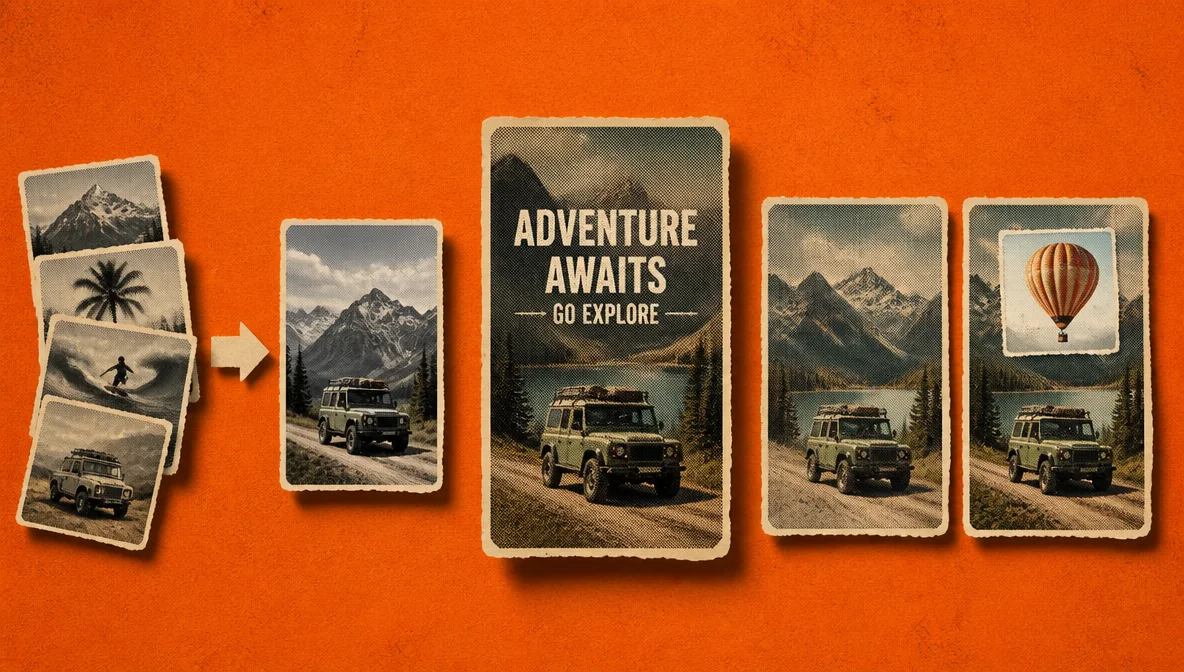
More reliable text rendering
Text is the clearest upgrade. In our tests, short headlines, product labels, and interface copy survived more often on the first attempt than they did with earlier GPT Image models. That makes GPT Image 2 a stronger fit for thumbnails, title cards, social graphics, and UI concepts.
It is not perfect. Small type, long paragraphs, unusual fonts, and tightly packed layouts can still produce substitutions or malformed characters. Treat generated text as a draft that needs visual review, especially for prices, legal copy, or a brand name. If text is the main subject, keep the copy concise and state the exact spelling in the prompt.
Images with thinking in ChatGPT
When a paid ChatGPT plan uses a Thinking or Pro model, Images with thinking can plan and refine the request before rendering. OpenAI says this workflow can use tools such as live web search and can create more than one image while working through a task.
The benefit shows up in underspecified briefs. A request such as “turn this product into a three-panel launch graphic” contains decisions about hierarchy, spacing, camera angle, and supporting text. The reasoning layer can resolve more of those decisions before generation. It may also take longer than a direct image request.
Multiple reference images
Reference images help control subject identity, product appearance, palette, composition, and style. Inside ChatCut, GPT Image 2 accepts up to 10 reference images per generation. The references can be existing project assets or files you import for the task.
Ten references are usually more than enough for a video sequence: two or three views of a character, a product shot, a palette, and a layout reference leave room for scene-specific constraints. More references are not always better. Contradictory lighting, poses, or styles make the brief harder to follow.
Output up to 4K
GPT Image 2 supports popular sizes from 1024 × 1024 through 3840 × 2160 and 2160 × 3840. In ChatCut, the available resolution tiers are 1K, 2K, and 4K. The 2K and 4K paths are currently experimental, so use 1K for prompt iteration and a higher tier for the selected final.
Higher resolution does not fix a weak composition or misspelled text. It increases pixel count and generation cost, so approve the concept before paying for the final pass.
Editing with image inputs
The OpenAI Image API supports prompt-based edits and mask-based inpainting. A mask identifies the region to regenerate while the source image supplies the surrounding context. This is useful for replacing a label, changing a background, or repairing one object without rebuilding the whole frame.
ChatCut currently exposes natural-language and reference-guided editing rather than a dedicated mask upload. Import the source image, describe the change, and include additional references when the edit needs to preserve a product, face, or style.
Test Results
We evaluated GPT Image 2 across product photography, social graphics, UI mockups, character consistency, and text-heavy layouts. These scores are editorial judgments from that test set, not a universal benchmark.
| Dimension | Score | What we observed |
|---|---|---|
| Text rendering | 5/5 | Short display copy was usually legible; dense text still needed checking |
| Prompt following | 4/5 | Strong hierarchy and spatial interpretation; complex scenes sometimes needed one revision |
| Style consistency | 4/5 | Reliable with clear references; more drift without them |
| Product realism | 4/5 | Commercially usable lighting and surfaces; occasional invented details |
| Character consistency | 4/5 | Stronger with multiple views and explicit invariants |
Overall: 21/25. The model is especially convincing when a brief combines a visual subject with readable display text. The main quality-control risk is invented detail: generated labels, interfaces, and product features still need human review.
GPT Image 2 Pricing
OpenAI bills direct API use by image tokens. Its image-generation guide gives these approximate output costs for common 1024-class sizes:
| Quality | 1024 × 1024 | 1024 × 1536 | 1536 × 1024 |
|---|---|---|---|
| Low | $0.006 | $0.005 | $0.005 |
| Medium | $0.053 | $0.041 | $0.041 |
| High | $0.211 | $0.165 | $0.165 |
Prompt tokens and reference-image inputs are additional. Larger sizes consume more image tokens, so a 2K or 4K output costs more than the table above. OpenAI’s pricing and rate limits can change; check the model page before budgeting a large batch.
Inside ChatCut, image generation uses ChatCut credits rather than a separate OpenAI bill or API key. Cost varies with model, quality, resolution, and reference inputs. For all current access paths, see Free GPT Image 2: Every Access Point Compared.
Technical Reference
Sizes and quality
OpenAI documents square, portrait, and landscape sizes at 1K, 2K, and 4K scales. ChatCut exposes ten aspect ratios, three resolution tiers, and auto, low, medium, or high quality. High quality is the current default for GPT Image 2 in ChatCut.
Latency
There is no dependable fixed generation time. Resolution, quality, prompt complexity, input images, server load, and whether ChatGPT performs a thinking pass all affect latency. Use a lower resolution or quality for quick composition tests, then raise the setting for the final asset.
API rate limits
OpenAI currently publishes the following gpt-image-2 rate limits:
| Usage tier | Tokens per minute | Images per minute |
|---|---|---|
| Free | Not supported | Not supported |
| Tier 1 | 100,000 | 5 |
| Tier 2 | 250,000 | 20 |
| Tier 3 | 800,000 | 50 |
| Tier 4 | 3,000,000 | 150 |
| Tier 5 | 8,000,000 | 250 |
These limits apply to direct API accounts, not the ChatGPT or ChatCut interfaces. See the GPT Image 2 model page for the current table.
Output formats and transparency
The Image API can return PNG, JPEG, or WebP. JPEG is often the fastest choice for opaque photographic output, while PNG is useful when lossless quality matters. GPT Image 2 does not support transparent backgrounds through the direct Image API. ChatCut currently stores GPT Image 2 generations as PNG assets in the media library.
Safety and provenance
OpenAI applies image-safety policies before and during generation. A request may be refused or constrained when it involves sexual abuse material, graphic violence, scams, impersonation, illicit activity, or other disallowed content.
OpenAI also says supported images generated through ChatGPT, Codex, and its API include C2PA provenance metadata and SynthID watermarking. Metadata can be removed by screenshots, conversions, or downstream processing, so do not assume every exported file will preserve the same metadata. ChatCut does not independently promise that C2PA metadata survives every asset and export path.
GPT Image 2 Use Cases
-
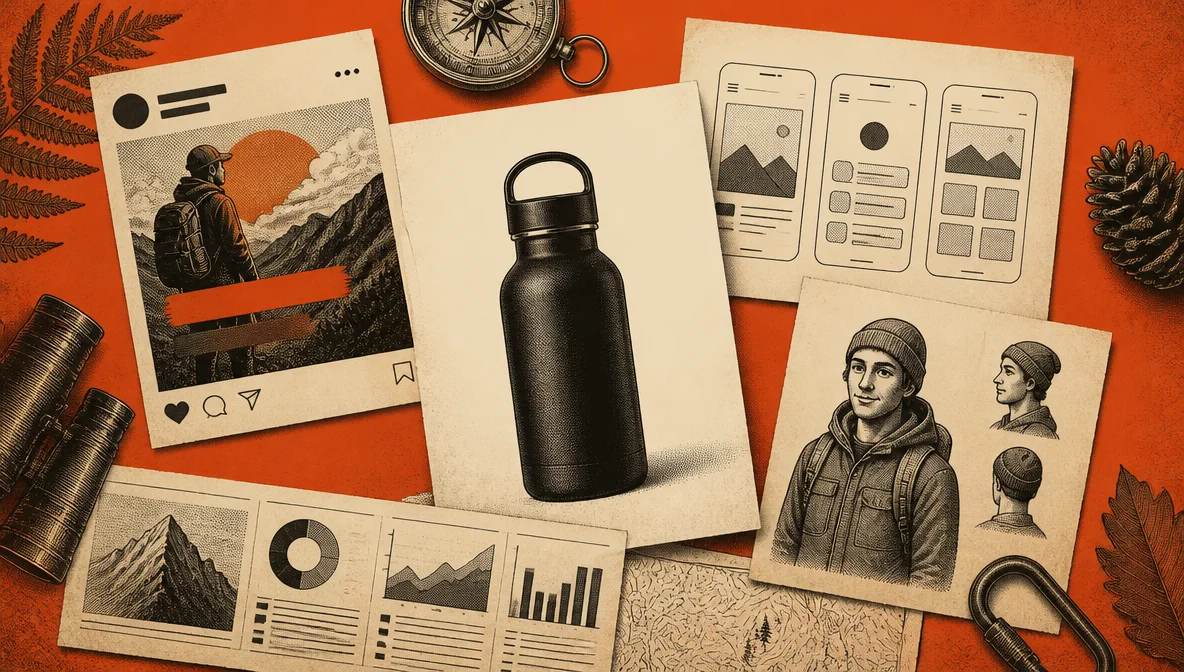
Product photography: create studio-style compositions and variants without a physical reshoot.
-
Social thumbnails and title cards: combine a focal subject with short, readable display copy.
-
Character consistency: use several views of the same character to guide a sequence of stills.
-
UI mockups: explore layouts and interface directions before building a functional prototype.
-
Video stills and B-roll: generate frames that match a project’s established palette and mood.
-
Infographics: draft visual hierarchy and iconography, then verify and replace any factual text before publishing.
For step-by-step workflows and reusable prompt structures, see How to Use GPT Image 2.
How GPT Image 2 Compares
Public preference leaderboards change as models and votes change, so a single Elo snapshot is a poor buying guide. The more durable comparison is which workflow each model is designed to serve.
| Model | Best fit | Main tradeoff |
|---|---|---|
| GPT Image 2 | Text-heavy graphics, prompt following, high-resolution edits | Higher cost at the top quality tier; no transparent API output |
| GPT Image 1.5 | Lower-cost square output and transparent backgrounds | Lower maximum resolution and weaker dense text |
| Nano Banana Pro | Google workflows, brand localization, compositional control | Different pricing and access paths; results still need text review |
| FLUX.2 Max | Stylized image pipelines and flexible developer workflows | Less predictable text rendering for production graphics |
| Midjourney | Art direction, aesthetic exploration, fast visual iteration | Less direct control over exact copy and structured layouts |
GPT Image 2 vs Nano Banana Pro
Nano Banana Pro remains a strong option for Google-centered workflows, localization, and brand-controlled composition. GPT Image 2 is the better default when dense display text and integration with an OpenAI or ChatCut workflow matter most. For a dedicated breakdown, read GPT Image 2 vs Nano Banana Pro.
GPT Image 2 vs Midjourney
Midjourney is still compelling for mood, style exploration, and rapid visual direction. GPT Image 2 is easier to recommend when the brief includes exact text, a structured layout, or a source image that must remain recognizable. Neither removes the need to inspect typography and product details before publication.
GPT Image 2 vs FLUX.2 Max
FLUX.2 Max suits teams that want a broader developer ecosystem and stylized output. GPT Image 2 fits production graphics that depend on instruction following, readable copy, and a direct path into ChatGPT or ChatCut. Cost comparisons should use the exact resolution and provider because both models are sold through multiple access paths.
How to Use GPT Image 2 in ChatCut
ChatCut includes GPT Image 2 inside the editor, so you do not need to configure an OpenAI key or manage a separate API account.
- Open a ChatCut project and describe the image you need in the chat panel.
- Optionally attach up to 10 reference images from your project or computer.
- Choose an aspect ratio, quality level, and 1K, 2K, or 4K resolution.
- Review the generated PNG in the media library.
- Drag the approved asset onto the timeline as a still, title card, B-roll frame, or image-to-video starting frame.
For consistency across a sequence, reuse the same two or three subject references and explicitly repeat the details that must not change: face, outfit, product geometry, palette, and camera treatment. Avoid mixing incompatible style references in one request.
ChatCut is the faster path when the image belongs in an active video project. Direct API access is a better fit for automated bulk generation, custom application logic, or mask-based edits.
Limitations
-
Generated text still needs proofreading. Small, dense, or unfamiliar text can be misspelled even when the overall design looks convincing.
-
The direct API has no transparent-background output for GPT Image 2. Use GPT Image 1.5 or remove the background downstream when transparency is required.
-
2K and 4K are experimental in ChatCut. Generate drafts at 1K and reserve higher tiers for final assets.
-
High-quality output can be expensive at scale. Run a representative batch before committing to a campaign budget.
-
Current information depends on the host workflow. ChatGPT’s thinking mode can use web tools; a direct Image API request does not browse by itself.
-
Provenance metadata can be stripped. File conversion and export pipelines may remove C2PA metadata even when the original generation included it.
Frequently Asked Questions
Is GPT Image 2 free to use?
ChatGPT Images 2.0 is available on all ChatGPT plans, although limits vary and Images with thinking is currently limited to supported paid plans. The OpenAI API has no free usage tier for gpt-image-2. ChatCut provides image generation through its own credit system.
What is Images with thinking?
It is a ChatGPT workflow that reasons about the request before rendering. It can refine a plan, use tools such as web search, and create multiple images while completing a task. It is not a switch on a direct Image API call.
How many reference images can GPT Image 2 use in ChatCut?
ChatCut supports up to 10 reference images per GPT Image 2 generation. Use a smaller, consistent reference set when possible; conflicting references can reduce reliability.
Does GPT Image 2 add watermarks?
OpenAI says supported ChatGPT, Codex, and API images include C2PA metadata and SynthID watermarking. That metadata may be removed by screenshots, file conversion, or downstream processing, so its presence should be checked on the final file rather than assumed.
Can I use GPT Image 2 outputs commercially?
OpenAI’s terms say users own output as between themselves and OpenAI, to the extent allowed by law. You are still responsible for complying with applicable law, OpenAI’s policies, and third-party rights. Review the current terms for your use case.
How do I access GPT Image 2 in ChatCut?
Open a project, describe the image in the chat panel, and select GPT Image 2 when needed. The result enters the media library, where you can review it and drag it onto the timeline.