
AI Video Generator: Create and Refine Clips by Chat
A single text prompt can now produce a 5-15 second photorealistic video clip in under three minutes. No camera, no crew, no stock library license. That’s where AI video generation sits in 2026, and the bottleneck has moved from “can we make this clip” to “how do we refine it without starting over”.
Most AI video generators in 2026 stop at the first draft. You submit a prompt, get a clip, and if the camera move is wrong or the lighting needs to shift, you fire off a brand-new generation and hope. There’s no conversation. There’s no iterative refinement. Each attempt is independent.
ChatCut works differently. The conversational loop runs through a single chat thread: describe the clip you want, watch the result, type “make the camera slower” or “shift the lighting to golden hour”, and the AI adjusts. That’s the difference between a generator and a generation workflow. The first delivers a file; the second delivers what you actually wanted.
What does an AI video generator do in 2026?

An AI video generator takes a text prompt (sometimes plus a reference image or video) and produces a short video clip. The clip is generated frame-by-frame through a video diffusion model. The output is usually 4-15 seconds long, in resolutions up to 1080p (some up to 4K on professional tiers).
The mainstream models in 2026 are Seedance 2.0, Google Veo 3.1, Runway Gen-4, Kling AI, Pika, and Hailuo MiniMax. OpenAI’s Sora was a 2024 leader but is being discontinued in 2026. Each model has a different strength: Seedance for narrative work and audio integration, Veo for cinematic quality, Runway for marketer-friendly character consistency, Kling for multi-shot storyboarding, Pika for social-first effects, Hailuo for cost-effective volume.
What separates the 2026 generation from earlier models:
- Length. Up to 15 seconds in a single generation. Older models capped at 3-4 seconds.
- Audio. Several models now generate matching audio (footsteps, ambient, soft music) in the same pass.
- Camera language. The better models understand professional shot terminology: “close-up”, “rack focus”, “shallow depth of field”, “drone push-in”.
- Reference inputs. Image and video references for style consistency across shots.
- Edit-ability. Some platforms (notably ChatCut) let you refine, extend, or splice generated clips through follow-up prompts.
How do you generate a video clip from text in ChatCut?

The five-step workflow inside ChatCut’s AI video generator, which uses Seedance 2.0 as the underlying model:
Step 1. Describe the clip. In the AI chat panel, type what you want. The prompt template that works:
Generate a [duration] [camera shot type] of [subject] [action], [setting], [lighting], [aesthetic style]A concrete example:
Generate a 5-second close-up of hands typing on a vintage typewriter, soft natural light, shallow depth of field, warm muted color gradingStep 2. Wait 2-3 minutes. Generation runs asynchronously. The clip lands in your media library when ready. Failed generations (content-policy rejections on real human faces, for example) don’t consume credits.
Step 3. Watch the result. The clip auto-plays in the preview pane. If it’s right, drop it on the timeline. If it’s wrong, refine in chat.
Step 4. Refine through follow-up. This is the conversational loop most generators miss. Type:
Make the camera slower and add slight motion blur on the keysChatCut adjusts the existing clip rather than generating a new one from scratch. Refinement runs significantly cheaper than fresh generation because it builds on the prior result.
Step 5. Drop on the timeline. Drag the clip onto a video track. Trim, color-match to surrounding footage, layer with audio. From here it’s normal video editing.
For a 30-shot project, the math is roughly: 30 generations × 3 minutes wait + minimal refinement loops = under 2 hours of total clock time, vs the half-day a stock-search workflow used to take.
What can you actually generate in 2026 vs what’s still hard?

The honest read on what AI video generation handles well in 2026 and what still trips it up.
Generates well:
- Generic establishing shots (cityscapes, landscapes, weather)
- Drone footage and aerial moves
- Time-lapses of anything except specific recognizable places
- Abstract textures, particles, color washes
- Macro close-ups of objects (hands, products, food, surfaces)
- Cinematic mood pieces with no specific characters
Still hard:
- Recognizable real people (most models block uploads with real human faces; generated humans vary in fidelity and consistency)
- Specific branded products from your specific brand (the AI doesn’t know your logo or packaging)
- Complex multi-character interactions (two people having a conversation rarely lands)
- Long continuous shots over 15 seconds (most models cap at 5-15s; longer scenes require multi-shot generation or splicing)
- Specific real locations (your office, your store, the venue where the event happened)
The practical implication: most production teams in 2026 use AI video generation for supplementary B-roll rather than primary content. Talking-head footage, product close-ups, branded environments still get shot. Generic scene-setters and impossible-to-shoot moments get generated.
How do you keep generated clips visually consistent across a project?
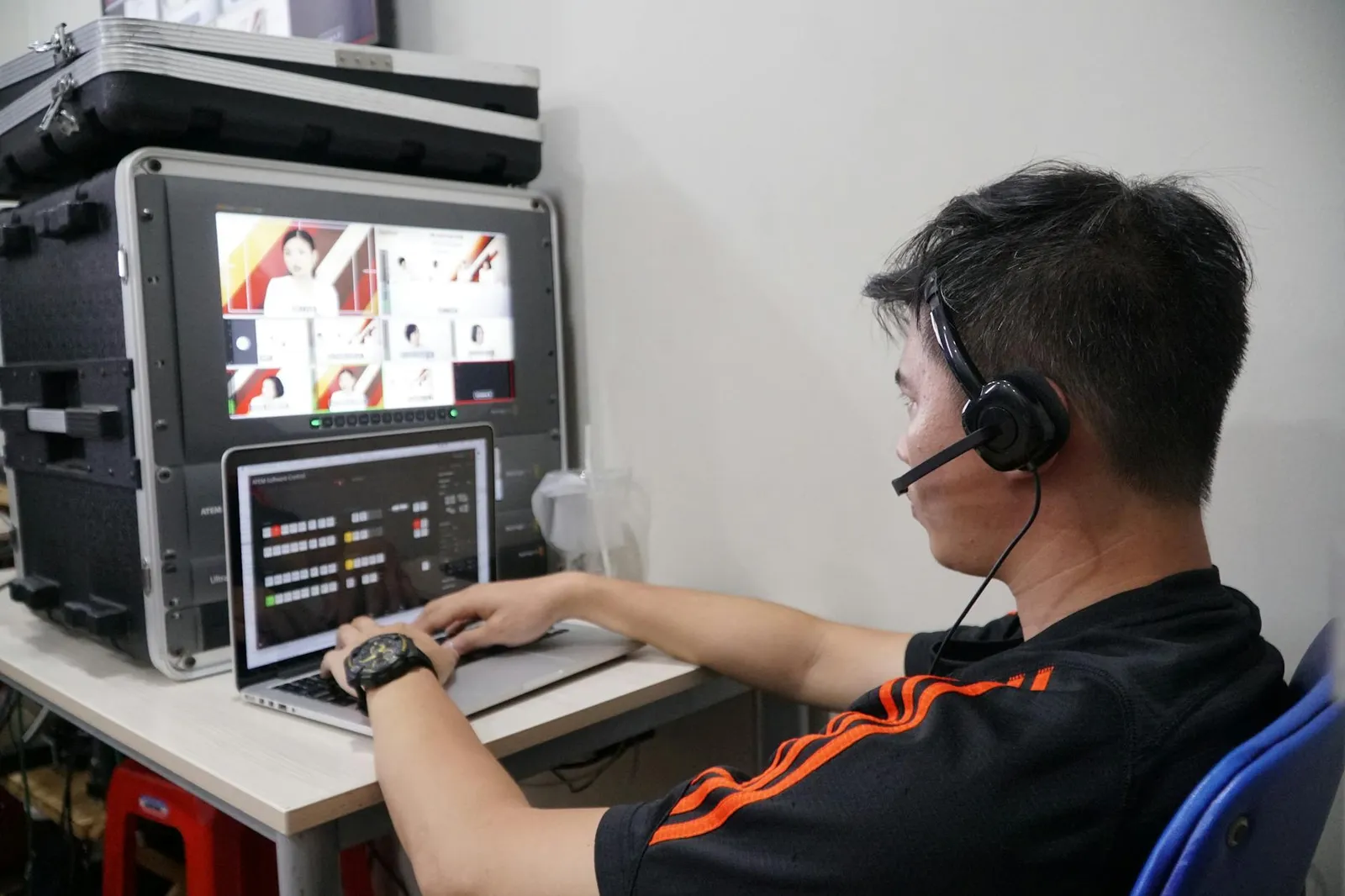
A common failure mode: 12 generated clips that all look subtly different. Different lighting, different color grading, different aspect of motion. The viewer can’t articulate what’s wrong but the project feels disjointed.
Three techniques fix this in 2026.
Use reference images. Seedance 2.0 in ChatCut accepts up to 9 reference images and 3 reference videos per generation. Pass in a frame from your A-roll footage to anchor lighting, color, and aesthetic.
Lock a style anchor early. Generate one clip carefully, with all the visual decisions you want. Use that clip as the style reference for every subsequent generation in the project. The downstream clips inherit the look.
Batch generate from one prompt template. Instead of writing 12 prompts, write one master prompt and vary only the specific subject. “Generate a 5-second close-up of [subject], soft natural light, shallow depth of field, warm muted color grading” — fill in [subject] for each clip. Consistency is automatic because the visual brief is locked.
For cinematic and narrative work specifically, this anchored-batch approach is the standard 2026 pattern.
Is AI video generation actually replacing stock libraries?
Partly, and the answer depends on the use case.
Where AI generation has won:
- Generic scene-setters where the location doesn’t matter (forest at sunrise, city street, ocean waves)
- Abstract and conceptual visuals (data flowing, time passing, mood pieces)
- Impossible-to-shoot scenes (drone shots over inaccessible places, microscopic close-ups, historical reconstructions)
Where stock still wins:
- Specific real locations (recognizable cityscapes, landmarks)
- Real people doing real things (sports, candid emotion, authentic interactions)
- Footage with verified provenance for journalism or documentary use
- Footage where commercial licensing terms need to be airtight from a known source
The economics: a single-use stock clip from a major library runs $50-120. Generating a comparable 5-second shot with Seedance 2.0 in ChatCut costs around 3 credits, roughly $0.75 on the entry Pro plan. For a project using 8 generated clips, that’s $6 vs $400-960 in stock licensing. The cost gap matters at volume.
For comparison-shopping the AI generators specifically, our best AI video generator round-up covers the head-to-head testing of all six major models in 2026.
FAQ
How long does it take to generate a single AI video clip? Most modern models (Seedance 2.0, Veo, Runway) generate a 5-second clip in 2-5 minutes. Higher-resolution or longer outputs take proportionally more time. Refinement passes typically run faster than fresh generations.
Can I generate AI video without paying anything? Several models offer free trial credits. ChatCut’s free plan covers initial testing; sustained AI video work moves to the Pro plan. For higher-volume free generation, models like Hailuo MiniMax sometimes have generous free tiers, with rate limits and feature restrictions to consider.
What’s the maximum length for a single generation? Seedance 2.0 caps at 15 seconds. Runway Gen-4 caps at 16 seconds. Most other models cap at 4-10 seconds. For longer scenes, generate multiple clips and either splice in your editor or use multi-shot mode (Seedance, Kling) that produces a sequence.
Does AI-generated video work for commercial projects? Output from major models on paid tiers (Seedance 2.0, Veo, Runway, Kling) includes commercial licensing. Free-tier output is usually personal-use only. For corporate and brand work, verify the specific license terms of the model you’re using.
Can I edit a generated clip after the fact? Most generators output a fixed video file you can’t modify. ChatCut’s approach is different: generated clips can be extended, spliced, or re-prompted through the same chat thread without losing the original generation context.
Try the conversational workflow
Open ChatCut, open a new project, and try this prompt:
Generate a 5-second cinematic establishing shot of a foggy coastal town at dawn, slow drone push-in, warm muted color gradingWait three minutes. Watch the clip. Then refine:
Make the push-in slower and add a subtle haze effect to the foregroundYou’ll have a polished clip on your timeline in under ten minutes. You describe the edit. ChatCut executes it.